Background
Each test session is associated with a build. In particular, with predictive test selection tests are selected based on the Git changes in a build (among other data).
Record builds
To record a build, run smart-tests record build before creating a build in either your CloudBees CI or organizations CI script:
smart-tests record build --build <BUILD NAME> --source src=<PATH TO SOURCE>
For more information on the record build command, refer to CLI reference - Command:record build.
-
With the
--buildoption, assign a unique identifier to this build. This value will be used later when test results are recorded. For tips on choosing this value, refer to Choose a value for build name. -
The
--sourceoption points to the local copy of the Git repository (or repositories) used to produce this build, such as.orsrc.-
Make sure to point to a full clone of each repository, not a partial clone.
-
GitHub Actions users: if using
actions/checkoutto check out the current repo, set thefetch-depth: 0. -
Refer to Record builds from multiple repositories.
-
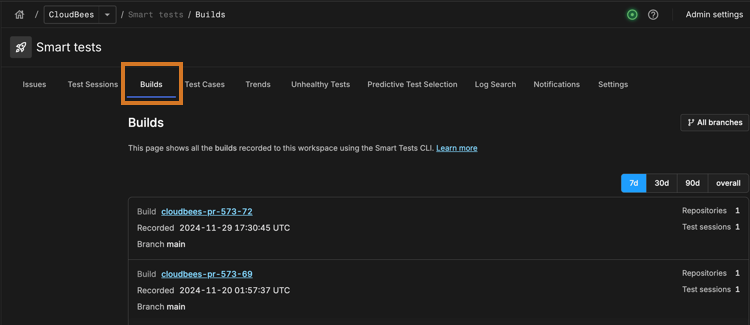
View recorded builds on the Builds dashboard.
Record test results against your builds
After you record a build, you can record test results against it by updating the smart-tests record tests invocation(s) created after following Record test results with the CloudBees Smart Tests CLI:
# before smart-tests record tests --no-build <TOOL> <PATH TO REPORTS> # after smart-tests record tests --build <BUILD NAME> --session <SESSION_NAME> <TOOL> <PATH TO REPORTS>
If done correctly, you will see the corresponding build name for each test session on the Test session section on the CloudBees Smart Tests dashboard.