A workspace is the logical boundary within which CloudBees Smart Tests collects, analyzes, and learns from your test data. It groups all the test suites you want to analyze together as one set, typically because they test the same product, application, or service, or because the same team owns them.
Everything CloudBees Smart Tests produces for you is scoped to a workspace: the builds and test sessions you send, the insights you see, and the model that drives Predictive Test Selection and confidence curves. A workspace can hold one test suite or many. Test suites are the boundary inside a workspace: they let you see insights and confidence curves per suite, while model training still considers every run in the workspace.
Workspaces
Think of a workspace as the unit of learning and reporting: it provides a shared data pool and a single model, scoped to a specific product or team.
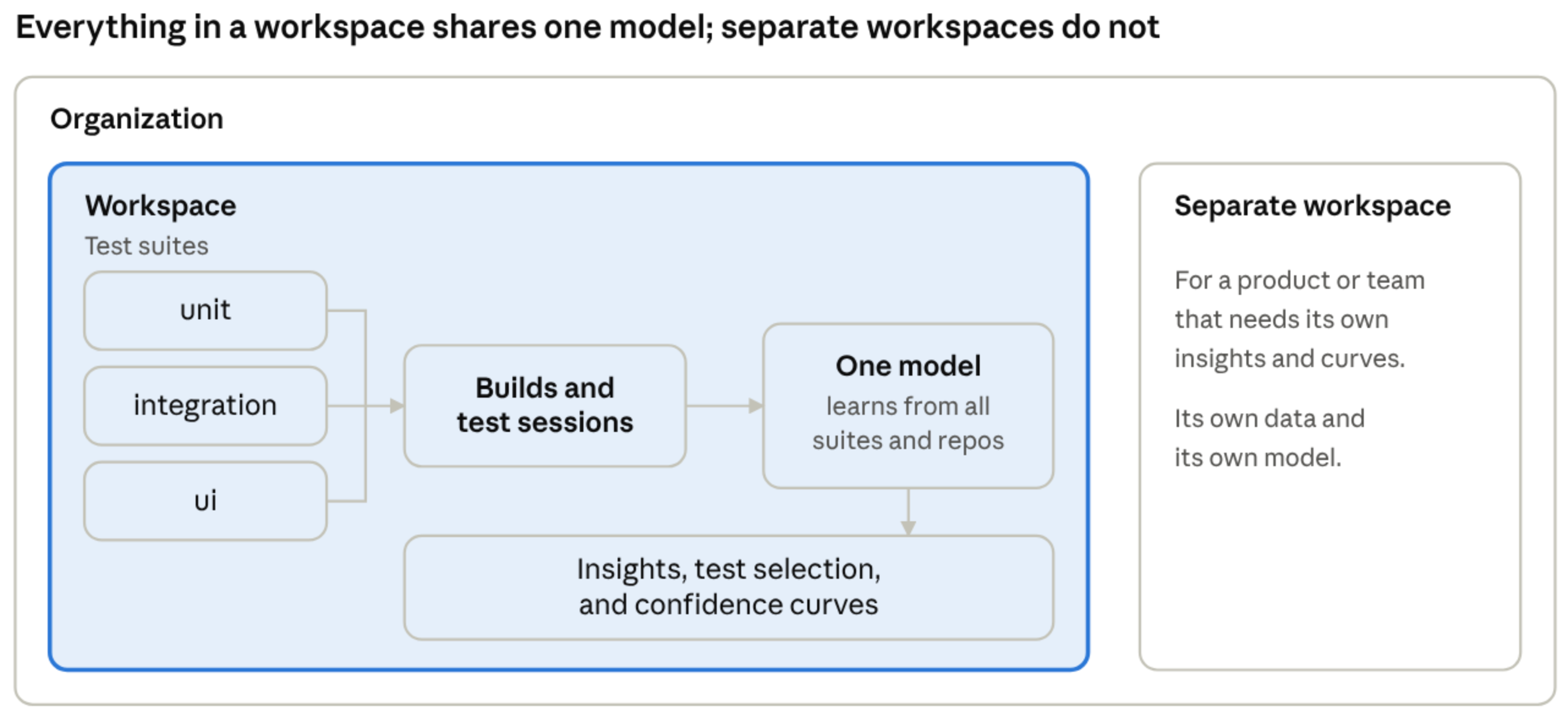
The organization holds your workspaces. Inside a workspace, builds and test sessions arrive from every repository and test runner you connect, each tagged with a test suite. One model, which Smart Tests sometimes calls the brain, learns from all of that data together. It drives test selection and the confidence curves, and it feeds the insights you see. Anything in a different workspace has its own data and its own model.
Three ideas are enough to hold on to:
-
The workspace is the boundary. Data, insights, and the model do not cross it.
-
Test suites are labels inside the boundary. They give you separate insights and confidence curves per suite, but model training still uses every run in the workspace.
-
Repositories are sources, not boundaries. Many repositories can feed one workspace.
What belongs in a workspace
By default, use one workspace per product or application, regardless of how many repositories, test runners, or test suites it includes.
Smart Tests learns from all test runs within a workspace. Keeping all related tests for a product in one workspace gives Smart Tests a broader context for making informed test selection decisions.
| Your situation | Recommendation | Why |
|---|---|---|
One product built from several repositories and test runners |
One workspace |
The model learns from all of them together, and you get one set of insights for the product. |
Unit, integration, and UI tests for the same application |
One workspace, one test suite per kind of test |
Each suite gets its own insights and confidence curves, and all of them train the same model. |
Two teams own different services of one product and each wants its own insights |
One workspace, one test suite per team or service |
Each suit has its own insights and curves, while the model still learns from both teams' runs. |
A team wants its model trained only on its own runs |
Separate workspace |
Model training spans the whole workspace; a workspace boundary is the only way to separate it. |
Unrelated products |
Separate workspaces |
Nothing for the model to learn across. |
What to know before combining workspaces
Grouping more into one workspace gives the model more context. Test suites still let you look at one slice at a time, because insights and confidence curves are available per suite. What a suite cannot do is isolate training: the model considers all runs in the workspace, whichever suite they belong to. If you need a model trained on only one team’s or repository’s runs, give it its own workspace.
A useful question to settle the boundary: would I want these tests to be judged, ranked, and reported on as one set? If yes, they belong together.
Defining a workspace
Defining a workspace means deciding its boundary, then giving it a name and an API key. The boundary is the hard part; the rest is mechanical.
-
Pick the boundary: Use the guidance above to decide which product, application, or team the workspace covers.
-
Name it after that boundary: Choose the product or service name (for example, "Payments platform"), not a test type or a single suite ("Selenium tests"), since the workspace will hold several suites.
-
Create workspaces: Workspaces belong to an organization, and every member of the organization can see all of its workspaces. Today, new workspaces are requested through your customer success manager or CloudBees Support.
-
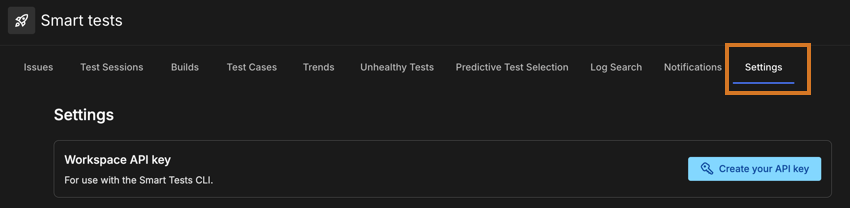
Create an API key for it: Each workspace has its own API key, created from the Settings tab on the workspace dashboard. Use it to authenticate the Smart Tests CLI from your CI. For security reasons a key cannot be recovered after creation; if you lose it, create a new one and update your CI scripts. For more information, refer to Workspace settings.
-
Start sending data: Send builds and test sessions to the workspace, tagging each session with the test suite it belongs to. For more information, refer to what is a test suite.
To move between workspaces in the dashboard, use the workspace dropdown in the left navigation.