|
Before you start recording test sessions, consider your Test Session Layouts. |
CloudBees Smart Tests uses your test results from each test session to provide testing insights and recommendations.
After running the record build command, execute the record session command to create test sessions in your workspace.
The general structure of this command is as follows:
smart-tests record session --build <BUILD NAME> --test-suite <TEST SUITE NAME> > smart-tests-session.txt
-
--build <BUILD NAME>-
Use if you recorded a build before running tests (for Predictive test selection only). For more information, refer to Record builds with the CloudBees Smart Tests CLI.
-
-
--test-suite <TEST SUITE NAME>-
Use to set test suites. For more information, refer to Test suite.
-
Record a session
-
Run the
record sessioncommand in your terminal. For example:{PRODUCT} record session --build "Build 1" --test-suite "e2e" > smart-tests-session.txt -
After running the
record sessioncommand, view your test sessions in the CloudBees Smart Tests dashboard.The dashboard will display empty test session(s), until the
record testscommand is run. Once that command is executed, the dashboard will populate with test sessions, test results, and insights.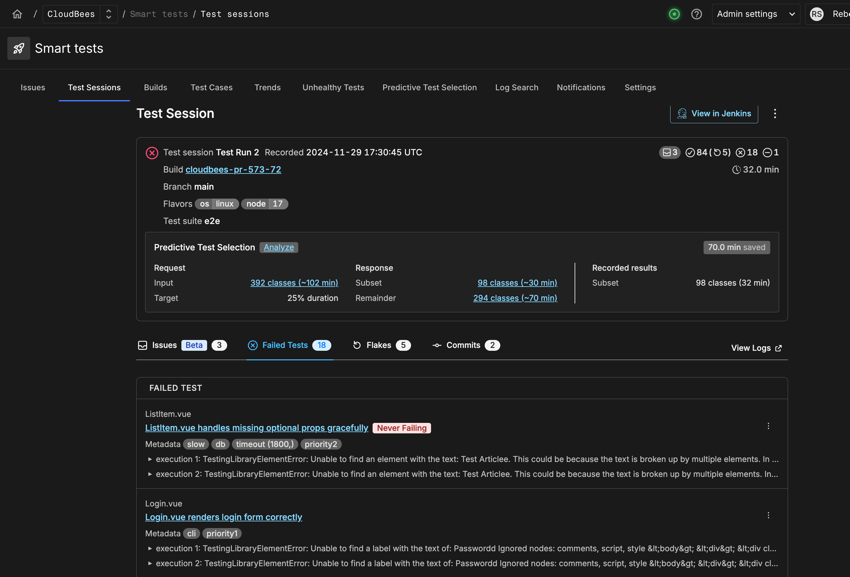 Figure 1. Test Session tab on dashboard
 -
Select a test session to view the session details.
-
View session details using the dashboard. Such as;
-
Test session summary (Build name, flavors, test suite, session duration, and more.)
-
Test session details (Filters specific to the session, such as issues, failed tests, and more.)
-
(Optional) Select View in Jenkins to export and view test details in a Jenkins file.
-
(Optional) Select the
 to download the test session details to a CSV file.
-
-
View test details using the filters. Such as;
-
Select Issues to view the issues related to the test session.
For more information, refer to Intelligent Test Failure Diagnostics.
-
Select Failed tests to view the failed tests in the test session.
-
Select Flakes to view which tests were flaky in the test session.
For more information, refer to Test status definitions.
-
Select Commits to view the details and number of commits related to the test session.
-
-
-
Select View Logs to view the session logs. The Log Search tab on the dashboard displays.
-
Select the desired log file to view the session logs related to the test session. For more information, refer to Attach log files to test sessions.
-
Test status definitions
The following define the status criteria used in the test session details:
-
Success: A test the passed.
-
Failure: A test that failed in all executions.
-
Flake: A test failure that eventually passed after several retries within the same test session.
-
Skip: A test that was not executed.
For more information about test sessions, refer to Test session layouts.