|
Before you start recording test results to test sessions, consider your Test Session Layouts. |
CloudBees Smart Tests uses the test results from each test session to provide features.
After running tests, run the smart-tests record tests command to record test results in your workspace.
The general structure of this command is as follows:
smart-tests record tests <BUILD OPTIONS> <TOOL NAME> <PATHS TO REPORT FILES>
-
<BUILD OPTIONS>: Use one of the following:-
--no-build, where no build information is captured with the test results. This is the best option for getting started quickly. The examples on this page all use this option. -
--build <BUILD NAME>, is used if you recorded a build before running tests (for predictive test selection only). Refer to Record builds with the CloudBees Smart Tests CLI.Even if you plan to use Predictive test selection, you can always start recording tests without recording builds and then record builds later.
-
--session <SESSION ID STRING>, is used if you have a complex test session layout. Refer to Manage complex test session layouts.
-
-
<TOOL NAME>: This command varies slightly based on your test runner/build tool. Refer to Instructions for test runners/build tools for specific tool instructions. -
<PATHS TO REPORT FILES>: After recording tests, view recorded test sessions on the menu:[Test Session] dashboard of the CloudBees Smart Tests.
Select a session to view details and failed tests.
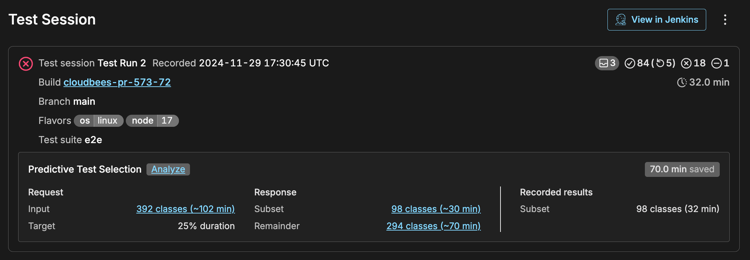
The CLI will also output a link to view each session’s details in the web app.
Instructions for test runners/build tools
The CloudBees Smart Tests CLI supports many popular test runners and build tools. Follow the instructions for the tool used to record test results.
Android Compatibility Test Suite (CTS)
After running tests, point the CLI to your test report file(s):
smart-tests record tests cts --no-build android-cts/results/*/.xml
Android Debug Bridge (ADB)
Currently, the CLI doesn’t have a record tests command for ADB. Use the command for Gradle instead.
Ant
-
After running tests, point the CLI to your test report file(s):
smart-tests record tests ant --no-build <PATH(S) TO JUNIT XML FILE(S)> -
Then, follow the instructions to Ensure record tests always runs.
Bazel
-
After running tests, point the CLI to your test report files to record test results:
smart-tests record tests bazel --no-build -
Then, follow the instructions to Ensure record tests always runs.
Behave
-
Generate reports that CloudBees Smart Tests can consume, add the
--junitoption to your existingbehavecommand:# run the tests however you usually do behave --junit -
After running tests, point the CLI to your test report files to record test results:
smart-tests record tests behave --no-build ./reports/*.xml -
Then, follow the instructions to Ensure record tests always runs.
CTest
-
Run your tests with
ctest -T test --no-compress-output. These options ensure test results are written to theTestingdirectory. -
After running tests, point the CLI to your test report files to record test results:
smart-tests record tests ctest --no-build "Testing/**/Test.xml" -
Then, follow the instructions to Ensure record tests always runs.
cucumber
CloudBees Smart Tests supports JSON and JUnit XML reports generated by cucumber (using -f junit or -f json . Follow the instructions for whichever one being used. JUnit XML is the default.
If you run cucumber with the -f junit option, like this:
bundle exec cucumber -f junit -o reports
-
After running tests, point the CLI to your test report files to record test results:
smart-tests record tests cucumber --no-build "./reports/*/.xml" -
Then, follow the instructions to Ensure record tests always runs.
If you run cucumber with the -f json option, like this:
bundle exec cucumber -f json -o reports
-
After running tests, point the CLI to your test report files to record test results (note the
--jsonoption):smart-tests record tests cucumber --no-build --json "./reports/*/.json" -
Then, follow the instructions to Ensure record tests always runs.
|
If you receive a warning message such as
|
Cypress
-
After running tests, point the CLI to your test report files to record test results:
smart-tests record tests cypress --no-build ./report/*.xml -
Then, follow the instructions to Ensure record tests always runs.
dotnet test
-
Configure
dotnet testto product NUnit report files. Install the NunitXml.TestLogger package from NuGet via your preferred method, then the-loption to yourdotnet testcommand to enable the logger:dotnet test … -l nunit -
After running tests, point the CLI to your test report files to record test results:
smart-tests record tests dotnet --no-build "*/.xml" -
Then, follow the instructions to Ensure record tests always runs.
Flutter
-
Run tests with the
--machineoption and produce a test report as JSON (NDJSON) format.flutter test --machine > report.json -
After running tests, point the CLI to your test report file to record test results:
smart-tests record tests \ --session $(cat smart-tests-session.txt) \ flutter \ report.json
GoogleTest
-
Configure GoogleTest to produce JUnit-compatible report files. See their documentation for how to do this. You’ll end up with a command something like this:
# run the tests however you normally do ./my-test --gtest_output=xml:./report/my-test.xml -
After running tests, point the CLI to your test report files to record test results:
smart-tests record tests googletest --no-build ./report -
Then, follow the instructions to Ensure record tests always runs.
Go Test
-
Generate reports that CloudBees Smart Tests can consume, use go-junit-report to generate a JUnit XML file after you run tests:
# install JUnit report formatter go get -u github.com/jstemmer/go-junit-report # run the tests however you usually do, then produce a JUnit XML file go test -v ./... | go-junit-report -set-exit-code > report.xml -
Then point the CLI to your test report file to record test results:
smart-tests record tests go-test --no-build report.xml -
Then, follow the instructions to Ensure record tests always runs.
Gradle
-
After running tests, point the CLI to your test report files to record test results:
smart-tests record tests gradle --no-build ./build/test-results/test/ -
Then, follow the instructions to Ensure record tests always runs.
-
By default, Gradle’s report files are saved to
build/test-results/test/, but that might differ depending on how your Gradle project is configured. -
You can specify multiple directories if you do a multi-project build.
-
A dedicated Gradle task to list all report directories might be convenient for a large project. See the upstream documentation for more details and insights.
-
Alternatively, you can specify a glob pattern for directories or individual test report files (this pattern might already be set in your pipeline script for easy copy-pasting), e.g.,
gradle /build//TEST-*.xml.
Jest
-
Generate reports that CloudBees Smart Tests can consume, use jest-junit to generate a JUnit XML file after you run tests.
# install jest-junit reporter npm install jest-junit --save-dev # or yarn add --dev jest-junitYou will need to configure jest-junit to include file paths in reports.
You can do this using environment variables:
Using environment variablesUsing package.jsonRecommended config:
export JEST_JUNIT_CLASSNAME="{classname}" export JEST_JUNIT_TITLE="{title}" export JEST_JUNIT_SUITE_NAME="{filepath}"Minimum config:
export JEST_JUNIT_SUITE_NAME="{filepath}"Add the following lines to your
package.json. The detail is the jest-junit section.Recommended config:
"jest-junit": { "suiteNameTemplate": "{filepath}", "classNameTemplate": "{classname}", "titleTemplate": "{title}" }Minimum config:
"jest-junit": { "suiteNameTemplate": "{filepath}" } -
Run
jestusing jest-junit:# run tests with jest-junit jest --ci --reporters=default --reporters=jest-junit -
After running tests, point the CLI to your test report files to record test results:
# send test results to {PRODUCT} smart-tests record tests jest --no-build your-junit.xml -
Then, follow the instructions to Ensure record tests always runs.
Karma
-
Generate reports that CloudBees Smart Tests can consume, use karma-json-reporter to generate JSON test reports. Refer to the linked page for more details, but your
karma.conf.jschange should look something like this: -
After running tests, point the CLI to your test report file to record test results:
smart-tests record tests karma --session $(cat session.txt) test-results.json -
Then, follow the instructions to Ensure record tests always runs.
Maven
-
After running tests, point the CLI to your test report files to record test results:
smart-tests record tests maven --no-build "./**/target/surefire-reports"You can pass multiple directories/patterns, e.g. _
smart-tests record tests maven --no-build '<pattern/directory 1>' '<pattern/directory 2>'_. -
Then, follow the instructions to Ensure record tests always runs.
minitest
-
Use minitest-ci to output test results to a file. It may already be installed if you store your test results on your CI server.
-
After running tests, point the CLI to your test report files to record test results:
smart-tests record tests minitest --no-build "$CIRCLE_TEST_REPORTS/reports" -
Then, follow the instructions to Ensure record tests always runs.
NUnit Console Runner
|
CloudBees Smart Tests CLI accepts NUnit3 style test report XML files produced by NUnit. |
-
After running tests, point the CLI to your test report file(s) to record test results:
smart-tests record tests nunit --no-build path/to/TestResult.xml -
Then, follow the instructions to Ensure record tests always runs.
prove for Perl
CloudBees Smart Tests supports JUnit XML report generated by TAP::Formatter::JUnit.
-
Follow the instructions for generating a report.
prove -Ilib --formatter TAP::Formatter::JUnit-r tThe command will generate a JUnit XML report with the name
junit_output.xml. -
After running tests, point the CLI to your test report file to record test results:
smart-tests record tests prove --no-build junit_output.xml -
Then, follow the instructions to Ensure record tests always runs.
Playwright
CloudBees Smart Tests supports JSON and JUnit XML reports generated by Playwright official reporters (using --json ).
Follow the instructions for whichever one being used. JUnit XML is the default but CloudBees Smart Tests recommends to use JSON reports and option. Because JUnit XML reports will consolidate multiple same test case results into one.
First, run tests with the --reporter=json option:
PLAYWRIGHT_JSON_OUTPUT_NAME=results.json npx playwright test --reporter=json
or pass options to the configuration file directly:
import { defineConfig } from '@playwright/test'; export default defineConfig({ reporter: [['json', { outputFile: 'results.json' }]], });
-
After running tests, point the CLI to your test report file(s) to record tests results
smart-tests record tests playwright --no-build --json results.json -
Then, follow the instructions to Ensure record tests always runs.
If you use JUnit Reporter to generate reports, like this:
PLAYWRIGHT_JUNIT_OUTPUT_NAME=results.xml npx playwright test --reporter=junit
or pass options to the configuration file directly
import { defineConfig } from '@playwright/test'; export default defineConfig({ reporter: [['junit', { outputFile: 'results.xml' }]], });
-
After running tests, point the CLI to your test report files(s) to record test results:
smart-tests record tests playwright --no-build results.xml -
Then, follow the instructions to Ensure record tests always runs.
pytest
CloudBees Smart Tests supports JSON and JUnit XML reports generated by pytest (using --junit-xml or --report-log ).
Follow the instructions for whichever one being used. JUnit XML is the default.
First, run tests with the --junit-xml option:
pytest --junit-xml=test-results/results.xml
|
pytest changed its default test report format from Therefore, if using pytest 6 or newer, you must also specify |
-
After running tests, point the CLI to your test report file(s) to record test results (note the
--jsonoption):smart-tests record tests pytest --no-build ./test-results/ -
Then, follow the instructions to Ensure record tests always runs.
If you use the pytest-dev/pytest-reportlog plugin to generate reports, like this:
pytest --report-log=test-results/results.json
-
After running tests, point the CLI to your test report file(s) to record test results:
smart-tests record tests pytest --no-build --json ./test-results/ -
Then, follow the instructions to Ensure record tests always runs.
Robot
-
After running tests with
robot, point the CLI to your test report files to record test results:smart-tests record tests robot --no-build output.xml -
Then, follow the instructions to Ensure record tests always runs.
RSpec
-
Use rspec_junit_formatter to output test results to a file in RSpec. If you already have a CI server storing your test results, it may already be installed:
bundle exec rspec --format RspecJunitFormatter --out report/rspec.xml -
After running tests, point the CLI to your test report files to record test results:
smart-tests record tests rspec --no-build ./report -
Then, follow the instructions to Ensure record tests always runs.
Ruby test-unit
-
Use test-unit-launchable to output test results to a file in test-unit.
ruby test/example_test.rb --runner=launchable --launchable-test-report-json=report.json -
After running tests, point the CLI to your test report files to record test results:
smart-tests record tests raw --no-build report.json -
Then, follow the instructions to Ensure record tests always runs.
TestNG
If using the TestNG framework, check whether the tests are run with Gradle or Maven. Then, use the appropriate command for the corresponding tool.
Vitest
-
Run tests with the
--reporter junitoption and the--outputFileoption to produce a test report in JUnit format.vitest run --reporter junit --outputFile report.xml -
After running tests, point the CLI to your test report file to record test results:
smart-tests record tests \ --session $(cat smart-tests-session.txt) \ vitest \ report.json
XCTest
-
Generate reports that CloudBees Smart Tests can consume, use xcpretty to generate a JUnit XML file after you run tests:
# install xcpretty gem install xcpretty # run the tests however you usually do, then produce a JUnit XML file xcodebuild test -scheme <SCHEMA> -destination '<DESTINATION>' -parallel-testing-enabled | xcpretty -r junit -
Point the CLI to your test report file to record test results:
smart-tests record tests \ --session $(cat smart-tests-session.txt) \ xctest \ build/reports/junit.xml -
Then, follow the instructions to Ensure record tests always runs.
Other instructions
If not using any of the above, refer to raw profile for custom test runners or file profile for unsupported test runners.