If your GitHub Actions workflow sets EXPERIMENTAL_GITHUB_OIDC_TOKEN_AUTH=1, it is using the legacy GitHub Actions OIDC flow. That flow still works with the latest CLI but is deprecated: new pipelines should use the generic OIDC flow instead, and existing pipelines should migrate.
For the recommended, non-deprecated setup, refer to Authenticate a pipeline with OIDC.
|
Migrate at your own pace. CloudBees Smart Tests automatically falls back to the legacy |
The two flows compared
| Aspect | Legacy (deprecated) | Generic (recommended) |
|---|---|---|
CLI env var |
|
|
What CloudBees Smart Tests matches |
The |
The normalized |
How the mapping is created |
CloudBees Support must associate your GitHub repository with your workspace. You cannot self-serve. |
Self-service in the web app under Settings → Trusted OIDC subjects. |
Workflow YAML |
Requires |
|
Audience check |
Not enforced. |
Enforced: the id-token must carry |
Status |
Deprecated. Kept working for backward compatibility; will be removed in a future release. |
Recommended for all new and existing pipelines. |
Migrate an existing workflow to the generic flow
-
Upgrade the CloudBees Smart Tests CLI in your workflow to the latest version (
pip install --upgrade smart-tests). -
Run the pipeline once with
smart-tests verify --oidcunder the generic flow to obtain your repository’s normalized subject. You can do this in a temporary branch by replacing the legacy env var with the generic one and letting the first run fail:env: SMART_TESTS_GITHUB_OIDC_TOKEN_AUTH: '1' # Remove the legacy env var: # EXPERIMENTAL_GITHUB_OIDC_TOKEN_AUTH: '1' # Remove the hard-coded org/workspace, `verify --oidc` exports them: # SMART_TESTS_ORGANIZATION: "..." # SMART_TESTS_WORKSPACE: "..." permissions: id-token: write contents: read # ... steps: - run: pip install --upgrade smart-tests - run: | eval "$(smart-tests verify --oidc)" smart-tests record build --name "gh-${GITHUB_RUN_ID}" -
Copy the
normalized-subblock from the pipeline log (it looks likerepo:OWNER/REPO) and register it in the CloudBees Smart Tests web app under Settings → Trusted OIDC subjects. For more information, refer to Register the pipeline for the exact steps. -
Re-run the pipeline. It now succeeds under the generic flow.
-
Once verified, remove the legacy
EXPERIMENTAL_GITHUB_OIDC_TOKEN_AUTHenv var and any hardcodedSMART_TESTS_ORGANIZATION/SMART_TESTS_WORKSPACEfrom the workflow permanently.
|
The legacy repository-to-workspace association in CloudBees Smart Tests’s internal database is left in place after migration, it is simply no longer consulted. You do not need to contact Support to remove it. If you want to fall back to the legacy path temporarily, put |
Legacy flow reference
Keep this section for existing workflows that have not yet migrated. New setups should use the generic flow instead.
Prerequisites
-
Your repository is hosted on GitHub (public or private).
-
Your CI pipeline uses GitHub Actions.
-
The latest CloudBees Smart Tests CLI is installed in your workflow. Older releases still authenticate through the automatic legacy fallback; use the latest release so routing stays explicit.
-
CloudBees Support has associated your GitHub repository with your CloudBees Smart Tests workspace. If you have not yet done so, contact CloudBees Support with your CloudBees Smart Tests organization, workspace, and GitHub
owner/repo.
|
Tokenless authentication does not work for workflows triggered by pull requests from forked repositories. GitHub does not issue OIDC tokens in that context. |
Find your organization and workspace IDs in CloudBees Unify
|
Organization and workspace display names are not unique and should not be used. In the legacy flow you must set the IDs (UUIDs) in the |
CloudBees Smart Tests is integrated with the CloudBees Unify, where organizations can be nested. CloudBees Smart Tests flattens this hierarchy: the top-level (root) organization maps to your CloudBees Smart Tests organization, and every sub-organization (at any nesting depth) maps to a CloudBees Smart Tests workspace under that same organization.
This means:
-
SMART_TESTS_ORGANIZATIONis the top-level (root parent) organization ID in CloudBees Unify. -
SMART_TESTS_WORKSPACEis the ID of the sub-organization whose data you want to send to CloudBees Smart Tests.
For example, given the following CloudBees Unify org hierarchy:
Stark Industries (11111111-1111-1111-1111-111111111111) <-- top-level (root) org └── Avengers (22222222-2222-2222-2222-222222222222) └── Engineering (33333333-3333-3333-3333-333333333333) └── Payments Team (44444444-4444-4444-4444-444444444444) <-- sub-org you want to use
To send data for the Payments Team sub-organization, set:
SMART_TESTS_ORGANIZATION: "11111111-1111-1111-1111-111111111111" SMART_TESTS_WORKSPACE: "44444444-4444-4444-4444-444444444444"
Where to find the IDs
Find the top-level organization ID on the Organization profile page, in the Organization ID field.
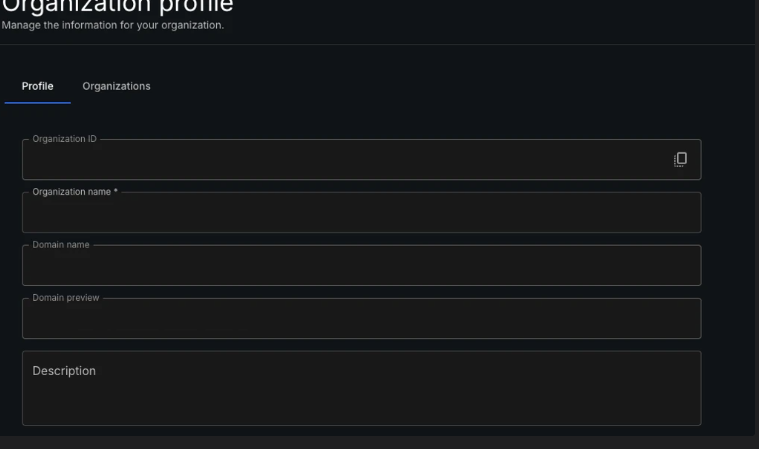
Find the sub-organization ID by selecting that sub-organization in the CloudBees platform and opening its Organization profile page.
If you need help finding the correct IDs, contact CloudBees Support.
GitHub Actions YAML configuration (legacy)
Once tokenless authentication is enabled for your project by Support, do the following:
-
Configure environment variables in your CI pipeline:
-
SMART_TESTS_ORGANIZATION: top-level (root) organization ID (UUID) -
SMART_TESTS_WORKSPACE: sub-organization ID (UUID) whose data you want to send -
EXPERIMENTAL_GITHUB_OIDC_TOKEN_AUTH: set this to1
-
-
Add the
permissionssection of your GitHub Actions YAML file.
Tokenless authentication relies on OpenID Connect (OIDC) tokens. To use an OIDC token in GitHub Actions, you need to configure permissions to retrieve it. As described in the GitHub Help Article, id-token: write permission needs to be added.
This permission can be added for one job or to the entire workflow:
Frequently Asked Questions
What is included in the OIDC token?
GitHub provides a detailed explanation and example of the OIDC token. For more information, refer to Understanding the OIDC token.
How does CloudBees Smart Tests verify the OIDC token?
In the generic flow (recommended), the CLI presents a GitHub id-token that has https://app.cloudbees.io/smart-tests as its aud. CloudBees Smart Tests verifies the signature against GitHub’s public JWKS and checks that the normalized sub (repo:OWNER/REPO) is registered as a Trusted OIDC subject in your workspace.
In the legacy flow, when you apply for tokenless authentication we associate your GitHub repository with your CloudBees Smart Tests workspace in an internal database. When you run the CLI, the CloudBees Smart Tests API server verifies the OIDC token and checks that the repository claim in it matches the stored association.
Why is the legacy flow being deprecated?
Two reasons:
-
The generic flow is fully self-service, no Support ticket is required to onboard a new repository.
-
One authentication code path covers every CI provider, which reduces the surface for bugs and makes it easier to reason about audit trails and revocation.
I have an older CLI in my workflow. What happens?
The pipeline keeps authenticating. An older CLI does not send the GitHub-OIDC-Legacy header, so its token takes the generic path on the server, but CloudBees Smart Tests automatically falls back to the legacy repository-claim verification for a workspace that still has a legacy repository association and no registered Trusted OIDC subject. Upgrade to the latest CLI anyway so routing is explicit and the correct audience is requested, then migrate to the generic flow as described above.