Create your account and workspace
After creating a user account and verifying your email address (if necessary), the system will prompt you to create an Organization for your company and a Workspace for your test suite.
Create and set your API key
This authentication token lets the CLI talk to your CloudBees Smart Tests workspace. Create an API key by doing the following:
-
Navigate to Settings.
-
Select Create your API key and copy the generated key.
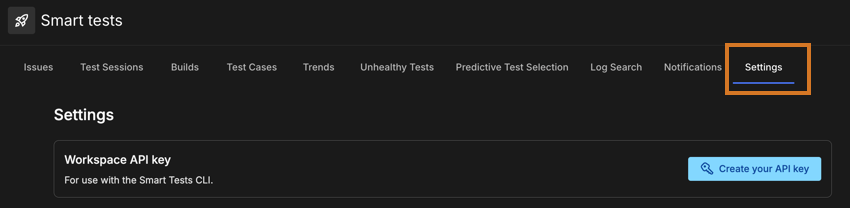 Figure 1. Settings tab in CloudBees Smart Tests dashboard
Make sure to copy the API key somewhere secure, as you won’t be able to see it again after you close the dialog.
-
Make that API key available as the
SMART_TESTS_TOKENenvironment variable in your CI process. This allows the CLI to authenticate with your CloudBees Smart Tests workspace when you run it in your CI pipeline.If using a different CI system, check its documentation for a section about setting environment variables. CloudBees Smart Tests works with any CI system.
Table 1. CI System documentation for setting environment variables CI system Docs Azure DevOps Pipelines
Bitbucket Pipelines
CircleCI
GitHub Actions
GitLab CI
GoCD
Jenkins
NOTE: Create a global secret text in Jenkins and reference it as an environment variable in your pipeline. For more information, refer to the link above.
Travis CI
Install the CloudBees Smart Tests CLI in your CI pipeline
The CloudBees Smart Tests CLI is a Python3 package that you can install from PyPI. The CLI connects your build tool/test runner to CloudBees Smart Tests.
Recommended: Use uv (fastest)
CloudBees Smart Tests recommends using uv, a fast Python package installer, for the best installation experience.
-
Install uv:
curl -LsSf https://astral.sh/uv/install.sh | sh export PATH="$HOME/.local/bin:$PATH"For more information about installation methods (including Windows, GitHub Actions, etc.), refer to uv installation guide.
-
Install CloudBees Smart Tests CLI:
uv tool install smart-tests-cli~=2.0
Alternative: Use pip
You can also install the CLI using pip by adding the following command to the part of your CI script where you install dependencies.
|
If your build and test process is split into different pipelines or machines, you must do this in both places. |
pip3 install --user --upgrade smart-tests-cli
Verify connectivity
After setting your API key and installing the CLI, add smart-tests verify || true to your CI script to verify that everything is set up correctly. If successful, you should receive an output such as:
# We recommend including `|| true` after smart-tests verify so that the exit status from the command is always 0 $ smart-tests verify || true Organization: <organization name> Workspace: <workspace name> Platform: <platform> Python version: <version> Java command: <command> smart-tests version: <version> Your CLI configuration is successfully verified.
For more information on errors, refer to Troubleshooting.
Once all of the above steps are complete, you can start sending data to CloudBees Smart Tests and using its features!
CLI execution order
The following is the CloudBees Smart Tests CLI execution order, with corresponding commands. CloudBees recommends these commands be executed in this order to enable Predictive test selection.
#1: Record builds smart-tests record build --build mychange1 #2: Start a new test session smart-tests record session --test-suite e2e --build mychange1 > session.txt #3: Decide which tests to run (Predictive Test Selection) find tests -name 'test_*.py' | grep -v tests/data > test_list.txt cat test_list.txt | smart-tests subset file --confidence 90% --session @session.txt > subset.txt #4: Execute selected tests uv run poe test-xml $(cat subset.txt) #5: Record test results smart-tests record tests file --session @session.txt test-results/*.xml
-
Start with record builds.
-
Then record sessions.
-
For those using Predictive test selection, arrange and run subsets.
-
Finally, record test results.
|
If only recording test results to generate insights the subset command can be skipped. |