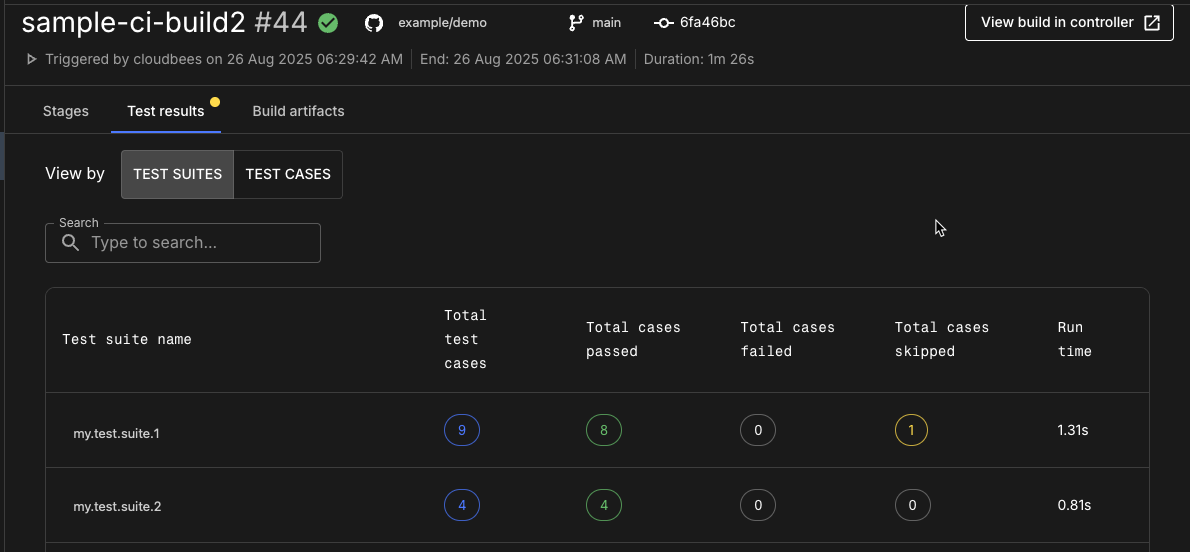
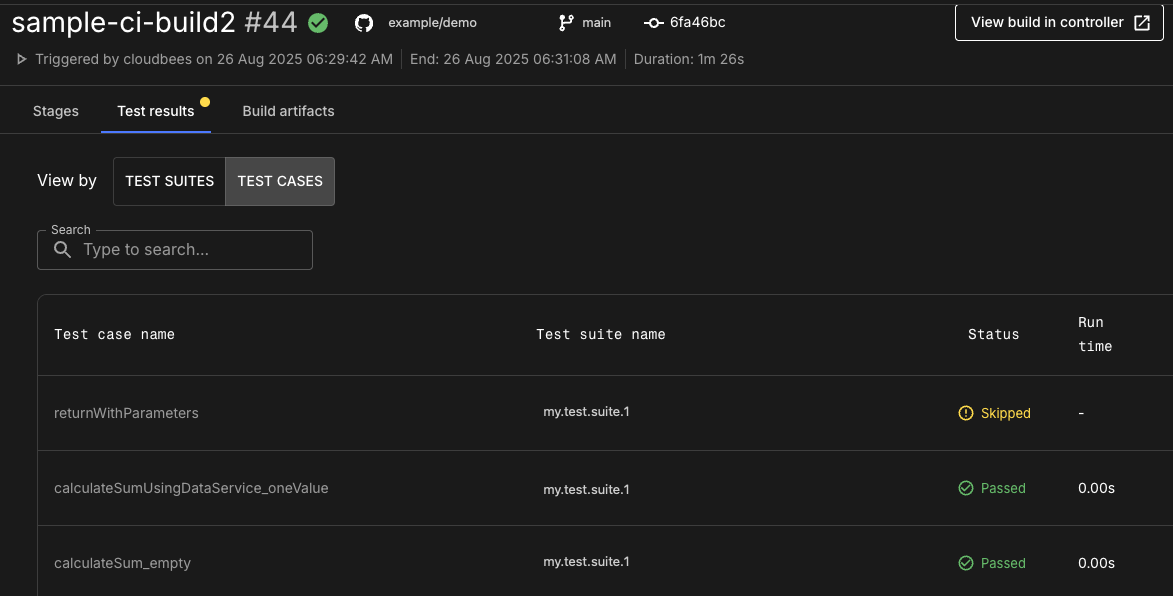
By publishing test results to CloudBees Unify, teams can view and manage all testing information in one place, facilitating easier oversight and analysis. Configure your integrated CI Pipeline to view testing results from your build in CloudBees Unify. Drill down through test suites and test cases to view each test status, run time, and log output, if applicable.
Configure your Multibranch Pipeline to publish test results
Publish your CI Pipeline test results to CloudBees Unify to leverage its enhanced analytics and quality gates.
To enable publishing test results from your CI build to CloudBees Unify:
-
Integrate your controller or operations center with CloudBees Unify by completing the steps in Integrate a single controller with CloudBees Unify or Integrate multiple controllers via the CloudBees CI operations center.
-
Install the JUnit plugin on your controller.
-
Configure the plugin on the job level by adding a Publish JUnit test result report in a Post-build Action.
-
Specify the path to your test result XML files in your Jenkinsfile, as in the following example:
pipeline { agent any stages { stage('Test') { steps { junit '**/testing/my-reports/*.xml' } } } } -
Include tests on your Pipeline that generate results in JUnit XML output format, according to the instructions in the table below.
Table 1. Supported test tools Test tool How to generate reports in JUnit XML format Appium
JUnit XML format by default
CTest
ctest --test-dir build --output-junit out.xmlCucumber
--format junitCypress
cypress.config.js file: { "reporter": "junit" }Espresso
JUnit XML format by default
Go
go test -v 2>&1 ./… | go-junit-report -set-exit-code > report.xmlJest
reporters=default --reporters=jest-junitJUnit
JUnit XML format by default
Minitest
bundle exec rake test --junitMocha
mocha test --reporter mocha-junit-reporterPlaywright
Configure and specify the output file name in
playwright.config.js.Pytest
pytest --junitxml=report.xmlPHPUnit
./tests --log-junit junit.xmlSelenium
Does not directly generate JUnit XML (integrate with other testing frameworks).
TestNG
Add the
org.testng.reporters.JUnitReportReporterlistener to the TestNG suite.
-
| Once you have set up your Pipeline to publish test results, this configuration also enables the Test insights dashboard, which provides a comprehensive view of test metrics for your CI projects. |
View your CI build test results
Display test results from your CI build in the same platform as all your other DevOps projects.
To view the test results for a build:
-
Select the organization and component associated with the CI build.
-
Select .
-
Select the build name to view the build details in .
-
Select Test results, and then select a viewing option.
The test suites or test cases are displayed accordingly. For more information, refer to Test results.
Example test results
The TEST SUITES view and the TEST CASES view for an example CI build are shown in the examples below: