Incorporate GHA into CloudBees Unify to view workflows and runs executed in GitHub. If you have a GHA workflow set up in a GitHub repository integrated with CloudBees Unify, you can view GHA workflow and/or run data in the following CloudBees Unify screens:
-
Workflows: Review and edit workflow YAML files.
-
Runs: Review workflow executions and implicit scans.
-
Run details: Review run jobs, test results, and build artifacts.
-
Software delivery activity and test insights: Review analytics for GHA runs.
CloudBees Unify also provides links to:
-
Edit workflow files on GitHub.
| All GHA workflow and run data is also available in the Component summary. To view, select Components, and then select the component containing the GHA workflow. |
Prerequisites
Set up CloudBees Unify and GHA to work together, providing key features of CloudBees Unify to GHA workflows. Refer to Getting started for more information.
View GHA workflows in CloudBees Unify
Your GHA workflow and runs are now available for viewing in CloudBees Unify. The component containing the GHA workflow is listed in the components list for your organization.
Select Components, and then select the component containing the GHA integration to view the component details.
Select to list all workflows for that component.
In the Workflows listing, all GHA workflows contain the same information as CloudBees Unify workflows, except:
-
The Provider for all GHA workflows is identified as GitHub.
-
To edit a GHA workflow, select the workflow file link to access the YAML file in GitHub. Currently, you cannot directly edit a GHA workflow in CloudBees Unify. View the workflow file as read-only by selecting the workflow name.
Supported trigger types
The following trigger types in GHA workflows are fully supported:
| Trigger type | DSL syntax |
|---|---|
Push |
|
Pull request |
|
Manual |
|
Scheduled |
|
Reusable workflow |
|
GitHub supports other trigger types. CloudBees Unify lists runs invoked by these trigger types, but may not provide all relevant details for trigger events not listed above.
View GHA runs in CloudBees Unify
After running your GHA workflow in GitHub, select Components in CloudBees Unify to select the component containing the GHA workflow, and then select to list all runs.
| Only GHA runs that have occurred from your GHA workflow after its successful integration with CloudBees Unify are displayed. |
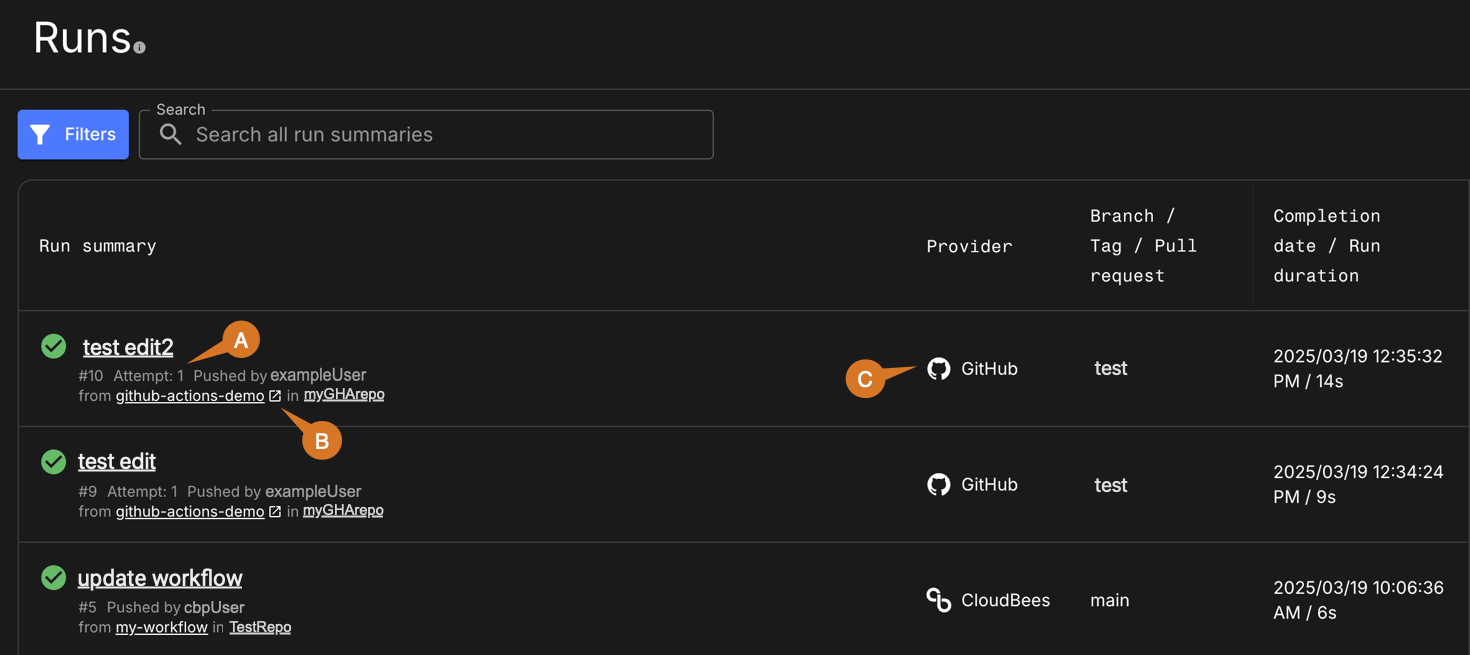
In the Runs summary list, all GHA runs contain the same information as CloudBees Unify workflow runs, except:
-
All GHA runs include the GHA unique run attempt number, which increments only when a workflow is run using the 'Rerun' option in GitHub.
-
The GHA workflow link redirects to the workflow YAML file in GitHub.
-
The Provider for all GHA runs is identified as GitHub.
View GHA run details in CloudBees Unify
All run details available for CloudBees Unify runs are also displayed in CloudBees Unify UI for GHA runs, except for job logs and deployment data. For more information, refer to Run details.
| Check the supported trigger types section for more information about displayed run details. |
View GHA job logs in CloudBees Unify
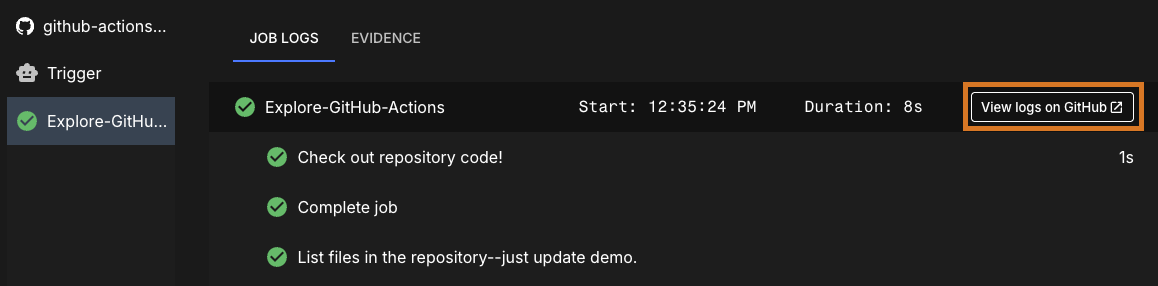
Job information for a GHA workflow run is available in its run details. Select for your selected run, and then select the JOB LOGS tab in Jobs.
Currently, only step summaries are available in CloudBees Unify. Select View logs on GitHub to access detailed job logs on GitHub.
View GHA workflows and runs in analytics dashboards
Data for GHA workflows and runs are displayed on the analytics dashboards for your organization.
The following dashboards are only populated once you add specific actions to your workflow. Refer to the dashboard documentation for more information:
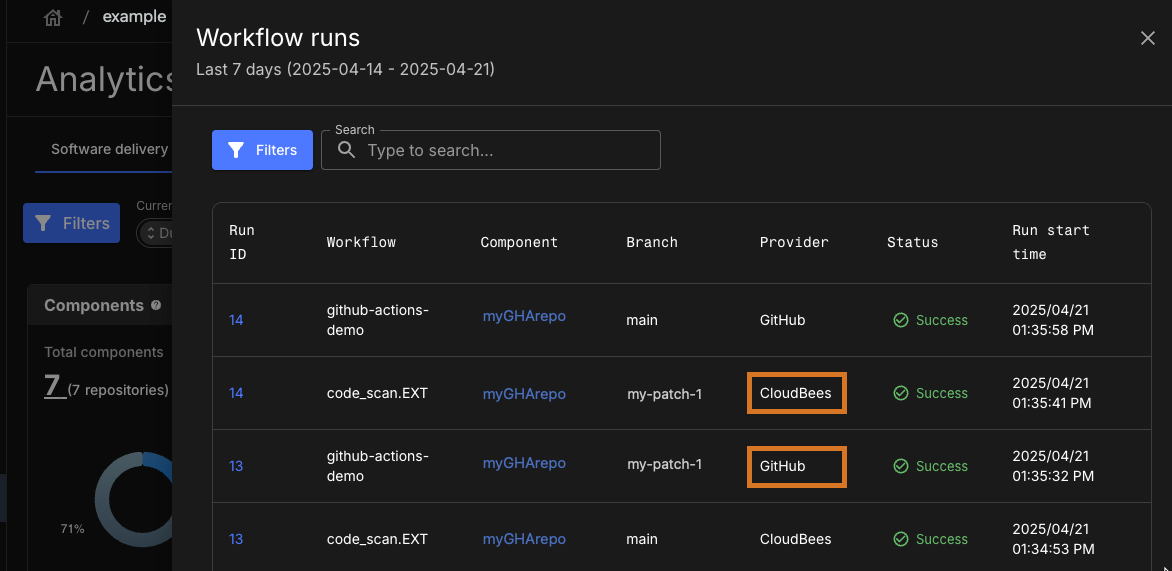
In all analytics dashboards, the provider (GitHub) is listed where applicable. The following is an example from . Workflow runs is selected and lists both implicit security scans provided by CloudBees, and the GHA workflow runs, provided by GitHub.
Full GHA workflow and run example
The following GHA workflow example performs the following tasks and displays the results in CloudBees Unify UI:
Example GHA workflow YAML file
After the run has completed, the:
-
Artifact information is displayed in both and in CloudBees Unify.
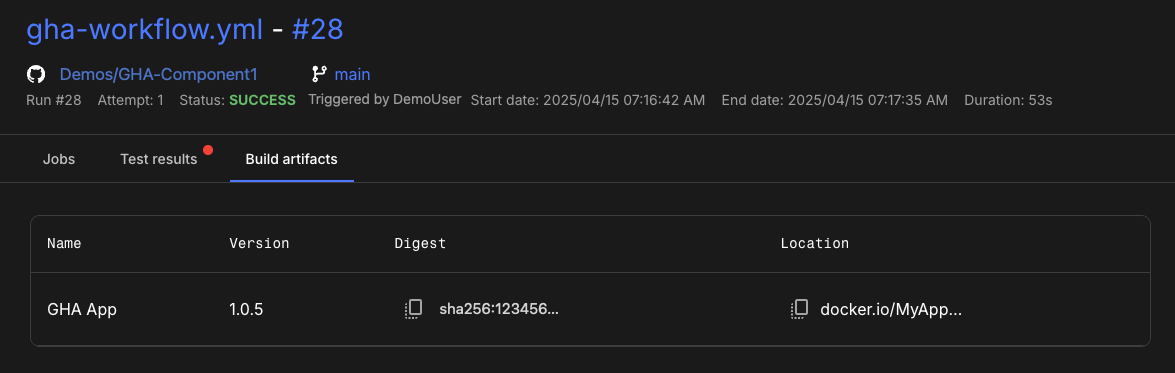 Figure 4. Artifact displayed in CloudBees Unify.
 -
Evidence output is collected and displayed in the Evidence tab of Run details.
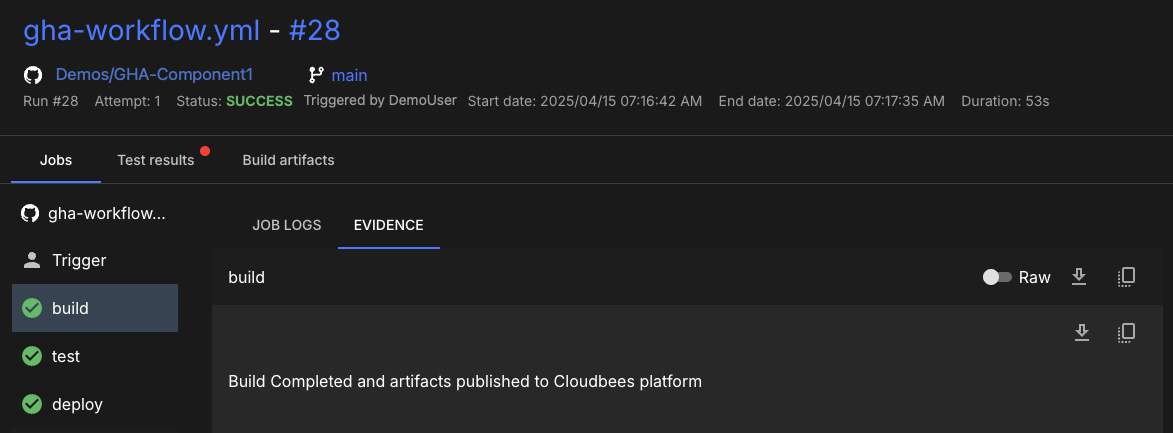 Figure 5. Evidence from
buildjob displayed in CloudBees Unify.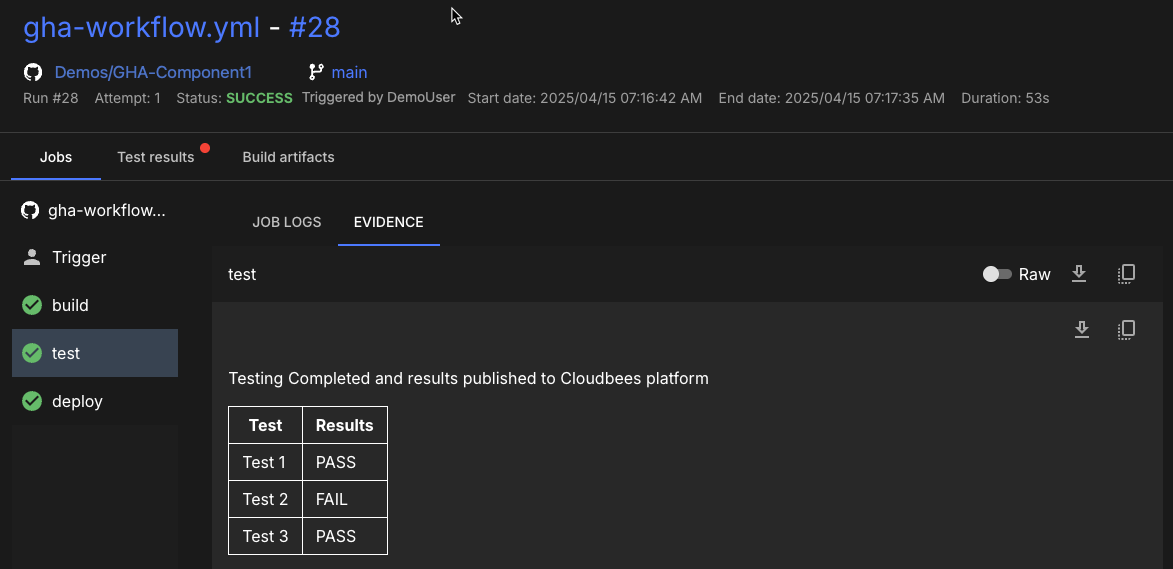 Figure 6. Evidence from
testjob displayed in CloudBees Unify. -
Testing results are collected and displayed in the Test results tab of Run details and in the Test insights dashboard.
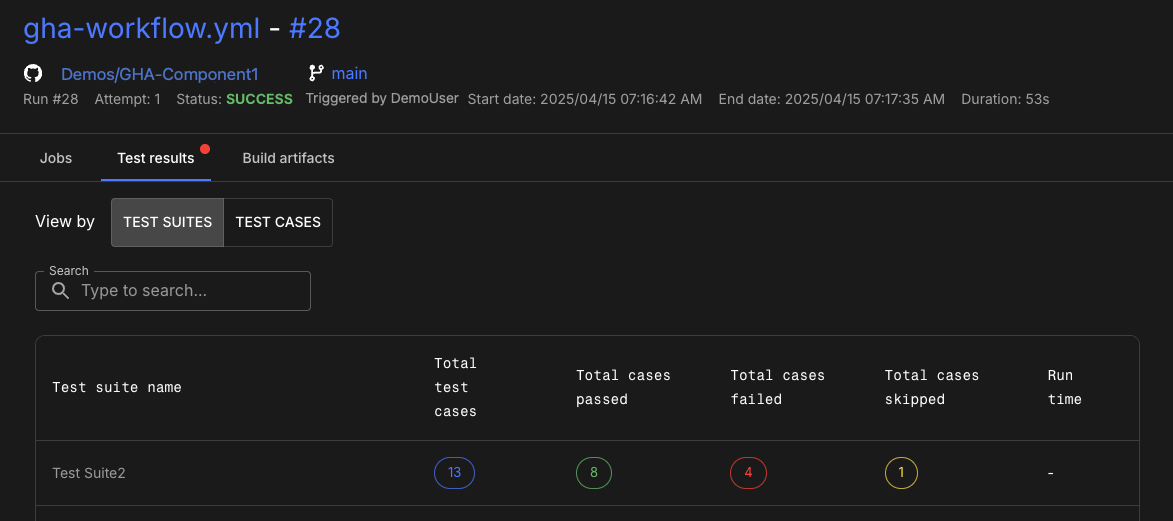 Figure 7. Testing results from
testjob displayed in CloudBees Unify. -
CloudBees Unify workflow run is triggered by the GHA workflow and the workflow output is published in the job evidence.
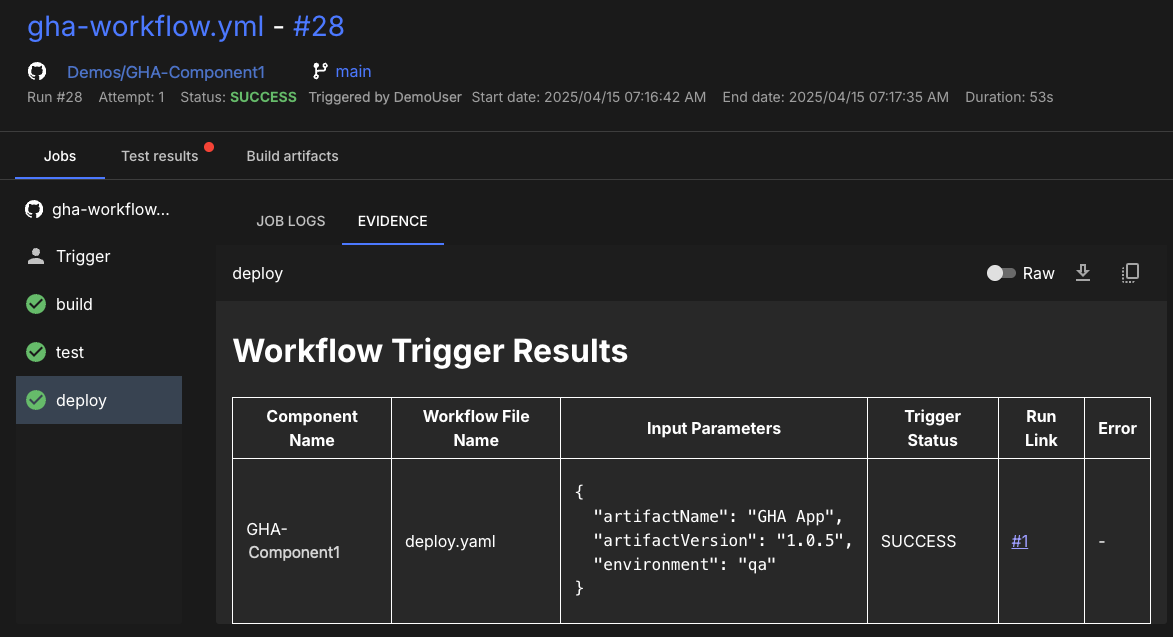 Figure 8. Resulting CloudBees Unify workflow run output.