This guide walks you through the steps to connect your GitHub repository to CloudBees Unify Feature management and activate configuration as code (CasC).
Before you begin
| CloudBees recommends installing the CloudBees Feature management SDK before proceeding to configure CasC. |
CloudBees Unify only accesses files in your repository that contain Feature management code. CloudBees Unify leverages GitHub Apps to enable secure integration with a GitHub organization and selected repository(s).
Access the CasC integration
To access the CasC integration with feature flags:
-
Select .
-
Select Application and choose an application.
-
Select
 Connect your configuration as code (CasC).
The Connect your configuration as code (CasC) link is visible only if CasC has not been set up previously for the selected application.

The Configuration as code panel displays existing connected repositories, and it allows you to identify the GitHub repository the connection uses.
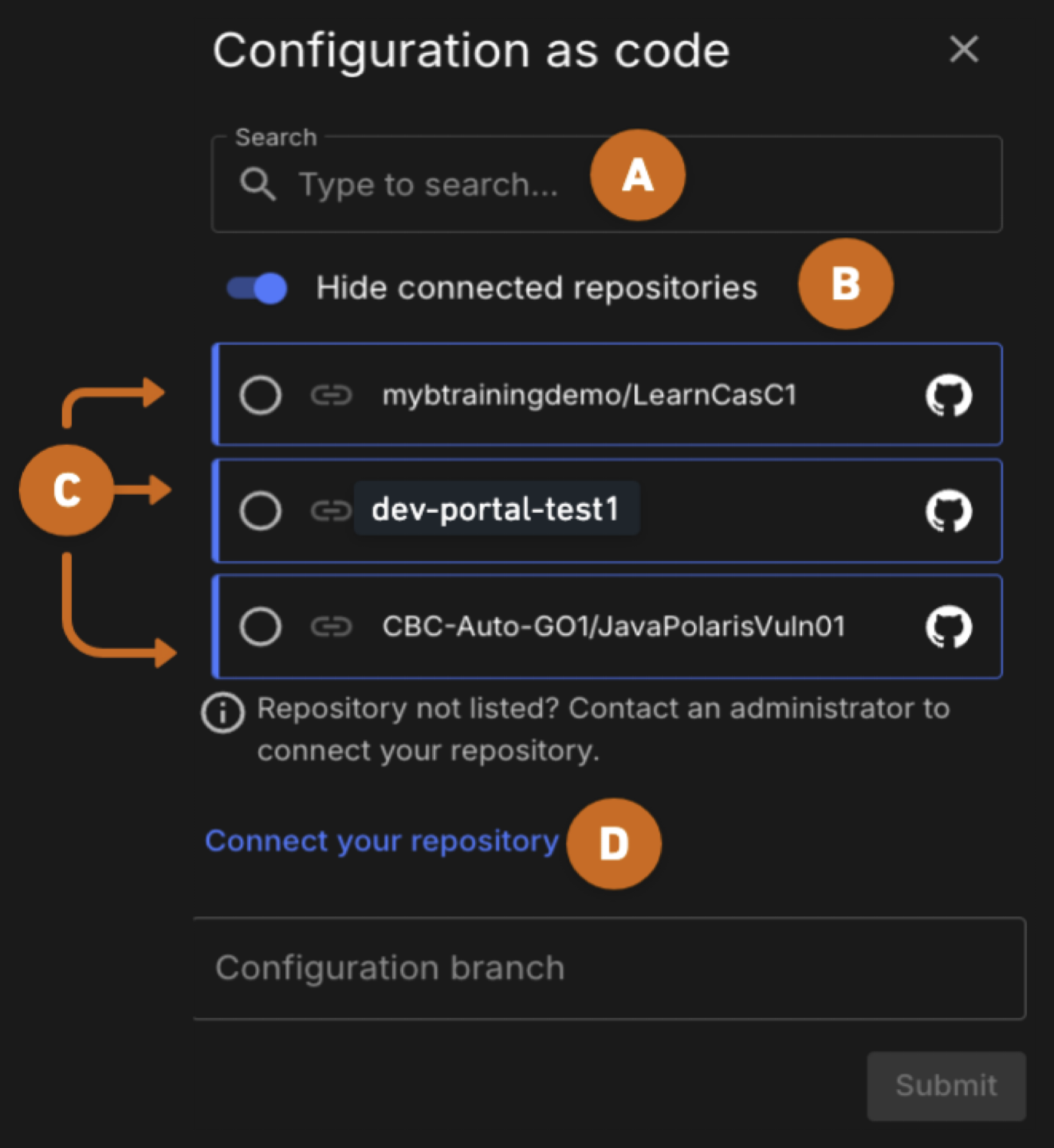
-
Search: Use the Search field to locate previously installed GitHub repositories from the list.
-
Toggle: Limit the display of GitHub repositories that are installed but not connected to an integration by toggling on or off.
-
Repositories: Select one of the available GitHub repositories in the list to connect it to the CasC integration.
-
Connect your repository: Select this link if your GitHub repository is not displayed in the list, to install and activate your GitHub repository.
Activate CasC with GitHub
To activate CasC with GitHub, proceed with one of these methods, depending on your configuration:
Connect to a new repository
If your GitHub repository is not displayed in the list of available repositories, follow the steps below to connect your GitHub repository.
| If you are connecting to a new GitHub repository, it must be initialized in GitHub before it can be used. Initialization involves adding at least one file, such as a README, license, or an initial commit. For more information, refer to Quickstart for repositories. |
-
From the Configuration as code panel, select Connect your repository.
-
Select GitHub App.
-
Type a name for the integration.
-
Type a description for the integration.
-
Select Install GitHub app.
-
In the GitHub window, select the organization that contains the repository for this connection.
-
Select the appropriate repository access.
-
Select Save.
-
In CloudBees Unify, select .
-
Select
Connect your configuration as code (CasC). -
Select your newly added GitHub repository from the list.
-
Select Submit.
-
Refresh your browser.
The link at the top of the Flags window, Connect your configuration as code (CasC) should now display as a link to your GitHub repository.
Use an already integrated repository
To activate CasC with a GitHub repository that you have already integrated with CloudBees Unify:
-
Select the organization.
-
Select .
-
Select the link at the top of the window:
Connect your configuration as code (CasC). -
Locate a GitHub app using one of the following methods:
-
Select Search to locate a previously installed GitHub repository.
-
Select Toggle to limit the display of repositories that are installed but not connected to an integration.
-
-
Select an available repository from the list.
If your GitHub repository is not displayed in the list, select Connect your repository to install and activate your GitHub repository on CloudBees Unify. Refer to Connect to a new repository for more information. -
Select Submit at the bottom of the window.
-
Refresh your browser to ensure the latest changes are displayed.
The Connect your configuration as code (CasC) link is replaced with a link to your GitHub repository.
Create the CasC YAML files
To configure CasC in the Cloud-native CloudBees Unify, you can create YAML files and folders using one of the following methods:
-
Generate files automatically via the UI
-
Use CloudBees Unify UI to create the entities, such as target groups, or custom properties.
-
The system generates the corresponding YAML files and organizes them under the appropriate folders in the SCM repository.
-
This method provides a structured starting point, making it easy to edit and refine.
-
-
Manually create files
-
Write YAML files yourself using a text editor or IDE, following the expected folder structure:
-
feature-management/flags: For defining feature flags. -
feature-management/target-groups: For defining target groups. -
feature-management/flag-configurations: For flag configurations organized by environment.
-
-
Save and commit the files to your SCM repository.
-
-
Copy and edit existing files
-
Use an existing YAML file as a template.
-
Copy the file, adjust parameters such as flag names, conditions, or target groups, and save it in the appropriate folder.
-
|
Begin by creating entities in the UI to generate skeleton YAML files. These files can be downloaded or edited directly in your SCM to refine the configuration. Ensure that all YAML files adhere to the CloudBees Unify CasC folder structure, as only valid files within the specified directories are interpreted by the system. |
Verify your setup
After connecting your repository and creating YAML files:
-
Check that your repository shows the
.cloudbees/cascfolder structure. -
Verify that YAML files appear in the appropriate subfolders.
-
Confirm that entities created in the UI are reflected in your SCM.
-
Test that changes made in SCM sync to the CloudBees Unify UI.
Next steps
-
Configuration as code reference - Review the detailed folder structure and schemas
-
Configuration-as-Code examples - Explore practical YAML examples
-
Get started with configuration as code - Learn more about how CasC works