Incorporate continuous integration (CI) into CloudBees Unify to view your CloudBees CI and Jenkins® Multibranch Pipelines jobs and builds in Workflows and Runs for the associated component, including test results and generated artifact information.
Prerequisites
Set up CloudBees Unify and your CI controllers to work together, either individually or by connecting multiple controllers via the CloudBees CI operations center. For more information, including technical requirements and limitations, refer to Getting started.
Access the Multibranch Pipeline component
The component containing the CI Multibranch Pipeline integration is listed in the components list for your CloudBees Unify organization.
Select Components, and then select the component containing the CI integration. View the component details using the tabbed navigation.
Review Multibranch Pipeline jobs
From the CloudBees Unify component containing the CI integration, view all Multibranch Pipeline jobs.
To view the CloudBees CI or Jenkins job:
-
Select the organization and component associated with the CI job.
-
Select .
-
(Optional) Select Filters to filter by Provider:
Your connected CI Pipeline jobs are listed as part of all workflows associated with that component, and identified by Provider:
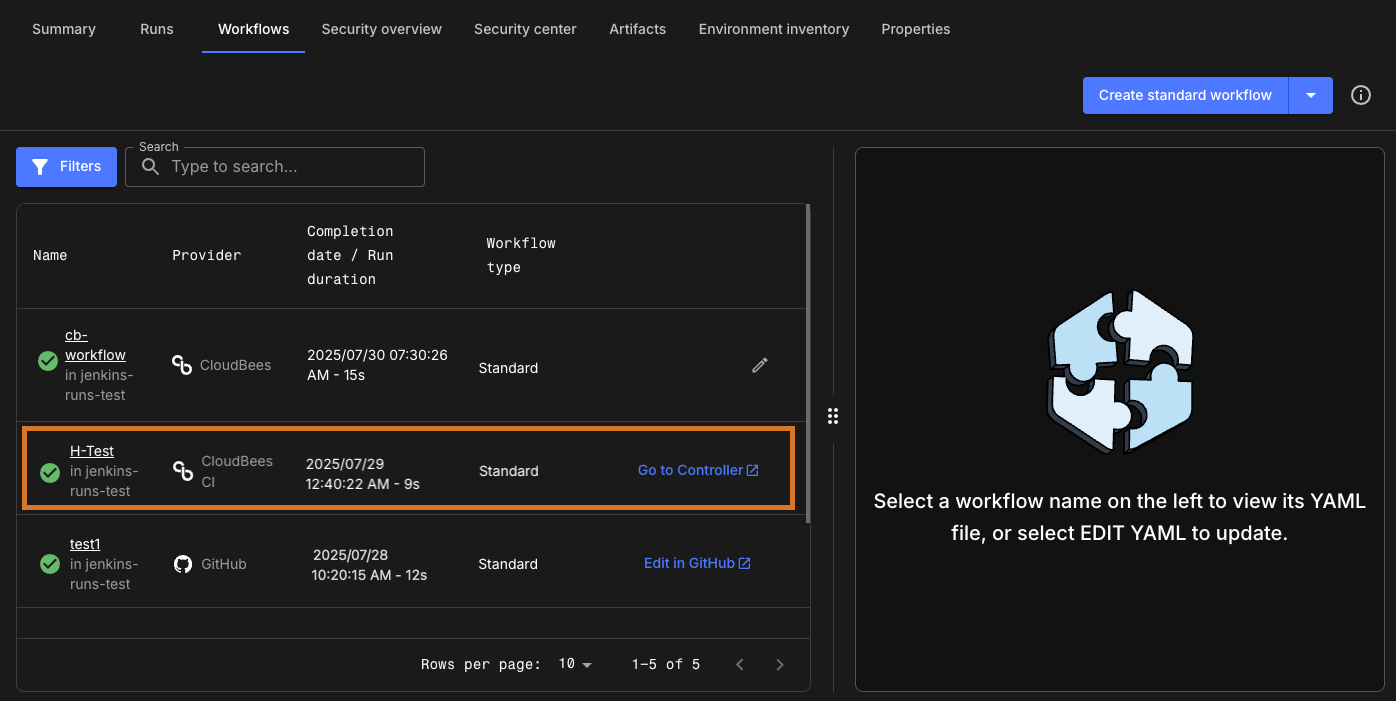 Figure 1. Highlighted CloudBees CI job in the Workflows list.
 -
To view the job details, select Go to Controller.
Review Multibranch Pipeline builds
From the component containing the CI integration, view all Multibranch Pipeline builds.
To view the CloudBees CI or Jenkins build:
-
Select the organization and component associated with the CI build.
-
Select .
-
(Optional) Select Filters to filter by Provider:
Your connected CI Pipeline builds are listed as part of all runs associated with that component, and identified by Provider:
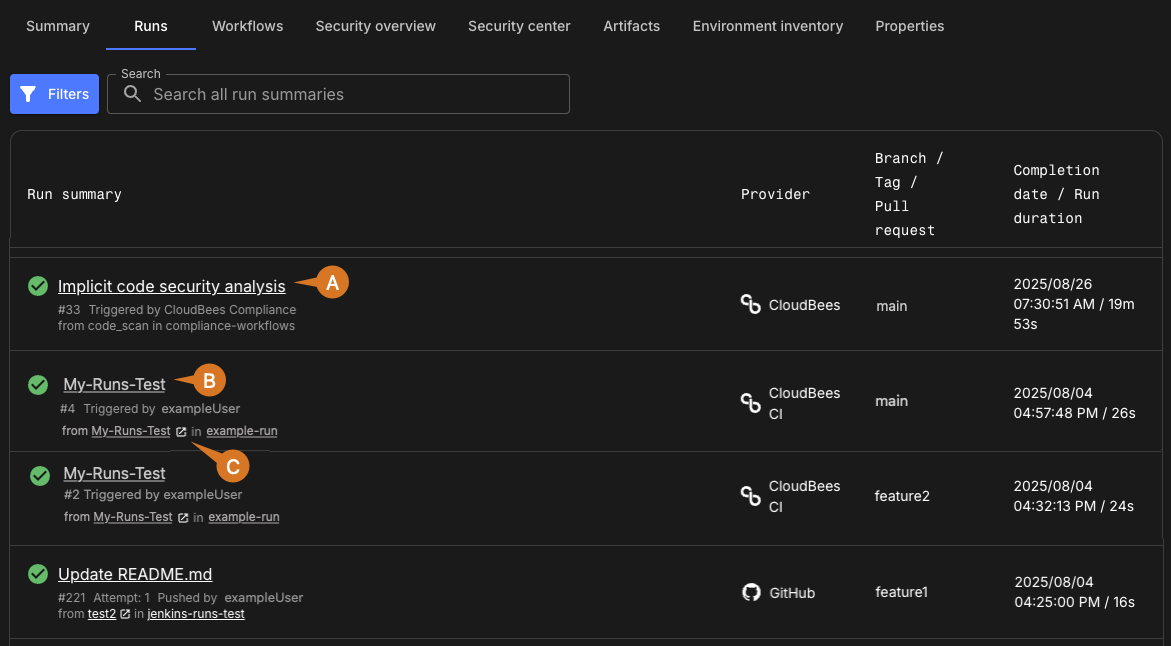 Figure 2. CloudBees CI builds in the Runs list.
As shown in the above example, after enabling implicit code security analysis, the implicit security scan is displayed in the Run summary.
To learn more about available security metrics for integrated CI jobs and builds, refer to Integrated CI analytics. -
Select the build name to view the build details in . The connected CI Pipeline build details are displayed:
-
Stages: A summary of the build stages and select View logs to navigate to the build logs in the controller.
-
Test results: Test results from your build.
-
Build artifacts: A list of generated artifacts from your build.
-
Deployments: A list of deployed artifacts from your build.
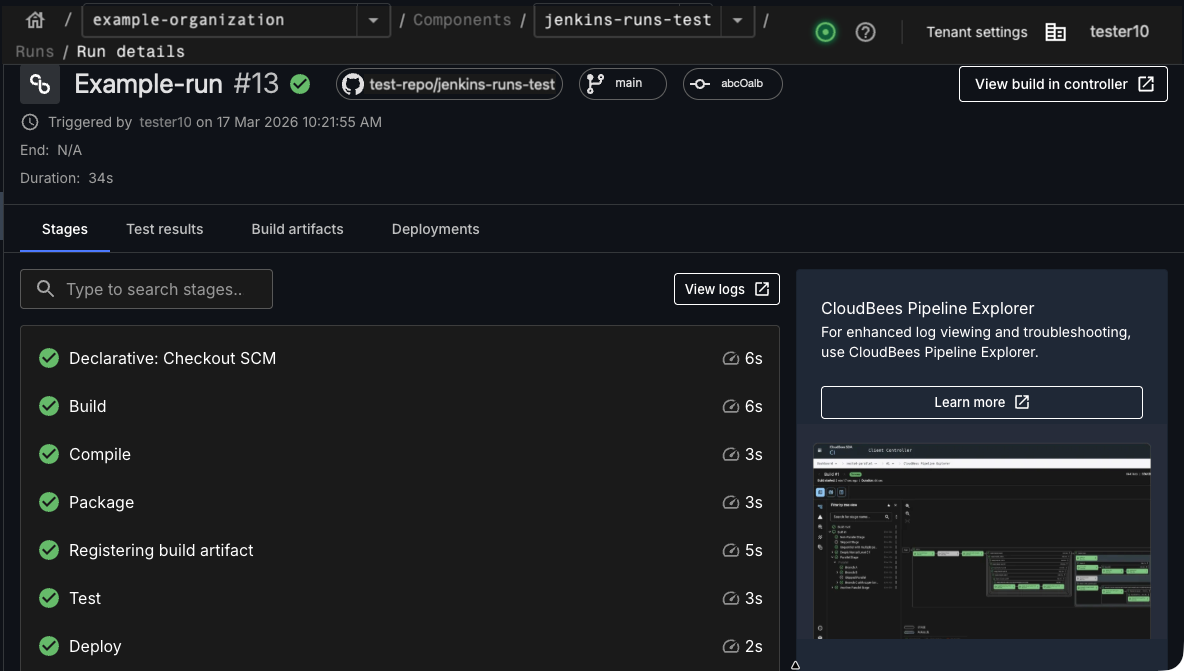 Figure 3. An example CloudBees CI build in Run details.
-
-
(Optional) Select View build in controller to go to the build in the controller.
Review the component summary
The Summary tab in Components displays a comprehensive snapshot of all activities related to your component. Display the most relevant data by filtering on a repository branch and/or a specified time frame. For more information, refer to Summary.
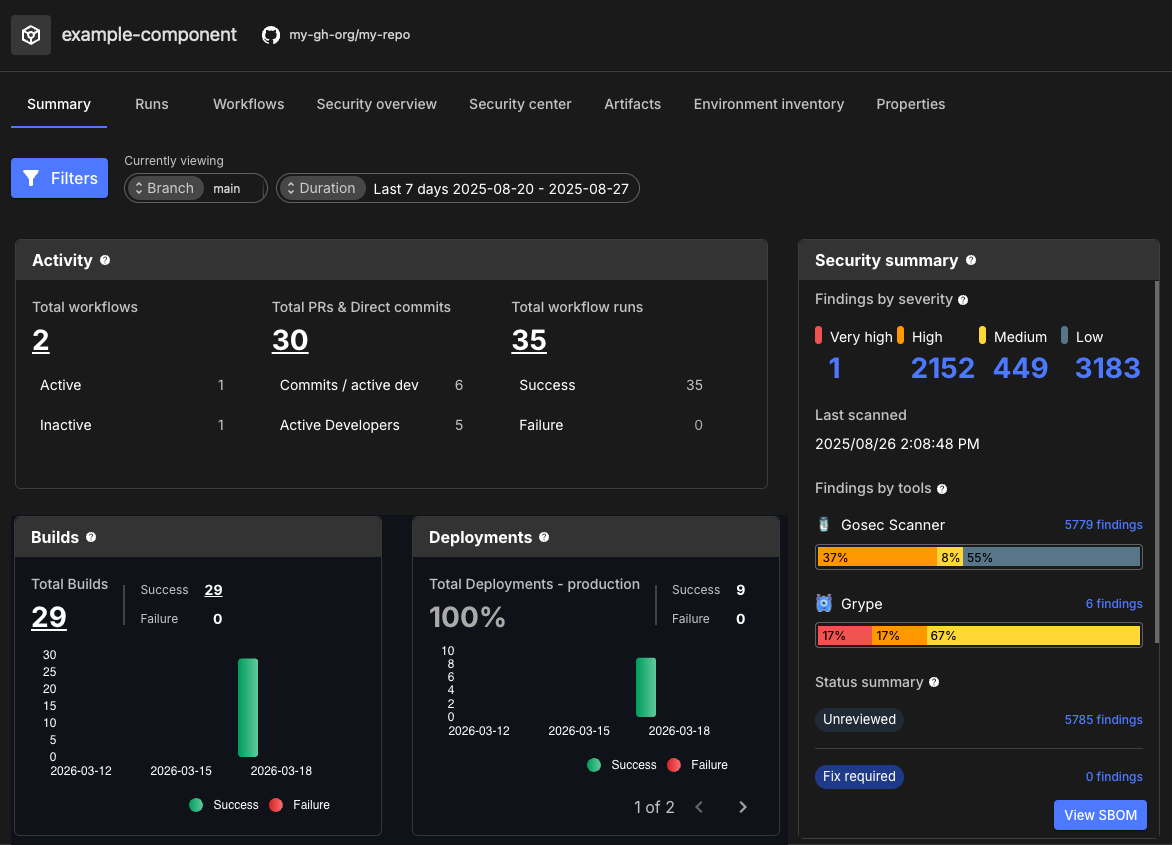
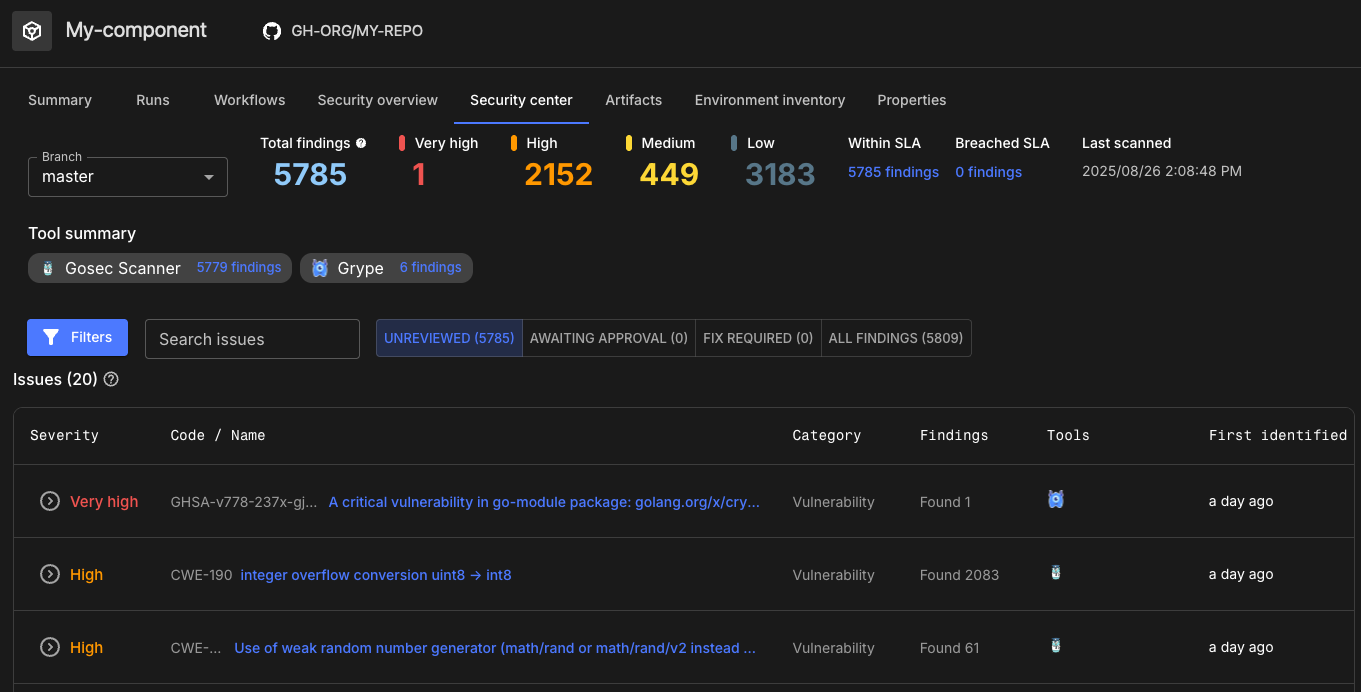
Review security issues and findings
Select or to get security details for integrated CI jobs and builds.
Refer to the following for more information:
Review artifact information
If you have generated build or deployed artifacts, select for your integrated CI component to review the complete version history for each artifact. To learn more, refer to Register and view build artifacts and Register a deployed artifact in CloudBees Unify.