|
CloudBees Beta
This feature is available as a beta release and is subject to change without notice. CloudBees recommends stringent testing in a development environment and a complete review of the documentation and architecture before using it in production. |
Integrate your CloudBees CI operations center with CloudBees Unify to automatically discover and connect all controllers managed by the operations center. This method connects multiple controllers at once, rather than integrating them individually.
| To integrate single CloudBees CI or Jenkins controllers, refer to Integrate a single controller with CloudBees Unify. |
Set up the integration
Follow these steps to integrate your operations center and controllers with CloudBees Unify.
| Step | Where | Action |
|---|---|---|
1 |
Your controllers |
Set up a CloudBees CI Multibranch Pipeline or an Organization Folder with a GitHub, Bitbucket, or GitLab branch source. |
2 |
Your operations center and controllers |
Install the required plugins to the operations center and controllers. |
3 |
Your controllers |
|
4 |
CloudBees Unify |
|
5 |
CloudBees Unify |
|
6 |
Your operations center |
(Optional) Manually sync your controller configuration data with CloudBees Unify |
7 |
Your operations center |
|
8 |
CloudBees Unify |
Create an SCM integration for the Multibranch or Organization Folder code source. |
9 |
CloudBees Unify |
Create a component with the integrated source code. |
System specifications
This CloudBees Unify feature has the following technical requirements and limitations. These factors may evolve.
-
Use a CloudBees CI or Jenkins Multibranch Pipeline or Organization Folder, as other project types are not supported.
-
Use a GitHub, Bitbucket, or GitLab branch source for the Multibranch Pipeline or Organization Folder. Other SCM providers are not supported at this time.
-
Create an SCM integration between the SCM repository associated with your Multibranch Pipeline or Organization Folder and CloudBees Unify.
-
If your Multibranch or Organization Folder contains more than one repository, only the first detected SCM repository is considered by CloudBees Unify.
-
Only CI jobs and builds executed from your controller after integrating with CloudBees Unify are displayed.
Set up a CloudBees CI Multibranch Pipeline or an Organization Folder
Set up a CloudBees CI Multibranch Pipeline or an Organization Folder on your controllers with a GitHub, Bitbucket, or GitLab branch source. Refer to Create Multibranch Projects and Organization Folders with large repositories for details.
| GitLab Cloud and Bitbucket Data Center are supported. |
Install the required plugins to the operations center and controllers
This integration requires the following plugins:
-
CloudBees Unify Integration :: OC plugin: Installed on the operations center.
-
CloudBees Unify Integration :: Controllers plugin: Installed on each controller.
Choose one of the following installation methods:
Install the plugins from the CloudBees CI UI
Install the plugins using the CloudBees CI plugin manager.
To install the plugin to the operations center:
-
From the operations center dashboard, select in the upper-right corner to navigate to the Manage Jenkins page.
-
Select .
-
In the Search available plugins field, enter
CloudBees Unify Integration :: OC plugin. -
Select the checkbox next to the plugin.
-
Select Install in the upper-right corner.
To install the plugin to the controllers:
-
From the controller dashboard, select in the upper-right corner to navigate to the Manage Jenkins page.
-
Select .
-
In the Search available plugins field, enter
CloudBees Unify Integration :: Controllers plugin. -
Select the checkbox next to the plugin.
-
Select Install in the upper-right corner.
Install the plugins using CloudBees CI Configuration as Code
CloudBees CI Configuration as Code (CasC) is the recommended approach for large-scale deployments with many controllers, as it allows you to configure plugins and settings across your entire CloudBees CI environment efficiently.
|
CloudBees recommends using CasC Plugin Management 2.0 to automatically manage plugin dependencies.
CasC Plugin Management 2.0 requires |
To install the plugins using CasC:
-
Update the operations center
plugins.yamlfile to include the CloudBees Unify Integration :: OC plugin:plugins: - id: "cloudbees-cbp-unify-integration-oc" -
Update the controller
plugins.yamlfile to include the CloudBees Unify Integration :: Controllers plugin:plugins: - id: "cloudbees-cbp-unify-integration" -
Apply the operations center bundle to your operations center and the controller bundles to your controllers. For more information, refer to Update a CasC bundle.
(Optional) Opt out specific controllers
To exclude specific controllers from automatic integration, configure them to opt out using one of the following methods:
| If your deployment uses a custom CloudBees Unify endpoint, you can configure it directly from the CloudBees CI UI or CasC bundle for opted-out controllers. For opted-in controllers, the endpoint, integration type, and registration ID are managed by the operations center and are not editable. |
Opt out from the operations center UI
To opt out a controller from the operations center UI:
-
From the operations center dashboard, select next to the controller.
-
Select Configure in the left pane.
-
Scroll down to CloudBees Unify configuration.
-
Select Opt out of auto configuration.
-
Select Save.
| If you opt out a controller after the operations center integration is already established, manually sync the changes to CloudBees Unify from your operations center. For more information, refer to (Optional) Manually sync your controller configuration data with CloudBees Unify. |
Opt out using CasC
To opt out a controller using CasC, configure the opt-out setting in the operations center bundle’s items.yaml file. For example:
items: - kind: managedController name: my-controller description: my-controller displayName: my-controller properties: - cbpOptOut: optOut: true(1)
| 1 | Set to true to opt out the controller from automatic integration, or false to opt in. |
| If you opt out controllers after the operations center integration is already established, manually sync the changes to CloudBees Unify from your operations center. For more information, refer to (Optional) Manually sync your controller configuration data with CloudBees Unify. |
Create the CloudBees CI Operations Center integration
After installing the required plugins to your operations center and controllers, create an operations center integration in CloudBees Unify.
View and monitor controller status
After creating the operations center integration, you can monitor the connection status of individual controllers in CloudBees Unify.
To view the controller status:
-
In CloudBees Unify, navigate to .
-
Find the operations center integration record.
-
Select for the new operations center record, and then select View controllers.
The View controllers screen displays the status of each controller:
-
Waiting for connection: The controller is preregistered via the operations center integration and is in the process of connecting to CloudBees Unify.
-
Connected: The controller is successfully connected with CloudBees Unify and can start sending data.
-
| The Last data received column displays the timestamp of when CloudBees Unify last received job data from each controller. This timestamp updates when job data is received from Multibranch Pipeline jobs. |
Troubleshoot the controller connection status in CloudBees Unify
The following table lists common issues and resolutions when monitoring controller connection status in CloudBees Unify.
| Issue | Resolution |
|---|---|
A controller remains in Waiting for connection status for an extended period. |
The controller may be hibernating, offline, or missing the required plugin. Verify the following:
If the plugin is not installed, install it and allow up to one hour for connection, or restart the controller to speed up detection. |
Last data received shows |
The Last data received field displays the latest timestamp of when CloudBees Unify received job data from the controller.
If the controller has no Multibranch Pipeline jobs configured, this field shows |
Opted out controllers still appear in the View controllers table, or their status has not updated. |
If you opted out controllers after the operations center integration was already established, manually sync the changes to CloudBees Unify from your operations center:
|
A controller went offline, was shut down, or was hibernated after the operations center integration was established, but the status still shows Connected. |
Manually sync the changes to CloudBees Unify from your operations center:
|
(Optional) Manually sync your controller configuration data with CloudBees Unify
Manually sync your existing controller configuration data to CloudBees Unify. An automatic sync occurs every 24 hours, independent of any manual sync.
To manually sync your controller data:
-
From the controller dashboard, select in the upper-right corner to navigate to the Manage Jenkins page.
-
Select CloudBees Unify to navigate to the CloudBees Unify configuration page.
-
On the CloudBees Unify Connection tab, under CloudBees Unify Data Synchronization, select Start sync or Resync Now.
The Sync controller configuration data status updates to:
-
Sync in progress: The synchronization is currently in progress.
-
Synced: The sync completed successfully. Once synced, a confirmation message and the sync timestamp are displayed.
-
(Optional) Monitor controller registration reconciliation
The operations center automatically attempts to preregister all connected controllers with CloudBees Unify. If a controller fails to preregister, the reason for the failure is displayed.
To verify controller preregistration status in the operations center:
-
From the operations center dashboard, select in the upper-right corner to navigate to the Manage Jenkins page.
-
Select CloudBees Unify to navigate to the CloudBees Unify configuration page.
-
Select the Controller Registration Reconciliation tab.
-
Preregistered: The controller has been successfully preregistered with CloudBees Unify.
-
Not Preregistered: The controller has not been preregistered, or it has been opted out from the integration.
-
Failed: The preregistration failed. The Error cause displays the reason for the failure.
-
Create an SCM integration
After your controllers are integrated with CloudBees Unify, create an SCM integration for the Multibranch Pipeline or Organization Folder code source.
Create an integrated component
To fully integrate a CI pipeline with CloudBees Unify, create a component to link the source code in your controllers with CloudBees Unify. Each component connects to a single source code repository via an SCM integration. By creating a component for your pipeline source code, you can facilitate the management of complex CI pipelines and ensure traceability and insight into your SDLC. Components ensure that all code updates are systematically processed, logged, and integrated, enhancing the scalability and reliability of software delivery.
-
Create an SCM integration with CloudBees Unify for the Multibranch or Organization Folder project code source on your controllers.
-
Create a CloudBees Unify component with the integrated source code to enable metrics for your project.
-
 indicates a repository integrated with a Multibranch Pipeline that you can select to create a component.
 -
If you do not find your repository listed with
, select Set up your controller to confirm that it is connected to the CI controller.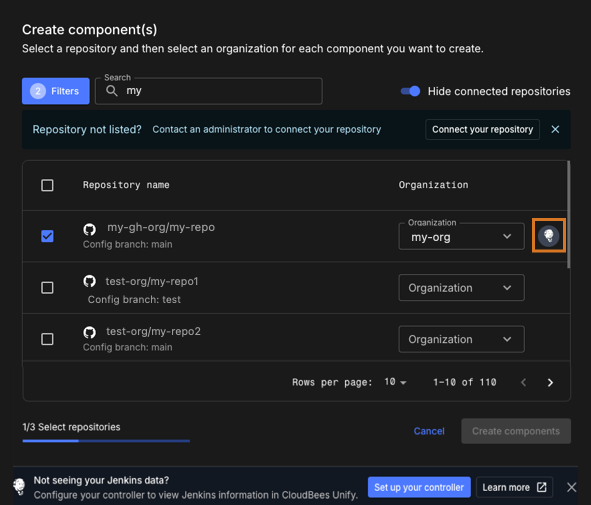 Figure 1. An integrated repository is highlighted
The component for your integrated CI pipeline is created accordingly.
-
Next steps
After you integrate your CI with CloudBees Unify, you can:
-
Visualize details of your CI jobs and builds, including test results, build artifacts, and deployed artifacts.
-
Set up automatically triggered implicit security analysis.
-
Create an application, which enables you to orchestrate complex software releases.
-
Monitor your integrated CI data in CloudBees Unify value stream management (VSM) dashboards.
-
Monitor CloudBees CI and Jenkins operations health through the CI insights for Jenkins dashboard.