Integrate CloudBees CI or Jenkins® with CloudBees Unify to visualize CI jobs and builds, analyze test results and artifacts, and orchestrate software releases. You can integrate single controllers or a CloudBees CI operations center to automatically connect multiple controllers at once. To learn more about working with CloudBees CI or Jenkins in CloudBees Unify, including technical requirements and limitations, refer to Integrate a single controller with CloudBees Unify or Integrate multiple controllers via the CloudBees CI operations center.
|
Before proceeding with the integration, you must install the required plugins. For instructions, refer to: |
|
Each controller or operations center can only be integrated with one CloudBees Unify organization at a time. Before creating a new integration, verify that your controller or operations center is not already integrated with another CloudBees Unify organization. If a controller or operations center is integrated with multiple organizations, only the most recent integration will receive data. |
Choose your integration type
Select the integration type that matches your CI environment:
-
Integrate a single controller in CloudBees CI or Jenkins: Connect a single CloudBees CI or Jenkins controller.
-
Integrate multiple controllers via the CloudBees CI operations center: Connect your CloudBees CI operations center to automatically integrate all controllers.
Integrate a single controller in CloudBees CI or Jenkins
Use the single controller integration to connect an individual CloudBees CI or Jenkins controller to CloudBees Unify. To create a single controller integration, choose one of the following connection methods:
-
Option 1: Approve in Controller (recommended): Approve the connection directly in the controller in the CloudBees CI UI.
-
Option 2: Set up with a PEM file: Download the private key and add it to the controller manually in the CloudBees CI UI.
-
Option 3: Integrate a single controller using CloudBees CI Configuration as Code: Download the private key and use CloudBees CI Configuration as Code (CasC) to set up the integration in the controller.
| If your deployment uses a custom CloudBees Unify endpoint, you can configure it directly from the CloudBees CI UI or CasC bundle. |
Option 1: Approve in Controller
Single CloudBees CI and Jenkins controllers can be integrated with the Approve in Controller method, which is the recommended approach. CloudBees Unify requests approval from the controller, and you approve the integration directly in the controller.
To create a single controller integration with approval in the controller:
-
In CloudBees Unify, select an organization, and then select .
-
Select Create integration. The list of available integrations displays.
-
Select .
-
Select .
-
Select CloudBees CI controller or Jenkins® controller from the list of available integration types.
Both CloudBees CI controller and Jenkins® controller appear in multiple categories. Be sure to select from the Continuous integration category for this integration.
-
Enter the Name and optional Description.
-
Enter the Controller URL.
The Controller URL cannot be edited after the integration is saved. Always use HTTPS for controller URLs. HTTP transmits credentials and key material unencrypted, exposing them to interception. Refer to HTTPS requirements for URLs for more information.
-
Select Approve in Controller to authenticate via the controller.
-
Select Create & continue. The integration status displays Action pending in Controller.
-
Select Go to Controller to approve the connection in the controller.
-
Verify the details displayed in the controller and select Confirm to approve the connection.
-
Navigate back to CloudBees Unify. The integration status changes to Connected after the connection is successfully established.
-
Select Save and close.
When you approve the connection, CloudBees Unify creates a public and private key pair and installs the private key into the controller, which creates a Jenkins credential. This allows the controller to send data to CloudBees Unify.
-
After you have connected successfully, monitor your CloudBees CI or Jenkins Pipelines through CloudBees Unify.
Option 2: Set up with a PEM file
Single CloudBees CI and Jenkins controllers can be integrated with the Set up with PEM file method. This method uses certificate-based authentication. You download a PEM file and add the private key to the controller.
To create a single controller integration with a PEM file:
-
In CloudBees Unify, select an organization, and then select .
-
Select Create integration. The list of available integrations displays.
-
Select .
-
Select .
-
Select CloudBees CI controller or Jenkins® controller from the list of available integration types.
Both CloudBees CI controller and Jenkins® controller appear in multiple categories. Be sure to select from the Continuous integration category for this integration.
-
Enter the Name and optional Description.
-
Enter the Controller URL.
The Controller URL cannot be edited after the integration is saved. Always use HTTPS for controller URLs. HTTP transmits credentials and key material unencrypted, exposing them to interception. Refer to HTTPS requirements for URLs for more information.
-
Select Set up with PEM File, and then select Create & continue.
-
Select Download to download the generated PEM file containing the private key.
Save this file securely. It contains your private key and cannot be retrieved later.
-
Select the Controller link to navigate to your controller to add the private key.
To manually navigate to the CloudBees Unify configuration page, from the controller dashboard select in the upper-right corner, and then select CloudBees Unify. -
Next to the Private key field, select +Add, and then select Global.
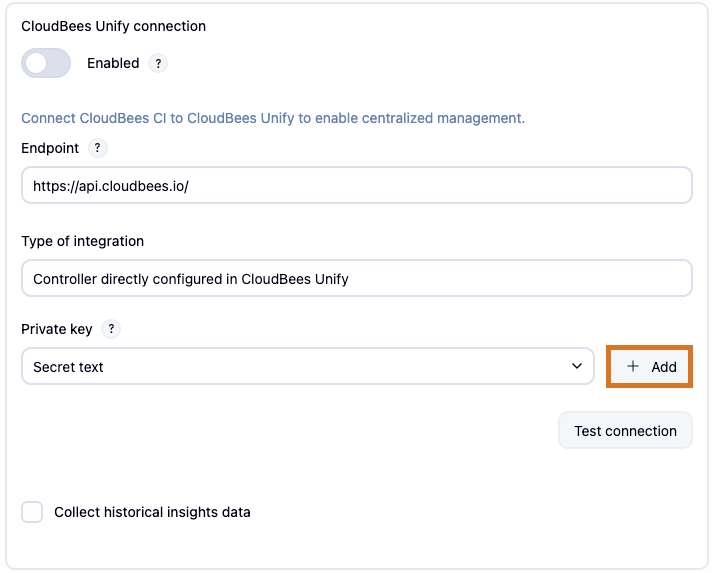 Figure 1. Add a private key to the controller, with Add highlighted
 -
In the Add Credentials dialog, select Secret text, and then select Next.
-
Paste your private key into the Secret field, and then select Create.
-
Select Add.
-
Select the new Secret text credential from the Private key dropdown.
-
On the CloudBees Unify configuration page, select Save.
-
-
In CloudBees Unify, check the integration status; it may take a few minutes to transition from Action pending in Controller to Connected.
-
After you have connected successfully, monitor your CloudBees CI or Jenkins Pipelines through CloudBees Unify.
Option 3: Integrate a single controller using CloudBees CI Configuration as Code
Single CloudBees CI and Jenkins controllers can be integrated using CloudBees CI Configuration as Code (CasC). This method uses certificate-based authentication. You download a PEM file and use CasC bundles to add the private key to the controller.
Both CloudBees CI and Jenkins controllers use the jenkins.yaml file to configure the integration when using Configuration as Code; CloudBees CI controllers via the CasC bundles, and Jenkins controllers via the Configuration as Code plugin plugin.
|
To create a single controller integration using Configuration as Code:
-
In CloudBees Unify, select an organization, and then select .
-
Select Create integration. The list of available integrations displays.
-
Select .
-
Select .
-
Select CloudBees CI controller or Jenkins® controller from the list of available integration types.
Both CloudBees CI controller and Jenkins® controller appear in multiple categories. Be sure to select from the Continuous integration category for this integration.
-
Enter the Name and optional Description.
-
Enter the Controller URL.
The Controller URL cannot be edited after the integration is saved. Always use HTTPS for controller URLs. HTTP transmits credentials and key material unencrypted, exposing them to interception. Refer to HTTPS requirements for URLs for more information.
-
Select Set up with PEM File, and then select Create & continue.
-
Select Download to download the generated PEM file containing the private key.
Save this file securely. It contains your private key and cannot be retrieved later.
-
Add the following to the
jenkins.yamlfile in your controller CasC bundle:credentials: system: domainCredentials: - credentials: - string: scope: GLOBAL id: "unify-cred-id"(1) secret: "secret-value"(2) cbpConnectionConfiguration: cbpUrl: "https://api.cloudbees.io/"(3) type: direct: credentialsId: "unify-cred-id"1 The idmust match thecredentialsIdfield in thecbpConnectionConfigurationsection.2 The secret must contain the private key from the PEM file. 3 The CloudBees Unify URL. If your deployment uses a custom endpoint, replace this with your custom URL.
Integrate multiple controllers via the CloudBees CI operations center
|
CloudBees Beta
This feature is available as a beta release and is subject to change without notice. CloudBees recommends stringent testing in a development environment and a complete review of the documentation and architecture before using it in production. |
Integrate multiple controllers by connecting your CloudBees CI operations center, which automatically discovers and connects all controllers it manages.
| Before creating the operations center integration, install the required plugins in your operations center and controllers. Refer to Install the required plugins to the OC and controllers for instructions. |
To create an operations center integration, choose one of the following connection methods:
-
Option 1: Approve in Operations Center (recommended): Approve the connection directly in the operations center.
-
Option 2: Set up with a PEM file: Download the private key and add the credential to the operations center manually.
-
Option 3: Integrate the operations center using Configuration as Code: Download the private key and use CloudBees CI Configuration as Code (CasC) to set up the integration in the operations center.
| If your deployment uses a custom CloudBees Unify endpoint, you can configure it directly from the CloudBees CI UI or CasC bundle for opted-out controllers. For opted-in controllers, the endpoint, integration type, and registration ID are managed by the operations center and are not editable. |
Option 1: Approve in Operations Center
An operations center and its controllers can be integrated using the Approve in Operations Center method, which is the recommended approach. CloudBees Unify requests approval from the operations center, and you approve the integration directly in the operations center.
To create an operations center integration with approval in the operations center:
-
In CloudBees Unify, select an organization, and then select .
-
Select Create integration. The list of available integrations displays.
-
Select .
-
Select .
-
Select CloudBees CI Operations Center from the list of available integration types.
CloudBees CI Operations Center appears in multiple categories. Be sure to select from the Continuous integration category for this integration.
-
Enter the Name and optional Description.
-
Enter the Operations Center URL.
The Operations Center URL cannot be edited after the integration is saved. Always use HTTPS for operations center URLs. HTTP transmits credentials and key material unencrypted, exposing them to interception. Refer to HTTPS requirements for URLs for more information.
-
Select Approve in Operations Center to authenticate via the operations center.
-
Select Create & continue. The integration status displays Action pending in OC.
-
Select Go to Operations Center to approve the connection in the operations center.
-
Verify the details displayed in the operations center and select Confirm to approve the connection.
-
Navigate back to CloudBees Unify.
-
In CloudBees Unify, check the integration status; it may take a few minutes to transition from Action pending in OC to Connected.
-
Select Save and close.
-
After the integration is connected successfully, you can view and monitor controller status.
When you approve the connection, CloudBees Unify creates a public and private key pair and installs the private key into the operations center, which creates a Jenkins credential. This allows the operations center and controllers to send data to CloudBees Unify.
-
After you have connected successfully, monitor your CloudBees CI Pipelines through CloudBees Unify.
For status definitions, refer to Understand the integration status. For monitoring individual controllers and troubleshooting, refer to View and monitor controller status.
Option 2: Set up with a PEM file
An operations center and its controllers can be integrated with the Set up with PEM file method. This method uses certificate-based authentication. You download a PEM file and add the private key and registration ID to the operations center.
To create an operations center integration with a PEM file:
-
In CloudBees Unify, select an organization, and then select .
-
Select Create integration. The list of available integrations displays.
-
Select .
-
Select .
-
Select CloudBees CI Operations Center from the list of available integration types.
CloudBees CI Operations Center appears in multiple categories. Be sure to select from the Continuous integration category for this integration.
-
Enter the Name and optional Description.
-
Enter the Operations Center URL.
The Operations Center URL cannot be edited after the integration is saved. Always use HTTPS for operations center URLs. HTTP transmits credentials and key material unencrypted, exposing them to interception. Refer to HTTPS requirements for URLs for more information.
-
Select Set up with PEM File, and then select Create & continue.
-
Select Download to download the generated PEM file containing the private key.
Save this file securely. It contains your private key and cannot be retrieved later.
-
Select Go to Operations Center to add the private key to your operations center.
To manually navigate to the CloudBees Unify configuration page, from the operations center dashboard select in the upper-right corner, and then select CloudBees Unify. -
Next to the Private key field, select +Add, and then select Global.
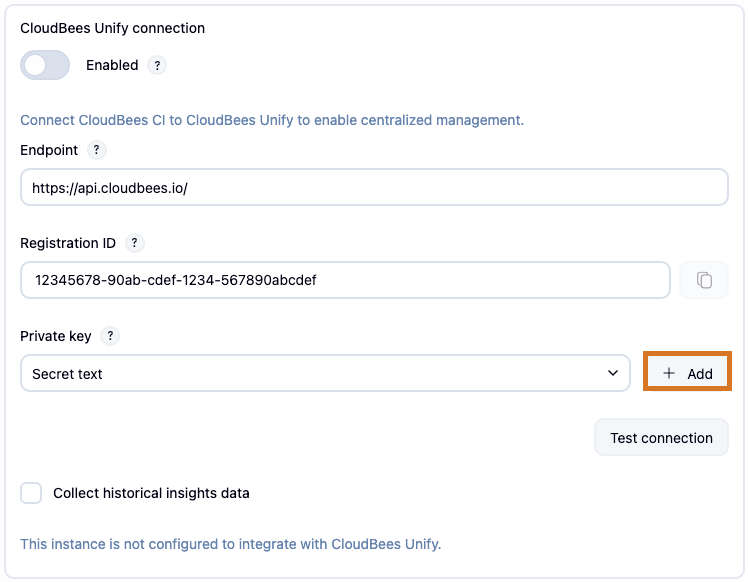 Figure 2. Add a private key to the operations center, with Add highlighted
 -
In the Add Credentials dialog, select Secret text, and then select Next.
-
Paste your private key into the Secret field, and then select Create.
-
Select Add.
-
Select the new Secret text credential from the Private key dropdown.
-
On the CloudBees Unify configuration page, select Save.
-
-
Go back to CloudBees Unify, and then select Next.
-
Select Copy to copy the registration key (ID) displayed in CloudBees Unify.
-
Select Go to Operations Center to add the registration ID to your operations center.
To manually navigate to the CloudBees Unify configuration page, from the operations center dashboard select in the upper-right corner, and then select CloudBees Unify. -
Paste the registration ID into the Registration ID field, and then select Save.
-
In CloudBees Unify, check the integration status; it may take a few minutes to transition from Action pending in OC to Connected.
-
Select Save and close.
-
After the integration is connected successfully, you can view and monitor controller status.
For status definitions, refer to Understand the integration status. For monitoring individual controllers and troubleshooting, refer to View and monitor controller status.
Option 3: Integrate the operations center using Configuration as Code
An operations center and its controllers can be integrated using CloudBees CI Configuration as Code (CasC). This method uses certificate-based authentication. You download a PEM file and use CasC bundles to add the private key and registration ID to the operations center.
To create an operations center integration using Configuration as Code:
-
In CloudBees Unify, select an organization, and then select .
-
Select Create integration. The list of available integrations displays.
-
Select .
-
Select .
-
Select CloudBees CI Operations Center from the list of available integration types.
CloudBees CI Operations Center appears in multiple categories. Be sure to select from the Continuous integration category for this integration.
-
Enter the Name and optional Description.
-
Enter the Operations Center URL.
The Operations Center URL cannot be edited after the integration is saved. Always use HTTPS for operations center URLs. HTTP transmits credentials and key material unencrypted, exposing them to interception. Refer to HTTPS requirements for URLs for more information.
-
Select Set up with PEM File, and then select Create & continue.
-
Select Download to download the generated PEM file containing the private key.
Save this file securely. It contains your private key and cannot be retrieved later.
-
Select Next.
-
Copy the registration key (ID) displayed in CloudBees Unify.
-
Add the following to the
jenkins.yamlfile in your operations center CasC bundle:credentials: system: domainCredentials: - credentials: - string: scope: GLOBAL id: "unify-cred-id"(1) secret: "secret-value"(2) cbpConnectionConfiguration: cbpUrl: "https://api.cloudbees.io/"(3) type: direct: credentialsId: "unify-cred-id" clusterId: "12345678-90ab-cdef-1234-567890abcdef"(4)1 The idmust match thecredentialsIdfield in thecbpConnectionConfigurationsection.2 The secret must contain the private key from the PEM file. 3 The CloudBees Unify URL. If your deployment uses a custom endpoint, replace this with your custom URL. 4 Replace this with the registration key (ID) that you copied from the CloudBees Unify UI when you created the PEM file.
Understand the integration status
Integration status indicates the connection state between CloudBees Unify and your controllers or operations center.
| Status | Applies to | Definition |
|---|---|---|
Action pending in controller |
Single controller |
Integration initiated in CloudBees Unify, but approval or authentication is pending on the controller side. |
Action pending in OC |
Operations center |
Integration initiated in CloudBees Unify, but approval or authentication is pending on the operations center side. |
Waiting for connection |
Controllers (via operations center integration) |
Controllers are pre-registered via the operations center integration and in the process of connecting to CloudBees Unify. |
Connected |
Single controller |
Controller successfully connected with CloudBees Unify and can send data. |
Operations center |
Operations center successfully connected with CloudBees Unify. The controller synchronization occurs in the background, and can be tracked independently in the View controllers screen. |
Reset a connection
Use the reset feature to update a connection or if your connection fails. When you initiate a reset, you are prompted to confirm the action. After you confirm, the connection status transitions as follows:
-
Single controller integration: Action pending in Controller
-
Operations center integration: Action pending in OC
If you close your browser before confirming, the integration status remains unchanged.
Troubleshoot connection issues
If you encounter problems connecting your CloudBees CI or Jenkins to CloudBees Unify, use this section to identify the cause and resolve the issue.
| Issue | Probable cause | Solution |
|---|---|---|
Error: |
The integration name matches an existing integration name in your current organization. |
Update the integration name to be unique. |
Error: |
The controller URL matches an existing integrated controller. |
You must enter a controller URL that is unique before you can save the integration. |
The integration cannot be updated or deleted. |
The integration is inherited by your current organization. |
Navigate to the organization where the integration was created to update or delete it. |
The integration status remains Action pending in Controller (for a single controller) or Action pending in OC (for multiple controllers connected via the operations center). |
The integration has been created, but the |
After redirecting to the controller or operations center, you must confirm access before closing the window. |
A controller or operations center is already integrated with a CloudBees Unify organization. The same controller or operations center was integrated in a different CloudBees Unify organization, but it is not working correctly. |
Each controller or operations center can only be integrated with one CloudBees Unify organization at a time. If a controller or operations center is integrated with multiple organizations, only the most recent integration will receive data. |
Verify that your controller or operations center is not already integrated in another CloudBees Unify organization before creating a new integration. |
HTTPS requirements for URLs
To secure communication between CloudBees Unify and your operations center and controllers, always use HTTPS for your operations center or controller URL. HTTP transmits data in plain text, allowing anyone monitoring network traffic to intercept sensitive information, including authentication credentials, API keys, and private key material. This is particularly critical when integrating controllers, as the configuration process involves transferring:
-
Private keys (when using the PEM file setup).
-
Authentication tokens.
-
Organization and endpoint identifiers.
-
Job and build data.
HTTPS uses Transport Layer Security (TLS) to provide three essential security protections:
-
Confidentiality: Encrypts all data in transit, preventing eavesdropping on sensitive information.
-
Integrity: Protects against tampering or modification of requests and responses during transmission.
-
Authentication: Verifies you’re connecting to the legitimate controller, not an imposter or man-in-the-middle attacker.
HTTP connections should only be used in the following limited scenarios:
-
Local testing environments completely isolated from external networks.
-
Development environments where no production credentials or sensitive data are present.
-
Proof-of-concept demonstrations on localhost.
| Production, staging, and any internet-accessible controller integrations must always use HTTPS to protect your organization’s security credentials and operational data. |
For more information on TLS best practices and secure transport configuration, refer to the OWASP Transport Layer Security Cheat Sheet.