|
CloudBees Beta
This feature is available as a beta release and is subject to change without notice. CloudBees recommends stringent testing in a development environment and a complete review of the documentation and architecture before using it in production. |
Service logs offer a detailed view of output generated by services defined in a workflow. These services perform tasks such as database setup, memory caching, or other operations necessary for building and testing code. The logs are accessible when viewing the workflow run detail.
To access service logs for a workflow run.
-
Select
 , and then select an organization, sub-organization, or component.
 -
Select Runs from the left panel. The Runs list displays the workflow runs for the selected organization or component.
-
Select the name of the event that started the workflow run. The Run details displays.
-
Select the SERVICE LOGS tab in the right panel. The SERVICE LOGS tab displays.
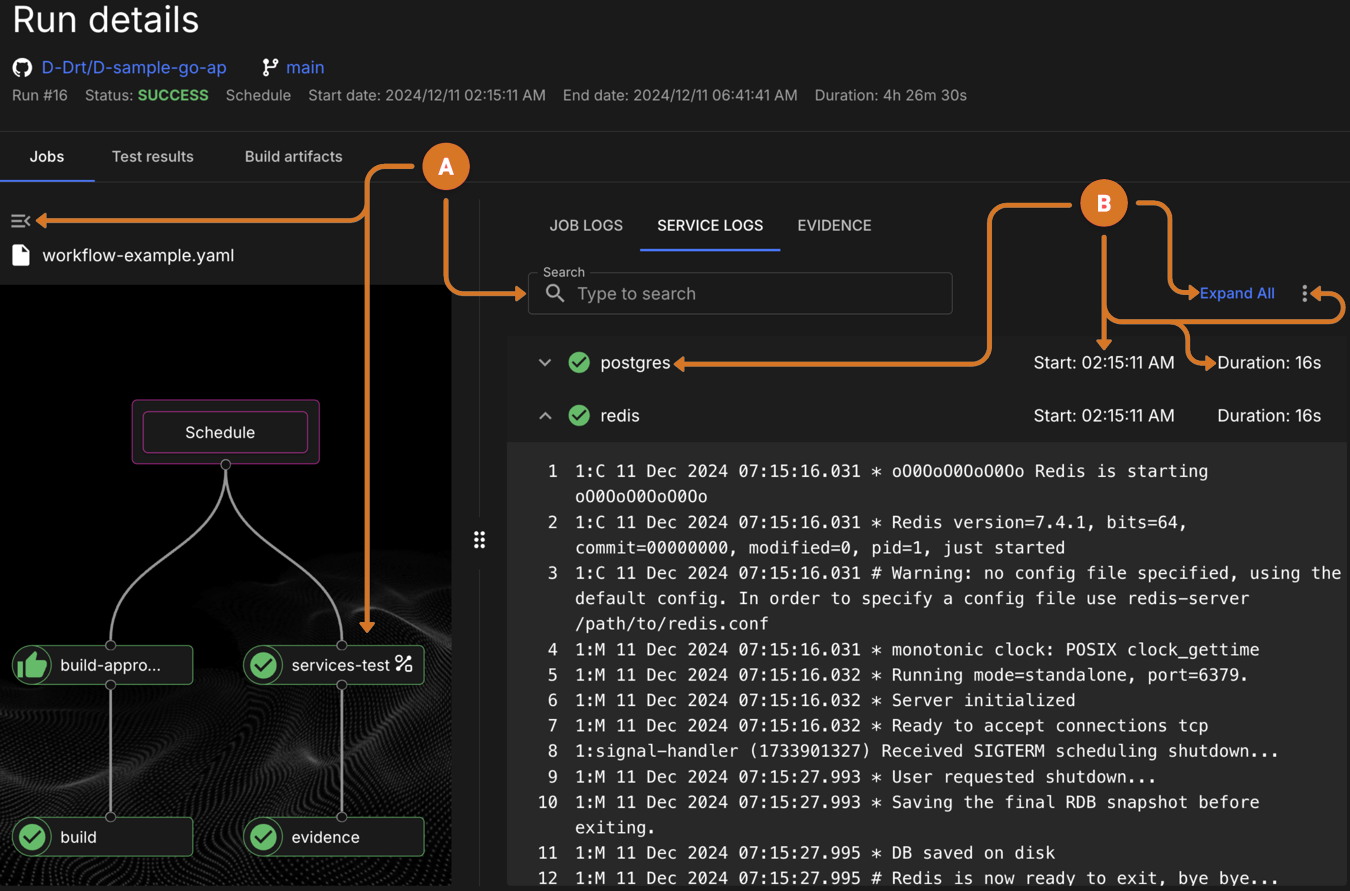 Figure 1. SERVICE LOGS
-
Use these features to locate the service log data:
-
Switch between graphical and outline workflow view by selecting
 .
. -
Choose the name of the job that has a service in the left panel.
-
Locate specific service log data using Search feature.
-
-
Use these features to review service log details:
-
Show or hide all log details by switching the Expand All and Collapse All buttons.
-
Download the service log by selecting the
 and then Download log.
 -
Add or remove the log time stamp data column by selecting
and then View or Hide timestamps. -
Examine the service name and log data displayed.
-