Generate a personal access token in CloudBees Unify and use it for authentication in external tools. In an external tool, such as an IDE, call an API with this token to trigger a manual workflow in CloudBees Unify.
| Because your personal access token is used like a password for authentication, use best practices when storing it in external tools. |
Access personal access tokens
Your list of tokens remains constant regardless of which platform organization you are using.
To access your tokens:
-
Select your account name, and then select User profile.
-
Select the Personal access tokens tab.
Your personal access tokens are listed with their duration and expiration date.
Generate a personal access token
The CloudBees Unify personal access token is only for authentication for remote workflow execution; it cannot be used for other tasks.
To generate a token:
-
Select your account name and then select User profile.
-
Select the Personal access tokens tab.
-
Select Generate token.
-
Enter a token Name.
-
(Optional) Enter a Description.
-
Enter a Duration (how long the token remains valid) from the following options:
-
Keep the default duration of 7 days.
-
Select a 30, 60, or 90 day duration.
-
Select Custom and enter a custom duration:
-
Select
 .
. -
(Optional) Select
 to go to a future month and year.
 -
(Optional) Select
 and
and  to move from month to month.
 -
Select a date on the calendar for the duration end.
-
-
-
Select Generate to display the personal access token.
-
Select
 to copy the personal access token and paste it in a safe location.
 -
Copy the
curlcommand to refer back to when you call the API. Refer to Trigger a workflow using an API for more information.
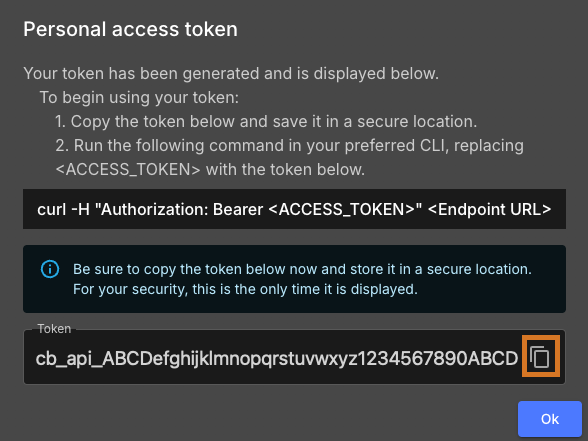
The personal access token is generated to authenticate you to remotely invoke a manual workflow.
Delete a personal access token
Delete any of your personal access tokens. A deleted token is completely removed from CloudBees Unify and the deletion is irreversible.
To delete a personal access token:
-
Select your account name and then select User profile.
-
Select the Personal access tokens tab.
-
Select
 next to the personal access token you want to delete.
 -
Select Delete.
-
Select Delete.
The selected token is deleted and removed from the tokens list.