This document is a guide meant for existing rollout.io customers who are migrating to the CloudBees cloud-native platform and its next-generation feature-flag service. A CloudBees representative may have directed you here after provisioning your new tenant and running the one-time data import.
The sections that follow explain what CloudBees has already done, what you can expect during the transition, and the steps you need to complete—sign in, validate your applications, flags, and environments, update your SDK keys, and finish with post-transition clean-up.
Get started
If you are new to the CloudBees Unify, skim the documents below for the basics before you begin the transition:
Once you are familiar with the fundamentals, use the table below to review each transition phase at a glance and who owns it. Detailed, step-by-step tasks follow in the next sections.
| Milestone | Owner | Purpose |
|---|---|---|
Email notice |
CloudBees |
Email announcement of transition from rollout.io to CloudBees Unify (CloudBees Unify). |
Kick‑off call |
CloudBees and Customer |
Confirm timeline, tenant name, and special requirements. |
Tenant setup |
CloudBees |
Provision the new platform tenant. |
Initial import |
CloudBees |
Copy applications, flags, and environments into the new tenant.
|
Initial validation |
Customer |
Sign in and verify that all data migrated correctly. |
Transition |
Customer |
Engage CloudBees on the following:
|
| The Initial import does not migrate user accounts or SAML/SSO settings. Tenant admins must re-invite users and reconfigure SAML in CloudBees Unify. |
Prerequisites
Before working through validating that your feature flags were migrated successfully, and transitioning to CloudBees Unify, make sure:
-
You have received the email notice and scheduled or completed the kick-off call with CloudBees. The call confirms your timeline, tenant name, and any special requirements.
For any transition questions, email the CloudBees representative who ran your kick-off call and copy rollout-migration@cloudbees.com, so the team can track your request. Open a CloudBees support ticket only if you need an immediate response because your Rollout account is blocked or your production environment is affected. -
You have received confirmation from CloudBess that your tenant has been created and the initial import has been completed by CloudBees.
-
You can sign in to the CloudBees Unify: https://cloudbees.io.
Customer transition steps
Follow these steps after CloudBees has completed the one–time import.
-
Sign in to your new tenant using the link provided in the email notice.
-
Open each imported application and confirm that applications, flags, and environments appear as expected.
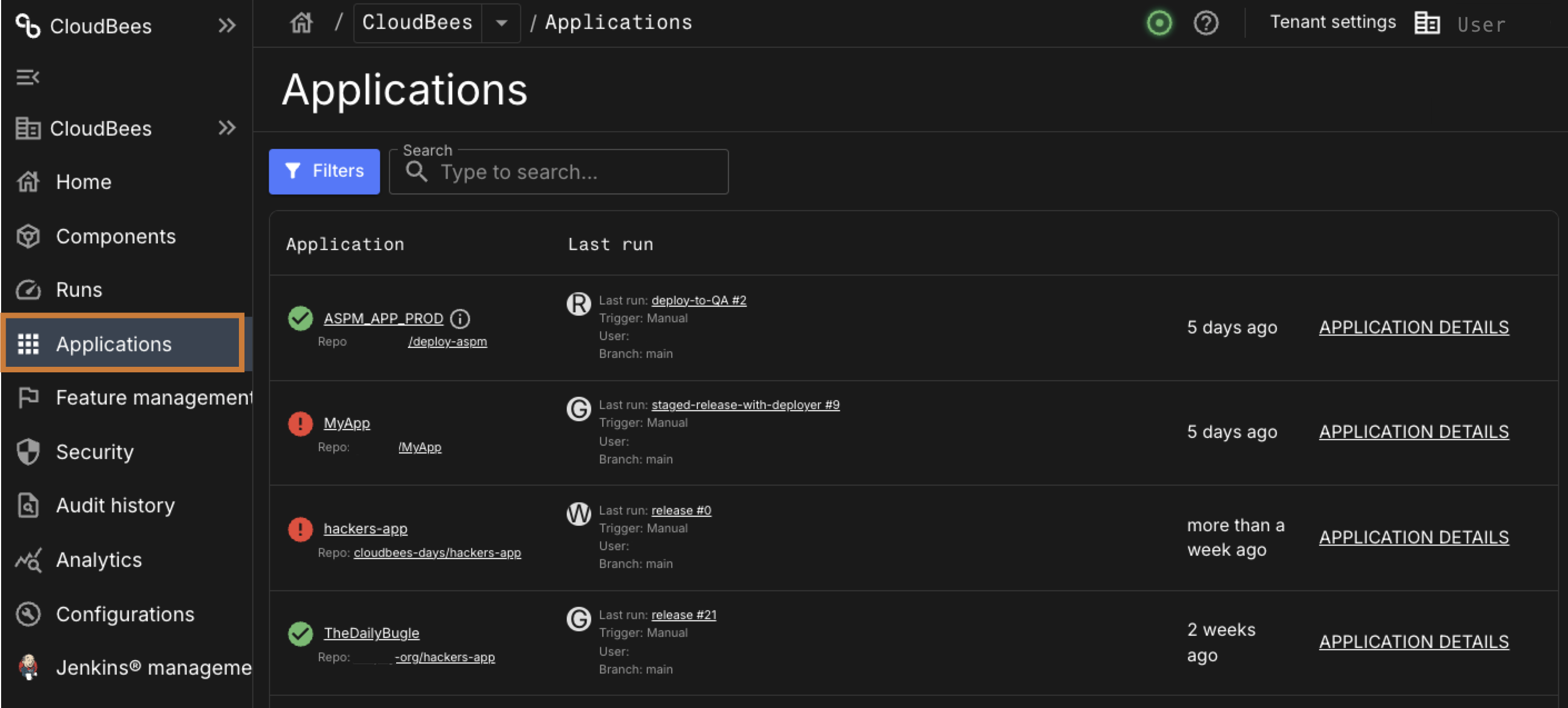 Figure 1. Applications
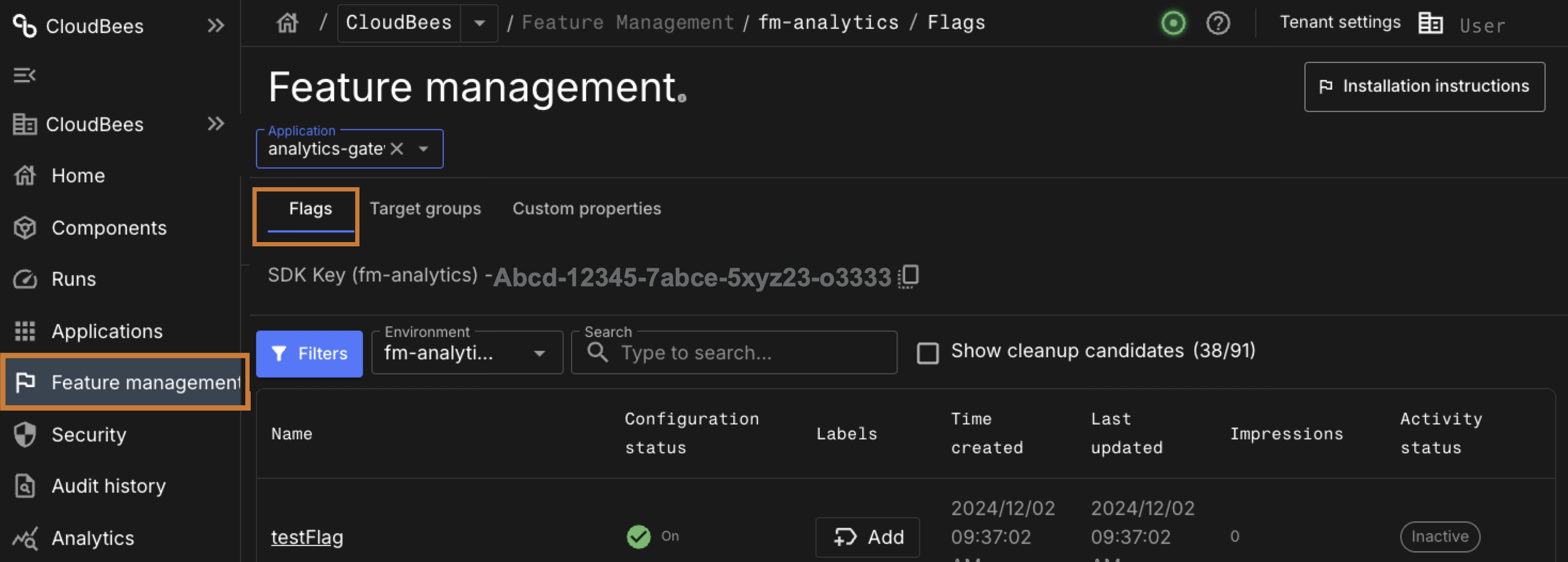 Figure 2. Flags
 Figure 3. Environments
 -
Upgrade your client and server SDKs.
Begin upgrading your server- and client-side SDKs to version 6.x. All 6.x SDKs are backward compatible, so Rollout continues to work during the transition.
-
Replace your SDK keys.
Start with your non-production environments and replace your SDK keys in your applications from Rollout to CloudBees Unify.
To locate the new keys in CloudBees Unify, navigate to . The SDK key for the selected environment appears just below the Flags tab.
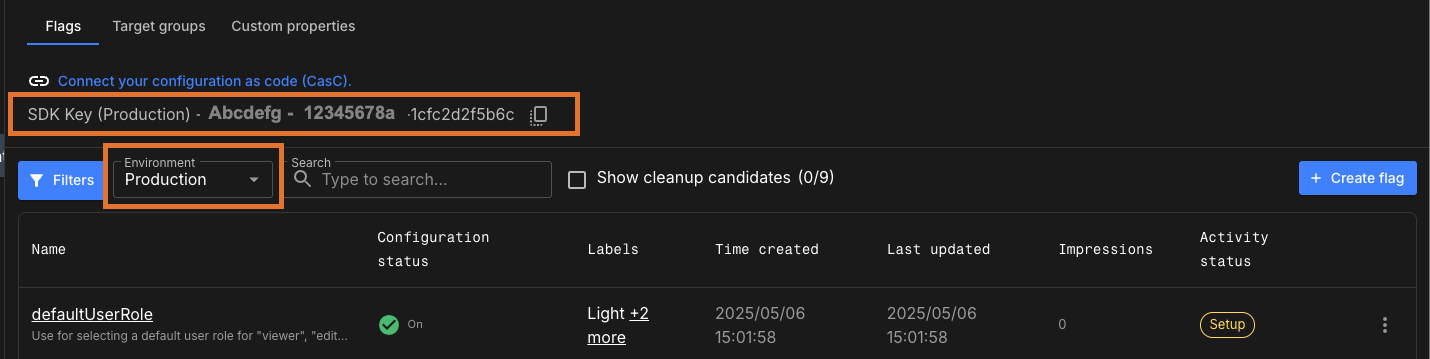 Figure 4. SDK key location
A common workflow is to update keys in non-production environments first, verify parity, and then change the production keys.
Configuration as Code (CasC) and migration validation:
Do not enable CasC integrations until the end of the migration. Applications with CasC enabled cannot be migrated or re-synced.
If you need a new sync:
-
Disable CasC on the affected applications.
-
Request CloudBees to run the sync.
-
Re-enable CasC only after verification is complete.
-
-
Validate flag behavior in a non-production environment:
-
Toggle a flag on and off.
-
Check target-group rules.
-
Verify that SDK evaluations return the expected values.
-
Proceed to the next non-production environment until you can validate that all of your environments are working as expected.
-
-
Recreate or adjust items that were not migrated automatically (for example, new target groups or properties created after the import).
The CloudBees transition tool can refresh the CloudBees Unify with any new flags you add in Rollout. It performs a one-way sync from Rollout to CloudBees. Request a sync whenever you need the latest Rollout changes. -
Post-transition clean-up—archive unused flags, rename legacy items, and delete obsolete environments.
FAQ and troubleshooting
- Will CloudBees migrate my flags for me?
-
Yes. A one-time sync is performed by CloudBees. Additional syncs are available upon request.
- What if I used secret mode in Rollout?
-
Secret mode is supported and improved in the CloudBees Unify with UI configuration options.
- Can I import flags from Rollout automatically?
-
Flags are imported as part of our transition script. Our transition script includes the transition of applications, feature flags, and environments.
- What happens to my old Rollout account?
-
Your Rollout account stays online in read-only mode during the transition, giving you time to review settings and compare data. It will be closed once your transition is finished or when Rollout is sunset—whichever comes first. If you need access for a longer period of time, contact your CloudBees transition representative to discuss options.
- What if I have devices that don’t regularly receive SDK updates?
-
Contact us by sending an email to your primary CloudBees contact who initiated the kickoff with you and copy rollout-migrations@cloudbees.com to discuss your options.
- How do I set up custom roles?
-
Please refer to Role-based access control for details.
- Do you support SAML?
-
If you are currently using SAML on rollout.io or want to setup a new SAML connection you can leverage the documentation here: SAML single sign-on (SSO).
- What CloudBees Unify features can I use after migrating?
-
You currently have access to all CloudBees Unify features. Limits normally align with the Team tier; refer to CloudBees Unify pricing. More specific questions can be answered by your transition project lead.
- What will happen with my Flag impressions data on Rollout?
-
Flag impressions data is not part of the transition process. However, you can export impression data using the Rollout API.
- What will happen to my audit history on Rollout?
-
Rollout history is not a part of the transition process.
| Although audit history is not officially exportable, an internal API may be available; please contact your CloudBees transition project lead for more information. |
- What happens to my existing integrations?
-
Integrations (for example, Jira, GitHub Apps, CasC, webhooks) are not migrated automatically. Some must be reauthorized in the CloudBees Unify.
| Please alert your CloudBees transition lead to any specific integrations you rely on. |
- Will my Secret mode settings be migrated automatically when I transition to CloudBees Unify?
-
No. Secret mode settings will not be migrated by default. If you configured Secret mode prior to the migration and want to retain those settings in CloudBees Unify, you must contact your CloudBees transition representative to request this. For more information about Secret mode, refer to API introduction.
- How can I identify and remove old flags before transitioning to CloudBees Unify?
-
Cleaning up unused or outdated flags before migration isn’t required, but it can simplify the process. Here are some suggestions:
-
Refer to filter stale and inactive feature flags to review flags for possible deletion.
-
Refer to performing cleanup tasks to safely review and delete unused flags.
-
Refer to deleting feature flags once all cleanup tasks are completed and it is safe to delete the flag.
Other options:
-
Use the use the REST API to use the flag’s endpoint with the
includeFlagStatus=trueparameter to review flags by status. -
Use the Impressions API to identify flags that only serve the default value and are not toggling values based on environment or user targeting.
-
Not sure about a flag? Tag it. For example,
candidate-for-removalfor review after migration.
-