Set up the Jira integration to link Jira tickets to feature flags in CloudBees Unify. The setup involves two steps: first, create an organization-level integration that authenticates with your Jira instance, then configure an application-level integration that enables ticket linking for a specific application. The organization-level integration is a one-time setup; the application-level integration connects a specific application to that instance.
For an overview of how the two tiers relate, refer to Jira integration for feature flags.
Before you begin
Review the following requirements before you begin:
-
You must have CloudBees Unify administrator permissions to create and configure integrations at the organization and application levels.
-
To view linked tickets on a flag’s Jira tab, you do not need administrator permissions.
-
You must have a Jira instance URL, Jira username, and Jira personal access token with permission to read and write issues.
Create the organization integration
You can start the organization integration from two places:
-
From a feature flag: Select a feature flag, open the Jira tab, and select Create integration.
If no organization integration exists, the Integration Status section displays Jira integration not configured.
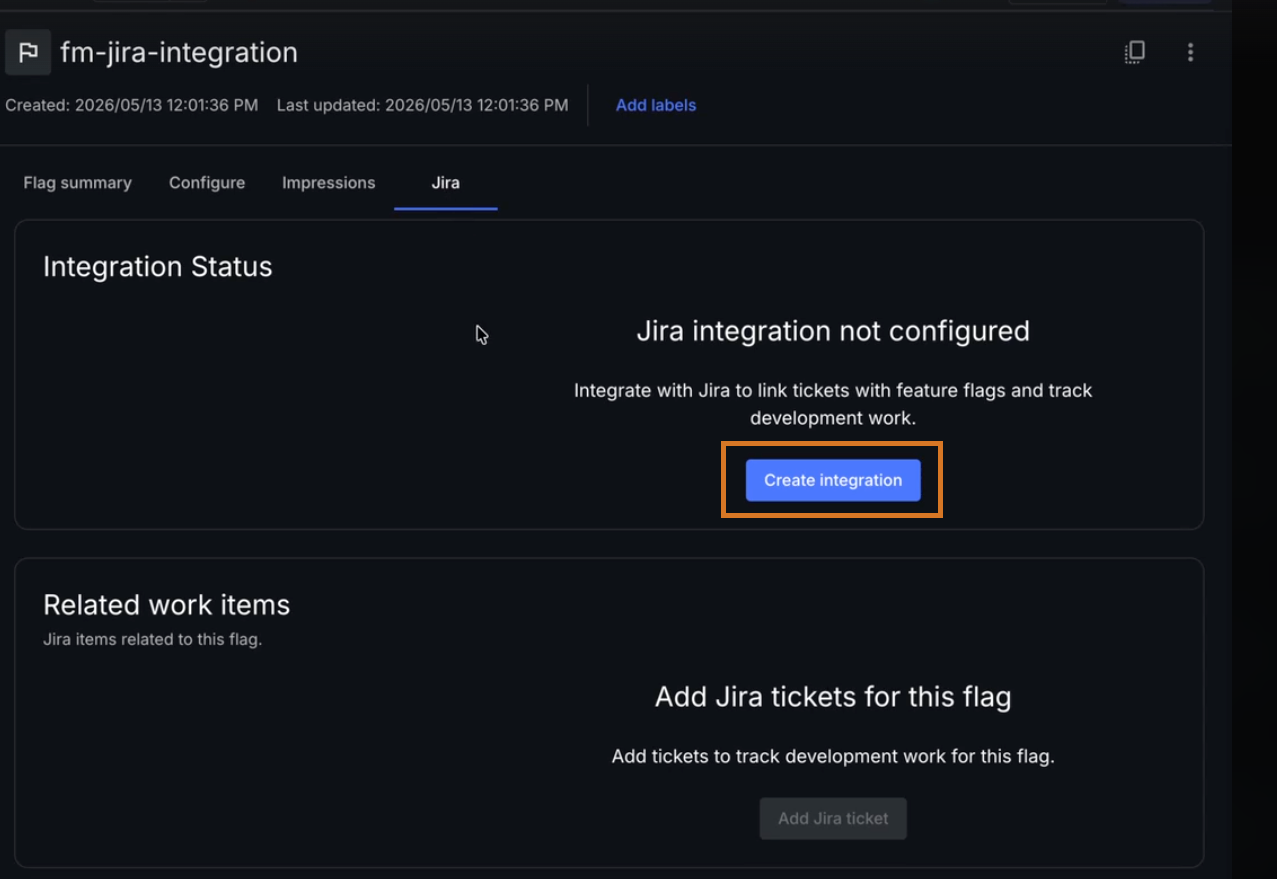 Figure 1. Jira tab with no integration configured
 -
From the application settings: Go to Configurations > Integrations and select Create integration.
Once the Create Integration panel opens, the steps are the same for both paths.
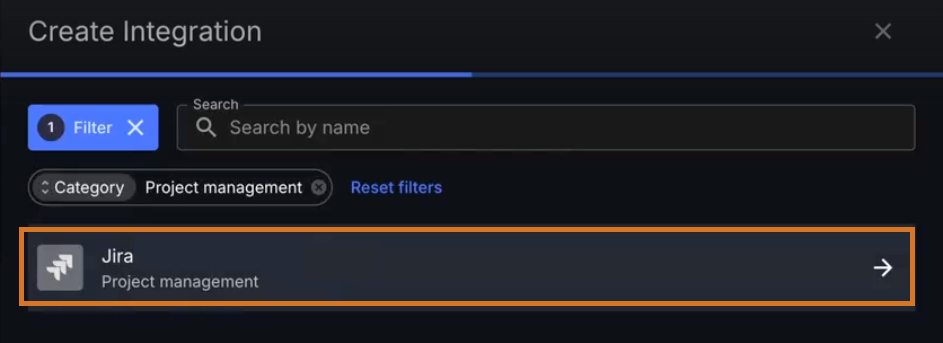
To create the organization-level Jira integration:
-
Select Jira from the list and select the arrow to continue.
-
Complete the General fields:
Field Description Name
A display name for this integration.
Description
(Optional) A short description of the integration.
-
Complete the Authentication fields:
Field Description URL
The URL of your Jira instance, for example
https://yourcompany.atlassian.net.Username
The Jira username associated with the personal access token.
Personal access token
A Jira personal access token with permission to read and write issues.
-
Select Test Integration to verify the credentials.
A Connection successful confirmation message appears when the credentials are valid.
-
(Optional) Configure Jira severity mapping by dragging Jira priorities onto the corresponding CloudBees Unify severity levels: Critical, High, Medium, and Low.
-
In the Configure webhook section, copy the Webhook URL and Webhook secret and add them to your Jira instance.
The webhook is required for feature traceability and security issue tracking. It is also required for flag ticket tracking. After you link tickets to a flag, the webhook syncs status changes from your Jira board to the flag’s Jira tab in CloudBees Unify.
-
Select Save configuration.
After saving, the flag’s Jira tab displays an action required message: the organization integration is configured, but Jira must be connected at the application level before linking tickets.
Configure the application integration
To configure the application-level integration:
-
On the flag’s Jira tab, select Go to application integrations.
-
On the Integrations tab, select Create integration.
If no application integrations exist, the page displays Create your first app integration.
-
Select Atlassian Jira.
-
Select your Jira instance from Select Jira instance.
-
Enter your Jira domain.
-
In Configuration name, enter a name for this configuration.
Each configuration requires a unique name. This allows you to connect the same Jira instance for different purposes.
-
In Select purpose, select Flag ticket tracking.
-
Select Save configuration.
CloudBees Unify returns you to the Integrations tab. The new integration appears in the list with its name, configuration type, purpose, and last updated date.
Next steps
With both integrations configured, you can now link Jira tickets to individual feature flags. Refer to Link Jira tickets to feature flags.
Troubleshoot
| Issue | Resolution |
|---|---|
Connection unsuccessful when you test the integration |
Verify that the Jira instance URL is correct and includes |
Ticket key returns an error during validation |
Confirm the ticket key exists in the connected Jira instance and that the personal access token has access to the relevant Jira project. |
Linked ticket status does not update in CloudBees Unify |
Verify that the webhook URL and webhook secret are correctly configured in your Jira instance. The webhook must be active for status changes to sync. |
Jira tab displays an action required notice after you save the organization integration |
Configure the application-level integration before linking tickets. Refer to Configure the application integration. |