Secret mode restricts who can create or update feature flags by requiring a secret key in the SDK initialization. Without the key, flags cannot be created, which protects codebases where source code is publicly accessible, such as public or open-source repositories.
| You must be an administrator to enable secret mode. |
By design, you can create feature flags directly from the SDK or the CloudBees Unify UI by defining and using the flag. Secret mode adds a layer of security, as only authorized users have access to the secret key required to create or update flags for all environments. This is important for codebases where source code might be exposed, such as public or open-source repositories.
Requirements
CloudBees must enable secret mode before you can set it up or use it. Additionally, the secret key must remain confidential and accessible only to authorized users.
When to use secret mode
-
Enable secret mode to protect against unauthorized users creating or modifying flags, especially if your source code is public or open-source.
-
Use secret mode to restrict flag creation or updates to specific users who have access to the secret key.
Request secret mode enablement
Submit your request to CloudBees to enable secret mode.
After secret mode is enabled, follow the steps to Set up secret mode by adding the devModeSecret value to the SDK initialization for your application’s code language.
To submit your request:
Alternatively, from within the CloudBees Unify UI, navigate to any page and select the Need our help? option to reach CloudBees support directly.
Verify secret mode is enabled
After CloudBees confirms that secret mode is enabled, it appears as devModeSecret in the SDK installation page.
| Installation instructions are available when they’re enabled for your organization. |
To verify secret mode has been enabled:
-
Sign in to CloudBees Unify.
-
Select from the left navigation.
-
Complete the SDK installation steps for the code language of your application.
-
In the step to Add the following lines of code to your application, verify that the secret key is present in the
devModeSecretfield as shown in Set up secret mode.
The following examples show the difference between the default state (secret mode not enabled) and the configured state (secret mode enabled).
Example: Creating flags without secret mode
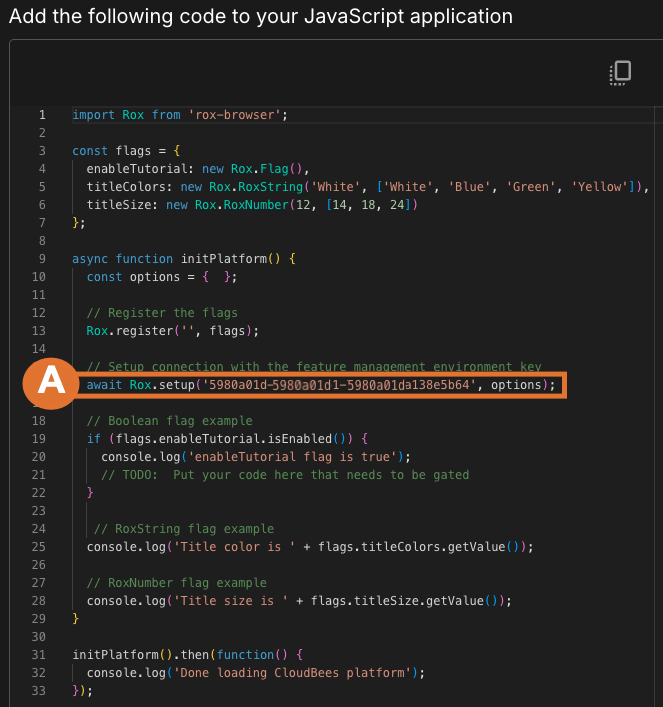
The example above shows the default option using the SDK to create flags. After the line of code with the environment key runs, any flags defined above are created in the application. Secret mode is not enabled in this example.
-
This line of code is the environment key; secret mode is not enabled.
Example: Creating flags with secret mode enabled
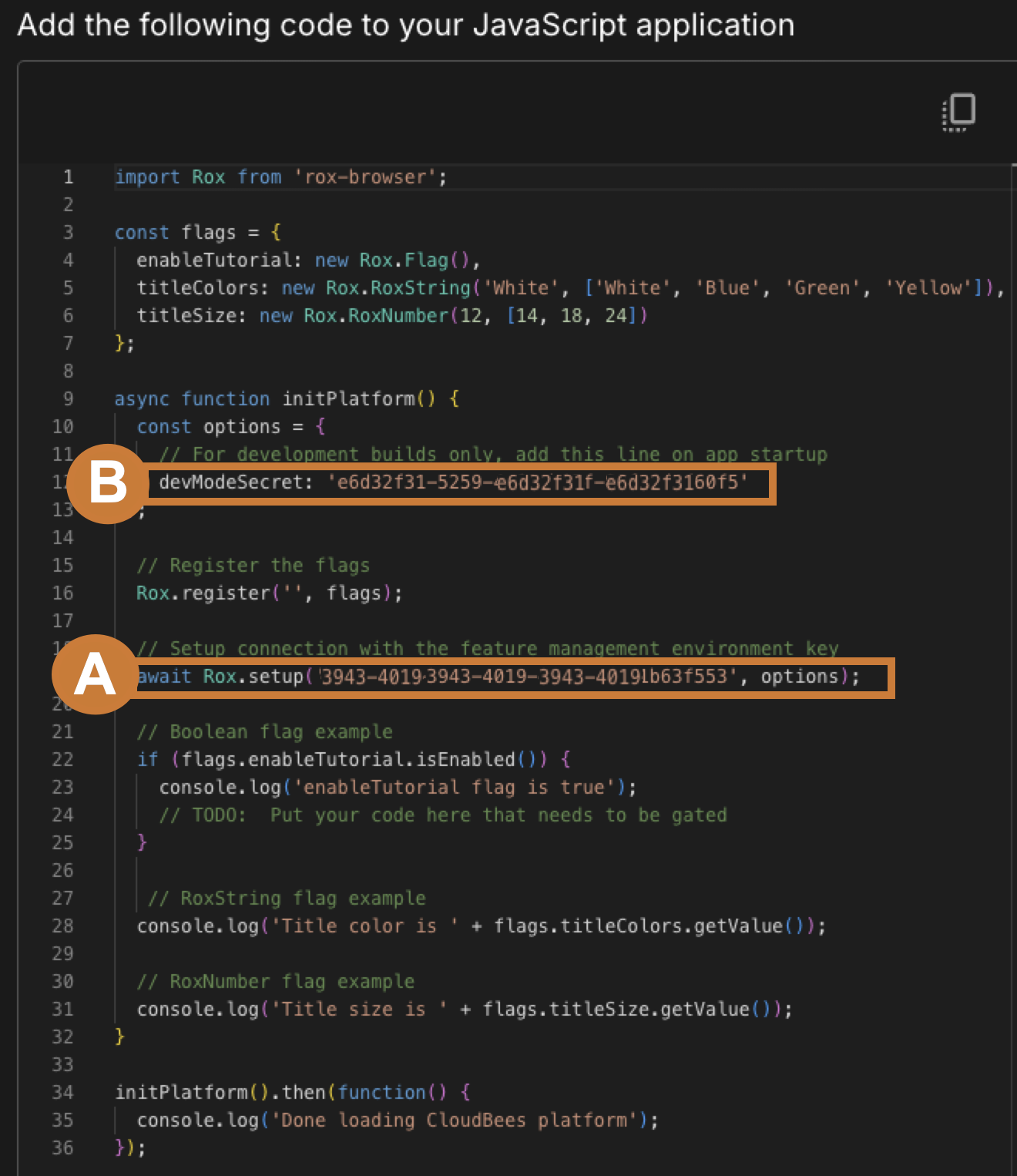
The example above shows the code with secret mode enabled.
The application code must include devModeSecret and the secret key to create and display flags.
Without the key, no flags are created.
-
This line of code is the environment key.
-
This line of code is the
devModeSecretand the secret key.
| Do not include the secret key in any publicly released code. |
The published code continues to use and evaluate the flags without the secret key, preventing unauthorized users from creating new flags.
Set up secret mode
Add the devModeSecret code shown below to your SDK initialization.
The exact syntax varies by language.
RoxOptions *options = rox_options_create(); rox_options_set_dev_mode_key(options, DEFAULT_DEV_MODE_KEY); rox_setup(DEFAULT_API_KEY, options);
Rox::Options *options = Rox::OptionsBuilder() .SetDevModeKey(DEFAULT_DEV_MODE_KEY) .Build(); Rox::Setup(DEFAULT_API_KEY, options);
var options = new RoxOptions(new RoxOptions.RoxOptionsBuilder { DevModeKey = "<the secret key>" });
options := server.NewRoxOptions(server.RoxOptionsBuilder { DevModeKey: "<the secret key>" })
setenv("ROX_DEV_MODE_SECRET", "<the secret key>", 1)
System.setProperty("ROX_DEV_MODE_SECRET", "<the secret key>");
const options = { devModeSecret: "<the secret key>" }
$roxOptionsBuilder = (new RoxOptionsBuilder())->setDevModeKey("<the secret key>")
options = RoxOptions( dev_mode_key='<the secret key>' );
options = Rox::Server::RoxOptions.new(dev_mode_key: '<the secret key>')