The Jira integration connects CloudBees Unify to your Jira instance so that you can associate Jira tickets with feature flags and track development work alongside flag activity. This page explains the two-tier configuration model, what each tier does, and how ticket linking and status sync work.
Why it matters
Feature flags and Jira tickets typically live in separate tools, so you lose time switching between them to figure out which ticket shipped which flag, or whether a flag is still tied to open work.
The Jira integration closes that gap. By linking tickets directly to flags, you get:
-
Faster context, less tab-switching: You see the related Jira work directly on the flag, without leaving CloudBees Unify.
-
Clearer audit trails: Every flag has a traceable link back to the ticket that justified it, which supports governance, compliance, and cleanup decisions.
-
Up-to-date status without manual updates: Ticket status syncs automatically from your Jira board, so you always know whether the underlying work is in progress, blocked, or done.
The result is fewer stale flags, faster root-cause investigations, and a single source of truth connecting why a flag exists to what it controls.
The two-tier configuration model
The integration requires two separate configurations: one at the organization level and one at the application level. Both must be in place before you can link tickets to flags. This separation reflects two distinct concerns: authenticating CloudBees Unify with your Jira instance (done once, at the organization level), and enabling ticket linking for a specific application (done per application).
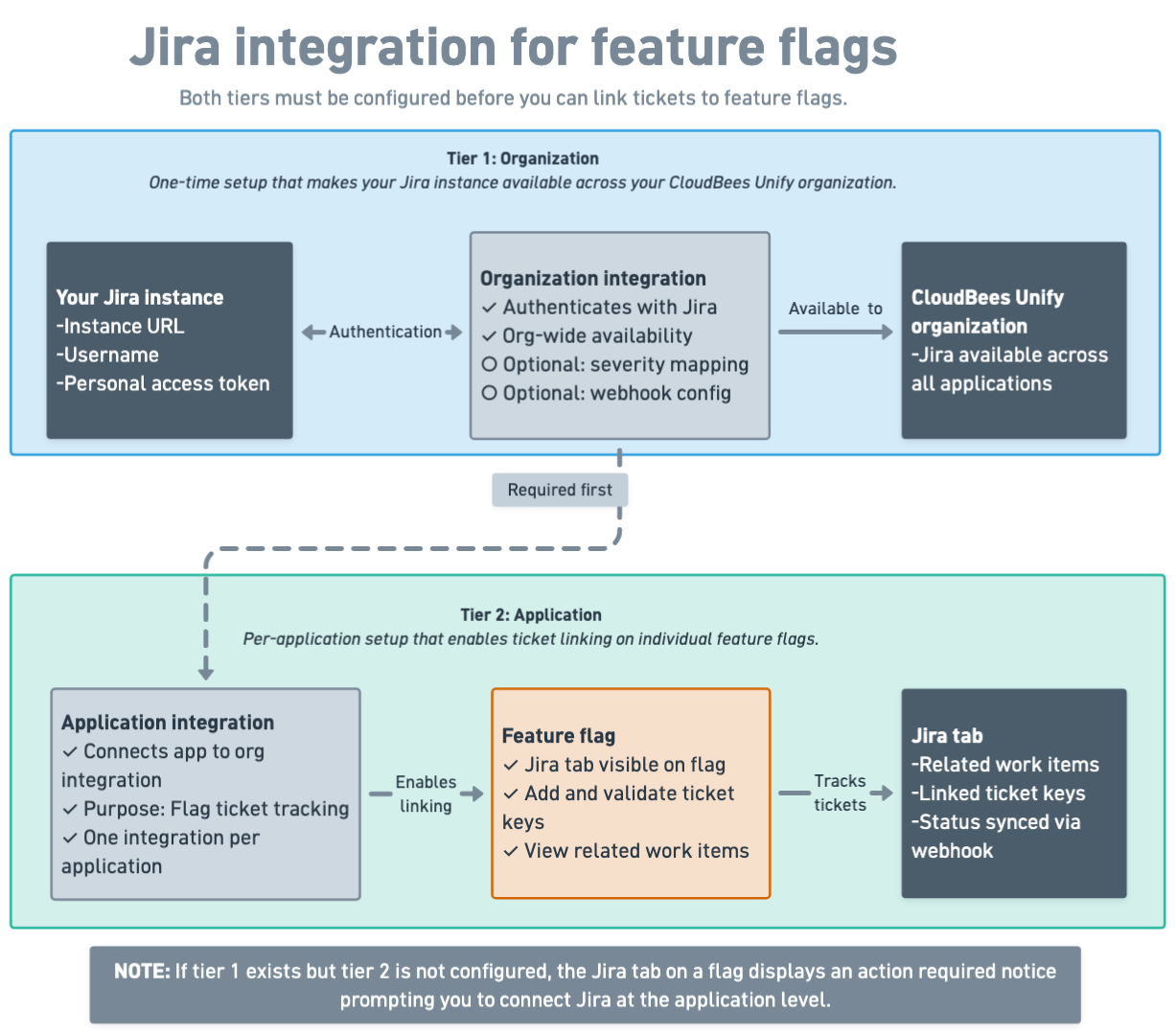
Organization integration
The organization-level integration is a one-time setup that authenticates CloudBees Unify with your Jira instance using a URL, username, and personal access token. Once configured, the integration makes your Jira instance available across your entire CloudBees Unify organization.
This tier also includes optional severity mapping, which lets you align Jira priorities to CloudBees Unify severity levels, and webhook configuration, which is required for ticket status changes to sync back to CloudBees Unify.
Application integration
The application-level integration connects a specific CloudBees Unify application to the organization-level Jira integration and configures it for flag ticket tracking. This step is what enables ticket linking on individual flags within that application.
The Jira integration is only available when viewing feature management within the context of a specific application, not at the organization level. If the organization integration exists but no application integration is configured, the Jira tab on a flag displays an action required message prompting you to connect Jira at the application level.
How ticket linking works
After both integrations are configured, you can link Jira tickets to individual feature flags by entering a ticket key on the flag’s Jira tab. CloudBees Unify validates the key against the connected Jira instance before the link is created. Linked tickets appear under Related work items, providing a direct reference between the flag and the associated development work.
Removing a link only removes the association in CloudBees Unify. The Jira ticket itself is not affected.
Ticket status sync
After you link a ticket to a flag, CloudBees Unify syncs status changes from your Jira board to the flag’s Jira tab. This sync relies on an active webhook configured in your Jira instance during organization integration setup. Without the webhook, linked tickets appear correctly but their statuses do not update when the Jira ticket moves through your board.