In this tutorial we will connect a GitHub repository to CloudBees Unify using a sample Go application template, creating the foundation for automated workflows. Along the way we will encounter the GitHub App integration model, repository templates, and how CloudBees Unify connects to source code.
By the end, you will have a working repository connection ready for creating components and workflows.
Before we begin, ensure you have:
-
A valid GitHub account
-
Access to at least one organization in CloudBees Unify
Create your sample repository
Now we’ll create a new GitHub repository from the CloudBees sample Go app template. This template provides a complete working application that we can use throughout the tutorial series.
-
Go to the CloudBees sample Go app repository, and select Use this template.
-
To copy the template repository, select the Create a new repository option.
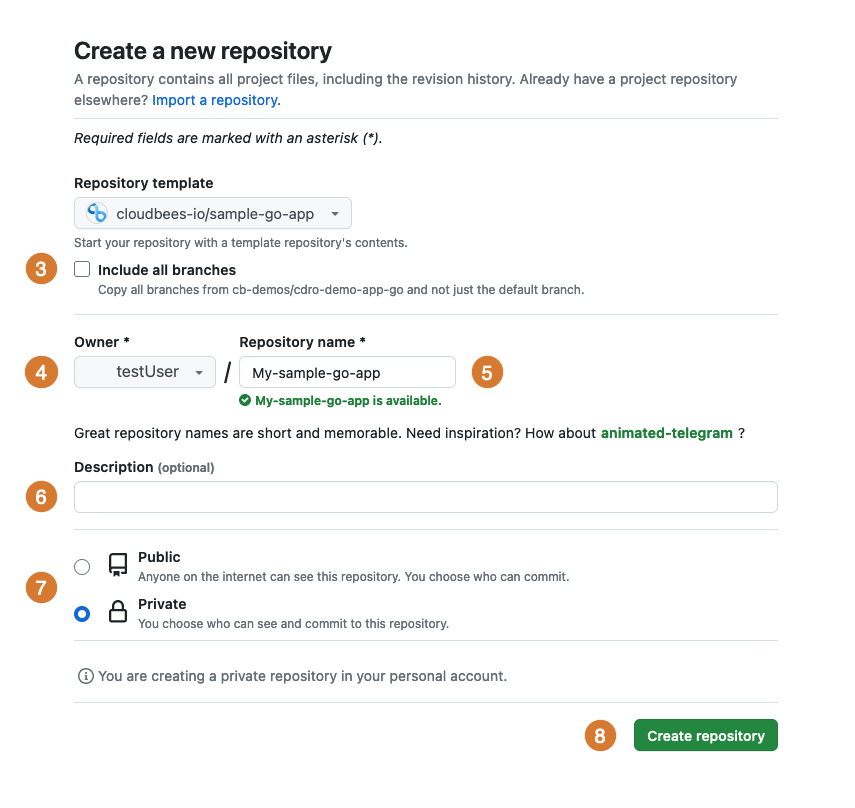 Figure 1. Create a new repository from a sample Go app
 -
Do not select Include all branches.
-
Select your GitHub ID from the options.
-
Enter a Repository name.
-
(Optional) Enter a Description.
-
Select either Public or Private, according to your requirements.
-
Select Create repository.
Your new repository is created in your GitHub account from the CloudBees sample Go app template. You can see the complete Go application code structure, including source files, tests, and configuration. We are now ready to connect this repository to CloudBees Unify.
Set up the GitHub App integration
Now we’ll connect CloudBees Unify to your new repository by creating a GitHub App integration. This integration allows CloudBees Unify to access your repository and use it in components and workflows.
-
Select an organization, and then select .
-
Select Create integration. The list of available integrations displays.
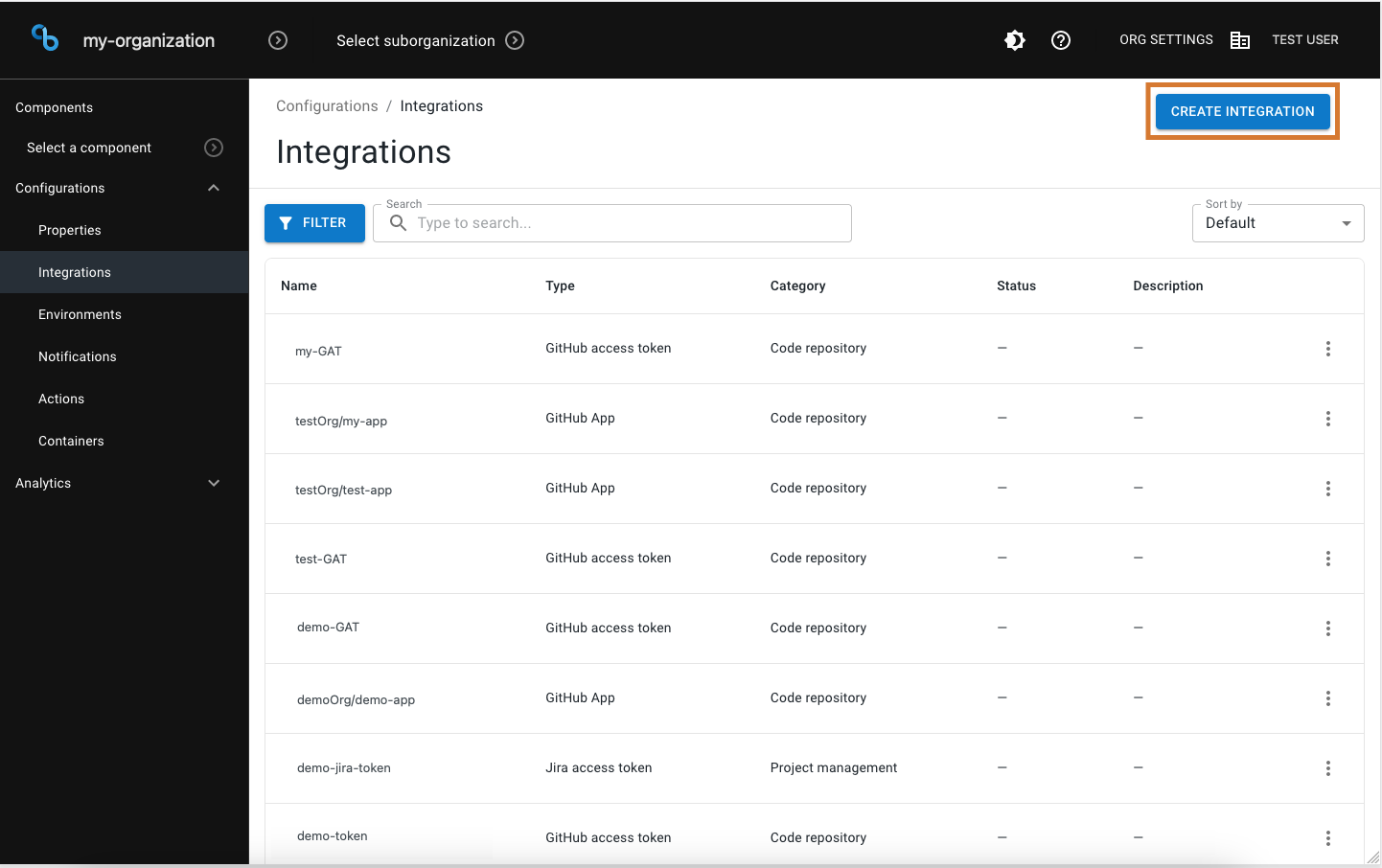 Figure 2. Create a new integration
 -
Select GitHub App from the list of available integration types.
-
Enter a Name for the GitHub App.
-
(Optional) Enter a Description.
-
Select Install GitHub App.
This action redirects you to GitHub for the authorization process. GitHub will ask you to confirm which repositories CloudBees Unify can access.
-
Select the GitHub account or GitHub organization where you created the sample Go app repository.
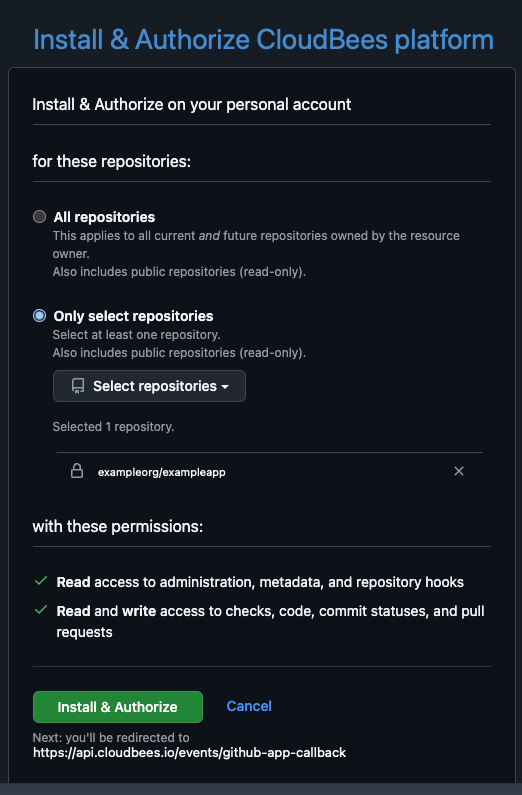 Figure 3. GitHub App installation with available GitHub organization highlighted
 -
Select All repositories or Only select repositories, and select the name of your sample Go app repository from the options.
-
Select Install & Authorize.
The authorization process completes and redirects you back to CloudBees Unify. Your integration is now connected and ready to use.
Verify your repository connection
Let’s confirm that the repository connection is working properly and available for creating components.
The integration is connected and can now be used when creating components and workflows that reference this repository.
Notice that GitHub App integrations created for source code access may not appear as standalone entries in . These integrations are used implicitly by CloudBees Unify and applied automatically when you create components and workflows that reference the repository.
| If you previously created and authorized a GitHub App, CloudBees Unify reuses the existing app and may skip the Install and Authorize step. |
What we accomplished
We have successfully connected a GitHub repository to CloudBees Unify through a secure GitHub App integration. Along the way we encountered repository templates, the GitHub App authorization model, and how CloudBees Unify manages source code connections.
You now have a working repository connection that serves as the foundation for all CloudBees Unify automation features.
From here, you can:
-
Create a build workflow using this connected repository.
-
Understanding CloudBees Unify features to explore platform capabilities.
-
Understanding organizations to learn more about organizational structure.