Review stale and inactive flags in the flags overview and safely remove those that are no longer needed. For an explanation of flag health signals and lifecycle statuses, refer to Understanding flag health.
Access the flags overview
The flags overview provides a summary view of feature flag activity across your application, including cleanup candidates and environment-level status.
To access the flags overview:
-
Navigate to Feature management.
By default, the landing page is the Flags overview.
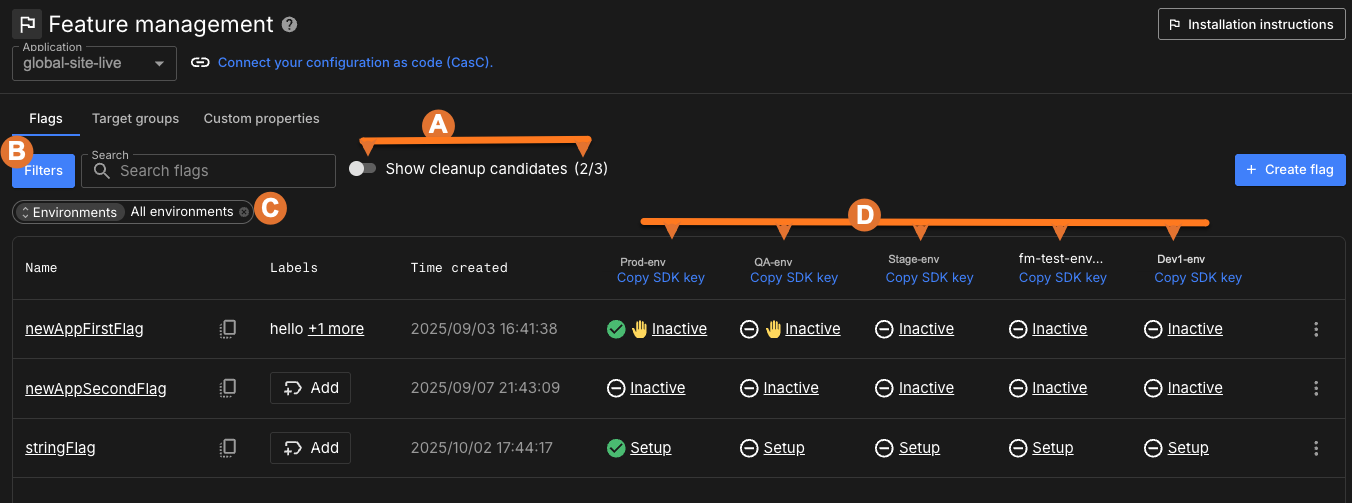
The flags overview displays flag health across multiple elements of the page, including icons, columns, and filters. Use the columns to compare flag states across environments, the filters to narrow results, and the icons and status indicators to quickly assess each flag’s condition and activity level.
Identify cleanup candidates
Cleanup candidates are flags CloudBees Unify has identified as stale or inactive. Use the filters and environment columns to narrow the list and assess each flag’s condition.
-
Cleanup candidates summary:
-
To remove active flags from the list, select
 next to Show cleanup candidates to toggle this feature to
  .
. -
View the number of stale flags/total number of flags.
-
-
Select
 to limit the display by environment, activity status, configuration status, flag type, label, or namespace.
 -
Select Environments to scan the flag status by a specific environment, or All environments.
-
Scan each environment’s column for flag status such as active, inactive, in setup, or stale.
-
 indicates the flag is toggled to on in that environment.
 -
 indicates an approval request is pending for that flag in that environment.
-
Work through the cleanup workflow
When you identify a stale or inactive flag, follow this workflow to safely remove it.
-
Review flag health metrics to understand its usage history:
-
Check the activity status (stale, inactive, or setup).
-
Review impression data to confirm the flag is no longer evaluated.
-
Compare configuration across environments to identify inconsistencies.
-
-
Check code references to see where the flag is implemented:
-
Navigate to the flag’s Code references tab.
-
Review all files and repositories where the flag appears.
-
Verify that the flag is not actively used in production code.
-
If no repositories are linked, refer to Set up code references to set up code references.
-
-
Coordinate with development teams to remove the flag from code:
-
Share the code reference findings with the relevant teams.
-
Create tasks or tickets to remove the flag from each identified location.
-
Ensure all references are removed from all branches and environments.
-
-
Archive or delete the flag once all code references are removed:
-
Verify that the code references show no remaining usages.
-
Turn off the flag configuration in all environments.
-
Delete the flag from CloudBees Unify.
-
Cleanup actions
Use the following actions to manage stale or inactive flags:
| Action | When to apply |
|---|---|
Delete |
For flags verified as unused across all environments and code references. |
Mark as permanent |
For flags that serve ongoing operational roles, such as timeouts, URLs, or logging levels. |