Create and manage application releases to deliver versioned collections of component artifacts through coordinated deployment workflows.
| Before creating a release, you must have a component with a traceable artifact version, an application linked to that component and at least one environment, and a deployer workflow referenced by a staged workflow. Refer to Manage applications, Create deployer workflows, and Create staged workflows to complete these prerequisites. |
Access releases
Create and manage releases for an application either from the organization-level Releases page, or from the Releases tab within an application.
To access the Releases page:
-
Select an organization.
-
Select Releases from the left navigation.
To access the Releases tab:
-
Select an organization, and then select Applications.
-
Select an application.
-
Select the Releases tab.
From the Releases page or tab, you can:
-
Filter releases by status.
-
Search for a specific release by name.
-
Select Create release to create a new release.
-
Review the following information for each release:
-
Name: Select to review the release details, including the release definition and the run summaries for the release.
-
Status: The release status.
-
Workflow: Select to view the associated workflow in the Workflow composer.
-
Last run (Stage): Select to view run details of the last workflow run.
-
Furthest reached stage (Run): Select to view run details of the workflow run that reached the furthest stage.
-
Date created: The release creation date and time.
-
Audit report: Select to view the audit report for the most recent run of the release.
-
From the Releases page, you can also review the following for each release:
-
Application: Select to view the associated application.
-
Organization: Select to view the associated organization.
View release details
Select a release name in Releases to open the release details screen. The details screen contains the following tabs:
-
Definition: The release configuration, including the workflow, input parameters, manifest content, related work items (linked Jira tickets and associated artifacts), and any feature flags associated with the release.
-
Runs: A summary of all workflow runs executed for the release, including the run list, run summary, completion date, and run duration.
From the details screen, you can select View audit report, Run workflow, or use  to edit, close, or delete the release.
| You can associate feature flags with a release to provide traceability between the release and the features it delivers. Select Manage flags to add or remove feature flags from the release. |
Create a release
Create a release definition for your application, including the workflow and the manifest specifying which artifact versions to deploy. If you do not have all necessary requirements in place, you can save a Draft release definition and complete it later.
| An error tooltip icon is displayed next to releases that are no longer valid. The expanded tooltip provides details on which specific requirements are missing. |
To create a release:
-
Access Releases for your selected application.
-
Select Create release.
-
Enter a Release name.
-
(Optional) Enter a Description.
-
Select an Organization.
-
Select an Application.
Once a release is created for an application, the organization and application cannot be changed. -
Select a workflow from the options.
You may only select a single workflow, and it must contain a manifest input parameter and a workflow_dispatchtrigger. -
(Optional) Add workflow parameters as inputs.
-
Select
 to open the manifest.
The Define manifest dialog is displayed.
to open the manifest.
The Define manifest dialog is displayed.-
(Optional) Select Filter to filter by artifact name, or enter all or part of an artifact name to Search for specific artifacts.
-
Select
 next to an artifact name to add it to the manifest (
 ).
You can add an unlimited number of artifacts.
).
You can add an unlimited number of artifacts.Select or deselect all listed artifacts at once with the table header ( /).
-
Do either of the following:
-
Select a Version from the options for each artifact selected to be in the manifest.
-
Select + Enter custom version to manually enter a version. Select to save the custom version, or select the red trash can to cancel.
If you enter a version that does not exist,  is displayed, and the release cannot be started.
-
-
-
Select Next.
-
Select Create.
The release is created and listed in Releases with its current status. All related work items are displayed in the release details. For more information about feature traceability, refer to Configure project management integrations.
Release statuses
The following statuses reflect the current state of a release.
| Status | Definition |
|---|---|
Draft |
Release is missing one or more requirements. |
Ready to run |
Release has all requirements in place and can be run. |
Pending start |
Release is in the process of executing a workflow run for the first time. |
Started |
Release has executed at least one workflow run. |
Closed |
Release is closed permanently. |
Update a Draft release with any missing requirements to change its status to Ready to run.
Run a release
Run any release whose status is Ready to run.
You can also rerun any release if  is enabled.
To run or rerun a release:
-
Access Releases for your selected application.
-
Select
next to the release you want to run.If  is displayed, the release cannot be executed.
Hover over the icon to view the reason.
is displayed, the release cannot be executed.
Hover over the icon to view the reason.
The release status changes to Pending start or Started and the release is executed.
| You can also select Run workflow in the release details screen to run a workflow. |
Some common reasons a release cannot be run include:
-
The release is not in the Ready to run or Started status.
-
A workflow run is starting or already running.
-
The release status is being updated.
Update a release
Update the definition of any release whose status is Draft, Ready to run, or Started.
| You cannot update the definition of a release that is closed or in the process of closing. |
To update a release:
-
Access Releases for your selected application.
-
Select
next to the release you want to update. -
Select Edit, and then perform one or more of the following:
-
Update the Release name.
-
Select a different workflow from the options.
-
Select and update workflow parameters, if applicable.
-
Select Edit manifest to update the manifest, and then select Next.
-
-
Select Save.
The updated release configuration displays.
Duplicate a release
Duplicate an existing release to create a new release with the same or similar configuration. A release can be duplicated regardless of its status: Draft, Ready to run, Started, or Closed.
To duplicate a release:
-
Access Releases for your selected application.
-
Select
next to the release you want to duplicate. -
Select Duplicate, and then do the following:
-
Change the Release name.
-
Change the following, if applicable:
-
Select a different workflow from the options.
-
Select and update workflow parameters.
-
Select Edit manifest to update the manifest, and then select Next.
-
-
-
Select Save.
The new release displays in Releases.
Close a release
Close any releases that are no longer needed.
| This action is irreversible. You can no longer update or run a release that has been closed. |
To close a release:
-
Access Releases for your selected application.
-
Select
next to the release you want to close. -
Select Close.
-
Select Close release.
The release status is permanently changed to Closed. Any runs currently in process are terminated.
Delete a closed release
Delete closed releases that are no longer needed.
| This action is irreversible. You can no longer update or run a release that has been deleted. |
| You must first close a release before you can delete it. You must have the appropriate permissions to delete a release. |
To delete a closed release:
-
Access Releases for your selected application.
-
Select
next to the closed release you want to delete. -
Select Delete.
-
Select Delete release.
The closed release is permanently deleted.
View the audit report
An audit report provides a comprehensive overview of the most recent run of a release, including all approvals, deployments, and job evidence. The audit report can be important in maintaining regulatory compliance and is available as a downloadable PDF.
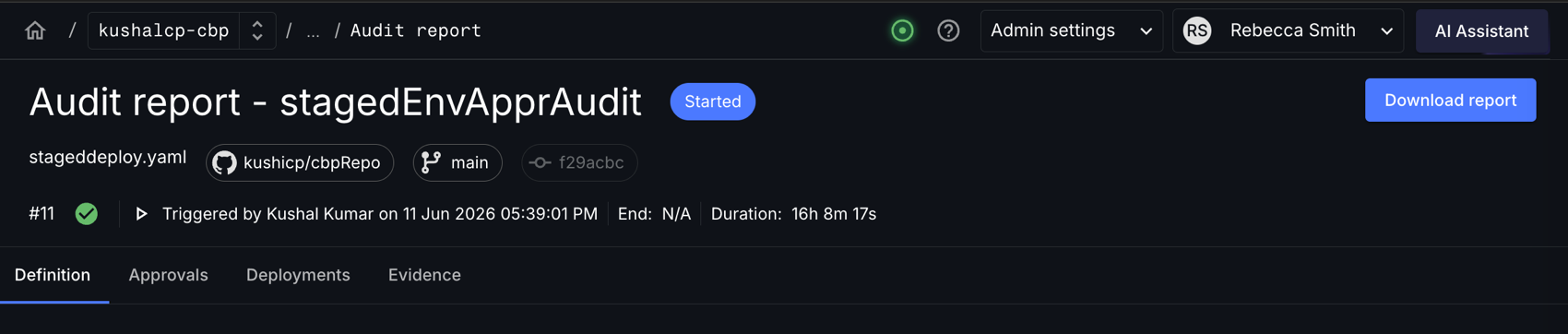
To view the audit report for a release:
-
Access Releases for your selected application.
-
Select
 next to the release.
 -
Select a section to view:
-
displays key release metadata, including:
-
The release name and description.
-
The associated workflow.
-
Input parameters, such as environment or manifest inputs.
-
Manifest content, including the component artifacts selected for deployment.
-
Feature flags included in the release, if applicable, with the following columns:
-
Feature flag name: The name of the feature flag.
-
Environments: Whether the flag configuration is enabled or disabled in each environment.
-
-
-
displays manual approval information, including:
-
Job
-
Stage
-
Environment
-
Approver
-
Date
-
Comment
-
Approval status
Environment approvals are only displayed for workflows and releases of CloudBees Unify version 1.79 or later. Workflows and releases created in earlier versions do not display environment approvals in the audit report.
-
-
displays deployed artifact information, including:
-
Deployed artifact name and version.
-
Environment
-
Component
-
Location URL
-
Run that published the artifact
-
Date created
-
-
displays generated evidence, including:
-
Associated job
-
Associated evidence
-
-
-
(Optional) Select Download report to download a PDF of the full audit report.
Release manifest reference
The release manifest specifies which artifact versions are deployed as part of a release.
It is passed as JSON string data to the release workflow in the manifest input parameter.
Key aspects of the manifest format:
-
The manifest JSON is grouped by component.
-
A
deployflag is set for each artifact in each component. Use this flag in the workflow to dynamically control whether artifact-specific jobs are invoked."deploy": trueindicates the artifact is part of the release manifest; otherwise it is set tofalse.
| Component names may not always be unique. CloudBees Unify only guarantees component name uniqueness within a given tenant organization. If multiple components in the same application have the same name, the component ID is used to group component artifacts instead of the component name. |
{ "componentName1": { "artifactName1": { "deploy": true, "id": "abcd1234-ab12-cd34-ef56-7890abcdef90" } }, "componentName2": { "artifactName2": { "deploy": false, "id": "" }, "artifactName3": { "deploy": true, "id": "pqrd1234-ab12-cd34-ef56-7890abcdef90" } } }
The manifest JSON structure no longer includes these fields: artifact block (name, version, url, digest) and component block (deploy, id).
To retrieve artifact details including name, version, URL, and digest, refer to Register and track artifacts.
|
The deploy flag can be used with an if condition in a deployer workflow to dynamically control deployment:
apiVersion: automation.cloudbees.io/v1alpha1 kind: workflow name: app-deployer on: workflow_call: inputs: manifest: (1) type: string required: true environment: type: string required: true jobs: deploy-componentName1-artifactName1: if: ${{ fromJSON(inputs.manifest)['componentName1']['artifactName1'].deploy }} (2) uses: myorg/componentName1/.cloudbees/workflows/deploy.yaml with: artifact-id: ${{ fromJSON(inputs.manifest)['componentName1']['artifactName1'].id }} environment: ${{ inputs.environment }} deploy-componentName2-artifactName2: if: ${{ fromJSON(inputs.manifest)['componentName2']['artifactName2'].deploy }} uses: myorg/componentName2/.cloudbees/workflows/deploy.yaml with: artifact-id: ${{ fromJSON(inputs.manifest)['componentName2']['artifactName2'].id }} environment: ${{ inputs.environment }} deploy-componentName2-artifactName3: if: ${{ fromJSON(inputs.manifest)['componentName2']['artifactName3'].deploy }} uses: myorg/componentName2/.cloudbees/workflows/deploy.yaml with: artifact-id: ${{ fromJSON(inputs.manifest)['componentName2']['artifactName3'].id }} (3) environment: ${{ inputs.environment }}
| 1 | The manifest input is required for a release workflow. |
| 2 | This condition controls whether the job is executed based on the deploy flag for that artifact in the manifest. |
| 3 | This specifies the format for referencing artifact IDs from the manifest. |