Monitor project development performance and delivery metrics through the software delivery activity dashboard to understand workflow execution, code development trends, and deployment patterns across components. The dashboard provides insights into component activity, development velocity, build performance, and deployment success to help identify performance issues and optimize delivery processes.
| To display builds and deployments: |
-
For GitHub Actions, add the action to register a build artifact and the action to register a deployed artifact to your workflow. Refer to Register GHA build artifacts for more information.
-
For integrated CI or Jenkins Multibranch Pipelines, configure your Jenkinsfile to add an artifact registration step and a deployed artifact registration step. Refer to Understanding CI/Jenkins integration for more information.
Access software delivery activity dashboard
To access the software delivery activity dashboard:
-
Select .
The software delivery activity dashboard loads with default filtering showing all components and the last seven days of data.
Use FILTER to select specific components and adjust the time frame (last 7/30/90 days, current/previous week/month, or custom range). By default, the dashboard shows all components for the last seven days.
Analyze components, workflows, and runs activity
Gain insight into activity, as defined by how many runs are executed and their success rate. The following charts provide an overview for selected components in the chosen time frame:
-
Components
-
Workflows
-
Workflow runs
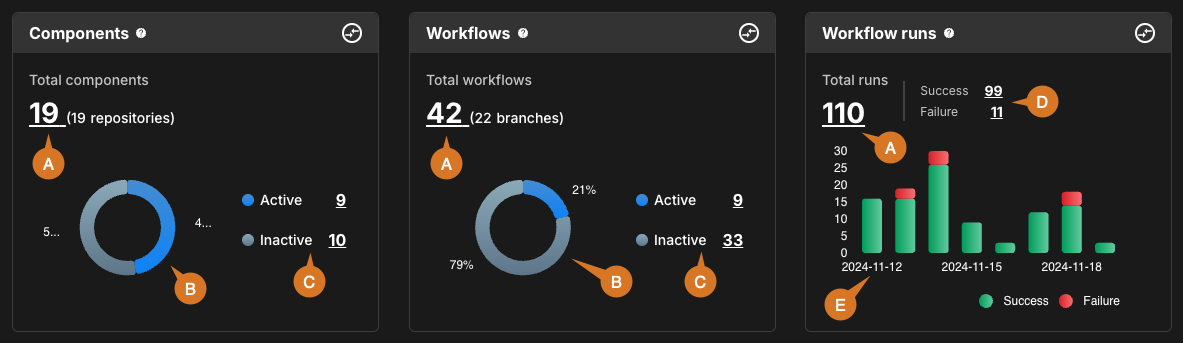
The charts display the following details:
-
Total number.
-
A donut chart of active vs inactive percentages.
-
Numbers of active and inactive.
-
Numbers of successful and failed runs.
-
A stacked bar chart of numbers of successful versus failed runs, by date.
View components details
The Components chart displays total, active, and inactive components, where an active component is defined as having one or more workflows executed within the chosen time frame. The number of connected repositories is also displayed.
To view components details:
-
Select an underlined number link, or a section of the donut chart.
The system displays a list showing:
-
Component name
-
Repository URL
-
Status
-
Last activity date and time
| If you select a section of the donut chart, or the active or inactive numbers, the data displayed is for only that subset of components. |
View workflows details
The Workflows chart displays total, active, and inactive workflows, where an active workflow is defined as having one or more runs executed within the chosen time frame. The number of connected code branches is also displayed.
To view workflows details:
-
Select an underlined number link, or a section of the donut chart.
The system displays a list showing:
-
Workflow name
-
Component name
-
Branch name
-
Status
-
Last activity date and time
| If you select a section of the donut chart, or the active or inactive numbers, the data displayed is for only that subset of workflows. |
View workflow runs details
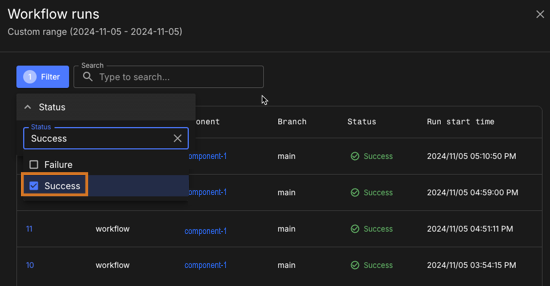
The Workflow runs chart displays total, successful, and failed runs.
To view workflow runs details:
-
Select an underlined number link, or a stacked bar in the workflow runs chart.
The system displays a list showing:
-
Workflow name
-
Component name
-
Branch name
-
Run ID
-
Status
-
Run start time
| If you select a stacked bar of the chart, or the success or failure number links, the data displayed is for only that subset of runs. |
Monitor development trends
Get an overview of development trends for selected components in the chosen time frame, to better understand developer activity and resourcing.
Coding trends are displayed in three charts:
-
Commits trend
-
PRs trend
-
Code churn
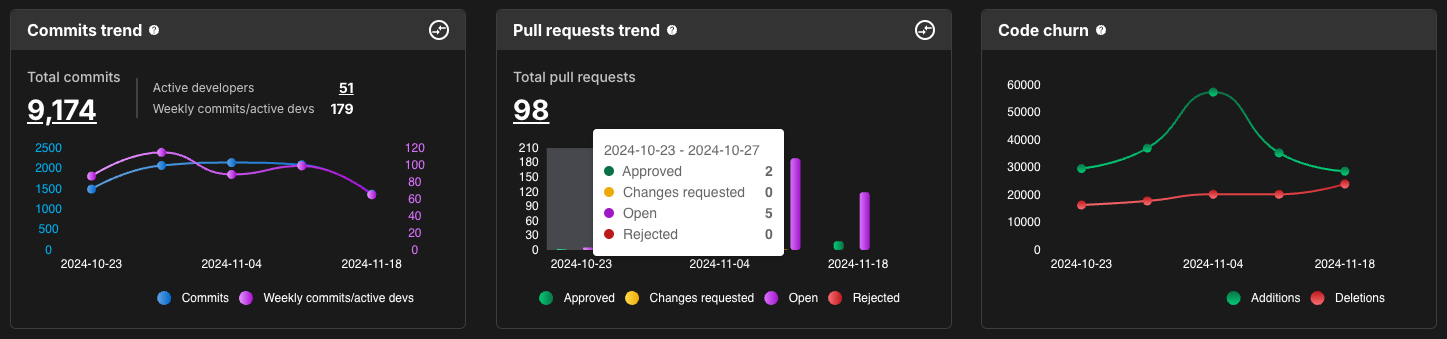
Hover over any date in the charts to view the data for that date.
Review commits trend
The Commits trend chart displays numbers of commits made, grouped by date and per active developer. An active developer is defined as a user who has made at least one commit during the selected time frame.
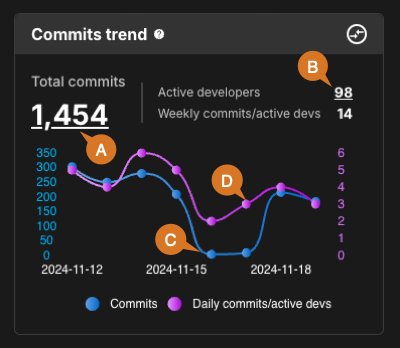
The trend chart includes the following:
-
Total commits: Select the underlined number link to display the commit details:
-
Commit ID
-
Component name
-
Repository path
-
Branch
-
Author email
-
Commit date and time
-
-
Active developers: Select the underlined number link to list the active developer email and the number of total commits made by that developer.
-
Total commits graph (scale on left y-axis).
-
Commits per active developers graph (scale on right y-axis). For selected time frames less than a week, the graph displays daily commits per active developer; otherwise, weekly commits are displayed.
| Hover over a date to display the number of commits and commits per active developer for that date, or select it to display the commits trend details on that date. |
Review PRs trend
The Pull requests trend chart displays numbers of PRs created, grouped by date and status.
The trend chart includes the following:
-
Total PRs: Select the underlined number link to display the PR details:
-
PR ID
-
Component name
-
Repository file path
-
Source branch
-
Target branch
-
PR status
-
Created date and time
-
-
PRs by status: Approved, Changes requested, Open, Rejected.
-
Hover over a date to display the number of PRs created and their status for that date, or select it to display the PR trend details on that date.
Monitor code churn
Code churn tracks the number of lines of code additions and deletions for the selected components in the chosen time frame.
To monitor code churn:
-
Review the code churn chart showing code change patterns over time.
-
Hover over a chart point to display the code churn summary for that date.
Examine code progression from commits to deployment
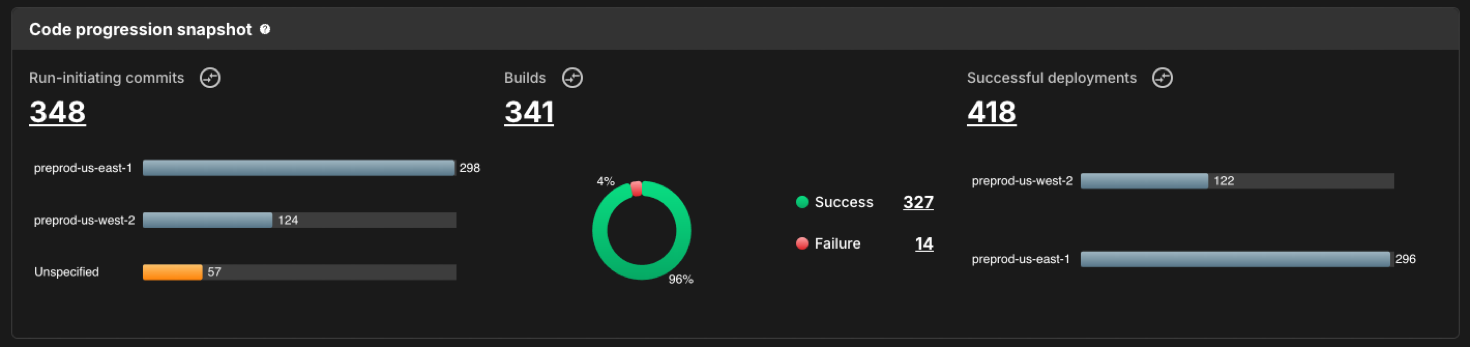
The Code progression snapshot shows the journey of code from commits to deployment for the selected components in the chosen time frame.
Code progression is displayed in three charts:
-
Run-initiating commits
-
Builds
-
Successful deployments
You must specify the kind in your workflow step to populate these charts, and distinguish between builds and deployments. For more information, refer to Associate run data with analytics dashboards.
|
Track run-initiating commits
A run-initiating commit is defined as a commit which triggers a workflow run.
To track run-initiating commits:
-
Select the underlined number link to display the list of commits that have started a run during the selected time frame.
The run-initiating commits list includes:
-
Commit ID
-
Commit description
-
Run ID
-
Status
-
Created date and time
-
Component name
-
Environment
Monitor builds
The Builds chart provides an overview of successful and failed builds for the selected components and time frame.
To monitor builds:
-
Select an underlined number link to display a list of build information.
The builds list includes:
-
Run ID
-
Status
-
Start date and time
-
Duration
-
Component name
-
Workflow name
Track successful deployments
The Successful deployments chart provides an overview of successful deployments for the selected components and time frame.
To track successful deployments:
-
Select the underlined number link to display a list of deployment information.
The deployments list includes:
-
Run ID
-
Start date and time
-
Duration
-
Component name
-
Workflow name
-
Environment
Monitor build performance
Identify performance issues by monitoring build duration for the filtered component data in the chosen time frame. For each component, a box plot displays how long each build has taken.
To monitor build performance:
-
Review the successful build duration box plots for each component.
-
Hover over a plot to display the minimum, median, and maximum build durations for that component.
You must specify kind: build in your workflow step to populate this chart. For more information, refer to Associate run data with analytics dashboards.
|
Track deployment patterns
Analyze deployment for the selected components in the chosen time frame.
To track deployment patterns:
-
Review the deployment overview chart showing deployment success and failure trends.
-
Hover over a stacked bar to display the number of successful and failed deployments for the specified date.
-
Select a stacked bar to open the Deployment overview panel.
-
You must specify kind: deploy in your workflow step to populate this chart. For more information, refer to Associate run data with analytics dashboards.
|
Analyze development cycle time
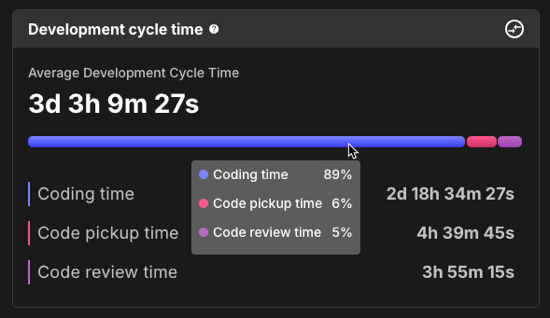
Use the development cycle time chart to identify bottlenecks in your system for the selected components in the chosen time frame.
The development cycle time can be defined by three phases:
-
Coding: The time drafting code for a PR.
-
Pickup: The time from PR creation to PR review.
-
Review: The time from PR review to merging into the codebase.
To analyze development cycle time:
-
Review the development cycle time chart showing time spent in each phase.
-
Hover over the bar chart to display the percentage of time spent in each phase.
-
Identify bottlenecks by looking for phases that consume disproportionate time.
Monitor deployment performance
Track how long deployment takes, on average, for the selected components in the chosen time frame. Each environment is displayed as a bar chart, with the maximum and minimum times at each end. The average is indicated by the blue bar.
To monitor deployment performance:
-
Review the average deployment time chart for each environment.
-
Compare deployment times across different environments.
-
Identify environments with performance issues or inconsistent deployment times.
You must specify kind: deploy in your workflow step to populate this chart. For more information, refer to Associate run data with analytics dashboards.
|
Compare metrics
Use this feature to compare metrics among all organizations in the tenant. You can compare metrics within select charts in the analytics dashboards. In the generated list of all organizations, sort by the organization name or its status. Select an organization to drill down to the component level to display a more fine-grained status list. Hover over a status item to display more information.
You can only compare metrics for charts with  on the upper right. on the upper right.
|
To compare metrics:
-
Select Analytics on the left pane, and then select a dashboard.
-
Select any
on the upper right of a chart to display the list of organizations and their status.The number of items in the compare metrics list equals the total displayed in the chart. -
(Optional) Hover over a status to display more information.
-
(Optional) Select
 or
or  next to a column heading to sort on that heading.
 -
(Optional) Select an organization to list more information about each child organization and/or component within that organization.
-
(Optional) Select a child organization to list more details about each child organization and/or component within that child organization.
The list of the status of all organizations and components for the specific metric is displayed.
Customize the dashboard
Customize the dashboard to display only the charts and tables that matter the most to you.
Only charts and tables with  in the upper-right corner can be edited. in the upper-right corner can be edited.
|
To customize the dashboard:
-
Select Analytics on the left pane, and then select the dashboard.
-
Select
 on the top right of the dashboard.
 -
Select Edit dashboard.
-
(Optional) Remove a chart or table from the dashboard.
-
Select
next to the chart or table you want to remove. -
Select Save.
-
-
(Optional) Add back a chart or table to the dashboard.
-
Select Add chart/table to display a list of the available charts or tables.
-
Select Add to dashboard next to the item to add.
-
Select Apply.
-
-
(Optional) Rearrange items on the dashboard by dragging them into place.
The dashboard is customized accordingly.