Monitor and analyze CI/CD operations data through the CI insights dashboard to track system health, manage resources, and optimize pipeline performance across Jenkins and CloudBees CI instances. The dashboard provides consolidated views of controller status, system health metrics, run patterns, and project activity to help administrators proactively address issues and improve team efficiency.
The dashboard displays system information and health, overview of project types, completed runs, usage patterns, and project activity to help you monitor pipeline health, proactively address high-volume peaks, and enable teams to run more efficiently.
| You must first set up the integration to view the CI insights dashboard. Refer to Connect CI and Jenkins controllers to learn how to connect CloudBees Unify to CloudBees CI or Jenkins. |
|
Use the following features to access the data on this dashboard:
|
Access CI insights dashboard
To access the CI insights dashboard:
-
Select .
The CI insights dashboard loads with default filtering showing the last seven days of data.
Filter dashboard data
Use Filter to select a CI tool integration and adjust the time frame (last 7/30/90 days, current/previous week/month, or custom range). By default, the dashboard shows the last seven days of data.
Monitor controllers and system information
Get an overview of controllers, plugins, system information and project types for the filtered CI tool data in a specified time frame.
View connected controllers
All connected controllers are listed in the leftmost section of the dashboard.
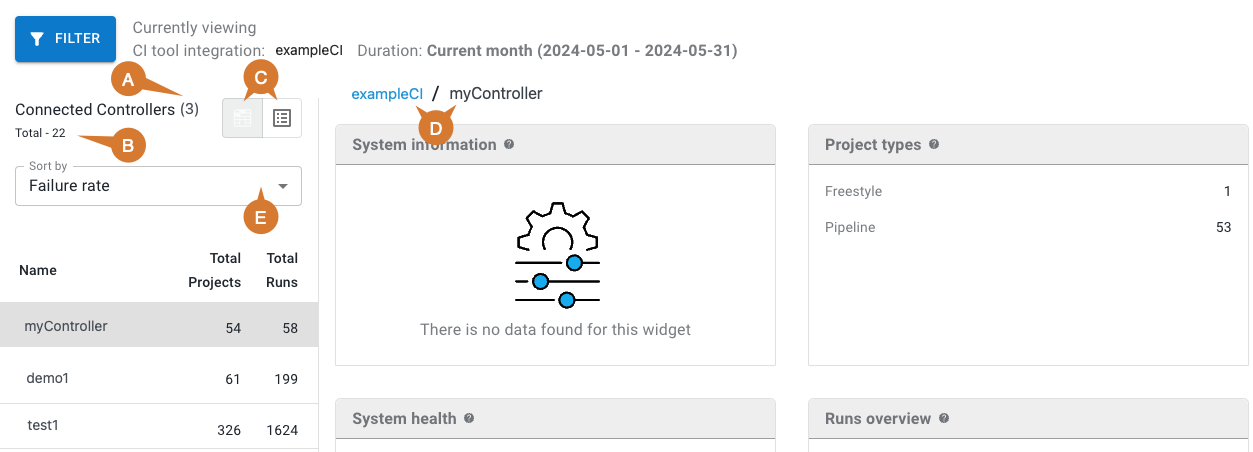
The connected controllers display includes:
-
Number of connected controllers.
-
Total number of controllers.
-
Select to display connected controllers as a list (left) or in a heat map (right). If using the heat map view, select a section to display:
-
Controller name
-
Total jobs
-
Total number of runs
-
Failure rate
-
-
Select the CI tool link to display data for all connected controllers.
-
If a controller is selected from the list, only the data from that controller is displayed, and the controller name is listed to the right of the CI tool link.
To manage the controller list:
-
Sort controllers by Name, Failure rate, Number of projects, or Last active
-
Select individual controllers to filter dashboard data to that specific controller
Review system information and project types
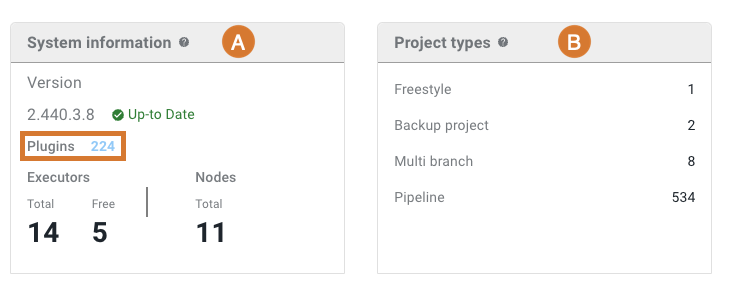
The system information table includes the version, number of plugins, executors, and nodes. The project types table lists the number of each project type.
-
System information displays the following details:
-
The Jenkins version number.
-
Whether the current version is up-to-date.
-
The number of plugins installed, including a link to more plugin information.
-
The number of executors and nodes.
-
-
Project types displays the number of each of the following project types:
-
Backup
-
Freestyle
-
Multi-branch
-
Pipeline
-
View plugin information details
To view detailed plugin information:
-
Select the number link to the right of Plugins in the system information table.
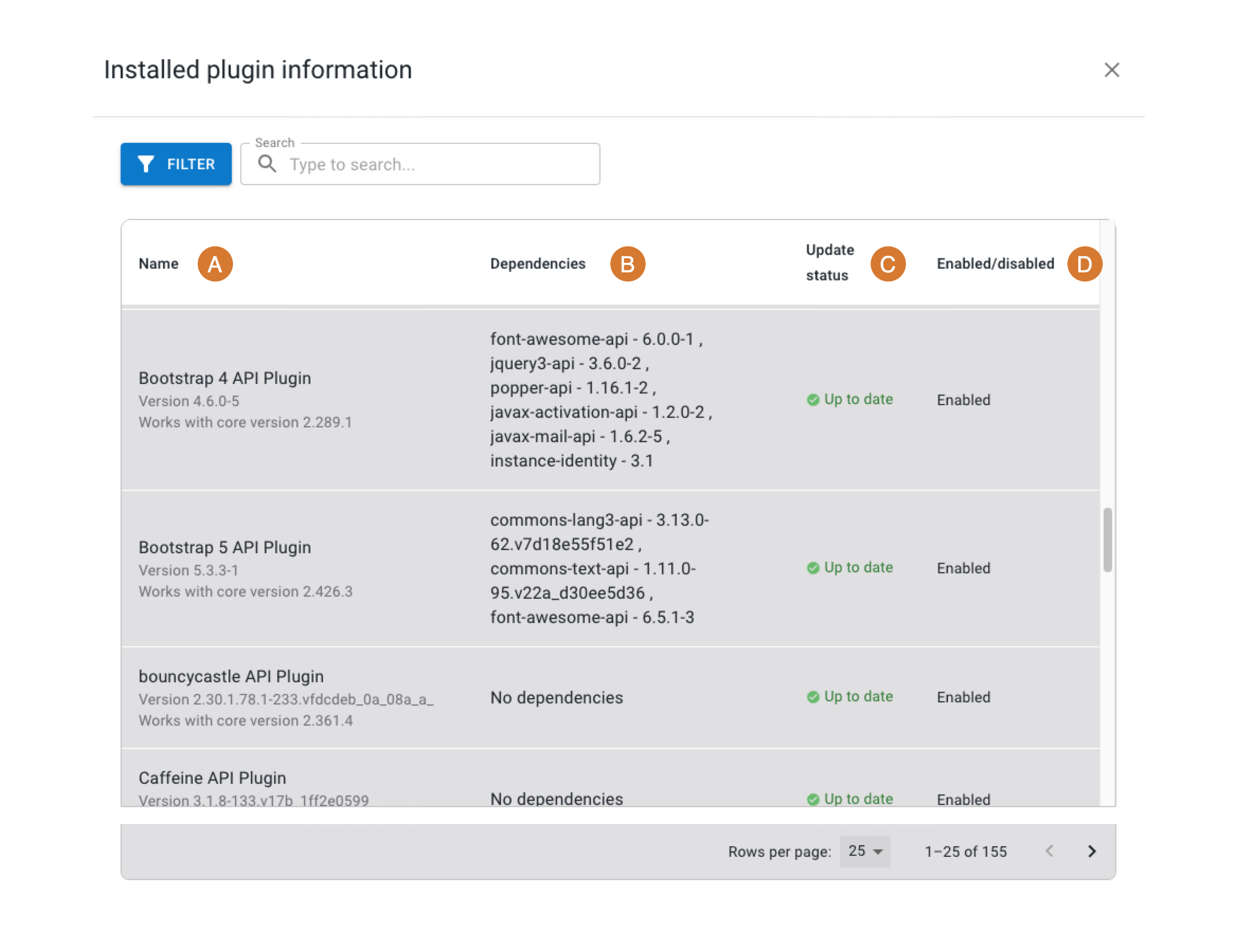
The plugins information displays the following installed plugin details:
-
Name and version
-
Dependencies
-
Update status (either Up to date or New version available)
-
Enabled/disabled status
Use this information to identify plugins that need updates or may be causing system issues.
Monitor system health and runs overview
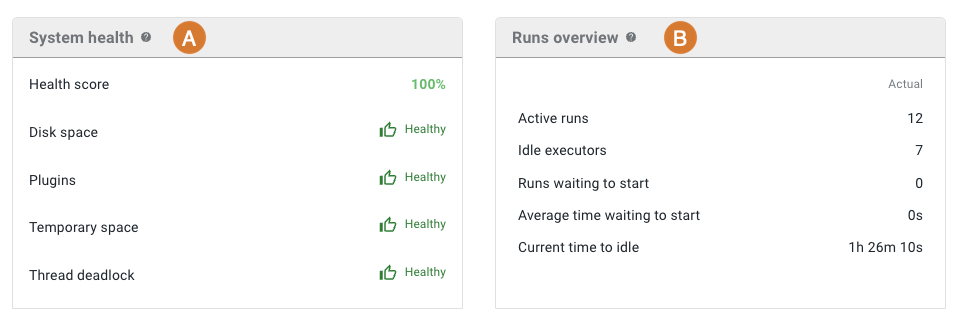
Get an overview of system health and jobs/pipeline runs for the filtered CI tool data in a specified time frame.
-
System health displays an overall Health score, based on the following four parameters:
| Parameter name | Definition | Analytical importance |
|---|---|---|
Plugins |
All installed extensions for Jenkins |
Returns Failed if any plugins fail to start. CloudBees recommends that you explicitly disable any failing plugins, or resolve any issues with plugin dependencies. |
Thread deadlock |
A condition where two or more threads may hang indefinitely, waiting for each other. |
Returns Failed if there are any deadlocked threads in the Jenkins JVM. Thread deadlocks may degrade Jenkins' performance or cause it to crash. |
Disk space |
Disk storage, configured to be below a specific threshold. |
Returns Failed if any monitors report disk space as less than the configured threshold, and any message references the first node to fail this check. |
Temporary space |
Temporary storage, configured to be below a specific threshold. Jenkins must create temporary files during job and build execution. |
Returns Failed if any monitors report temporary space as less than the configured threshold, and any message references the first node to fail this check. |
-
Runs overview displays actual data for the following parameters:
| Parameter name | Definition | Analytical importance |
|---|---|---|
Active runs |
The total number of jobs/pipelines executing, queued, or awaiting user input, across all CI/CD servers. |
This analysis provides real-time insights and expected activity trends to detect problems. |
Idle executors |
The number of online, yet unused, resources. |
A high number of idle executors, coupled with queued jobs, suggests either a mismatch in cluster load or restrictions on running jobs. |
Runs waiting to start |
The number of queued job/pipeline runs. |
This analysis of queue lengths based on current time and the day of week can help identify real-time anomalies. High numbers of runs waiting to start suggests insufficient executor resources, which can mean longer overall lead time, especially wait times for developer feedback on builds. |
Average time waiting to start |
The average time for queued build requests. |
Monitor this time to identify bottlenecks caused by long-running jobs. Adjustments, such as increasing the number of executor slots or easing concurrent execution limits, can improve overall feedback cycle time and enhance performance. |
Current time to idle |
The estimated time until all active jobs are completed. |
This estimation aids in identifying anomalies and in determining the best time to restart Jenkins controllers without disrupting ongoing tasks. |
Analyze completed runs patterns
The Completed runs chart displays build outcomes by job, date and time for the filtered CI tool data in a specified time frame.
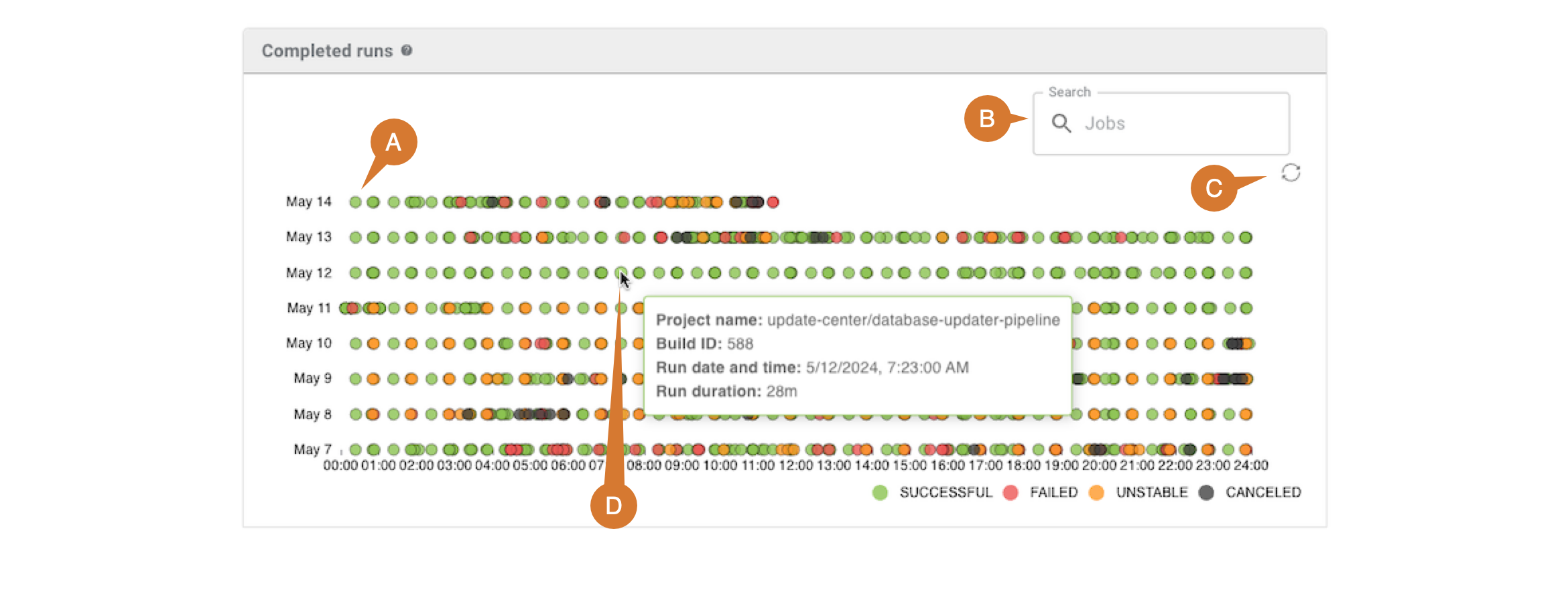
To analyze completed runs:
-
Review run status indicators:
-
Green: Successful
-
Red: Failed
-
Orange: Unstable
-
Gray: Canceled
-
-
Use the search field to filter completed runs by entering all or part of a job name.
-
Scroll within the chart area to adjust the time frame displayed on the x-axis. Select
 to restore to the default time frame.
 -
Hover over a data point to display detailed run information, including:
-
Controller name (if a controller is not already selected)
-
Project name
-
Build ID
-
Run date and time
-
Run duration
-
Investigate project run details
To investigate detailed project performance:
-
Select a data point in the completed runs chart.
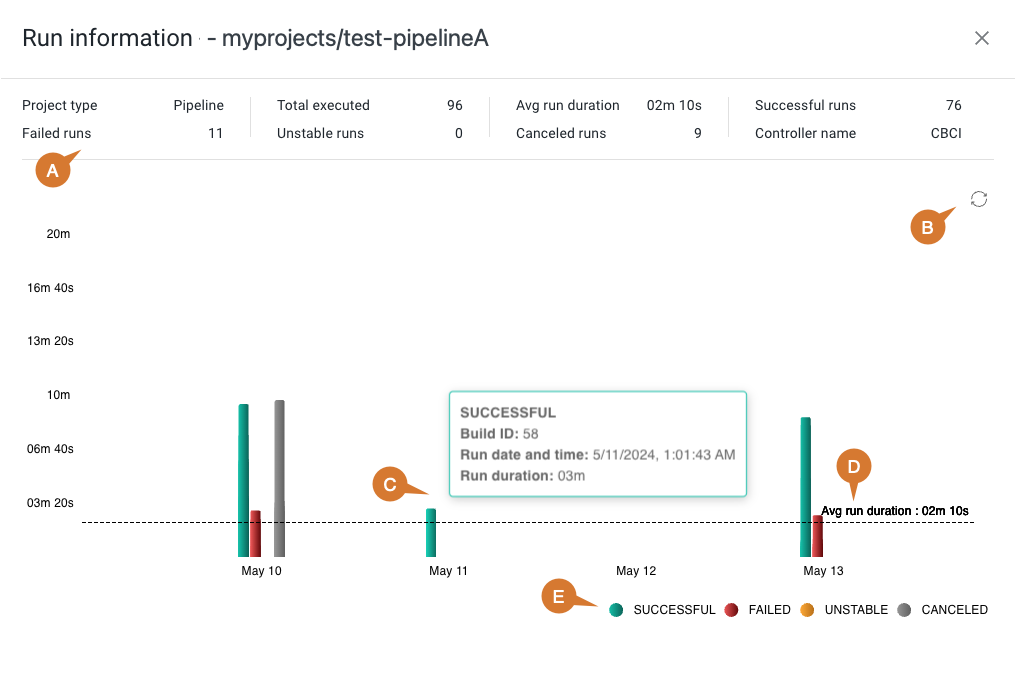
The project run details display:
-
At the top of the chart, the following information is listed:
-
Project type
-
Number of failed runs
-
Total runs executed
-
Number of unstable runs
-
Average run duration
-
Number of canceled runs
-
Number of successful runs
-
-
Scroll within the chart area to adjust the time frame displayed on the x-axis. Select
to restore to the default time frame. -
Hover over a bar on the chart to display detailed run information, including:
-
Status
-
Build ID
-
Run date and time
-
Run duration
-
-
The run duration is listed on the y-axis, and the average run duration is displayed as a dotted line.
-
Each bar on the chart represents a completed run, and its color indicates the run status:
-
Green: Successful
-
Red: Failed
-
Orange: Unstable
-
Gray: Canceled
-
To access advanced run analysis:
-
Select a bar on the chart to display the CloudBees Pipeline Explorer for that run.
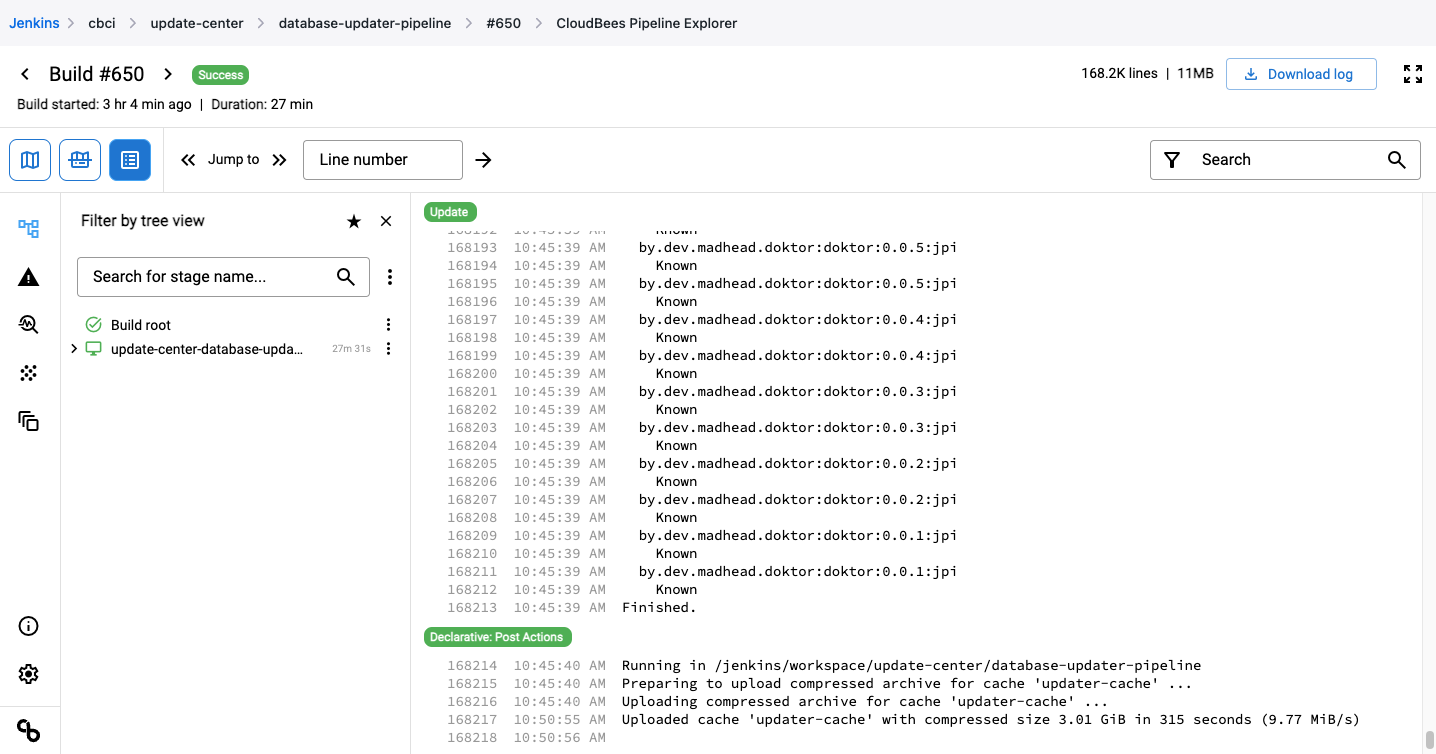
For more information, refer to the CloudBees Pipeline Explorer plugin page.
Monitor usage patterns
The Usage patterns chart displays run activity patterns over the course of a week for the filtered CI tool data in a specified time frame.
The activity for each hour of a week, starting from Sunday at 12am, and ending on Saturday at 11pm, is represented as a blue dot. A gray dot represents no activity for that specific day of the week and hour of the day.
The larger the blue dot, the longer the time duration or the higher the number, as appropriate, for each of the following views:
| View | Definition |
|---|---|
Active runs |
The number of active runs. |
Average time waiting to start |
The average time elapsed before a run starts. |
Current time to idle |
The time elapsed before all runs are idle. |
Idle executors |
The number of idle executors. |
Runs waiting to start |
The number of runs waiting to start. |
To monitor usage patterns:
-
Review the weekly heatmap to identify peak usage times.
-
Hover over a dot to display the exact number or time duration for the chosen view.
-
Use different view options to analyze various performance aspects.
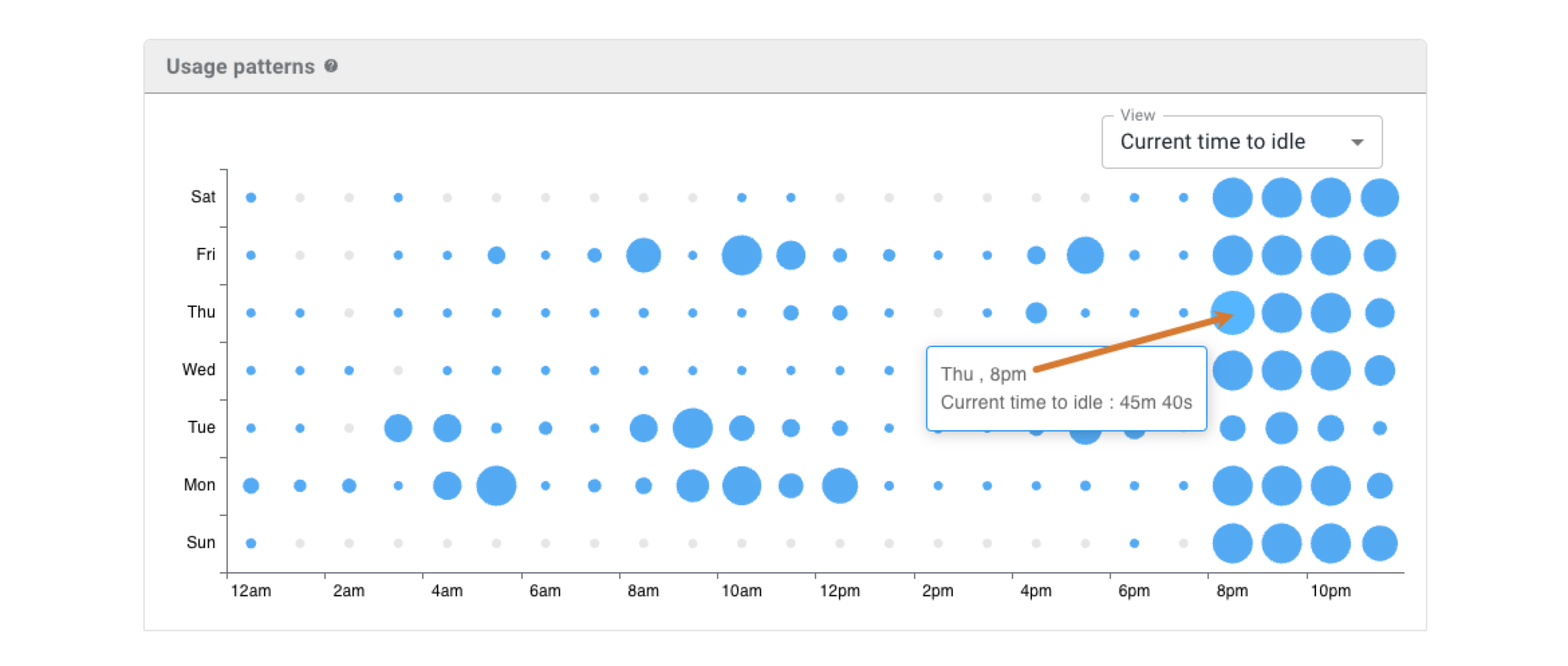
Usage patterns can help you better understand usage peaks in order to optimize resources.
Review projects activity
The Projects activity table lists each project for the filtered CI tool data in a specified time frame.
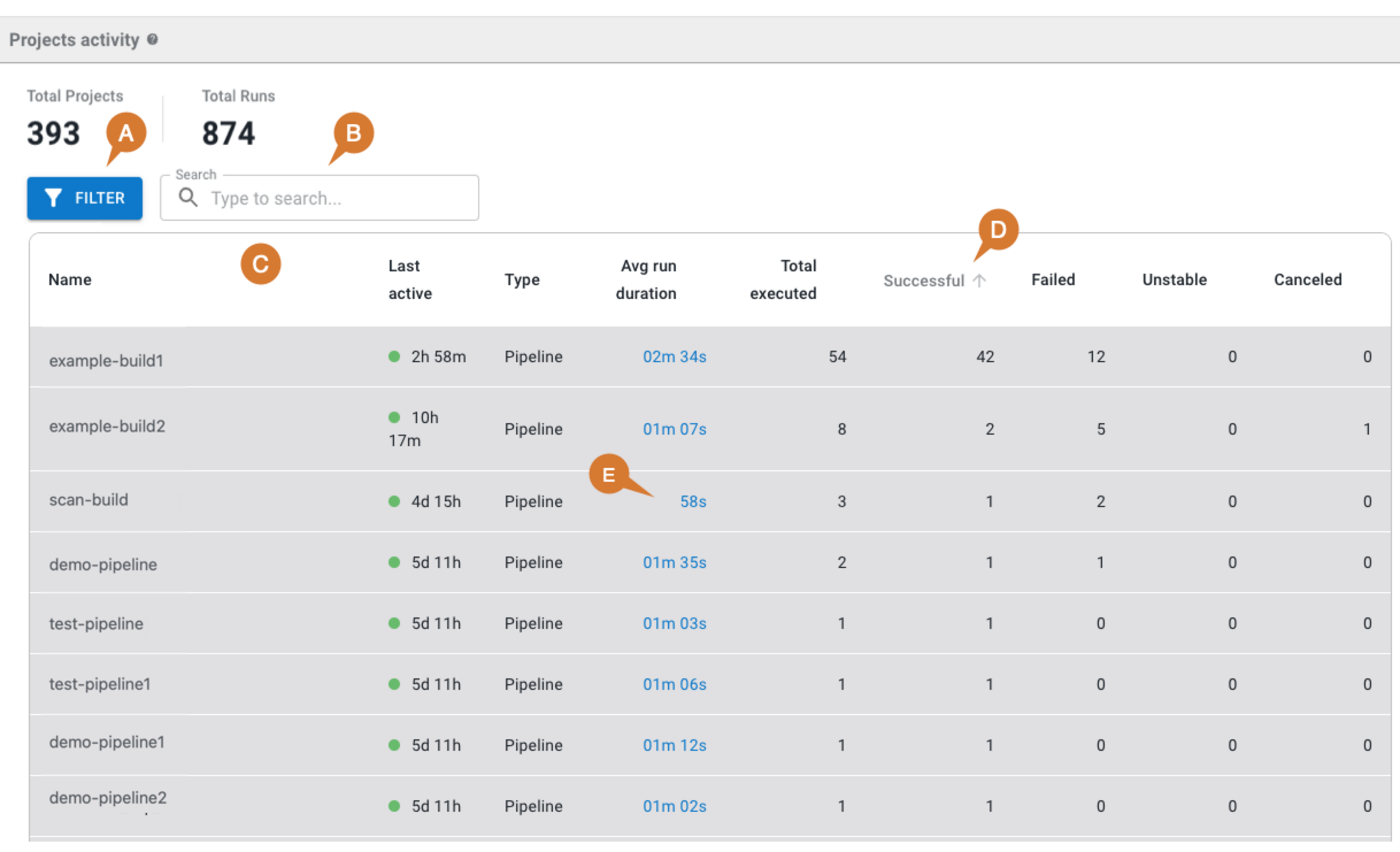
To review projects activity:
-
Select Filter to display only Idle projects or Fragile projects.
-
Enter all or part of a project name in Search to display only matching project names.
-
Review the project information displayed for each project:
-
Project Name.
-
When project was Last active, in days (d), hours (h), and minutes(m).
-
Project Type.
-
The average run duration (Avg run duration).
-
Total executed (runs).
-
Number of Successful runs.
-
Number of Failed runs.
-
Number of Unstable runs.
-
Number of Canceled runs.
-
-
Select a column heading to sort on that column.
-
Select Avg run duration to display a graph of the run information for that project.
Compare metrics
Use this feature to compare metrics among all organizations in the tenant. You can compare metrics within select charts in the analytics dashboards. In the generated list of all organizations, sort by the organization name or its status. Select an organization to drill down to the component level to display a more fine-grained status list. Hover over a status item to display more information.
You can only compare metrics for charts with  on the upper right. on the upper right.
|
To compare metrics:
-
Select Analytics on the left pane, and then select a dashboard.
-
Select any
on the upper right of a chart to display the list of organizations and their status.The number of items in the compare metrics list equals the total displayed in the chart. -
(Optional) Hover over a status to display more information.
-
(Optional) Select
 or
or  next to a column heading to sort on that heading.
 -
(Optional) Select an organization to list more information about each child organization and/or component within that organization.
-
(Optional) Select a child organization to list more details about each child organization and/or component within that child organization.
The list of the status of all organizations and components for the specific metric is displayed.
Customize the dashboard
Customize the dashboard to display only the charts and tables that matter the most to you.
Only charts and tables with  in the upper-right corner can be edited. in the upper-right corner can be edited.
|
To customize the dashboard:
-
Select Analytics on the left pane, and then select the dashboard.
-
Select
 on the top right of the dashboard.
 -
Select Edit dashboard.
-
(Optional) Remove a chart or table from the dashboard.
-
Select
next to the chart or table you want to remove. -
Select Save.
-
-
(Optional) Add back a chart or table to the dashboard.
-
Select Add chart/table to display a list of the available charts or tables.
-
Select Add to dashboard next to the item to add.
-
Select Apply.
-
-
(Optional) Rearrange items on the dashboard by dragging them into place.
The dashboard is customized accordingly.
Troubleshoot CI insights issues
Address common issues when CI insights data is not appearing or appears incomplete in the dashboard.
Missing CI tool integration data
CI insights require active integration with your CI tools (Jenkins, GitHub Actions, etc.).
Problem: CI insights show no data or incomplete information
Solution: Verify CI tool integration is properly configured and actively collecting data from your CI infrastructure.
To resolve missing CI integration data:
-
Navigate to .
-
Check that CI tool integrations show "Active" or "Connected" status.
-
Verify integration authentication credentials are valid and not expired.
-
Test integration connections to confirm data access from CI tools.
CI insights depend on continuous data collection from integrated CI tools for accurate performance analysis.
Insufficient data for analysis
CI insights require sufficient execution history to provide meaningful analytics.
To address insufficient data:
-
Ensure CI tools have executed builds or pipelines recently.
-
Verify integration has been active long enough to collect meaningful data patterns.
-
Check that CI tool executions are completing successfully and generating analytics data.
-
Allow adequate time for data aggregation across multiple execution cycles.
Consistent CI tool activity ensures comprehensive insights into infrastructure performance and usage patterns.