Monitor and analyze test execution metrics through the test insights dashboard to understand testing coverage, identify failing tests, and optimize test performance across components. The dashboard provides comprehensive views of test suite execution, failure rates, and test case performance to help improve code quality and reduce build times.
Use test insights to better understand test execution behaviors, detect and fix components with commonly failing or unstable test results, detect components that have not yet been tested, and determine which test cases take the longest to run so you can optimize them to reduce build times and speed up deployments.
| You can view test results from a specific run in the Test results tab of Run details. |
Prerequisites
Check the following prerequisites to make sure you have correctly configured your pipeline or workflow to collect test results for populating the test insights dashboard.
| Pipeline or workflow type | Required configuration to collect test results |
|---|---|
CloudBees Unify workflow |
Add the CloudBees Unify publish test results action to a CloudBees Unify workflow that executes a test. |
GHA workflow |
Add the GHA publish test results action to a GHA workflow that executes a test. |
Use a CloudBees Unify workflow to run a CloudBees CI job |
Add the Run a CloudBees CI job action to a platform workflow, and set the |
Use a CloudBees Unify workflow to run a Jenkins job |
Add the Run a Jenkins job action to a platform workflow, and set the |
[1] CloudBees suggests that you use this method if you are running a Multibranch Pipeline, as you can then view your pipeline jobs and builds directly within the CloudBees Unify UI.
Access test insights dashboard
To access the test insights dashboard:
-
Select .
The test insights dashboard loads with default filtering showing the last seven days of data. If you have already selected a specific component, that selection is maintained.
Filter dashboard data
Use FILTER to select specific components and adjust the time frame (last 7/30/90 days, current/previous week/month, or custom range). By default, the dashboard shows the last seven days of data.
Analyze components, workflows, and runs with test coverage
Get an overview of components, workflows, and workflow runs for the filtered component data in a specified time frame.
The dashboard charts display the following with and without test suites:
-
Components
-
Workflows
-
Workflow runs
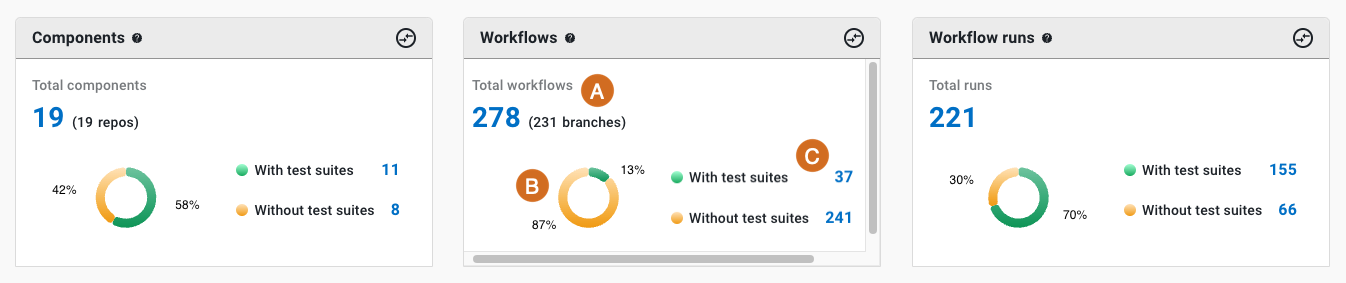
Each chart displays the following details (highlighted in the Workflows chart above):
-
Total number.
-
A donut chart of those with and without test suites (in percentages).
-
Numbers of those with and without test suites.
| The Components chart also displays the number of associated repositories, and the Workflows chart displays the number of associated branches. |
View components test coverage details
To view components test coverage details:
-
Select a number, or a section of the donut chart in the components chart.
The system displays a list showing:
-
Component name
-
Repository URL
-
Number of test suites
| If you select a section of the donut chart, or the with or without test suites numbers, the data displayed is for only that subset of components. |
In the list, perform any of the following:
-
Select FILTER to filter by with or without test suites.
-
Search for specific components by entering all or part of any column item into Search.
-
Select
 or
or  next to a column heading to sort on that heading.
 -
Select a component name to display its component summary in a new browser tab.
-
Select a repository URL to display the repository in a new browser tab.
View workflows test coverage details
To view workflows test coverage details:
-
Select a number, or a section of the donut chart in the workflows chart.
The system displays a list showing:
-
Workflow name
-
Component name
-
Branch name
-
Number of workflow runs
-
Number of test suites
| If you select a section of the donut chart, or the with or without test suites numbers, the data displayed is for only that subset of workflows. |
In the list, perform any of the following:
-
Select FILTER to filter by with or without test suites.
-
Search for specific workflows by entering all or part of any column item into Search.
-
Select
or next to a column heading to sort on that heading. -
Select a component name to display its component summary in a new browser tab.
View workflow runs test coverage details
To view workflow runs test coverage details:
-
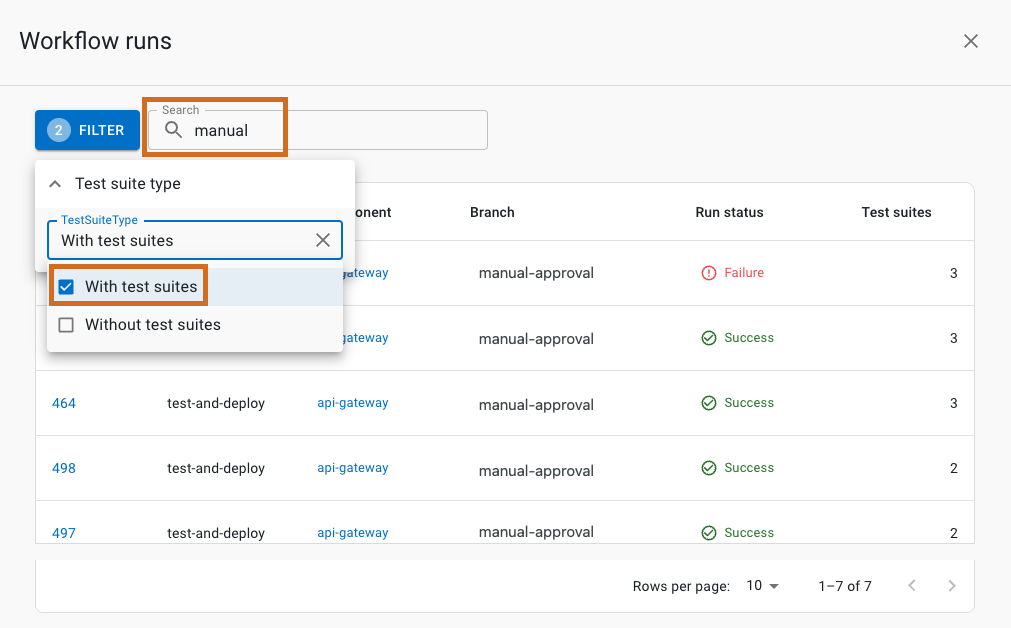
Select a number, or a section of the donut chart in the workflow runs chart.
The system displays a list showing:
-
Run ID
-
Workflow name
-
Component name
-
Branch name
-
Run status
-
Number of test suites
| If you select a section of the donut chart, or the with or without test suites numbers, the data displayed is for only that subset of workflow runs. |
In the list, perform any of the following:
-
Select FILTER to filter by with or without test suites.
-
Search for specific runs by entering all or part of any column item into Search.
-
Select
or next to a column heading to sort on that heading. -
Select a run ID to display the run details in a new browser tab.
-
Select a component name to display the component summary in a new browser tab.
Review tests overview by test suites
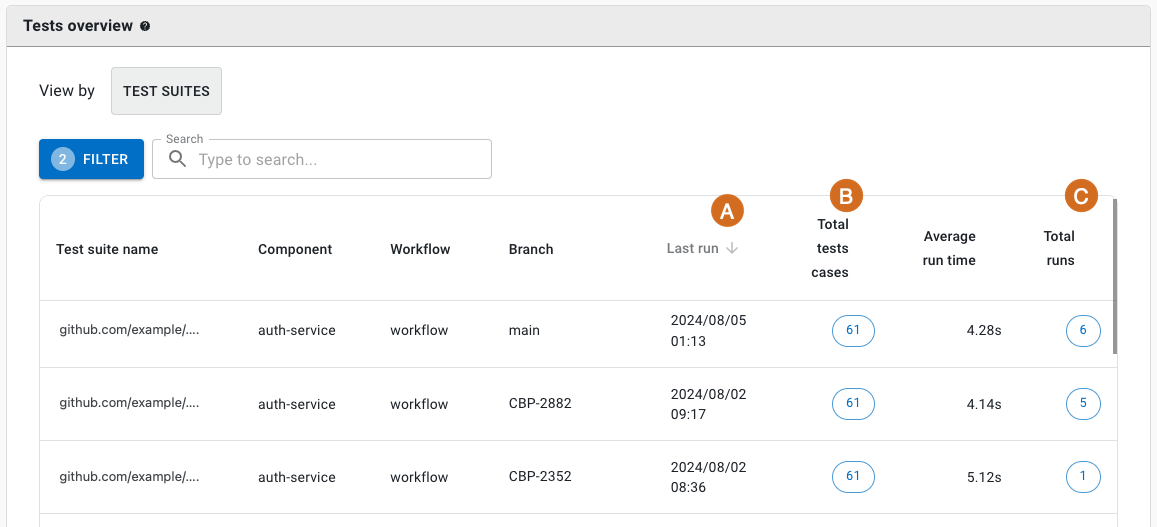
The filterable tests overview lists details of all test suites run. The Test suites view displays detailed information about individual test suites.
To review tests by test suites:
-
Select TEST SUITES view in the tests overview section.
-
(Optional) Select FILTER, and then select one or more of the options:
-
Test suite name
-
Component name
-
Workflow name
-
Branch name
-
-
(Optional) Search for specific test suites by entering all or part of any column item into Search.
The test suites view displays:
-
Test suite name
-
Component name
-
Default branch name
-
Workflow name
-
Last run date and time
-
Total test cases
-
Average run time
-
Total test case runs
-
Failure rate on last run
|
Select or next to a column heading to sort on that heading.
|
Review tests overview by components
The Components view displays component-level test aggregations and failure rates.
To review tests by components:
-
Select COMPONENTS view in the tests overview section.
-
(Optional) Filter and search using the same options as the test suites view.
The components view displays:
-
Component name
-
Default branch name
-
Workflow name
-
Last run date and time
-
Total test cases
-
Average run time
-
Failure rate (overall)
| In the Components view, hover over Failure rate to display the totals of successful test case runs (green bar), failed test case runs (red bar), and skipped test case runs (yellow bar). |
Investigate test case details
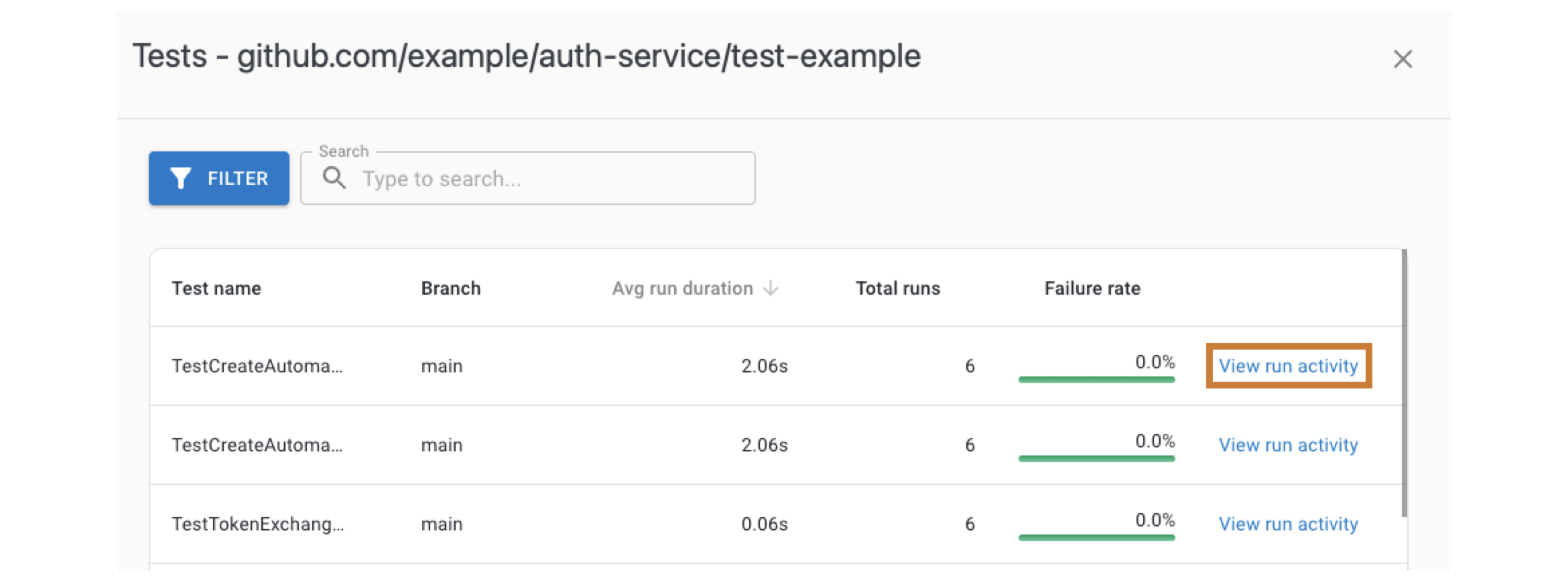
In either view, you can drill down to see individual test case performance details.
To investigate test case details:
-
Select an item from the Total test cases column in either view.
The system displays test case details including:
-
Test case name
-
Average test run duration
-
Total test runs
-
Test failure rate
-
Test run activity link
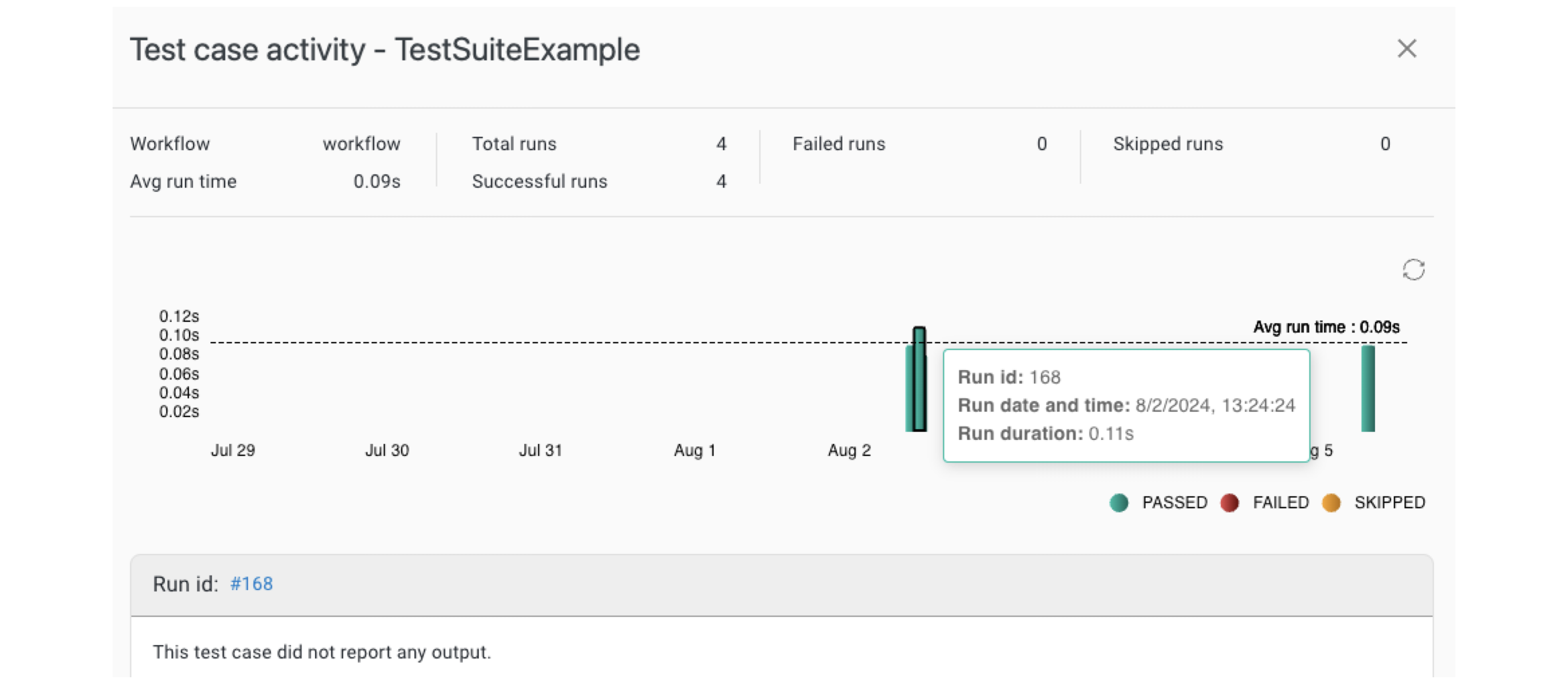
Analyze test run activity patterns
You can view detailed execution patterns for individual test cases to understand their behavior over time.
To analyze test run activity:
-
Select Total test cases in either view.
-
Select View run activity next to a test case.
The test run activity displays:
-
Workflow name
-
Test average run time
-
Number of total, successful, failed, and skipped runs.
Each bar on the graph represents a workflow run. Select a bar to display the:
-
Workflow run ID
-
Run date and time
-
Run duration
Below the graph is the run ID linking to the run details, and any test output.
Monitor total runs performance
In the Test suites view, you can examine run-level performance details for test suites.
To monitor total runs performance:
-
In the Test suites view, select an item from the Total runs column.
The system displays run details including:
-
Run time
-
Run ID: select to display run details in a new browser tab.
-
Run status
-
Total test cases
-
Number of failed test cases
Compare metrics
Use this feature to compare metrics among all organizations in the tenant. You can compare metrics within select charts in the analytics dashboards. In the generated list of all organizations, sort by the organization name or its status. Select an organization to drill down to the component level to display a more fine-grained status list. Hover over a status item to display more information.
You can only compare metrics for charts with  on the upper right. on the upper right.
|
To compare metrics:
-
Select Analytics on the left pane, and then select a dashboard.
-
Select any
on the upper right of a chart to display the list of organizations and their status.The number of items in the compare metrics list equals the total displayed in the chart. -
(Optional) Hover over a status to display more information.
-
(Optional) Select
 or
or  next to a column heading to sort on that heading.
 -
(Optional) Select an organization to list more information about each child organization and/or component within that organization.
-
(Optional) Select a child organization to list more details about each child organization and/or component within that child organization.
The list of the status of all organizations and components for the specific metric is displayed.
Troubleshoot test insights issues
Address common issues when Test insights data is not appearing or appears incomplete in the dashboard.
Missing test result data
Test insights require test result data from workflow executions with proper result publishing.
Problem: Test insights display no test data
Solution: Confirm test result publishing actions are configured in workflows and that test executions generate supported result formats.
To resolve missing test result data:
-
Review workflows that execute tests.
-
Confirm test result publishing actions are configured:
- name: Run tests run: npm test - name: Publish test results uses: cloudbees-unify/publish-test-results@v1 with: test-results: test-results.xml format: junit -
Verify supported test result formats are used (JUnit XML, TestNG, NUnit).
-
Check that test executions generate result files in expected locations.
Invalid test result formats
Test insights require test result data in specific supported formats.
To check test result formatting:
-
Verify test executions complete successfully in workflow runs.
-
Confirm test results appear in workflow run details after execution.
-
Check that test result files are generated in the expected format and location.
-
Ensure test result formats match supported specifications (JUnit XML, TestNG, NUnit).
Test insights dashboard populates with data from subsequent test executions that include proper result publishing.