In this tutorial we will open the AI Assistant and send our first message. Along the way we will encounter the chat panel, how the AI Assistant reasons about your request, and the follow-up suggestions it offers after each response.
Before we begin, ensure you have an active CloudBees Unify account.
Open the AI Assistant
The AI Assistant is available from any page in CloudBees Unify.
Select AI Assistant in the top-right corner of any CloudBees Unify page.
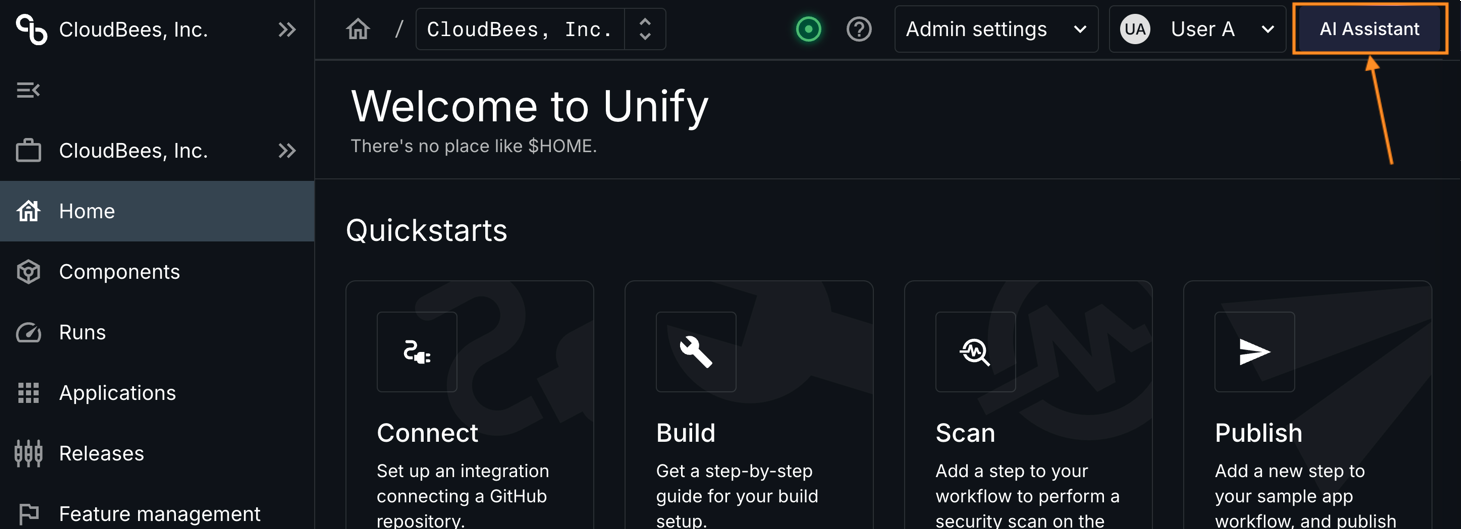
The chat panel opens on the right side of the page.
Send your first message
Now we will send a navigation request to see the AI Assistant act.
-
Enter
Go to Runsin the chat panel and press Enter. Before navigating, the AI Assistant displays what it understood from your request. This lets you verify it is doing what you intended. The AI Assistant then navigates you to the Runs page. -
Notice the follow-up suggestions that appear at the bottom of the chat panel. These are relevant next actions based on your current page. Select any suggestion to execute it immediately without typing.