In this tutorial we will enhance our existing CI workflow by adding SonarQube security scanning, integrating vulnerability detection directly into our development process. Along the way we will encounter CloudBees security actions, scan result integration, and security dashboard reporting.
By the end, you will have automated security scanning that provides continuous feedback on code vulnerabilities as part of your regular development workflow.
Before we begin, ensure you have completed Create a build workflow and have a working CI workflow with build and test steps.
| If you are already running a centralized SonarQube instance, you have the option to use the Configure SAST scanning instead of the bundled SonarQube action used in the steps described below. In this case, the data collected from the scans is available in both CloudBees Unify analytics dashboards and in SonarQube reports. |
Add SonarQube scanning to your workflow
Now we’ll add a security scanning step to our existing ci-job using the Configure SAST scanning guide.
This action scans our repository for security vulnerabilities and provides suggested code fixes.
We can use either the code editor or the visual tool to add this step, and both views stay synchronized automatically.
Add scanning using the code editor
To add the SonarQube bundled action using the code editor:
-
Select the
 , and then select a component in an organization.
 -
Select Edit YAML on your workflow.
-
Enter the following in the code editor, starting just after your
Run testsstep:- name: Scan with SonarQube bundled action uses: https://github.com/cloudbees-io/sonarqube-bundled-sast-scan-code@v1
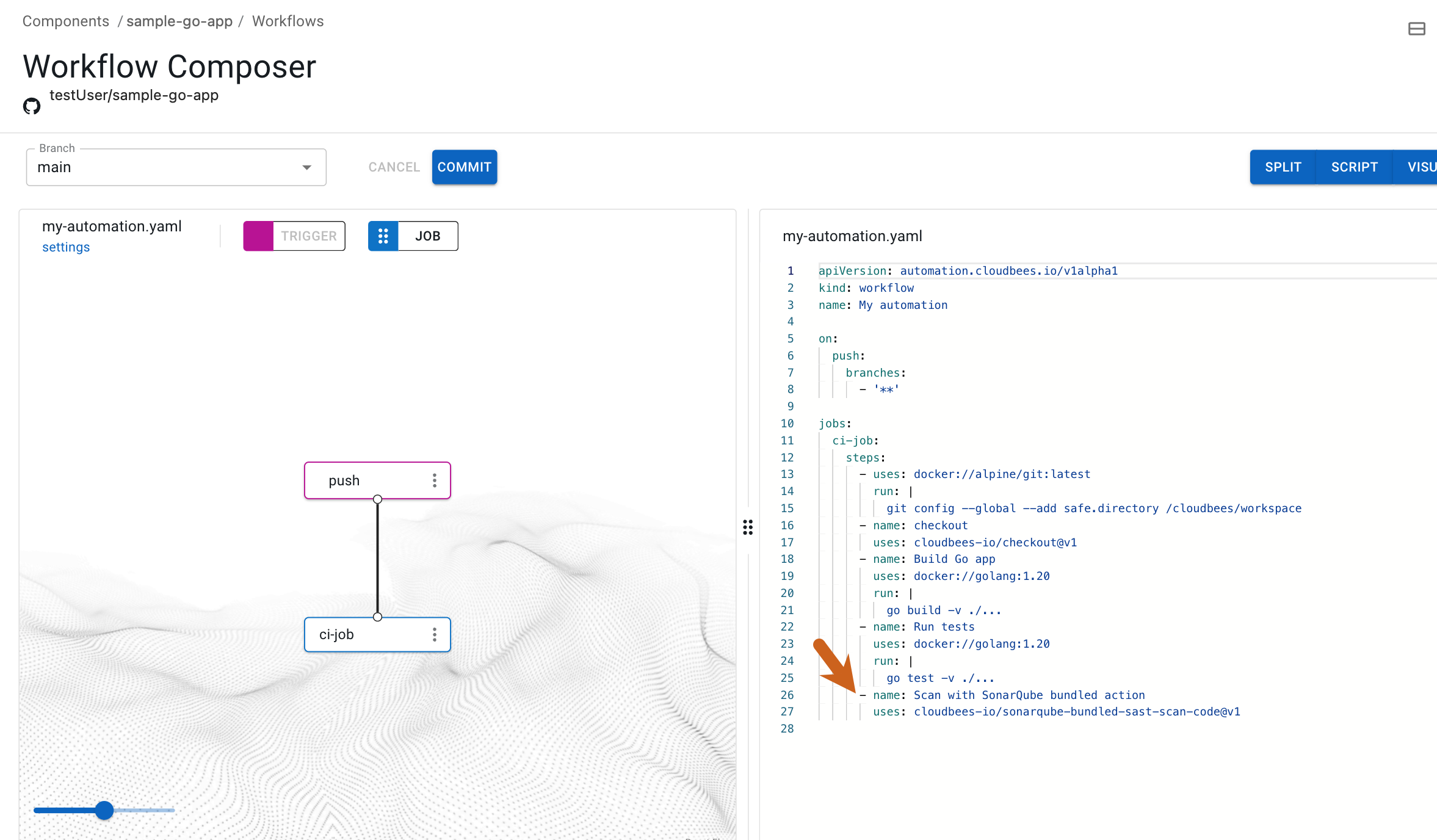
The scan step integrates seamlessly with your existing CI job, running after the build and test steps complete successfully.
Add scanning using the visual tool
Alternatively, you can add the SonarQube bundled action using the visual tool:
-
Select the
, and then select a component in an organization. -
Select Edit YAML on your workflow.
-
Select the
ci-jobin the visual tool, or select the next to
 ci-job, and then select Edit.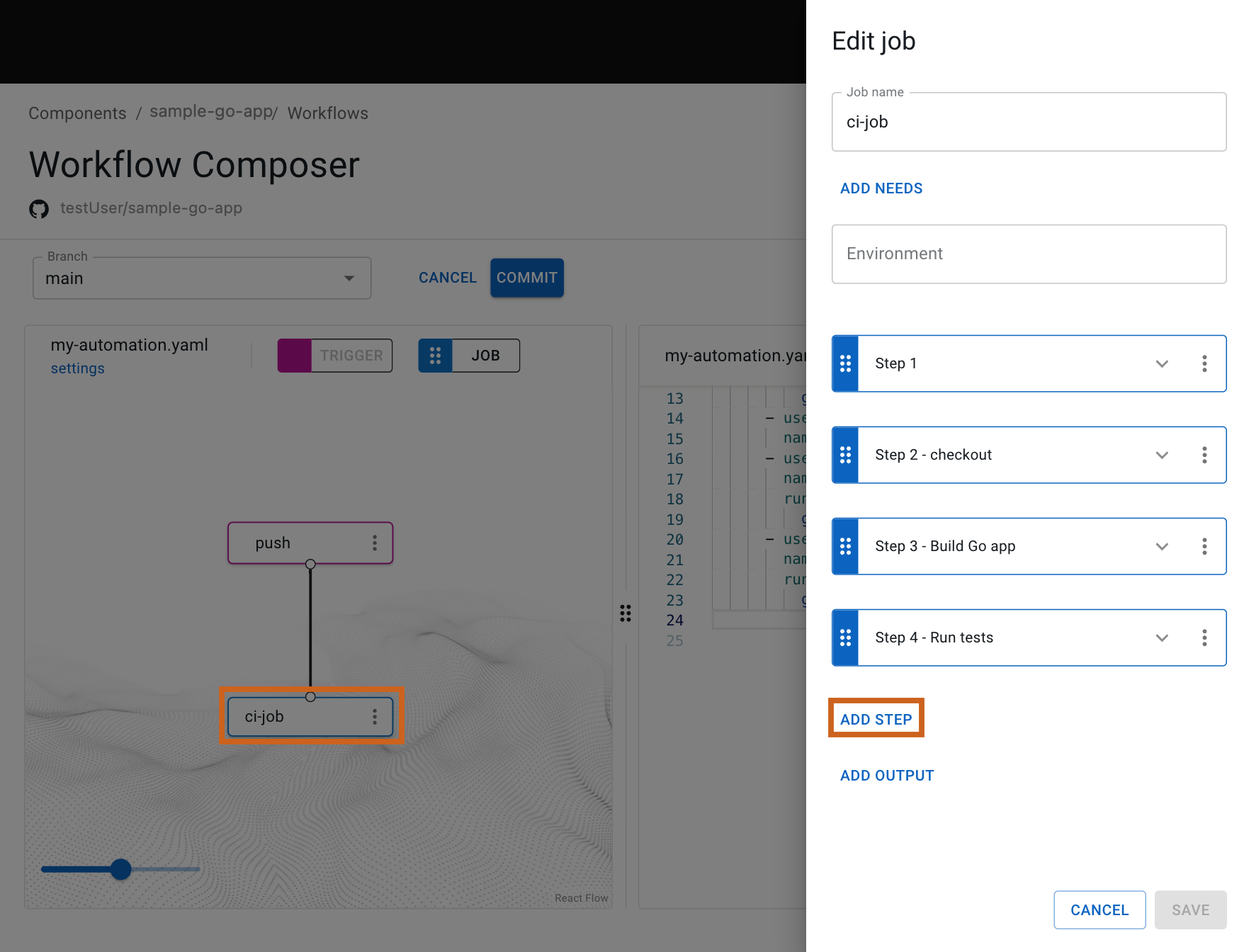 Figure 2. The selected job and Add step highlighted
 -
Select Add step.
-
Select Select from catalog.
-
From Container and actions, select one of the following security scanner tools:
-
Hybrid scanner: Built-in scanning tools that run directly in your workflows with minimal configuration. Scan results display in the Summary, Security overview, and Security center tabs.
-
Security Orchestrated (SO): Tools integrated with external security platforms already running in your organization. Results display on the Analytics page in the Security insights dashboard.
-
-
Select Apply selected.
-
(Optional) Select Scan from the options.
-
Select Save.
Regardless of which method you used, both the visual tool and the code editor now show the SonarQube bundled action as a new step in the ci-job.
| Check to confirm that your workflow now includes the scan step after the build and test steps, creating a complete CI pipeline with security analysis. |
Run your enhanced workflow
Let’s commit our updated workflow and observe how the security scanning integrates with our existing build and test automation.
-
Select Commit.
-
Enter a Commit message.
-
Select Commit to current branch.
-
Select Finish.
The workflow runs automatically after the commit, now including the security scanning phase alongside build and test execution. The first scan may take additional time as SonarQube analyzes code quality and security vulnerabilities.
-
Select Components from the left pane, select your component, and then select Runs to display your runs, with the most recent at the top of the list.
-
Select Display run to the right of your run.
-
Select the
ci-jobin the visual tool, and then select the scan step.
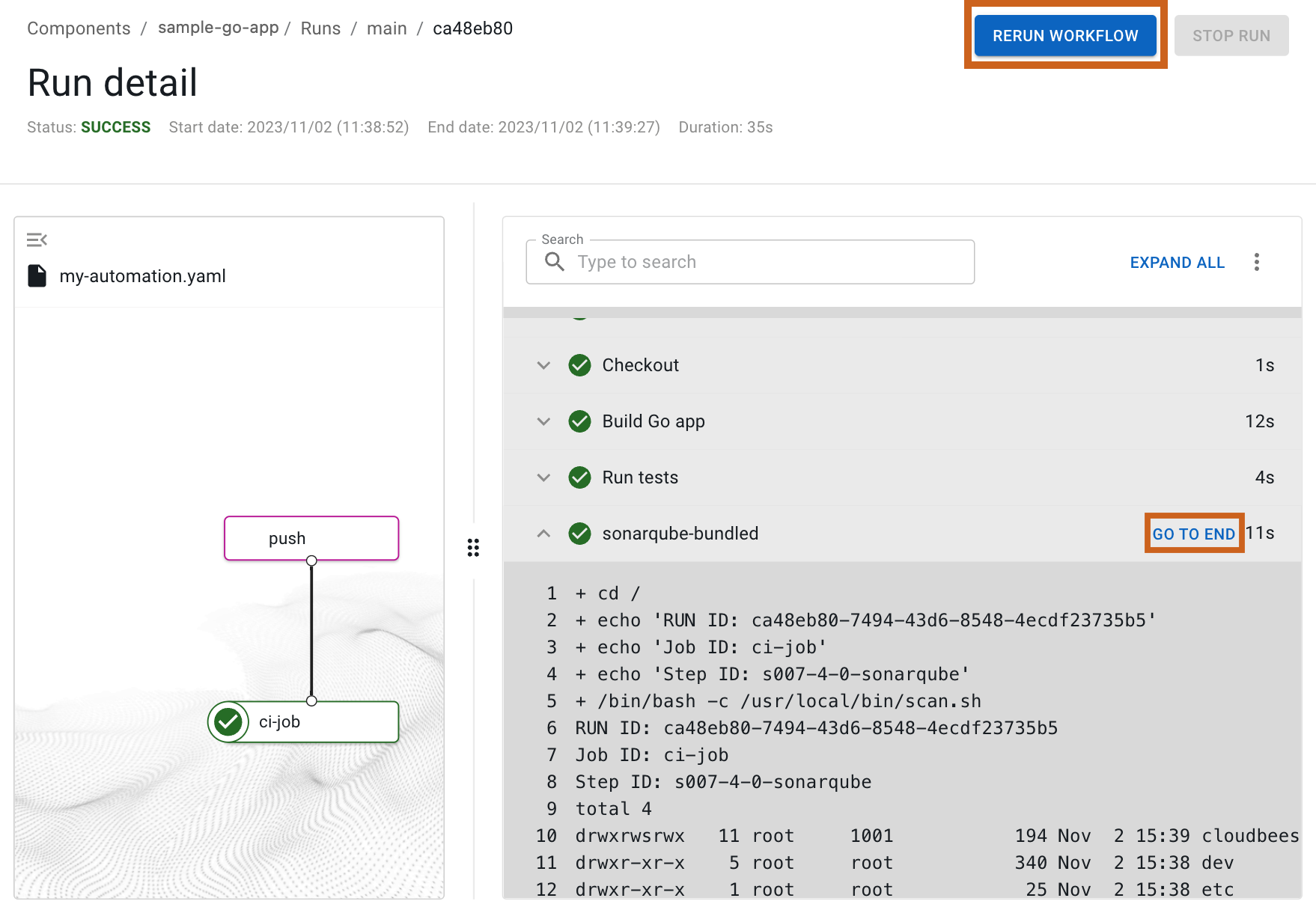
The run details show the security scan execution with detailed analysis logs. You can scroll through the scan step results or select GO TO END to jump to the end of the scan output.
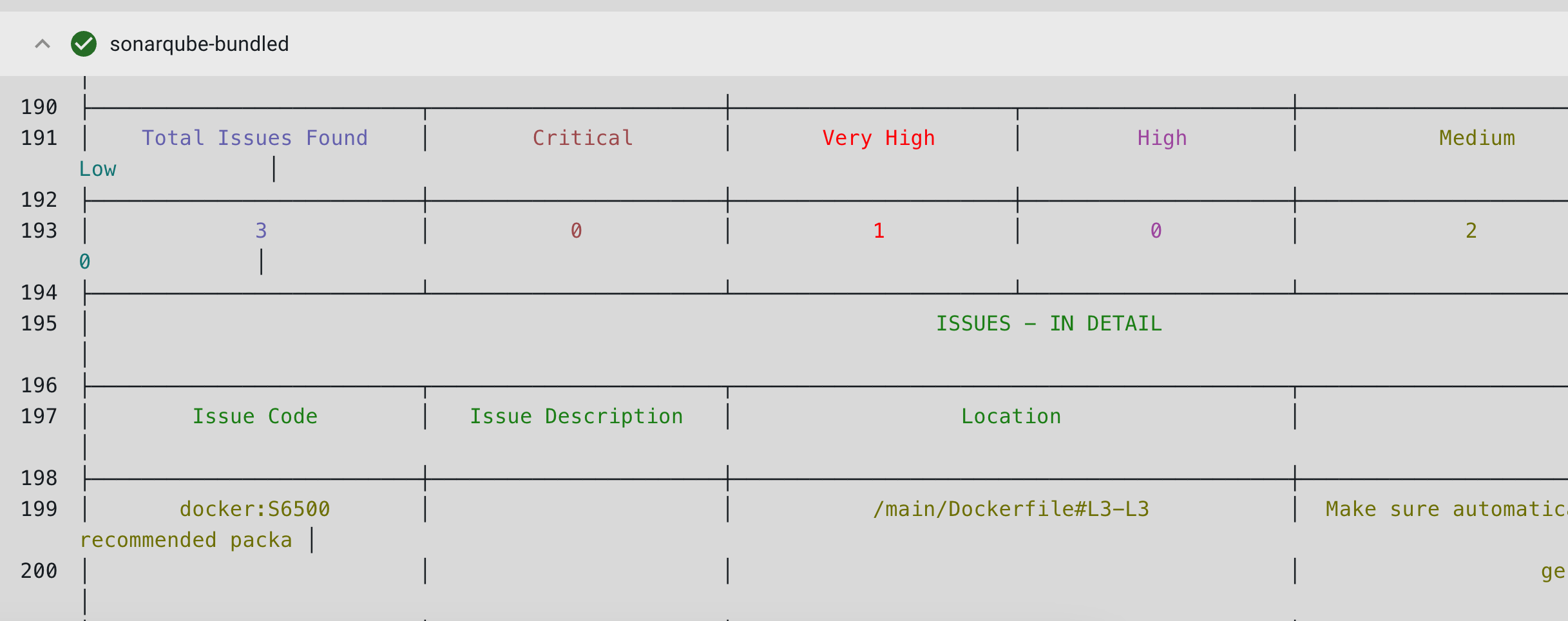
The scan step provides comprehensive security analysis integrated directly into your development workflow.
| Manually rerun the workflow by selecting Rerun workflow to see how consistent security scanning works with your development process. |
Explore security scan results
Now let’s examine how scan results integrate with CloudBees Unify dashboards to provide ongoing security visibility and actionable insights.
Navigate to .
The Security insights dashboard provides a comprehensive view of scan results. For more information, refer to Investigate security insights.
The scan results connect directly to your workflow execution, ensuring that security findings are immediately available alongside build and test results. This integration enables rapid feedback on security issues as part of your regular development cycle.
Understand scan integration
Our enhanced workflow now demonstrates shift-left security practices by integrating vulnerability detection directly into the CI process. Security scanning runs automatically on every commit, providing immediate feedback on potential security issues without disrupting development workflow.
The integration between workflow execution, scan results, and dashboard reporting creates a complete security feedback loop:
-
Code commits trigger automated builds, tests, and security scans.
-
Scan results appear immediately in workflow run details for immediate review.
-
Security metrics accumulate in component dashboards for trend analysis.
-
Development teams receive continuous security feedback without additional overhead.
This approach makes security scanning a natural part of the development process rather than a separate gate or manual verification step.
What we accomplished
We have successfully enhanced our CI workflow with integrated SonarQube security scanning, creating automated vulnerability detection that runs alongside build and test automation. Along the way we encountered CloudBees security actions, scan result integration with workflow execution, and security dashboard reporting.
You now have automated security scanning that provides continuous feedback on code vulnerabilities as part of your regular development workflow, demonstrating effective shift-left security practices.
From here, you can:
-
Publish container images to complete your CI/CD pipeline with deployment automation.
-
Explore advanced SAST scanning features and vulnerability management workflows.
-
Configure implicit security analysis for additional security tools and compliance checking in your automation pipeline.