Governance controls who can change feature flags, requires review before changes take effect, and tracks every modification for audit purposes. Use approval workflows, custom roles, and audit history to meet compliance requirements and maintain accountability across your teams.
Governance becomes essential when feature flags affect production environments, require regulatory compliance, or need structured review processes.
Prerequisites
Before implementing governance, ensure you have:
-
Administrative access to CloudBees Unify for role and permission management.
-
Understanding of your team structure and approval workflows.
-
Feature flags created that require governance oversight.
-
Email access for approval notifications.
Set up custom roles for feature management
CloudBees Unify includes predefined roles (Admin, User, and Approver) that grant broad, platform-wide permissions across all capability areas, including feature management. These roles may be either too permissive or too restrictive for specific feature flag work. To support more precise access control, you can create custom roles specific to feature management.
Feature management permissions
Creating flags, managing target groups, and submitting approval requests are controlled by specific permissions grouped into four categories. Depending on the flag behavior, the required permissions may apply at the application level, the environment level, or both.
| Category | Possible permissions | What the permission allows | ||
|---|---|---|---|---|
Approval requests |
|
Submit, approve, or reject feature flag approval requests. |
||
Custom property |
|
Define and manage custom properties used in flag targeting rules. |
||
Flags |
|
Manage feature flags, including creating, updating, and deleting. |
||
Target groups |
|
Manage target groups at the application level.
|
Feature management permission levels
Permissions for feature management are assigned at the category level, using one or more permission levels.
| Level | Description | ||
|---|---|---|---|
|
Grants read access to feature management entities (flags, target groups, and custom properties). Granted to all users by default. |
||
|
Allows users to create new flags, target groups, approval requests, or custom properties. |
||
|
Allows users to edit an entity. For example, to update a flag’s configuration or target group conditions.
|
||
|
Permits users to delete a flag, target group, or custom property. Also required to reject or delete an approval request. |
||
|
While |
Permission evaluation
When a user attempts to perform a task, such as editing a flag, CloudBees Unify evaluates the user’s assigned roles, permission levels within the categories, and role scopes at both the application and environment levels.
To proceed successfully, the user must hold the necessary permission at both scopes. If any required permission is missing at either level, the request is denied.
For example, when a target group is referenced by a flag in an environment, modifying that group requires the following:
-
Target groups:
Updateat the application level. -
Flags:
Updatefor the application level and each environment where the flag uses the group.
Create a custom role
To create a custom role and assign permissions:
To create the role:
-
Navigate to .
-
Select Create role.
-
To name the role:
-
Select
 next to Custom role, and then enter a name for the role.
 -
Select
next to Description to enter a description, such as a summary of permissions granted.
-
-
Select the Feature management category.
The Feature management section on the Custom Role page includes four categories of features possibly needing permissions, and varying permission levels.
-
Apply the appropriate permissions.
-
Select Save.
-
Assign users or teams to the new custom role.
-
To grant the role, navigate to .
-
Once the permissions are applied to the custom role, you must assign the role to a user or team, and specify the scope (organization, application, or environment).
-
Role tutorials
The following tutorials provide step-by-step instructions to create fully-configured custom roles for two common feature management personas: an administrator and an approver. Each example guides you through creating the role, applying the principle of least privilege by assigning only the necessary permissions, and granting the role to a team for a specific application or environment scope.
| Although these tutorials explain how to assign a team to the new roles, you can also assign roles directly to individual users if needed. |
Create an administrator role for feature management
By default, the predefined System Admin role in CloudBees Unify grants full administrative access platform-wide and cannot be restricted to a specific capability area such as feature management.
To enforce the principle of least privilege and improve security, create a custom admin role specifically for feature management to limit administrative access to only those capabilities associated with feature flags.
This example creates a custom role named fm-admin-custom-role with full feature management permissions, assigned to a team named App2Admins at both the application and environment levels.
To create the role:
-
Navigate to .
-
Select Create role.
-
To name the role:
-
Select
next to Custom role, and then enter a name for the role. -
Select
next to Description to enter a description, such as a summary of permissions granted.
-
-
Select the Feature management category.
-
Apply the required permissions:
-
Approval request:
Createto propose a request,Updateto approve a request,Deleteto reject or delete a request. -
Flags:
Create,Update, andDeleteto create, update, and manage flag settings. -
Target group:
Create,Update, andDeleteto manage audience targeting groups. -
Custom property:
Create,Update, andDeleteto manage flag rule conditions and context-based targeting.
-
-
Select Save.
-
To grant the role, navigate to .
-
Select Team as the principal type.
-
Select the App2Admins team.
-
Select the first resource type Application.
-
Select the application name, app-1.
-
Select the role fm-admin-custom-role.
-
Repeat to assign the role to application app-2 and environment env-1.
By assigning the role to the team in both scopes, all members of App2Admins, including any newly added team members, automatically inherit the necessary permissions to manage all aspects of feature flags.
This completes the steps to create a custom feature management administrator role.
Define a feature flag approver role
This example creates a custom role that allows a user to create, approve, and reject approval requests for feature flags in app-1, specifically in the env-1 environment.
Instead of assigning permissions directly to the user, the recommended approach is to assign the permissions to a team, such as App1Admins. As a member of that team, the user automatically inherits the team’s permissions.
Create a custom role named fm-approver-custom-role:
To create the role:
-
Navigate to .
-
Select Create role.
-
To name the role:
-
Select
next to Custom role, and then enter a name for the role. -
Select
next to Description to enter a description, such as a summary of permissions granted.
-
-
Select the Feature management category.
-
Assign the following permissions:
-
Approval request:
Read,Create,Update, andDelete. -
Custom property:
Read. -
Flag:
Read. -
Target group:
Read.For minimum permissions:
-
Updateis required to approve a request. -
Deleteis required to reject or delete a request.
CloudBees recommends assigning only the minimal permissions necessary for each user’s responsibility.
-
-
-
Select Save.
-
To grant the role, navigate to .
-
Select Team as the principal type.
-
Select the App1Admins team.
-
Select the first resource type Application.
-
Select the application name, app-1.
-
Select the role fm-approver-custom-role.
-
Repeat to assign the role to environment env-1.
By assigning the role to App1Admins in both scopes, all members of App1Admins, including any newly added team members, automatically inherit the necessary permissions to approve flag changes in that application and environment.
This completes the steps to create a custom feature flag approver role.
Example use cases
The following use cases provide permission templates for common feature management roles. Use them as a starting point to design custom roles that fit your organization’s specific needs.
Use case: Flag owner custom role
Use this role for users who are responsible for creating, managing, and deploying feature flags, but who do not need full access to approval requests, target groups, or custom properties.
To create the role:
-
Navigate to .
-
Select Create role.
-
To name the role:
-
Select
next to Custom role, and then enter a name for the role. -
Select
next to Description to enter a description, such as a summary of permissions granted.
-
-
Select the Feature management category.
-
Assign the following permissions:
-
Approval request:
Read. -
Custom property:
Read. -
Flag:
Read,Create,Update, andDelete. -
Target group:
Read.
-
-
Select Save.
-
To grant the role, navigate to .
This completes the steps to create a custom feature flag owner role.
Use case: Flag contributor custom role
Use this role if you want users to draft feature flag changes without the ability to save them directly. This is useful for developers or team members who need to suggest flag edits but should not have permission to apply changes.
| Role | Feature management role permissions | Can propose approval? | Can approve/reject? | Can edit flag configuration? |
|---|---|---|---|---|
Flag change requester |
Approval request: |
To create the role:
-
Navigate to .
-
Select Create role.
-
To name the role:
-
Select
next to Custom role, and then enter a name for the role. -
Select
next to Description to enter a description, such as a summary of permissions granted.
-
-
Select the Feature management category.
-
Assign the following permissions:
-
Approval request:
Read,Create. -
Flag:
Read,Create.
-
-
Select Save.
-
To grant the role, navigate to .
This completes the steps to create a custom feature flag contributor role.
Configure approval workflows
Implement structured review processes for feature flag changes.
Submit approval requests
Create approval requests for flag changes that require review:
-
Navigate to Feature management and select your application.
-
Select the flag requiring configuration changes.
-
Make the desired configuration modifications using the standard configuration interface.
-
Instead of saving directly, select Request approval.
-
In the approval request dialog:
-
Add a descriptive comment explaining the proposed changes and their purpose.
-
Review the change summary to ensure accuracy.
-
Select Submit request.
-
After submission: - The flag configuration becomes locked for editing in the target environment. - A diff view displays current configuration versus proposed changes. - Email notifications are sent to users with approval permissions. - Only the requester can withdraw the request before approval.
Manage approval requests as a reviewer
Review and process incoming approval requests:
-
Receive notification: Check email for approval request notifications containing flag change details and review links.
-
Accept review: Select Respond to request in the email notification to accept the review responsibility.
-
The requester receives confirmation that you’ve accepted the review.
-
You can view the proposed changes in the CloudBees Unify interface.
-
-
Review changes: Navigate to the flag configuration page to examine:
-
Current configuration (top section of diff view)
-
Proposed changes (bottom section of diff view)
-
Requester’s comments and change rationale
-
-
Make approval decision: Select Review approval request and choose:
-
Approve: Apply the proposed changes immediately to the flag configuration.
-
Reject: Decline the changes and notify the requester with feedback.
-
-
Provide feedback: Add comments explaining approval or rejection reasoning to help requesters understand decision criteria.
Best practices for approval workflows
Design effective governance processes:
-
Define approval criteria: Establish clear guidelines for when approval is required versus optional.
-
Set reviewer responsibilities: Assign specific reviewers for different flag categories or environments.
-
Document change rationale: Require meaningful descriptions in approval requests to support audit and compliance.
-
Establish response timeframes: Set expectations for approval request response times to avoid blocking development work.
-
Coordinate with deployment processes: Align flag approvals with application deployment schedules and change windows.
Track changes with audit history
Monitor and review all feature flag modifications for compliance and troubleshooting purposes.
Access audit history
Review historical changes across feature management entities.
| Changes to application or environment names are not currently captured in audit history, even though this information is displayed in flag entity change records. For example, if an environment name changes, flag entity change records reflect the new environment name, but there is no dedicated environment record indicating when the name change occurred. |
-
Navigate to your organization and select Audit history.
-
Use filtering options to focus on relevant changes:
-
Application: Filter by specific application.
-
Entity type: Choose flags, target groups, or custom properties.
-
Entity name: Search for specific flag or entity names.
-
Environment: Filter by deployment environment.
-
Date range: Select time periods (last 7 days, 30 days, or custom range).
You cannot filter the audit history display by organization.
-
Access the audit log for an individual flag
Each feature flag details page includes an Audit log tab showing the complete change history for that flag, automatically filtered to show only that flag’s history, without navigating to the centralized audit history or applying manual filters.
-
Navigate to Feature management and select your application.
-
Select the flag you want to review.
-
Select the Audit log tab.
The tab displays the same events as the centralized audit history, scoped to the selected flag. To view the full audit history across all flags, target groups, and custom properties, navigate to Audit history.
Review audit records
Examine detailed change information:
-
Locate the relevant audit record in the filtered list.
-
Select View details to expand the audit record.
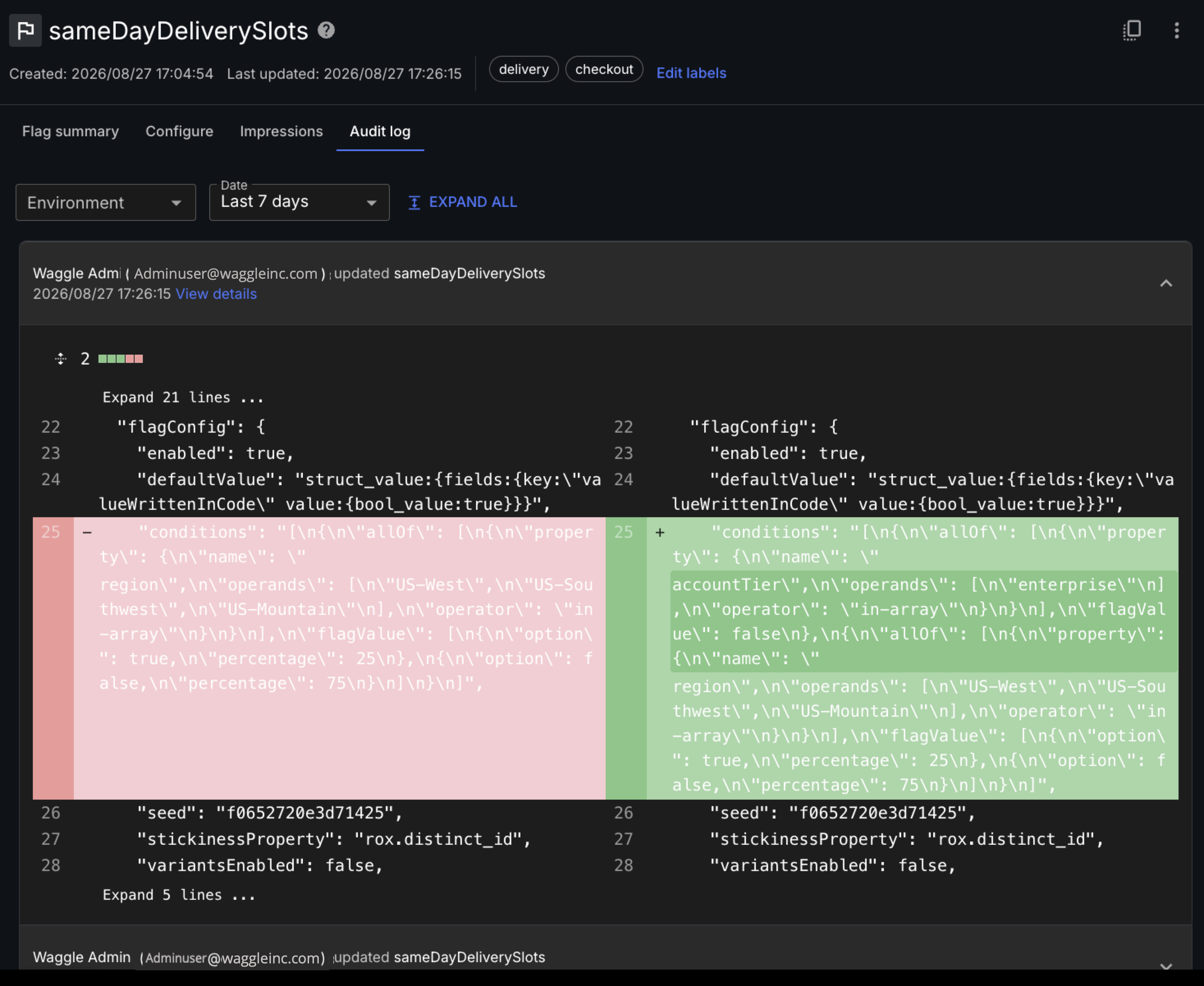 Figure 1. Expanded audit record showing before and after states
 -
Review the side-by-side comparison showing:
-
Before state: Original configuration or settings.
-
After state: Modified configuration or settings.
-
Change metadata: Timestamp, user, and change type.
-
Context information: Application and environment details.
-
Use audit data for governance
Leverage audit history for compliance and operational needs:
Compliance reporting: Generate reports showing all changes within specific timeframes for regulatory requirements.
Change analysis: Investigate configuration drift or unexpected behavior by reviewing recent flag modifications.
Team accountability: Track which team members made specific changes to support responsibility and training needs.
Pattern identification: Analyze change frequency and types to identify improvement opportunities in governance processes.
Incident response: Use audit trails to understand the sequence of changes leading to production issues.
Integrate governance with development workflows
Align feature flag governance with existing development and deployment processes.
Coordinate with CI/CD pipelines
Integrate flag approvals with deployment workflows:
-
Pre-deployment reviews: Require flag configuration approvals before major releases.
-
Environment promotion: Use audit history to verify flag consistency across environments.
-
Rollback procedures: Document flag state changes to support rapid rollback during incidents.
Establish change management processes
Create structured approaches for flag lifecycle management:
-
Flag creation standards: Define naming conventions and required documentation for new flags.
-
Configuration change procedures: Establish when approval is mandatory versus optional.
-
Cleanup governance: Use audit history and permissions to coordinate flag removal after feature completion.
-
Emergency procedures: Define expedited approval processes for critical production issues.
Monitor governance effectiveness
Track and improve your governance implementation:
-
Approval metrics: Monitor approval request volume, response times, and approval rates.
-
Audit coverage: Ensure all critical changes are properly tracked and reviewed.
-
Process compliance: Regular review whether teams follow established governance procedures.
-
Training needs: Use audit patterns to identify areas where additional team training is needed.