Use the application security center to assess security posture across multiple components that comprise business applications and manage security risk at the application level. The application view focuses on business-level security oversight, helping security leaders and application owners understand risk exposure across development teams and track remediation efforts from a portfolio perspective. The application security center enables multi-team coordination visibility and application-level SLA management for enterprise security oversight.
For guidance on when to use the application security center versus the component security center, refer to application-security:explanation/understanding-security-center-workflows.adoc#component-vs-application-security-perspectives.
Triage decisions require approval from organization owners according to organization-level approval workflows. For detailed triage procedures, refer to Triage security findings.
| Use application-level trend analysis to identify whether security posture is improving over time, helping validate the effectiveness of security initiatives and developer training programs. |
On CloudBees Unify:
-
Issues are security issues reported by security tools.
-
Findings are individual occurrences of a security issue reported in a branch, file, or code location.
-
Severity is the rating reported by the security tool that discovered the finding.
| You need the View findings by triage status permission to access security findings in the application security center. For permission details, refer to RBAC permissions reference. |
Navigate to the application security center
To access the security center for a specific application:
-
Select an organization from the organization selector.
-
Select Applications.
-
Select the application name.
-
Select Security center.
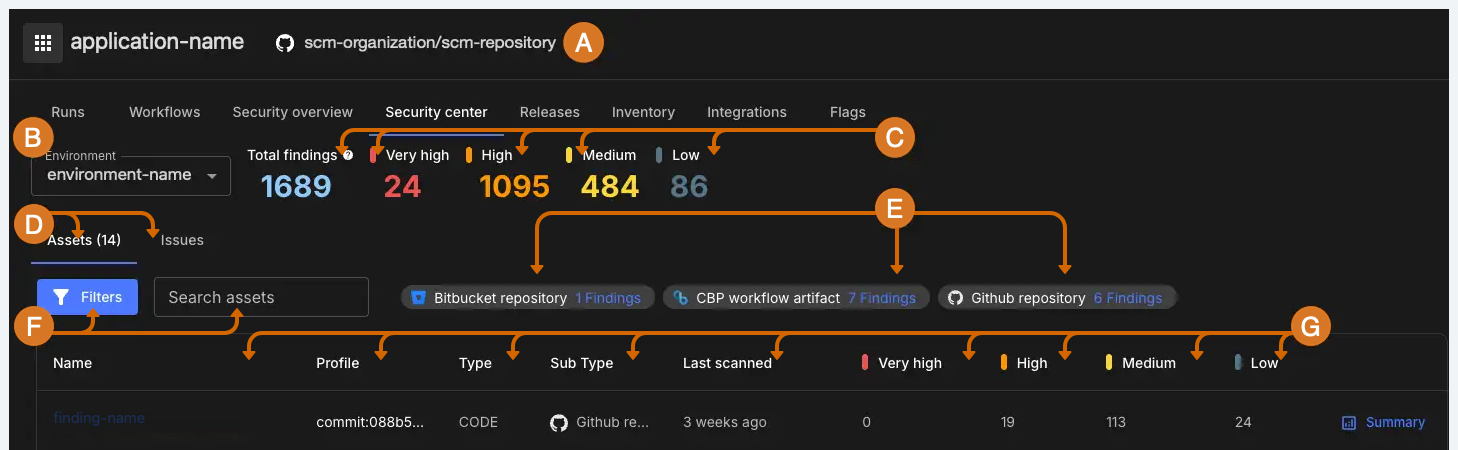
The application security center opens in the asset-centric view by default.
Populate data in the dashboards
Before the application Security overview can display data, it must be populated with findings from your builds and deployment steps.
Security data is collected and populated from workflow activities such as build, scan, and deploy application artifacts. The dashboard metrics and findings are populated when you perform the following actions:
-
Build or register your artifact and scan the associated binary (such as a container image) at the component level. The resulting security findings are displayed in the component-level dashboards.
-
Deploy the scanned artifact to an application environment. The scan results for the deployed artifact is available in the application level security dashboards.
You can switch between the asset-centric view and the issue-centric view, and within each view findings are organized by status tabs such as Unreviewed, Fix Required, Awaiting Approval, Resolved.
Review findings in the asset-centric view
The asset-centric view is the default view of the application security center. It lists every asset deployed within the application alongside its findings grouped by severity, helping you assess security risk asset by asset.
The summary area at the top of the view displays the total number of open findings across all deployed assets, broken down by severity such as Critical, High, Medium, and Low. Findings are also grouped by asset subtype, such as GitHub repository, Bitbucket repository, or binary artifact. Select the number of findings for an asset subtype to filter the list by that subtype.
To filter the asset list, filter by asset or subtype, or search for an asset by name, profile, or subtype. Filtering is dynamic, and the available filters depend on the current results.
Each asset row displays the following information:
-
Name: The deployed asset’s name. Select the name to review detailed security information for that asset.
-
Profile name: The latest commit ID for code assets, or the latest image and version for binary assets.
-
Type: The asset type, either code or binary.
-
Sub type: The asset subtype, such as a GitHub or Bitbucket repository for code assets, or a CloudBees Unify workflow artifact for binary assets.
-
Last scanned: The most recent time the asset was scanned.
-
The number of findings, grouped by the severity rating reported by the security tool that discovered each finding.
Review findings in the issue-centric view
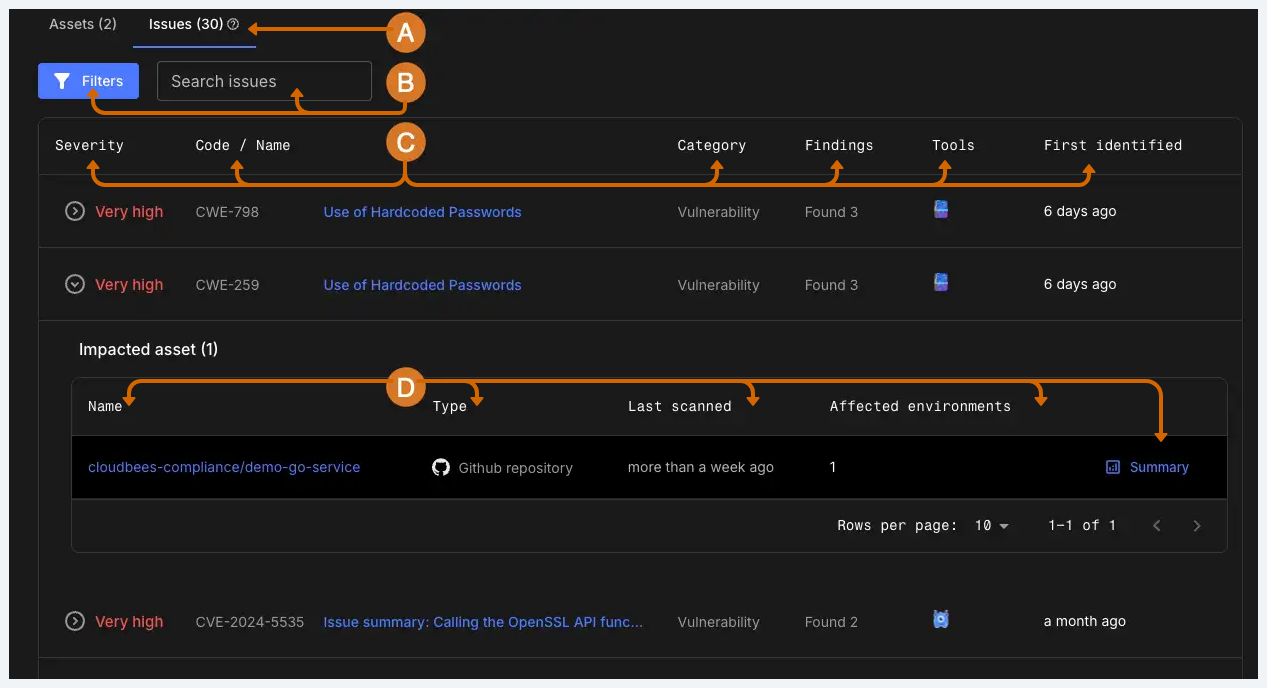
The issue-centric view provides a consolidated list of all security issues across the application, showing which assets each issue impacts. This view helps developers and security engineers focus on specific issues and trace them down to the affected assets.
To open the issue-centric view, from the application Security center, select the Issues tab.
To narrow the list, search for an issue or filter by any of the following:
-
Asset type: Either binary or code.
-
Category: One or more of Configuration, License violation, Operational risk, Penetration testing outcome, Policy violation, SCA, Secret violation, Threat modelling outcome, or Vulnerability.
-
Risk Accepted findings expiry: The date range, or end date, of the risk acceptance expiry.
-
Severity: The severity rating reported by the security tool that discovered the finding.
-
SLA status: Either within SLA or breached SLA.
-
Status: The triage status of the finding. For details on each status, refer to Triage security findings.
-
Tool: The security tool that discovered the finding.
Each issue row displays the following information:
-
Severity: The severity rating reported by the security tool that discovered the finding. Select to review the assets affected by the issue.
-
Code / Name: The vulnerability code, or CVE/CWE number, and the name of the issue.
-
Category: The category of finding, such as operational risk or vulnerability.
-
Findings: The number of findings of that issue type identified by security tools.
-
Tools: The security tools that identified the issue.
-
First identified: The date the issue was first identified.
When you expand an issue, the affected assets display the following information:
-
Asset Name: The name of the deployed asset. Select the asset name to review detailed security information for that asset.
-
Type: The asset type, either code or binary.
-
Last scanned: The most recent time the asset was scanned.
-
Affected environments: The number of environments affected by the issue. Hover over the number to display the list of environments.
-
Select Summary to review a summary of all findings for the asset.
Review detailed asset security information
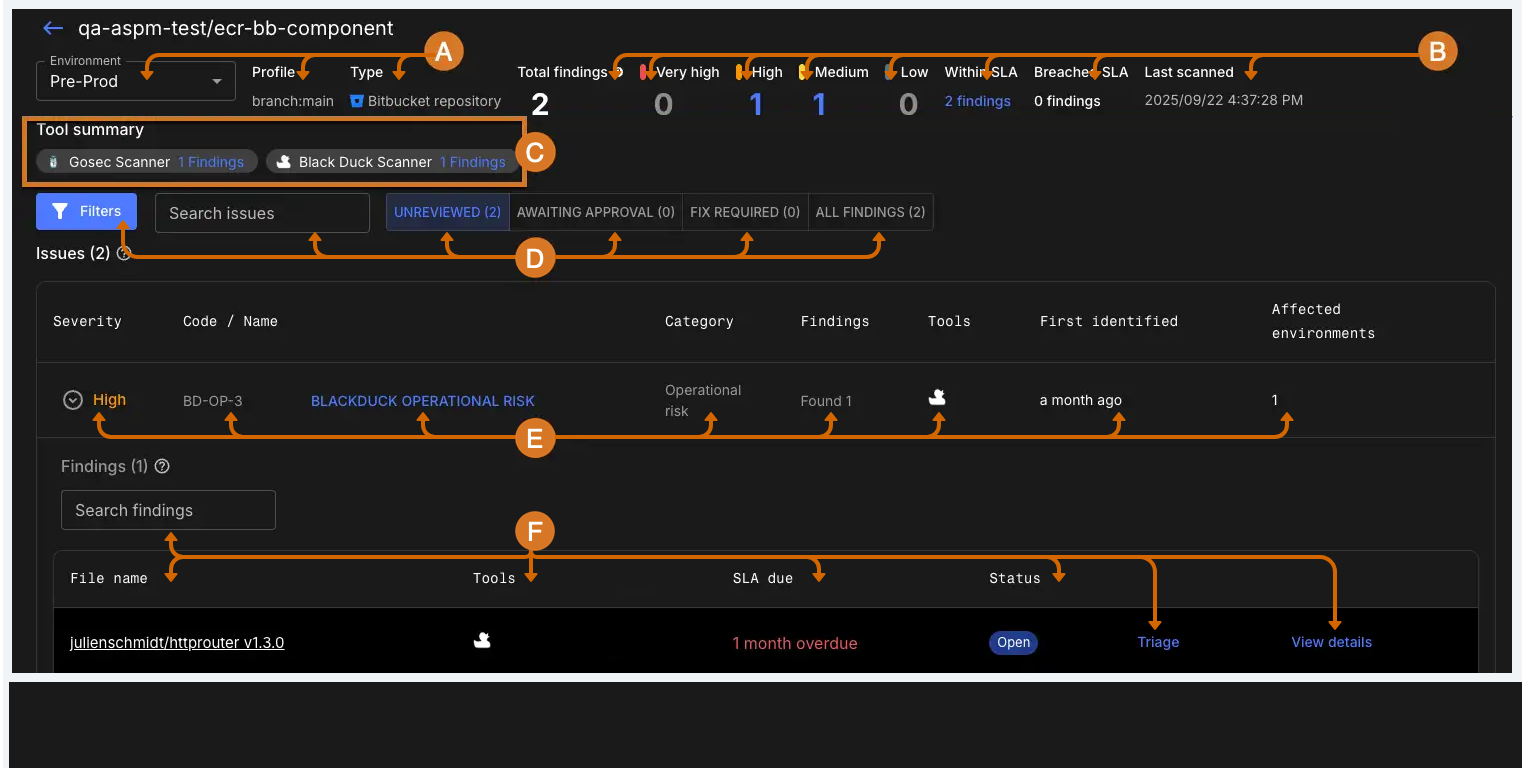
Detailed asset security information displays all findings for a single deployed asset across the environments where it runs. Use this view to investigate the security posture of one asset in depth.
To open detailed asset security information, select an asset name from the asset-centric view, or from the impacted assets listed under an issue in the issue-centric view.
The summary area displays an environment selector, the total number of findings grouped by severity, and the tools that detected findings along with the number of findings each tool discovered. Select a number of findings to filter issues by that severity, or by findings that are within or have breached the SLA. Select a tool to filter issues by that tool.
To narrow the issue list for the asset, search for an issue or filter by category, Risk Accepted findings expiry, severity, SLA status, status, or tool.
Each issue displays the same information as the issue-centric view. Select to review detailed findings for the issue, which include the following:
-
File name: The file containing the finding. Select the file name to navigate to the source code management platform, such as GitHub or Bitbucket, to review the finding in context.
-
Tools: The security tool that identified the finding.
-
SLA due date: The date by which the finding should be resolved, based on the SLA defined for the organization.
-
Status: The current status of the finding. Select Triage to triage the finding, or select View details to review the description, remediation guidance, and output from the security tool that discovered the finding.
For the full triage procedure, refer to Triage security findings.