Configure targeting rules, rollout strategies, and conditional logic to control which users receive specific features and when they receive them.
Targeting enables gradual rollouts, user segmentation, and scheduled releases based on user properties, target groups, and complex conditional logic.
Prerequisites
Before configuring flag targeting, ensure you have:
-
A feature flag already created in your application.
-
Application linked to one or more environments.
-
Understanding of your user properties and target groups if using advanced targeting.
For guidance on creating flags, refer to Create and manage feature flags.
Enable flag configuration
Activate flag configuration to make targeting rules functional in the selected environment.
-
Navigate to Feature management and select your application.
-
Select the target environment from the environment options.
-
Locate the flag you want to configure and select the vertical ellipsis icon (⋮).
-
Select Configure.
-
Toggle the Configuration status to On to enable the flag configuration.
When configuration status is On, the flag follows your targeting rules. When Off, the flag serves the default value written in your application code.
The configuration status applies only to the selected environment, allowing different targeting behavior across development, staging, and production.
Configure basic targeting rules
Create conditional logic to control flag behavior based on user attributes and application state.
Add property-based rules
Target users based on built-in or custom properties such as location, device type, or user attributes:
-
Access the flag configuration interface as described above.
-
Select Add new rule and choose Property.
-
Configure the property condition:
-
Select a Property name from available built-in or custom properties.
-
Choose an Operator such as "equals", "contains", "greater than", or "in list".
-
Enter or select the target Value for comparison.
For operators that accept multiple values, such as "in list", a copy icon appears at the end of the Value field. Select the icon to copy all values as a comma-separated string. You can also select an individual value to copy it. 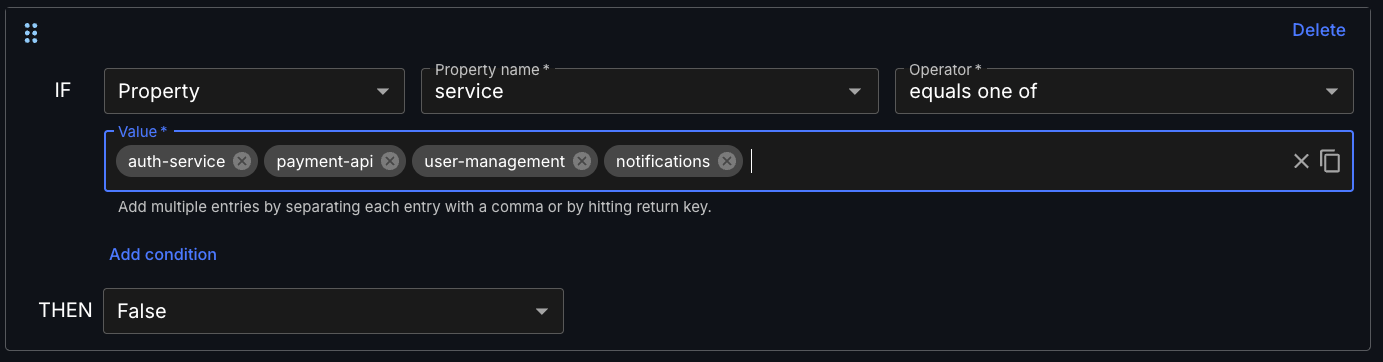
-
-
Set the outcome values:
-
Configure the THEN value (what happens when the condition is true).
-
Configure the ELSE value (what happens when the condition is false).
-
-
Select Save configuration to apply the rule.
A rule targeting users in specific regions might use:
- Property: country
- Operator: in list
- Value: ["US", "CA", "UK"]
- THEN: true (enable feature)
- ELSE: false (disable feature)
Add target group rules
Target predefined user segments using target groups:
-
Select Add new rule and choose Target group.
-
Configure the target group condition:
-
Choose from Matches options (any group, all groups, or none).
-
Select one or more target groups from Select one or more groups.
When multiple groups are selected, a copy icon appears at the end of the field. Select the icon to copy all group names as a comma-separated string.
-
-
Set the THEN/ELSE values based on target group membership.
-
Save the configuration.
Target groups provide reusable user segments that can be shared across multiple flags, simplifying management of complex user categorizations.
Add flag dependency rules
Create dependencies where one flag’s behavior affects another:
-
Select Add new rule and choose Flag.
-
Configure the flag dependency:
-
Select the Flag name to depend on.
-
Choose specific Variants if the dependency flag uses string or number variations.
-
-
Set outcomes based on the dependency flag’s current state.
-
Save the configuration.
Flag dependencies enable coordinated feature releases where related functionality activates together.
Create nested conditions
Combine multiple conditions within single rules for complex targeting logic.
Add nested conditions to existing rules
Enhance rules with additional conditional logic:
-
Access an existing rule configuration.
-
Select Add condition within the rule block.
-
Choose the condition type:
-
Property: Add unlimited additional property conditions.
-
Target group: Add one target group condition per rule.
-
Flag: Add one flag dependency per rule.
-
-
Configure the new condition using the same process as basic rules.
Manage rule complexity
Keep nested conditions manageable:
-
Reorder rules: Drag rules using the six-dot handle (⋮⋮) to prioritize evaluation order.
-
Reset configuration: Select Reset to restore the flag configuration to its last saved state.
-
Test rule logic: Verify complex rules work as expected in development environments before production deployment.
Rules evaluate in order from top to bottom, with the first matching condition determining the flag’s behavior.
Configure gradual rollouts (split releases)
Control feature exposure to specific percentages of your user base while maintaining consistent user experiences.
Set up percentage-based rollouts
Configure flags to serve different values to specific user percentages:
-
Access flag configuration and select Add new rule if adding to existing rules, or configure directly if this is the primary behavior.
-
Choose Split from the value options.
-
Configure split percentages:
-
Boolean flags: Adjust the split between
TrueandFalsevalues. -
String/Number flags: Distribute percentages across all defined variations.
-
-
Adjust percentages using:
-
Up/down arrow controls for incremental changes.
-
Direct numeric entry for precise values.
Total percentages must equal 100%. Set variations to 0% to exclude them from the split.
-
-
Select Save configuration to apply the split settings.
Maintain user experience consistency
Split releases use algorithmic consistency to ensure users receive the same flag value across sessions:
-
Each flag has a unique seed to prevent statistical bias between flags.
-
The SDK combines the seed with a stickiness property (default:
rox.distinct_id) to generate consistent hash values. -
Users consistently receive the same flag value unless you modify the split percentages.
Best practices for production splits:
- Never decrease the True percentage of Boolean flags in production to avoid user experience inconsistencies.
- Safely increase percentages to expand feature availability while maintaining existing user experiences.
- Test split changes in staging environments before applying to production.
Modify stickiness properties
Customize which user attribute determines split consistency:
-
Access flag configuration and select the vertical ellipsis icon (⋮) in the upper right.
-
Select Flag settings.
-
Choose a Stickiness property. This is the property CloudBees Unify uses to decide "who" a user is when consistently assigning them to a variant in a percentage-based split.
-
Default (
rox.distinct_id): A device-level identifier. If you don’t set a stickiness property, this is used, giving each device a consistent experience. -
Any other property: You can use any custom property instead: either a built-in one (any
rox.*property) or one you have defined yourself. Choose the property that matches the level of consistency you want.For example, if you want a user to get the same variant across all their devices, set the stickiness property to a property that holds a stable user or account identifier (such as a
userIdoraccount_idproperty you have created). These are example values, not built-in options. They only exist if you have created them as custom properties.
-
-
Select Save configuration.
Stickiness properties are environment-specific, allowing different consistency behavior across deployment stages.
Configure scheduled releases
Automate feature rollouts at specific dates and times using Boolean flag scheduling.
Set up time-based rollouts
Schedule feature activation for predetermined percentages of users:
-
Access flag configuration for a Boolean flag.
-
Choose Scheduled from value options (available in THEN/ELSE sections for conditional rules).
-
Configure the schedule:
-
Select or enter the target timezone.
-
Set initial schedule: defaults to 0%
Trueat current time, 100%Truefive minutes later. -
Modify percentages and timing as needed.
-
-
Adjust schedule timing:
-
Date selection: Select date field or calendar icon to choose specific dates.
-
Time selection: Enter times directly or use clock icon for five-minute increment selection.
-
-
Add multiple schedule points:
-
Select Add row to create additional schedule entries.
-
Each new row defaults to 0%
Truefive minutes after the previous entry.Schedule dates and times must occur sequentially - each new entry must be later than the previous one.
-
-
Select Save configuration or Save and activate configuration.
Manage scheduled rollouts
Monitor and adjust scheduled releases:
-
Multiple schedules: Configure complex rollout patterns with multiple percentage increases over time.
-
Timezone handling: Ensure schedules account for user location and business requirements.
-
Activation: Enable flag configuration status (On) for schedules to take effect.
Example schedule: Release to 25% of users on Monday, 50% on Wednesday, and 100% on Friday, allowing feedback collection between stages.
Clone configurations between environments
Copy targeting configurations from one environment to another to maintain consistency across deployment stages.
Copy environment configurations
Replicate successful targeting setups across environments:
-
Select the vertical ellipsis (⋮) next to the flag you want to clone.
-
Select Environment from the options to clone the configuration for that environment to another environment or environments.
-
Select Clone configuration.
-
Select the environment(s) you want to clone to, or select Select all.
-
Review and modify any environment-specific settings as needed in the target environment.
Validate cloned configurations
Ensure cloned configurations work appropriately in the target environment:
-
Property availability: Verify that custom properties used in rules exist in the target environment.
-
Target group definitions: Confirm target groups are defined consistently across environments.
-
Flag dependencies: Check that dependent flags exist and behave correctly in the target environment.
-
Testing: Validate complex rules work as expected before enabling in production.
Cloning reduces configuration effort while allowing environment-specific customizations for different deployment stages.