Connect a GitHub repository to a CloudBees Feature Management application to manage flags, target groups, and flag configurations as YAML files in your repository.
For background on how CasC works, refer to Understanding configuration as code.
Prerequisites
-
Install the CloudBees Feature management SDK in your application.
-
Have a GitHub repository to store your CasC files. Before connecting to a new repository, ensure it contains at least one commit, such as a README. For more information, refer to Quickstart for repositories.
-
To connect a repository that is not yet installed in CloudBees Unify, you must have administrator access to CloudBees Unify, and permission to install GitHub Apps in the GitHub organization that owns the repository. If you do not have this access, ask an administrator to connect the repository for you.
CloudBees Unify connects to GitHub through a GitHub App, and only reads and writes the CloudBees Feature Management files in the repository you select.
Open the configuration as code panel
-
Select Feature management. The default display is the Flags page.
-
Select Application, and then select your application.
-
Select
 Connect your configuration as code (CasC).
The link appears only if CasC is not yet set up for the selected application.
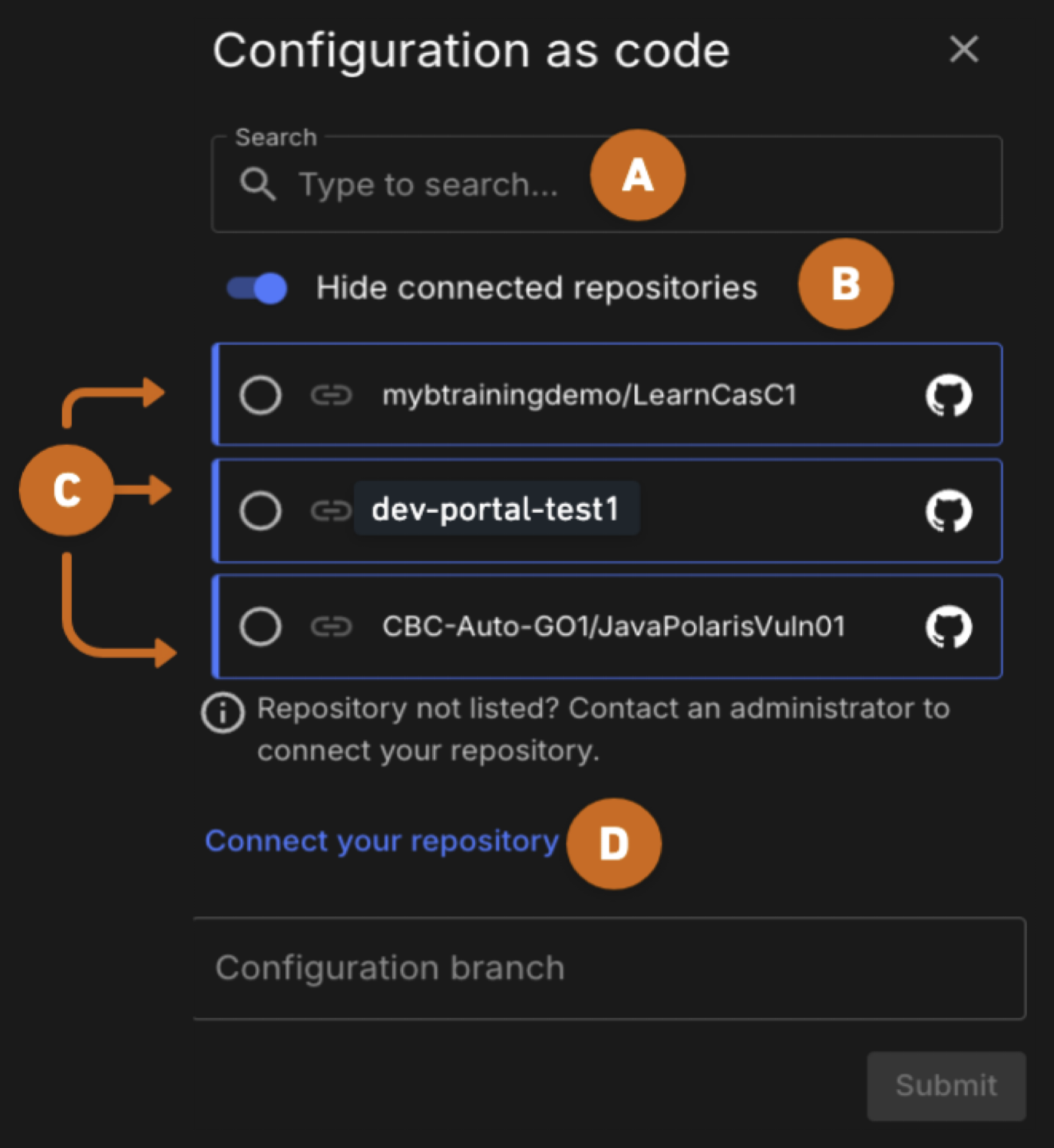
The Configuration as code panel opens and lists the GitHub repositories already installed in CloudBees Unify.
-
Search: Enter a full or partial name to find a repository.
-
Hide connected repositories: Enable this toggle to display only repositories that are not yet connected to CasC.
-
Repository list: Displays the GitHub repositories installed in CloudBees Unify.
-
Connect your repository: Install and connect a repository that is not in the list.
-
If your repository is in the list, select Connect the repository.
-
If your repository is not in the list, contact an administrator to assist you, or follow the steps to Install the GitHub App for a new repository first.
-
Install the GitHub App for a new repository
Do this only if your repository is not listed in the Configuration as code panel.
-
In the Configuration as code panel, select Connect your repository below the repository list.
-
Select GitHub App.
-
Enter a Name and Description for the integration.
-
Choose a name that identifies the organization and what the integration is for, making it easy to recognize later in the list of integrations. For example,
acme-corp-fm-casc.
-
-
In GitHub, select the organization that contains your repository.
-
Select the repository access for the app, and then select Save.
-
You return to CloudBees Unify. Go back to Open the configuration as code panel.
Your repository now appears in the list. Navigate to Connect the repository.
Connect the repository
With your repository listed in the Configuration as code panel, connect it to your CloudBees Feature Management application.
-
In the Configuration as code panel, find your repository. To narrow the list, enter part of its name in Search, or turn on Hide connected repositories.
-
Select your repository.
-
In Configuration branch, enter the branch where CloudBees Unify reads and writes CasC files, such as
main. -
Select Submit.
CloudBees Unify connects the repository and creates the CasC folder structure in it.
If your application already has flags, target groups, or flag configurations, CloudBees Unify writes them as YAML files in an initial commit to the configuration branch.
The Connect your configuration as code (CasC) link at the top of the Flags page changes to a link to your GitHub repository.
Add CasC files to the repository
After you connect the repository, add YAML files in one of these ways:
-
Create entities in the UI (recommended to start).
-
Select Feature management from the left-hand navigation to create flags, target groups, or custom properties.
-
CloudBees Unify generates the appropriate YAML files in the corresponding folders of your repository, which you can then edit.
-
-
Write the files yourself. Create YAML files in your editor, following the folder structure below, and commit them to the repository. Refer to Example CasC folder structure.
-
Copy an existing file. Copy a YAML file, change values such as the flag name, conditions, or target group, and commit it to the correct folder.
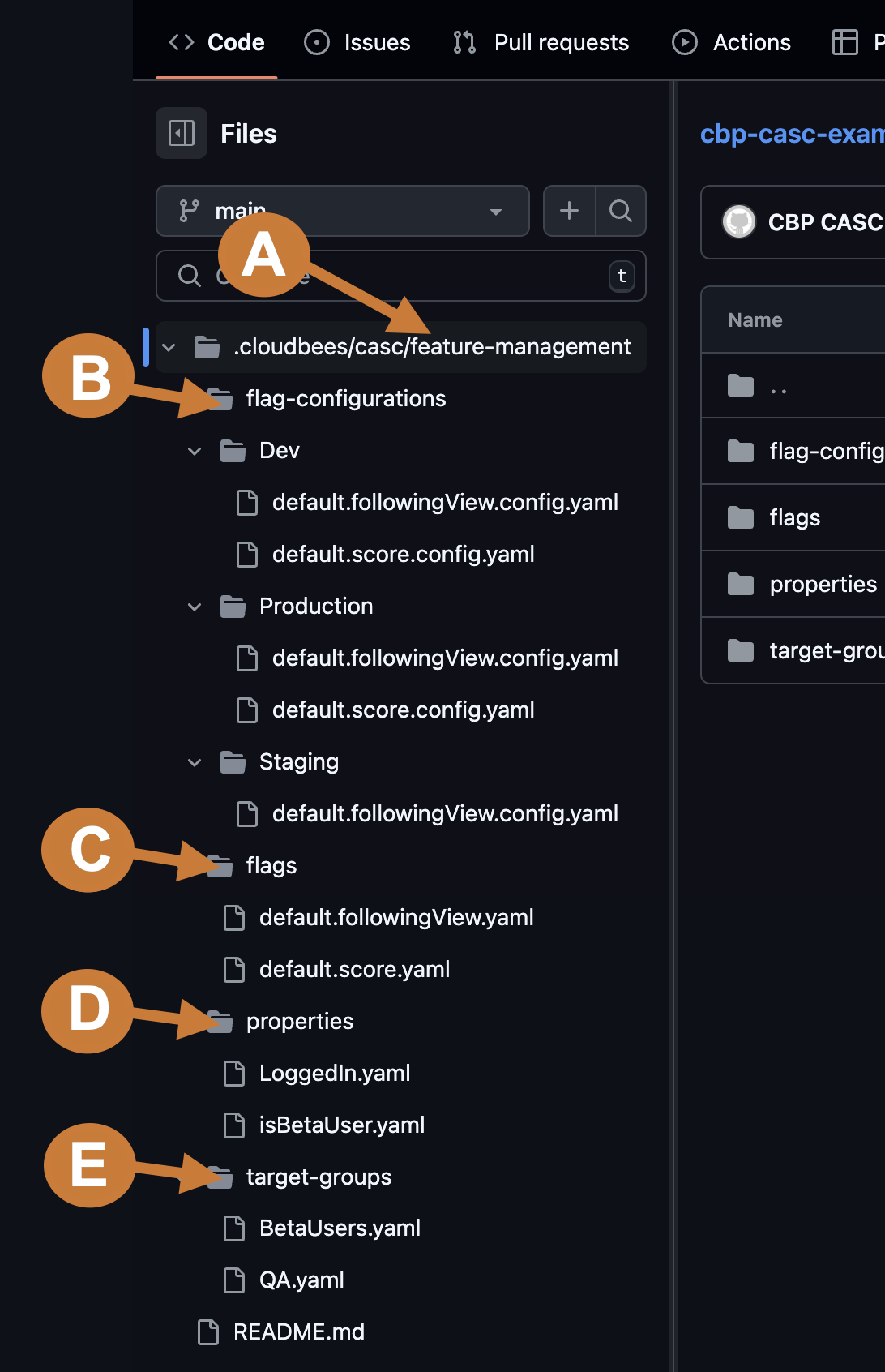
CloudBees Unify reads only valid files in these folders, under .cloudbees/casc/feature-management on your configuration branch:
-
.cloudbees/casc/feature-management: The root folder for all Feature management CasC files. -
flag-configurations: Contains flag configurations, with one subfolder per environment, such asDev,Staging, andProduction. -
flags: Contains feature flag definitions. -
properties: Contains custom property definitions. -
target-groups: Contains target group definitions.
For the full folder structure and YAML schemas, refer to Configuration as code reference.
Verify the setup
-
In CloudBees Unify, create a test flag in your application.
-
In GitHub, confirm that a YAML file for the flag appears in
.cloudbees/casc/feature-management/flagson your configuration branch. -
In GitHub, edit the flag’s YAML file, for example by changing its description, and commit the change.
-
In CloudBees Unify, refresh the Flags page and confirm the change appears.
If changes sync successfully in both directions, CasC is configured correctly. Delete the test flag after verifying the setup.
Next steps
-
Configuration as code reference: folder structure and YAML schemas.
-
Understanding configuration as code: how CasC works.