In this tutorial we will create a CloudBees Unify component and build our first workflow that automatically builds and tests a Go application. Along the way we will encounter components as workflow containers, the workflow composer with visual and code editing, and CloudBees actions for automation.
By the end, you will have a working CI workflow that builds and tests code automatically whenever you commit changes.
Before we begin, ensure you have completed Connect your repository and have a connected sample Go app repository available.
Create your first component
Now we’ll create a component that contains all the resources required to build the sample Go app in CloudBees Unify. Components connect repositories to CloudBees Unify features and serve as containers for workflows, configurations, and automation.
-
Select the
 , and then select an organization.
 -
Select Create component.
-
Select your sample Go app repository from the options. If desired, enter all or part of its name into Search, and then select it.
-
Select Next.
-
Enter a Component name.
-
(Optional) Enter a Description.
-
Select Create.
Your component is created and appears in the Components list with a repository connection indicator. The component serves as the foundation for all automation and workflow activities related to this repository. We are now ready to create a workflow to automate building the Go app.
Explore the workflow composer
Let’s create our first workflow using the CloudBees workflow composer, which provides both visual and code-based editing capabilities.
-
Select a component in an organization in one of two ways:
-
Select the
next to the organization under Home, and then select a component. -
Select Components, and then select a component from the list.
-
-
Select Workflows on the left pane.
-
Select Create workflow.
An example workflow that outputs "hello world" is displayed in the composer. Notice that the composer provides both a visual representation and a code editor that stay synchronized automatically.
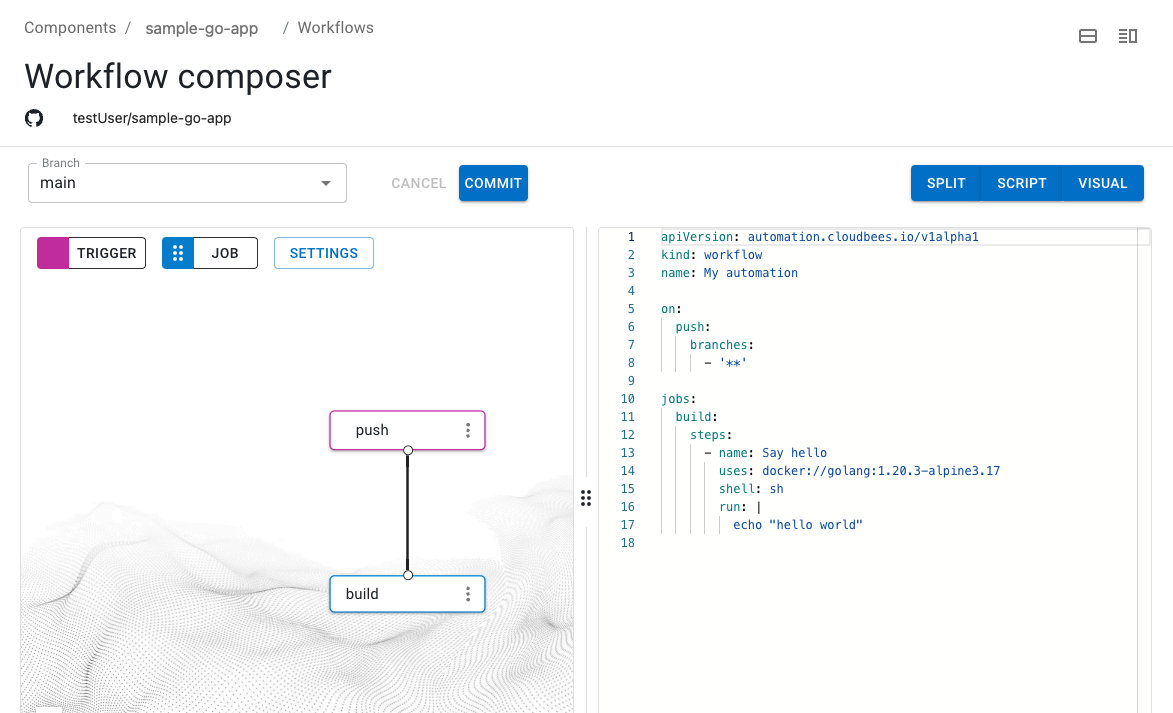
The workflow composer allows you to edit workflows using either the visual tool or the code editor. Any changes you make in one view automatically update the other, providing flexibility for different editing preferences.
Build your CI workflow
Now we’ll replace the default workflow with a proper CI job that builds and tests our Go application. We’ll use the code editor to add steps that configure Git, check out our repository, build the Go app, and run tests.
-
Select the component containing your sample Go app repository.
-
Select Workflows on the left pane.
-
Select Edit YAML on your workflow.
-
Delete the
buildjob that outputs "hello world", on lines 11 - 17. -
Enter the following, starting on line 11:
Notice how the workflow uses CloudBees actions and Docker containers to create a complete CI process. The CloudBees checkout action handles repository access, while the Go container provides the build environment.
Check to confirm that your YAML script includes the complete workflow structure with the ci-job containing all four steps: git configuration, checkout, build, and test.
|
Commit and run your workflow
Now we’ll save our workflow by committing it to the repository, which automatically triggers the first workflow run.
-
Select Commit.
To save changes to your workflow, you must make a commit. -
Enter a Commit message.
-
Select Commit to current branch.
-
Select FINISH.
The workflow is committed to your repository in the .cloudbees/workflows directory and automatically triggers a workflow run.
You can verify the commit appears in your connected GitHub repository.
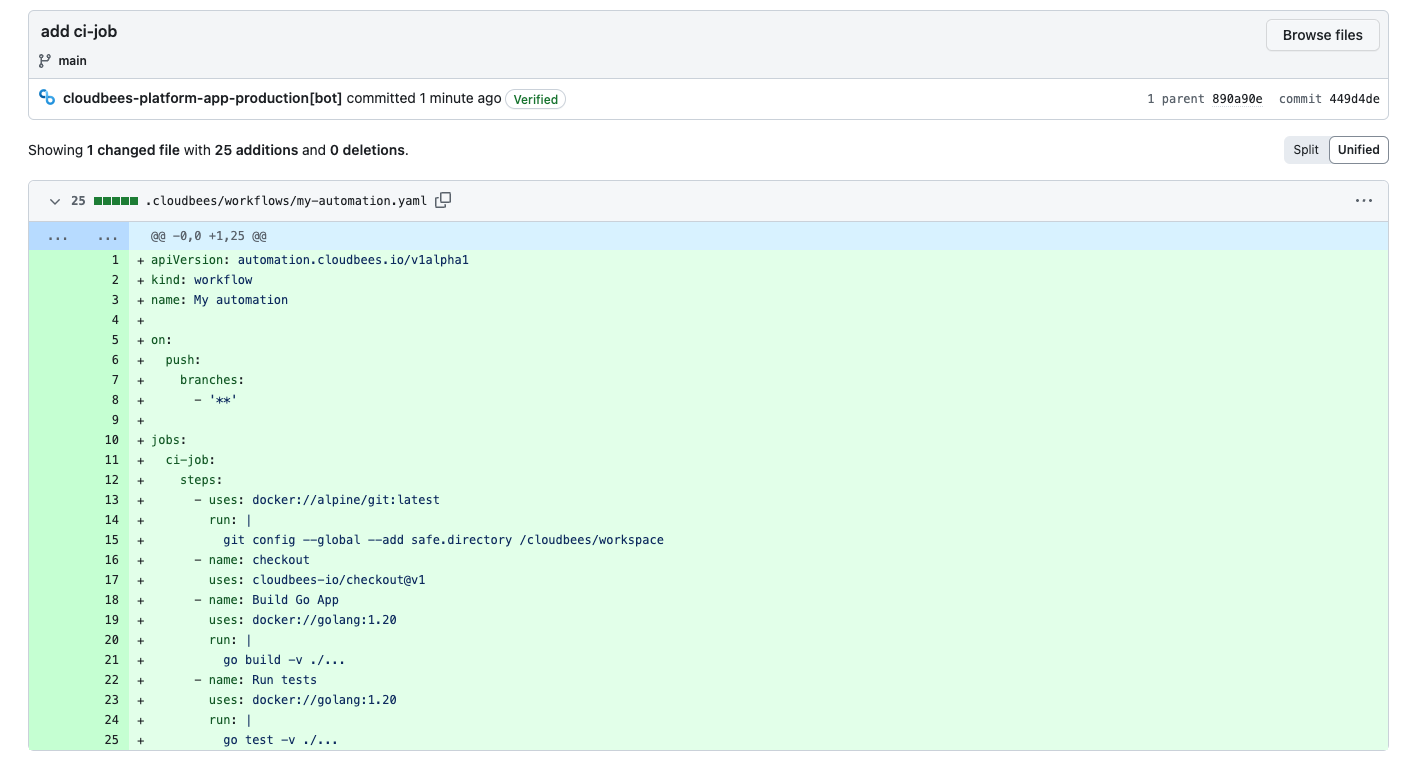
The workflow run starts immediately after the commit and appears in the Runs view. Your first run may take a few minutes as CloudBees Unify downloads the required Docker images and dependencies.
Review your workflow results
Let’s examine the workflow run details to understand how each step executed and verify our build and test results.
-
Select Components, and then select a component from the list.
-
Select Runs from the left pane.
-
Select the run (commit message link) to display the details.
-
Select
ci-jobto display each job step, and then select Expand all on the upper right to display all step details.
The run details show the execution of each workflow step with detailed logs and timing information. You can see the Git configuration, repository checkout, Go application build process, and test execution results.
Each step provides visibility into the automation process, helping you verify that the build completed successfully and all tests passed. The expandable logs allow you to troubleshoot any issues and understand exactly what happened during execution.
What we accomplished
We have successfully created a CloudBees Unify component and built our first CI workflow that automatically builds and tests a Go application. Along the way we encountered component creation, the workflow composer with synchronized visual and code editing, and CloudBees actions for automation.
You now have a working CI workflow that triggers automatically on every commit, providing immediate feedback on code changes through automated builds and tests.
From here, you can:
-
Add security scanning to enhance your workflow with vulnerability detection.
-
Explore advanced workflow features like conditional logic and parallel execution.
-
Connect additional tools and integrations to extend your automation capabilities.