Connect your existing CI tool to CloudBees Unify to manage all automation in a single dashboard and gain cross-platform development insights. Before you begin, ensure you have administrative access to your CI tool configuration.
Select your CI tool integration
To connect your CI tool to CloudBees Unify:
-
Navigate to the CI tool integration options in CloudBees Unify.
-
Select your CI tool from available options. You can integrate three different kinds of CI tools including Jenkins, GitHub Actions, and GitLab CI.
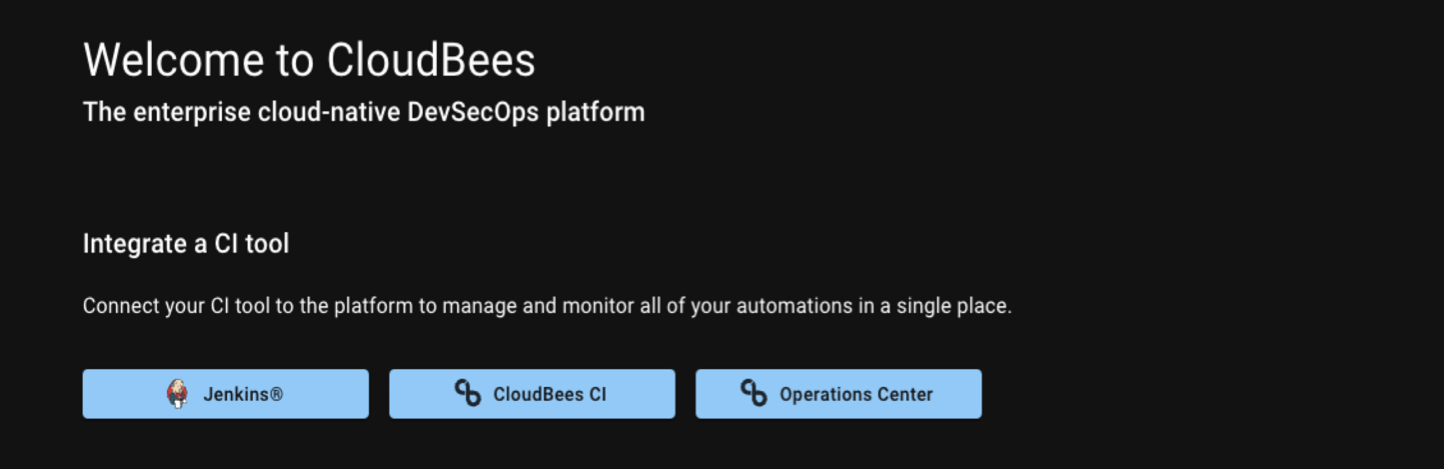 Figure 1. Integrate three different kinds of CI tools
Integration setup instructions display for your selected tool.
Install the required plugin
-
Follow the tool-specific installation instructions provided by CloudBees Unify.
-
Install the CloudBees Unify plugin in your CI tool according to the instructions.
-
Configure plugin permissions as directed in the setup guide.
The plugin is installed and ready for authentication setup.
Configure authentication
-
Copy the authentication code from the CloudBees Unify integration screen.
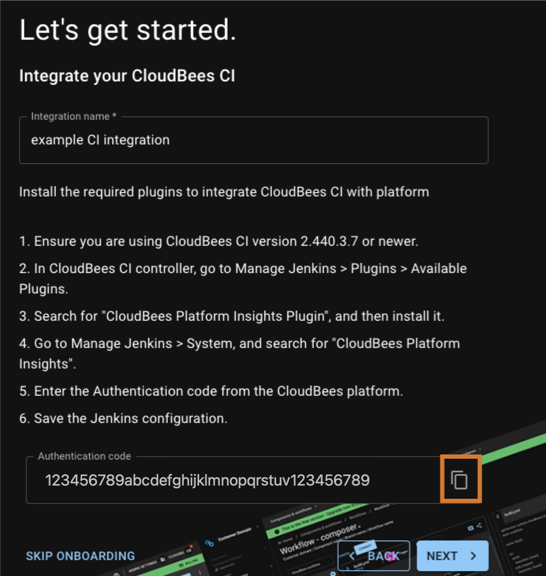 Figure 2. Select the highlighted icon to copy the authentication code
 -
Navigate to your CI tool’s CloudBees integration settings.
-
Paste the authentication code into the designated field.
-
Save the configuration in your CI tool.
Connection is established between your CI tool and CloudBees Unify.
Verify connection and access insights
-
Return to CloudBees Unify and confirm connection status.
-
Navigate to the CI insights dashboard.
The dashboard shows your connected CI tool and begins displaying integrated data.
| You may not immediately see ingested data displayed in the dashboard. |
Once you have copied and saved the authentication code into your CI tool, you are redirected to the CI insights dashboard where you can monitor all automation in a unified view.