Use this action to publish test results from CloudBees Unify workflows. This action supports many popular testing tools and enables test results from workflow runs to be displayed in the Test results tab and in the Test insights analytics dashboard.
Prerequisites
Before you begin, ensure you have:
-
A CloudBees Unify workflow configured in your repository.
-
Test execution configured in your workflow job.
-
Test results generated in a supported format.
Action parameters
| Input name | Data type | Required | Description |
|---|---|---|---|
|
String |
Yes |
The name of the testing tool[1]. |
|
String |
Yes |
The pattern, file, or directory path of the test report to convert. |
[1] The testing tool name must be formatted correctly, in either all lowercase, or all uppercase.
Supported testing tools
| Only the testing tools listed in the table below are supported for use in this action. |
Use the given test-type input format to specify a testing tool.
Supported tool name |
Accepted |
|
|---|---|---|
lowercase |
UPPERCASE |
|
GO |
|
|
Jest |
|
|
JMeter |
|
|
JUnit |
|
|
MSTest |
|
|
Playwright |
|
|
ProdPerfect |
|
|
Selenium |
|
|
TestNG |
|
|
Tosca |
|
|
Basic usage
The following is a basic example of using the action:
- name: Publish test results uses: cloudbees-io/publish-test-results@v2 with: test-type: TESTNG results-path: /example/mytest
Publish more than one test run
Most testing tools write their report to a fixed path. A job that runs its tests more than once overwrites the earlier report, and only the last run is published. If that last run produces no test results, it still writes a report, and no results are published at all.
When results-path resolves to more than one report, all of them are published together as a single result: their test suites are combined, and the passed, failed, and skipped totals are summed across every report.
You do not need to merge reports yourself before publishing.
To publish every run, give each run its own report file, and point results-path at the directory holding them.
The directory name is not significant, but use one that your test tool does not manage. Playwright, for example, empties its own test-results/ output directory at the start of every run.
- name: Run tests uses: docker://mcr.microsoft.com/playwright:v1.60.0-noble run: | REPORTS=${{ cloudbees.workspace }}/published-reports mkdir -p "$REPORTS" PLAYWRIGHT_JSON_OUTPUT_FILE="$REPORTS/smoke.json" \ npx playwright test --grep '@smoke' --reporter=json PLAYWRIGHT_JSON_OUTPUT_FILE="$REPORTS/regression.json" \ npx playwright test --grep '@regression' --reporter=json - name: Publish test results uses: cloudbees-io/publish-test-results@v2 with: test-type: playwright results-path: ${{ cloudbees.workspace }}/published-reports/*.json
Use one publish step covering all reports, rather than one publish step per test run.
The report paths above are absolute because PLAYWRIGHT_JSON_OUTPUT_FILE is resolved against the working directory rather than the config directory, so a relative value can write to a path the publish step does not scan.
GO testing implementation
To use the GO testing tool, you must first capture the output into a log, and then convert the log into a JUnit test report. Then you can use this action to publish the test results to CloudBees Unify.
In the following example, the following external tools are used to capture the data and create a test report:
-
Go CTRF JSON format support to create test reports that follow the Common Test Report Format (CTRF) standard.
apiVersion: automation.cloudbees.io/v1alpha1 kind: workflow name: GO-test on: push: branches: - main jobs: GO-testing: steps: - name: Check out source code uses: cloudbees-io/checkout@v1 with: repository: gh-org/my-repo ref: main token: ${{ secrets.GIT_PAT }} - name: Get test reports uses: docker://golang:1.22-alpine shell: sh run: | export PATH="${PATH}:${GOPATH}/bin" go install github.com/jstemmer/go-junit-report@latest go install github.com/ctrf-io/go-ctrf-json-reporter/cmd/go-ctrf-json-reporter@latest mkdir ${{ cloudbees.workspace }}/test_reports go clean go test -v 2>&1 ./... | go-junit-report > ${{ cloudbees.workspace }}/test_reports/report.xml go test -json ./... | go-ctrf-json-reporter -output ${{ cloudbees.workspace }}/test_reports/report.json - name: Publish test results to platform uses: cloudbees-io/publish-test-results@v1 with: folder-name: ${{ cloudbees.workspace }}/test_reports test-type: go
Playwright testing implementation
In the following example, source code from a repository is checked out and tested with the Playwright tool. After configuring AWS credentials, the test results are compressed and archived using Docker. The test results are uploaded to an AWS S3 bucket and published as evidence.
Example workflow YAML file
Verify test results
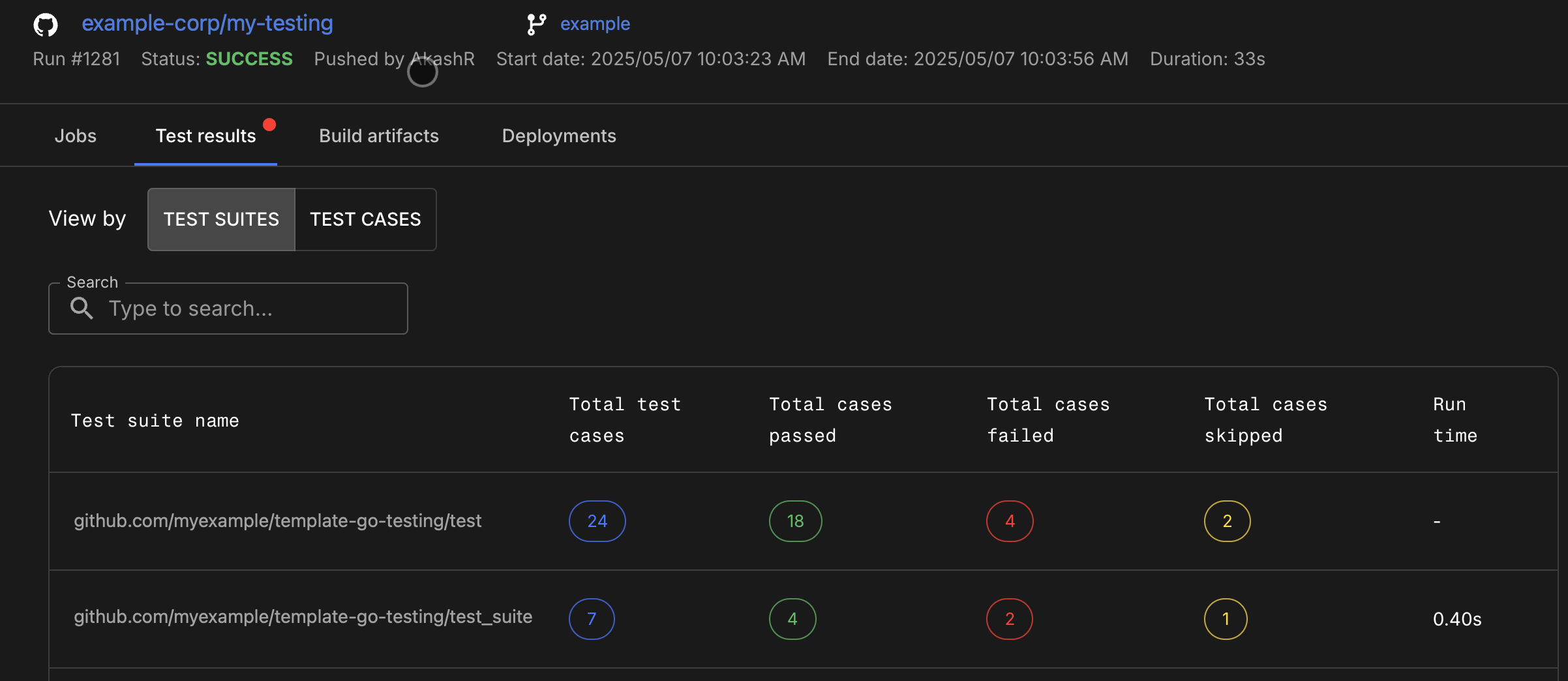
After the workflow run completes, you can verify test results in two locations:
-
Test insights analytics: Navigate to to view test trends and performance metrics across multiple workflow runs.
-
Run details: Navigate to to view test results for a specific workflow run.
Troubleshooting
If test results are not displaying correctly:
-
Verify your test framework generates output in a supported format.
-
Confirm the
results-pathpoints to the correct test output file or directory. -
Check that the
test-typematches exactly one of the supported formats listed above. -
Ensure test execution completes successfully before the publish action runs.
-
If your job runs its tests more than once, ensure each run writes its own report file. Otherwise, each run overwrites the previous one and only the last is published.
-
Test suites are identified by name. If multiple reports contain a suite with the same name, they are recorded as a single suite.