Create and manage personal access tokens for secure workflow authentication without exposing your account credentials.
| Personal access tokens function like passwords. Store them securely in external tools and systems. |
Access your token management interface
Navigate to the token management interface to view and manage your existing personal access tokens.
To access your token management interface:
-
Select your account name, and then select User profile.
-
Select the Personal access tokens tab.
Your personal access tokens display with their duration and expiration date. The token list remains consistent across all platform organizations you have access to.
Generate a new personal access token
Create personal access tokens specifically for workflow authentication and remote API access.
| CloudBees Unify personal access tokens are designed exclusively for remote workflow execution and cannot be used for other API operations. |
To generate a token:
-
Select your account name and then select User profile.
-
Select the Personal access tokens tab.
-
Select Generate token.
-
Enter a token Name. Use a descriptive name that identifies the token’s purpose or the tool that will use it.
-
(Optional) Enter a Description. Add additional context about the token’s intended use or associated project.
-
Enter a Duration from the following options:
-
Keep the default duration of 7 days for short-term or testing use.
-
Select a 30, 60, or 90 day duration for extended access periods.
-
Select Custom, then select a date from the calendar.
-
-
Select Generate to display the personal access token.
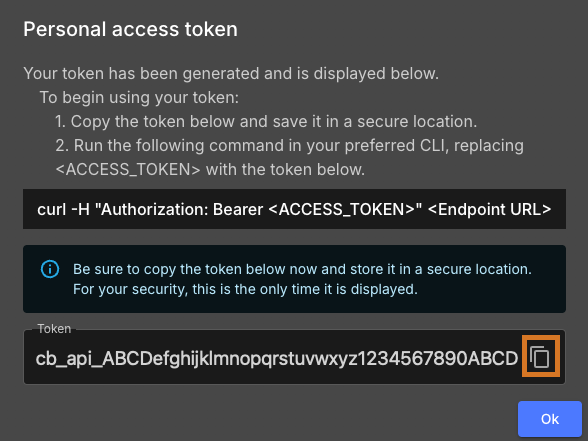
The system generates your personal access token and displays it with copy functionality.
-
Select
 to copy the personal access token and store it in a secure location.
 -
Copy the provided
curlcommand for future API reference.
| Store the token immediately after generation. The token value is only displayed once and cannot be retrieved later. |
Manage existing tokens
Review, monitor, and remove personal access tokens to maintain security and reduce unused access points.
Review token inventory
To review your existing tokens:
-
Navigate to .
-
Review the token list displaying:
-
Token names and descriptions
-
Creation dates and expiration status
-
Remaining duration before expiration
-
Use this information to track token usage and identify tokens requiring renewal or removal.
Delete obsolete tokens
Remove tokens that are no longer needed or have been compromised.
To delete a personal access token:
-
Select your account name and then select User profile.
-
Select the Personal access tokens tab.
-
Select
 next to the personal access token you want to delete.
 -
Select Delete.
-
Select Delete to confirm.
| Token deletion is permanent and irreversible. Any tools or scripts using the deleted token will immediately lose access. |
The selected token is removed from your account and can no longer be used for authentication.
Security best practices
Follow these practices to maintain secure token management and reduce security risks.
Token lifecycle management
-
Rotate tokens regularly before expiration to maintain continuous access.
-
Use the minimum necessary duration for each token’s intended purpose.
-
Delete unused tokens immediately to limit security risks.
-
Monitor token usage patterns and investigate unexpected activity.
Secure storage recommendations
-
Store tokens in credential managers or secure environment variables.
-
Never hardcode tokens directly in source code or configuration files.
-
Use separate tokens for different tools or environments to limit exposure scope.
-
Treat tokens with the same security level as passwords.
Access control
-
Generate separate tokens for each external tool or integration.
-
Use descriptive names and descriptions to track token purposes.
-
Review your token inventory regularly and remove forgotten or obsolete tokens.
-
Coordinate token rotation with team members who depend on shared integrations.