This page covers configuration articles related to CloudBees CD/RO agents. Agents are worker processes that execute tasks such as running jobs, deploying applications, and executing procedures. When running CloudBees CD/RO on Kubernetes, you can configure agents in various ways to support different deployment topologies and operational requirements. This page covers essential agent configuration tasks including setting up gateway agents for hybrid deployments, configuring resource names and workspaces, managing SSL/TLS certificates, and optimizing agent pod behavior.
Configure internal and external agents
CloudBees CD/RO installation on Kubernetes uses internal services within the cluster to communicate between components, which ensures that communication within the cluster is efficient and secure. A common method for deploying CloudBees CD/RO on Kubernetes is to install CloudBees CD/RO components inside the Kubernetes cluster while installing worker agents such as deployment targets outside the cluster, such as on VMs and traditional platforms.
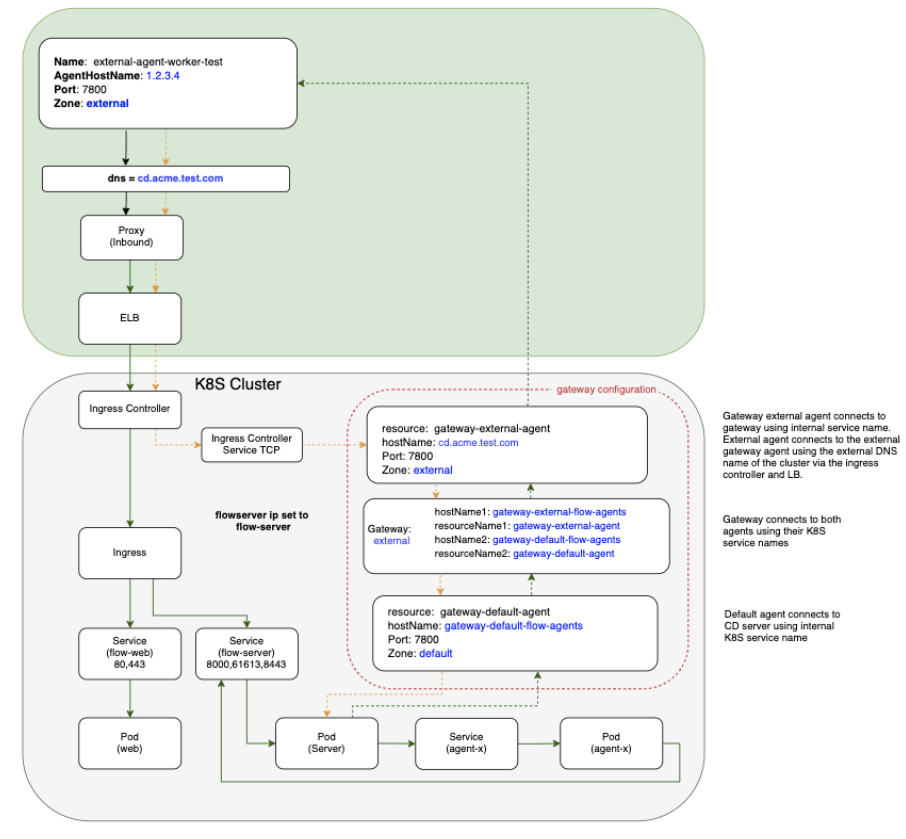
In a mixed inside and outside deployment use case, communications with the CloudBees CD/RO components happen with internal services installed on Kubernetes, while communication with CD agents happen outside the cluster. These external agents can communicate with the internal components using a pair of gateway agents.
Gateway agent pairs can be installed using one of these methods:
-
CloudBees CD/RO Helm chart
-
CloudBees CD/RO agent Helm chart
Install gateway agent pairs using the CloudBees CD/RO Helm chart
-
Enable both
internalGatewayAgentandexternalGatewayAgentto enable the CloudBees CD/RO chart to install the agent sub-chart as gateway agents. Make sure you setingress.hostandexternalGatewayAgent.service.publicHostNameboth as the same value:ingress: host: my-flow.example.com internalGatewayAgent: enabled: true externalGatewayAgent: enabled: true service: publicHostName: my-flow.example.com -
Ensure your default values file has
ingress-nginxTCP config map settings uncommented, to expose the 7800 gateway agents service:ingress-nginx: tcp: 8200: "{{ .Release.Namespace }}/flow-repository:8200" 8443: "{{ .Release.Namespace }}/flow-server:8443" 7800: "{{ .Release.Namespace }}/gateway-external-agent-flow-agents:7800" -
If you are not creating an ingress controller as part of the CloudBees CD/RO chart because you already have an existing ingress controller make sure you have
tcpconfigmap added to expose above ports and services (for more details, refer to the Kubernetes documentation).helm repo add cloudbees https://public-charts.artifacts.cloudbees.com/repository/public/ helm repo update helm install releaseName cloudbees/cloudbees-flow \ -f valuesFile --namespace nameSpace --timeout 10000s
Install gateway agents using the CloudBees CD/RO agent Helm chart
To create the gateway agent using the agent chart:
-
Create the server secret:
# Flow server credentials to use in order to register # with agent as a resource on the Flow server. kubectl create secret generic flow-agent-secret \ --from-literal=CBF_SERVER_USER='admin' \ --from-literal=CBF_SERVER_PASSWORD=<flow-server-password> \ -n <namespace> -
Create a values file for the internal agent called
gateway-default-agent.yamlusing the following command:resourceName: gateway-default-agent replicas: 1 flowCredentials: existingSecret: flow-agent-secret service: publicHostName: gateway-default-agent-flow-agents -
Install the gateway internal agent using
gateway-default-agent.yaml:helm install gateway-default-agent cloudbees/cloudbees-flow-agent \ -f gateway-default-agent.yaml -n <namespace> -
Create a values file for the external agent called
gateway-external-agent.yamlthat addszoneName,publicHostNameand gateway configuration:resourceName: gateway-external-agent zoneName: external service: # External DNS hostname that the external agents would use to communicate # with the external gateway agent publicHostName: my-flow.example.com # configure gateway using external gateway agent gateway: # configure gateway using this agent enabled: true # Name of the gateway to create name: external # Name of gateway agent to pair with as gateway resource 2 pairedResourceName: gateway-default-agent flowCredentials: existingSecret: flow-agent-secret -
Install the gateway external agent using
gateway-external-agent.yaml:helm install gateway-external-agent cloudbees/cloudbees-flow-agent \ -f gateway-external-agent.yaml -n <namespace>
Autoscaling gateway agents
External gateway agents allow connectivity to be routed through gateways internally within your Kubernetes cluster or externally via an external endpoint. Typically, agents are included within the gateway configuration. As each pod replica is registered individually as a resource, and their gateway agents created 1:1, this creates a single point of failure within each replica.
This model is shown in the following example Kubernetes cluster using an external gateway agent:
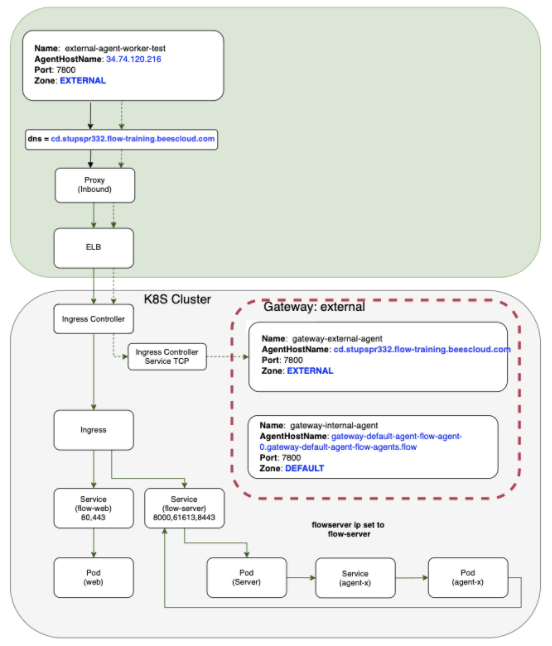
Although this model generally provides internal and external connectivity, it doesn’t promote the goal of high availability. However, horizontally autoscaling your gateway agents allows your cluster to dynamically handle workloads or the loss of a gateway agent. CloudBees CD/RO provides this option for horizontal pod autoscaling (HPA) with HPA gateway agents.
| By default, the CloudBees CD/RO server does not include HPA gateway agents. You must manually configure gateway agent autoscaling. |
Configuring HPA gateway agents
Using HPA gateway agents allows you to distribute the cluster workload over one or many agent replicas and provides availability if one fails. The following steps allow your HPA gateway agents to be registered as services, using a service name, instead of the resource name of individual pods.
The CloudBees CD/RO cloudbees-flow Helm chart is available in the public cloudbees-examples repository. CloudBees recommends you save this in a local myvalues.yaml to retain it in your environment.
|
-
In your CloudBees CD/RO cloudbees-flow Helm chart, add the following:
internalGatewayAgent: enabled: true autoscaling: enabled: true minReplicas: 1 maxReplicas: 2 targetCPUUtilizationPercentage: 80 targetMemoryUtilizationPercentage: 80 # cloudbees-flow-agent chart configurations used for creating the # external agent for the gateway externalGatewayAgent: enabled: true autoscaling: enabled: true minReplicas: 1 maxReplicas: 2 targetCPUUtilizationPercentage: 80 targetMemoryUtilizationPercentage: 80 -
For
internalGatewayAgent, configure the following for your cluster:-
minReplicas -
maxReplicas -
targetCPUUtilizationPercentage -
targetMemoryUtilizationPercentageFor HPA gateway agents to work, internalGatewayAgent.enabledandinternalGatewayAgent.autoscaling.enabledmust be set totrue.
-
-
For
externalGatewayAgent, configure the following for your cluster:-
minReplicas -
maxReplicas -
targetCPUUtilizationPercentage -
targetMemoryUtilizationPercentageFor HPA gateway agents to work, externalGatewayAgent.enabledandexternalGatewayAgent.autoscaling.enabledmust be set totrue.
-
Configure agent resource name templates
Generally, you set the name for the agent resource with the value agent.resourceName, but this only works when the agent deployment has only one replica. If there are multiple replicas, then each of them tries to register itself using the same resource name. As a result, only one replica from the entire deployment will be registered as a resource.
The resource name defaults to hostname, but other template values are available to fully qualify the resource:
-
Ordinary Helm template values. For example:
{{ .Release.Name }},{{ .Release.Namespace }}, and so on. -
In addition, the following two special template values are allowed:
-
{{ hostname }}: The actual resource hostname. -
{{ ordinalIndex }}: The serial replica index in the StatefulSet.
-
Example:
resourceName: "myResource - {{ .Release.Name }} - {{ ordinalIndex }}"
Configure existing secrets for bound agents
If you are using an existing secret in your values file for flowCredentials.existingSecret, you may have gotten the following error message when trying to install the bound agent (cbflow-agent):
To use flowCredentials.existingSecret, please set \ boundAgent.flowCredentials.existingSecret to the same value \ as flowCredentials.existingSecret in your values file.
This is because CloudBees CD/RO expects if you are using an existing secret in flowCredentials.existingSecret, the same existingSecret is used for the bound agent.
To use your existing CloudBees CD/RO flow-server secret for the bound agent (cbflow-agent):
-
Open your
myvalues.yaml, and search forboundAgent:. -
In the
boundAgentconfiguration, add the following:flowCredentials: existingSecret: <your-flowCredentials.existingSecret-value> -
Ensure the entries are correctly indented, and save your file.
On your next install or upgrade attempt, this should remove the boundAgent.flowCredentials.existingSecret error message.
Configure graceful termination period for agent pods
For various reasons, Kubernetes clusters may migrate agents pod across nodes, which is normally triggered by a sigterm signal to the current agent pod that immediately terminates it.
To provide better monitoring and graceful termination options, support was added to the CloudBees CD/RO Helm charts to configure termination grace periods for agent pods, with a default grace period of 30 seconds.
| Options to add graceful termination periods were added in CloudBees CD/RO v2024.03.0 and later. This option is not available in CloudBees CD/RO v2023.12.0 and earlier. |
To configure graceful termination for agent pods:
-
Open your CloudBees CD/RO
cloudbees-flow-agentv2024.03.0 or latermy-values.yaml. -
Search for
terminationGracePeriodSeconds. -
Set the desired graceful termination period in seconds
The default value is 30seconds. -
Update your Kubernetes CloudBees CD/RO installation to apply the new configuration.
Configure agents to share a workspace
Once the first agent is deployed with ReadWriteMany access mode, subsequent agents deployed for the same workspace with storage.volumes.agentWorkspace.existingClaim to true share the first agent’s workspace. The following example shows how to set up flow-agent-1 and flow-agent-2 to share the same workspace, MyWorkspace.
-
Deploy the first agent with
storage.volumes.agentWorkspace.accessModeset toReadWriteMany. This creates the persistent volume claim, setting up the scenario where agents can use theflow-agent-workspaceshared workspace.helm install flow-agent-1 cloudbees-flow-agent -f <valuesFile> \ --set storage.volumes.agentWorkspace.accessMode=ReadWriteMany \ --set storage.volumes.agentWorkspace.name=MyWorkspace \ --namespace <nameSpace> --timeout 10000 -
Deploy subsequent agents to the same workspace with
storage.volumes.agentWorkspace.existingClaimtotrue.helm install flow-agent-2 cloudbees-flow-agent -f <valuesFile>\ --set storage.volumes.agentWorkspace.existingClaim=true \ --set storage.volumes.agentWorkspace.name=MyWorkspace \ --namespace <nameSpace> --timeout 10000
The following table summarizes parameters used to configure a shared agent workspace. For more information, refer to Persistent storage.
| Parameter | Description |
|---|---|
|
Define the workspace access mode. Possible values include For shared workspaces use |
|
The agent workspace name. Use the same name across all agents sharing the same workspace. If not specified, Specify the same name across all agents that share the workspace. |
|
The amount of storage to allocate. For shared workspaces, allocate approximately 5 GiB per agent. Increase based on the agent’s requirements. |
|
Whether to use the existing claim for a previously deployed agent to share its workspace. Set to |
Configure an agent to use SSL/TLS certificates
Configuring SSL/TLS certificate in CloudBees CD/RO agent pods ensures secure communication between the agents and server.
Key considerations
Before configuring the certificates, note the following default settings:
-
Certificate location: Certificates are configured at the following locations:
-
/opt/cbflow/conf/agent.crt -
/opt/cbflow/conf/agent.key
-
-
Configuration location: The SSL certificate configuration defined in
values.yamlunder the agent chart configuration. -
Default value: SSL certificate configuration is disabled by default (
enabled: false).## Configure custom SSL/TLS certificates for agent HTTPS communication (port 7800). ## By default, agents auto-generate self-signed certificates during startup. certificates: enabled: false existingSecret: "" cert: "" key: ""You can configure the SSL/TLS certificates using any one of the following three methods.
Method 1: Use an existing Kubernetes secret
Create a Kubernetes secret containing the certificate and key, then mount it into the agent pods and configure Helm to use the secret.
-
Create a Kubernetes TLS secret using the following command:
kubectl create secret tls my-agent-certs \ --cert=path/to/agent.crt \ --key=path/to/agent.key \ --namespace=<namespace> -
Configure Helm to use the existing secret using the following command:
# values.yaml certificates: enabled: true existingSecret: my-agent-certs -
Install or upgrade the agent using the following command:
helm install flow-agent cloudbees/cloudbees-flow-agent \ -f values.yaml \ --namespace=<namespace>
Method 2: Upload certificates during installation
Upload certificates at installation time without creating a Kubernetes secret as a prerequisite. This method keeps sensitive certificate data out of Helm charts and is recommended for production environments:
helm install flow-agent cloudbees/cloudbees-flow-agent \ --set certificates.enabled=true \ --set-file certificates.cert=path/to/agent.crt \ --set-file certificates.key=path/to/agent.key \ --namespace=<namespace>
Method 3: Add certificates in values.yaml file
Specify the certificate and keys directly in the values.yaml file.
| This method is less secure and is not recommended for production environments. |
# values.yaml certificates: enabled: true cert: | -----BEGIN CERTIFICATE----- MIIDXTCCAkWgAwIBAgIJAKJ... -----END CERTIFICATE----- key: | -----BEGIN RSA PRIVATE KEY----- MIIEpAIBAAKCAQEA1q... -----END RSA PRIVATE KEY-----
Mount custom TLS certificate for Flow server
The Flow server auto-generates a self-signed certificate during startup using eccert initServer. The certificate CN is set to the pod hostname (for example.,flow-server-init-job-<random>). This changes every time the pod restarts. The workaround allows you to use your own certificate (for example., GlobalSign, DigiCert and so forth) that remains consistent across restart and scaling operations.
Prerequisites
Ensure the following prerequisites are met:
-
CloudBees CD/RO is deployed on Kubernetes through Helm chart.
-
TLS certificate in PEM format (server cert, private key, CA chain).
-
opensslandkeytool(Java keytool). -
kubectlaccess to the cluster.
Keystore format requirements
The keystore must meet the following requirements for the Flow server to accept it:
-
The keystore must be JKS format (not PKCS12).
-
The server certificate alias must be
jetty. -
CA certificates must use the alias prefix
CA. -
The keystore password must match the
COMMANDER_KEYSTORE_PASSWORDvalue inserver/conf/commander.properties.
|
The product ships with |
Configure custom TLS certificate
To configure custom TLS certificate, complete the following steps:
-
Backup keystore and server state: Before making changes, back up the existing keystore, passkey, and security files from the running flow-server pod.
The keystore and passkey file locations differ depending on your deployment mode. Follow the section that matches your setup.
# Set your namespace and pod name NAMESPACE="<namespace>" SERVER_POD=$(kubectl get pods -n $NAMESPACE -l app=flow-server -o jsonpath='{.items[0].metadata.name}') # Create a local backup directory with timestamp BACKUP_DIR="./flow-server-backup-$(date +%Y%m%d-%H%M%S)" mkdir -p "$BACKUP_DIR"-
Non-Clustered (demo) mode
In the non-clustered mode, the keystore and passkey are stored in their standard location,
/opt/cbflow/conf/.# Backup the current keystore kubectl cp "$NAMESPACE/$SERVER_POD:/opt/cbflow/conf/keystore" "$BACKUP_DIR/keystore" # Backup the passkey kubectl cp "$NAMESPACE/$SERVER_POD:/opt/cbflow/conf/passkey" "$BACKUP_DIR/passkey" # Backup the security directory (CA certificates) kubectl cp "$NAMESPACE/$SERVER_POD:/opt/cbflow/conf/security" "$BACKUP_DIR/security" # Backup commander.properties kubectl cp "$NAMESPACE/$SERVER_POD:/opt/cbflow/conf/commander.properties" "$BACKUP_DIR/commander.properties" -
Clustered mode (with ZooKeeper)
In the clustered mode, the server stores the keystore and passkey in
/tmp/with a randomly generated file name. You need to find the actual file name first.# Find the keystore file in /tmp (it has a random suffix) KEYSTORE_FILE=$(kubectl exec -n $NAMESPACE $SERVER_POD -- find /tmp -maxdepth 1 -name "keystore*" -type f 2>/dev/null | head -1) echo "Found keystore at: $KEYSTORE_FILE" # Find the passkey file in /tmp (it also has a random suffix) PASSKEY_FILE=$(kubectl exec -n $NAMESPACE $SERVER_POD -- find /tmp -maxdepth 1 -name "passkey*" -type f 2>/dev/null | head -1) echo "Found passkey at: $PASSKEY_FILE" # Backup the keystore if [ -n "$KEYSTORE_FILE" ]; then kubectl cp "$NAMESPACE/$SERVER_POD:$KEYSTORE_FILE" "$BACKUP_DIR/keystore" echo "Keystore backed up successfully" else echo "WARNING: Keystore not found in /tmp. Check /opt/cbflow/conf/keystore instead." kubectl cp "$NAMESPACE/$SERVER_POD:/opt/cbflow/conf/keystore" "$BACKUP_DIR/keystore" 2>/dev/null fi # Backup the passkey if [ -n "$PASSKEY_FILE" ]; then kubectl cp "$NAMESPACE/$SERVER_POD:$PASSKEY_FILE" "$BACKUP_DIR/passkey" echo "Passkey backed up successfully" else echo "WARNING: Passkey not found in /tmp. Check /opt/cbflow/conf/passkey instead." kubectl cp "$NAMESPACE/$SERVER_POD:/opt/cbflow/conf/passkey" "$BACKUP_DIR/passkey" 2>/dev/null fi # Backup commander.properties (always at the standard path) kubectl cp "$NAMESPACE/$SERVER_POD:/opt/cbflow/conf/commander.properties" "$BACKUP_DIR/commander.properties"In the clustered mode, the init job generates the keystore and passkey and uploads them to ZooKeeper. When worker server pods start, they download these files from ZooKeeper and store them in
/tmp/with random suffixes (For example.,/tmp/keystore16628471705862656963.). The files are not present at the standard/opt/cbflow/conf/path. -
Verify the backup
Use the following command to verify the backup:
# Verify backups exist and are non-empty ls -la "$BACKUP_DIR"/ # Expected: keystore, passkey, commander.properties — all with non-zero sizes # Verify the backed-up keystore is valid # Option A: If you have keytool installed locally keytool -list -keystore "$BACKUP_DIR/keystore" -storepass abcdef # Option B: Use keytool inside the server pod kubectl cp "$BACKUP_DIR/keystore" "$NAMESPACE/$SERVER_POD:/tmp/backup-verify-keystore" kubectl exec -n $NAMESPACE $SERVER_POD -- \ /opt/cbflow/jre/bin/keytool -list -keystore /tmp/backup-verify-keystore -storepass abcdef kubectl exec -n $NAMESPACE $SERVER_POD -- rm -f /tmp/backup-verify-keystore # Expected: shows the current self-signed "jetty" entry # Record the current certificate for comparison after the change kubectl exec -n $NAMESPACE $SERVER_POD -- \ openssl s_client -connect localhost:8443 -servername localhost </dev/null 2>/dev/null | \ openssl x509 -noout -subject -issuer -dates > "$BACKUP_DIR/current-cert-info.txt" cat "$BACKUP_DIR/current-cert-info.txt" # Expected: subject=CN = flow-server-init-job-<random> echo "Backup completed at: $BACKUP_DIR" -
-
Create the JKS keystore from your certificate
Replace
your-server.crt,your-server.key, andyour-ca-chain.crtwith your actual certificate filenames.-
Using the local keytool (if Java or keytool is installed locally)
# Convert PEM certificate + private key to PKCS12 (intermediate format) openssl pkcs12 -export \ -in server.crt \ -inkey server.key \ -certfile ca-chain.crt \ -out /tmp/server.p12 \ -name jetty \ -passout pass:abcdef # Convert PKCS12 to JKS keytool -importkeystore \ -srckeystore /tmp/server.p12 \ -srcstoretype PKCS12 \ -srcstorepass abcdef \ -destkeystore ./keystore \ -deststoretype JKS \ -deststorepass abcdef \ -destkeypass abcdef \ -noprompt # Import the CA certificate chain with required "CA:" alias prefix keytool -importcert \ -file ca-chain.crt \ -keystore ./keystore \ -alias "CA:CustomCA" \ -storepass abcdef \ -noprompt # Verify the keystore contents keytool -list -keystore ./keystore -storepass abcdef # Expected output should show: # jetty, <date>, PrivateKeyEntry # ca:customca, <date>, trustedCertEntry # Clean up intermediate file rm -f /tmp/server.p12 -
Using keytool from the server pod (if keytool is not locally installed):
If you do not have Java or keytool on your local machine, you can use the keytool bundled inside the flow-server pod.
# Create PKCS12 locally (only needs openssl) openssl pkcs12 -export \ -in server.crt \ -inkey server.key \ -certfile ca-chain.crt \ -out /tmp/server.p12 \ -name jetty \ -passout pass:abcdef # Copy the PKCS12 and CA chain into the server pod kubectl cp /tmp/server.p12 "$NAMESPACE/$SERVER_POD:/tmp/server.p12" kubectl cp ca-chain.crt "$NAMESPACE/$SERVER_POD:/tmp/ca-chain.crt" # Convert PKCS12 to JKS inside the pod kubectl exec -n $NAMESPACE $SERVER_POD -- \ /opt/cbflow/jre/bin/keytool -importkeystore \ -srckeystore /tmp/server.p12 \ -srcstoretype PKCS12 \ -srcstorepass abcdef \ -destkeystore /tmp/custom-keystore \ -deststoretype JKS \ -deststorepass abcdef \ -destkeypass abcdef \ -noprompt # Import CA chain inside the pod kubectl exec -n $NAMESPACE $SERVER_POD -- \ /opt/cbflow/jre/bin/keytool -importcert \ -file /tmp/ca-chain.crt \ -keystore /tmp/custom-keystore \ -alias "CA:CustomCA" \ -storepass abcdef \ -noprompt # Verify inside the pod kubectl exec -n $NAMESPACE $SERVER_POD -- \ /opt/cbflow/jre/bin/keytool -list -keystore /tmp/custom-keystore -storepass abcdef # Expected: jetty (PrivateKeyEntry) + ca:customca (trustedCertEntry) # Copy the finished keystore back to your local machine kubectl cp "$NAMESPACE/$SERVER_POD:/tmp/custom-keystore" ./keystore # Clean up temp files from the pod kubectl exec -n $NAMESPACE $SERVER_POD -- rm -f /tmp/server.p12 /tmp/ca-chain.crt /tmp/custom-keystore # Clean up local temp file rm -f /tmp/server.p12
-
-
Deploy the custom keystore. The deployment steps differ between non-clustered (demo) mode and clustered mode (with ZooKeeper).
-
Non-clustered (demo) mode.
In non-clustered mode, the server reads its keystore from the local filesystem. Providing the keystore via
customConfig.existingSecretis sufficient.# Create a Kubernetes secret with the keystore kubectl create secret generic flow-server-custom-keystore \ --from-file=keystore=./keystore \ -n $NAMESPACE # Deploy via Helm helm upgrade <release-name> <chart-path> \ --set server.customConfig.existingSecret=flow-server-custom-keystore \ --reuse-values \ -n $NAMESPACEThe secret key must be named
keystore(notserver.p12ortls.crt). The server’scopyConfigFilesfunction looks for that exact filename. -
Clustered mode (with ZooKeeper)
In clustered mode, the server stores and retrieves its keystore from ZooKeeper. Each server pod downloads the keystore from ZK at startup. Simply mounting a keystore file via
customConfigis not sufficient — the ZK-stored keystore will override it. You must upload the custom keystore directly to ZooKeeper using thezk-config-toolbundled in the server image.# Get the current server pod name SERVER_POD=$(kubectl get pods -n $NAMESPACE -l app=flow-server -o jsonpath='{.items[0].metadata.name}') # Copy the custom keystore into the running pod kubectl cp ./keystore "$NAMESPACE/$SERVER_POD:/tmp/custom-keystore" # Upload the keystore to ZooKeeper kubectl exec -n $NAMESPACE $SERVER_POD -- /opt/cbflow/jre/bin/java \ -DCOMMANDER_ZK_CONNECTION=zookeeper:2181 \ -jar /opt/cbflow/server/bin/zk-config-tool-jar-with-dependencies.jar \ --keystoreFile /tmp/custom-keystore # Clean up the temp file kubectl exec -n $NAMESPACE $SERVER_POD -- rm -f /tmp/custom-keystore # Restart the server pods to pick up the new keystore from ZK kubectl rollout restart deployment/flow-server -n $NAMESPACE kubectl rollout status deployment/flow-server -n $NAMESPACE --timeout=300sReplace
zookeeper:2181with your ZooKeeper connection string if it differs. You can find the current value in the following command:kubectl exec -n $NAMESPACE $SERVER_POD -- printenv CBF_ZK_CONNECTION
-
-
Verify the certificate. After the server pod restarts, verify using the following command:
SERVER_POD=$(kubectl get pods -n $NAMESPACE -l app=flow-server -o jsonpath='{.items[0].metadata.name}') # Check the server logs for keystore handling kubectl logs -n $NAMESPACE $SERVER_POD | grep -i keystore # Verify the certificate served on port 8443 kubectl exec -n $NAMESPACE $SERVER_POD -- \ openssl s_client -connect localhost:8443 -servername localhost </dev/null 2>/dev/null | \ openssl x509 -noout -subject -issuer -dates # Expected: # subject=CN = *.yourdomain.com # issuer=CN = YourCA ... # Compare with the backup to confirm the change cat "$BACKUP_DIR/current-cert-info.txt"If the served certificate does not match what you expect, follow the Rollback procedure.
Rollback procedure
-
Non-Clustered (demo) mode
-
Restore from backup
kubectl create secret generic flow-server-original-keystore \ --from-file=keystore="$BACKUP_DIR/keystore" \ --from-file=passkey="$BACKUP_DIR/passkey" \ --dry-run=client -o yaml | kubectl apply -f - -n $NAMESPACE helm upgrade <release-name> <chart-path> \ --set server.customConfig.existingSecret=flow-server-original-keystore \ --reuse-values \ -n $NAMESPACE -
Revert to auto-generated certificates
helm upgrade <release-name> <chart-path> \ --set server.customConfig.existingSecret=null \ --reuse-values \ -n $NAMESPACE kubectl delete secret flow-server-custom-keystore -n $NAMESPACE
-
-
Clustered mode
-
Upload the backed-up keystore back to ZooKeeper
SERVER_POD=$(kubectl get pods -n $NAMESPACE -l app=flow-server -o jsonpath='{.items[0].metadata.name}') # Copy the backed-up keystore into the pod kubectl cp "$BACKUP_DIR/keystore" "$NAMESPACE/$SERVER_POD:/tmp/restore-keystore" # Upload the original keystore to ZooKeeper kubectl exec -n $NAMESPACE $SERVER_POD -- /opt/cbflow/jre/bin/java \ -DCOMMANDER_ZK_CONNECTION=zookeeper:2181 \ -jar /opt/cbflow/server/bin/zk-config-tool-jar-with-dependencies.jar \ --keystoreFile /tmp/restore-keystore # Clean up and restart kubectl exec -n $NAMESPACE $SERVER_POD -- rm -f /tmp/restore-keystore kubectl rollout restart deployment/flow-server -n $NAMESPACE
-
Configure custom files using HashiCorp Vault
You can configure CloudBees CD/RO with custom configuration files, such as passkey and keystore stored in HashiCorp Vault using the External Secrets Operator.
CloudBees CD/RO supports the following custom configuration files mounted to the /custom-config directory in the server container:
-
passkey- Encryption key for securing sensitive data. -
keystore- Java keystore containing SSL/TLS certificates. -
commander.properties- Custom server configuration properties. -
database.properties- Database connection configuration.
By using the HashiCorp Vault with the External Secrets Operator, you can perform the following:
-
Store sensitive configuration files centrally in Vault.
-
Eliminate the need to store secrets in Helm values or Git repositories.
-
Automatically synchronize secrets from Vault to Kubernetes.
-
Rotate secrets without redeploying the Helm chart.
-
Maintain audit trails for secret access.
Prerequisites
Before you configure, ensure the following prerequisites are met:
| Prerequisite | Description |
|---|---|
Kubernetes Cluster |
|
HashiCorp Vault |
|
External Secrets Operator |
|
CloudBees CD/RO Helm Chart |
|
Required Files |
|
Key considerations
Before configuring the files, note the following details:
-
External Secrets Operator polls Vault at regular intervals.
-
When secrets change in Vault, the operator updates the Kubernetes secret.
-
Restart Flow server pods to pick up updated secrets.
-
All file discovery and mounting is automatic.
Configure files using Vault secret
To configure the files using Vault secrets:
-
Prepare the files: Prepare the configuration files and encode in base64 format, using the following command:
# Encode passkey cat passkey | base64 | tr -d '\n' > passkey.b64 # Encode keystore cat keystore | base64 | tr -d '\n' > keystore.b64 -
Store Secrets in Vault: Store your configuration files in Vault using the KV v2 secrets engine, using the following command:
# Set Vault environment variables export VAULT_ADDR='http://vault.vault.svc.cluster.local:8200' export VAULT_TOKEN='your-vault-token' # Store secrets in Vault vault kv put secret/flow-custom-config \ passkey="$(cat passkey.b64)" \ keystore="$(cat keystore.b64)"Or alternatively configure within the Vault pod, using the following command:
# Store secrets kubectl exec -n vault vault-0 -- \ vault kv put secret/flow-custom-config \ passkey="$(cat passkey.b64)" \ keystore="$(cat keystore.b64)" # Verify secrets were stored kubectl exec -n vault vault-0 -- \ vault kv get secret/flow-custom-configExpected output:
====== Data ====== Key Value --- ----- keystore <base64-encoded-data> passkey <base64-encoded-data> -
Configure Vault Authentication: Configure Vault to allow the External Secrets Operator to authenticate using the following Kubernetes authentication steps:
-
Enable Kubernetes authentication method, using the following command:
kubectl exec -n vault vault-0 -- \ vault auth enable kubernetes -
Configure Kubernetes authentication, using the following command:
kubectl exec -n vault vault-0 -- \ vault write auth/kubernetes/config \ kubernetes_host="https://kubernetes.default.svc:443" -
Create Vault policy, using the following command:
# Create policy file cat > /tmp/flow-policy.hcl <<'EOF' path "secret/data/flow-custom-config" { capabilities = ["read"] } path "secret/metadata/flow-custom-config" { capabilities = ["read", "list"] } EOF # Copy to Vault pod kubectl cp /tmp/flow-policy.hcl vault/vault-0:/tmp/flow-policy.hcl # Create policy in Vault kubectl exec -n vault vault-0 -- \ vault policy write flow-secrets /tmp/flow-policy.hcl -
Create Vault role that binds the policy to a Kubernetes service account, using the following command:
kubectl exec -n vault vault-0 -- \ vault write auth/kubernetes/role/external-secrets \ bound_service_account_names=external-secrets-sa \ bound_service_account_namespaces=<your-flow-namespace> \ policies=flow-secrets \ ttl=24h
Replace <your-flow-namespace> with the namespace where you’ll deploy CloudBees CD/RO.
-
-
Create service account for external secrets, using the following command:
# Set your Flow namespace export FLOW_NAMESPACE="cloudbees-flow" # Create service account kubectl create serviceaccount external-secrets-sa -n $FLOW_NAMESPACE # Create ClusterRoleBinding for token review kubectl apply -f - <<EOF apiVersion: rbac.authorization.k8s.io/v1 kind: ClusterRoleBinding metadata: name: external-secrets-auth-${FLOW_NAMESPACE} roleRef: apiGroup: rbac.authorization.k8s.io kind: ClusterRole name: system:auth-delegator subjects: - kind: ServiceAccount name: external-secrets-sa namespace: ${FLOW_NAMESPACE} EOF -
Create a SecretStore that defines how to connect to Vault, using the following command:
kubectl apply -f - <<EOF apiVersion: external-secrets.io/v1 kind: SecretStore metadata: name: vault-backend namespace: ${FLOW_NAMESPACE} spec: provider: vault: server: "http://vault.vault.svc.cluster.local:8200" path: "secret" version: "v2" auth: kubernetes: mountPath: "kubernetes" role: "external-secrets" serviceAccountRef: name: "external-secrets-sa"The configuration parameters include:
-
server: Vault server URL (adjust based on your Vault service name and namespace). -
path: Root path for KV secrets engine (usually secret). -
version: KV secrets engine version (v2 recommended). -
role: Vault role name. -
serviceAccountRef: Service account created in Step 4.Verify
SecretStoreusing the following command:kubectl get secretstore vault-backend -n $FLOW_NAMESPACEExpected output: STATUS: Valid and READY: True.
-
-
Create an
ExternalSecretthat defines which secrets to sync from Vault, using the following command:kubectl apply -f - <<EOF apiVersion: external-secrets.io/v1 kind: ExternalSecret metadata: name: flow-custom-config-es namespace: ${FLOW_NAMESPACE} spec: refreshInterval: 1h secretStoreRef: name: vault-backend kind: SecretStore target: name: custom-flow-config creationPolicy: Owner template: engineVersion: v2 data: # Decode base64 since data in Vault is already base64-encoded passkey: '{{ .passkey | b64dec }}' keystore: '{{ .keystore | b64dec }}' data: - secretKey: passkey remoteRef: key: flow-custom-config property: passkey - secretKey: keystore remoteRef: key: flow-custom-config property: keystore EOFThe configuration parameters include:
-
refreshInterval: How often to check Vault for updates (e.g.,1h,15m). -
target.name: Name of the Kubernetes Secret to create (for example,custom-flow-config). -
target.template: Template for transforming Vault data.-
Use
b64decfilter to decode base64-encoded data from Vault. -
Kubernetes will re-encode the data when creating the Secret.
-
-
data: Maps Vault secret properties to Kubernetes Secret keys.-
secretKey: Key name in the Kubernetes Secret. -
remoteRef.key: Secret path in Vault (withoutsecret/data/prefix). -
remoteRef.property: Property name within the Vault secret.
-
-
Verify ExternalSecret using the following command:
# Check status kubectl get externalsecret flow-custom-config-es -n $FLOW_NAMESPACE # Expected output: STATUS: SecretSynced, READY: True # View detailed status kubectl describe externalsecret flow-custom-config-es -n $FLOW_NAMESPACE
+
-
Verify that the External Secrets Operator created the Kubernetes Secret, using the following command:
# Check if secret exists kubectl get secret custom-flow-config -n $FLOW_NAMESPACE # View secret keys kubectl get secret custom-flow-config -n $FLOW_NAMESPACE \ -o jsonpath='{.data}' | jq 'keys'Expected output:
[ "keystore", "passkey" ] -
Configure the CloudBees CD/RO Helm chart to use the external secret using the following methods:
-
Method 1: Create or update your
values.yaml, following shows a YAML configuration:
[sou
-