Operational management of CloudBees CD/RO on Kubernetes requires monitoring, logging, resilience planning, and advanced configurations to ensure reliability and performance. This page provides procedures for deploying monitoring and logging infrastructure, configuring high availability features such as Multi-Availability Zone distribution, managing ZooKeeper in cluster mode, implementing pod security standards, and customizing system configurations. These practices help maintain production-ready CloudBees CD/RO deployments that meet enterprise operational requirements.
Deploy monitoring support
Use Grafana to visualize the CloudBees Analytics metrics. Issue the following commands to deploy it at your site:
helm install --name prometheus stable/prometheus helm install --name grafana stable/grafana # Note that username is admin and password is the result of following command kubectl get secret --namespace default grafana -o jsonpath="{.data.admin-password}" | \ base64 --decode ; echo RandomPassword
Deploy logging support
In general, each object in a Kubernetes cluster produces its own logs. And usually the user has their own mechanism in place to manage logs from different services in the cluster. Logs from CloudBees CD/RO services and pods can be captured with standard log shipper tools.
For a sample configuration related to FileBeat log shipper, refer to FileBeat file.
How to update log configurations for CloudBees CD/RO Flow Kubernetes deployment
The following instructions describe how to update the log configurations for CloudBees CD/RO Flow components (Server, Repository, Web) deployed on Kubernetes. Due to Kubernetes limitations with ConfigMap mounting, configuration changes require a pod restart to take effect.
The following options are available to update the log configurations:
Option 1: Update logging levels using Helm values
To configure or update the logging level for CloudBees CD/RO components using Helm:
| This is the preferred method to use as it ensures consistency across environments and avoids manual configMap patches. |
-
Update the
logLevelfields for each component in yourvalues.yamlfile.server: logLevel: DEBUG repository: logLevel: DEBUG web: logLevel: DEBUG boundAgent: logLevel: DEBUG -
Upgrade Helm release.
helm upgrade <release-name> cloudbees/cloudbees-flow \ -n <release-namespace> \ -f <release-values> --timeout 10000s[#option-2-update-logging-kubectl] === Option 2: Update logging levels using kubectl commands
To configure or update the logging level for CloudBees CD/RO components using kubectl:
Ensure the following prerequisites are met:
-
Access to the Kubernetes cluster where CloudBees CD/RO Flow is installed.
-
kubectlis configured and authenticated. -
Correct namespace where CloudBees CD/RO Flow is installed.
The current logging configuration is stored in a configuration map named flow-logging-config with the following structure:
apiVersion: v1 kind: ConfigMap metadata: name: flow-logging-config data: server-logback-config: | com.electriccloud=INFO repository-logback-config: | com.electriccloud=INFO agent-logback-config: | com.electriccloud.commander.agent=INFO
-
Export the namespace.
export NAMESPACE="<cdro-namespace>" -
Check the current configuration.
# View current logging configuration kubectl get configmap flow-logging-config -n $NAMESPACE -o yaml# Example output: # apiVersion: v1 # kind: ConfigMap # metadata: # name: flow-logging-config # data: # server-logback-config: | # com.electriccloud=INFO # repository-logback-config: | # com.electriccloud=INFO # agent-logback-config: | # com.electriccloud.commander.agent=INFO -
Update the logging configuration:
-
Method 1: Using
kubectl patch(recommended)# Update server logging to DEBUG level kubectl patch configmap flow-logging-config -n $NAMESPACE -p '{ "data": { "server-logback-config": "# logging-local.properties\n#\n# This file customizes the logging configuration of the CloudBees CD server.\n#\n# Statements are in the form <logger>=<level>, for example:\ncom.electriccloud=DEBUG" } }'# Update Repository logging to DEBUG level kubectl patch configmap flow-logging-config -n $NAMESPACE -p '{ "data": { "repository-logback-config": "# logging-local.properties\n#\n# This file customizes the logging configuration of the CloudBees CD repository\n# server.\n#\n# Statements are in the form <logger>=<level>, for example:\ncom.electriccloud=DEBUG" } }'# Update Web/Agent logging to DEBUG level kubectl patch configmap flow-logging-config -n $NAMESPACE -p '{ "data": { "agent-logback-config": "# logging-local.properties\n#\n# This file customizes the logging configuration of the CloudBees CD agent.\n#\n# Statements are in the form <logger>=<level>, for example:\ncom.electriccloud.commander.agent=DEBUG" } }'# Update all components at once kubectl patch configmap flow-logging-config -n $NAMESPACE -p '{ "data": { "server-logback-config": "# logging-local.properties\n#\n# This file customizes the logging configuration of the CloudBees CD server.\n#\n# Statements are in the form <logger>=<level>, for example:\ncom.electriccloud=DEBUG", "repository-logback-config": "# logging-local.properties\n#\n# This file customizes the logging configuration of the CloudBees CD repository\n# server.\n#\n# Statements are in the form <logger>=<level>, for example:\ncom.electriccloud=DEBUG", "agent-logback-config": "# logging-local.properties\n#\n# This file customizes the logging configuration of the CloudBees CD agent.\n#\n# Statements are in the form <logger>=<level>, for example:\ncom.electriccloud.commander.agent=DEBUG" } }' -
Method 2: Using
kubectl edit# Edit the ConfigMap interactively kubectl edit configmap flow-logging-config -n $NAMESPACE
-
-
Restart the deployments.
The server restart will cause a brief downtime due to Recreate strategy. # Restart server deployment (Recreate strategy - brief downtime) kubectl rollout restart deployment/flow-server -n $NAMESPACE# Restart repository deployment (RollingUpdate - no downtime) kubectl rollout restart deployment/flow-repository -n $NAMESPACE# Restart web deployment (RollingUpdate - no downtime) kubectl rollout restart deployment/flow-web -n $NAMESPACE# Restart all deployments at once kubectl rollout restart deployment/flow-server -n $NAMESPACE kubectl rollout restart deployment/flow-repository -n $NAMESPACE kubectl rollout restart deployment/flow-web -n $NAMESPACE
Address data backups and disaster recovery
Kubernetes backup tools such as Heptio’s Velero (previously known as Ark) are used to back up and restore Kubernetes clusters. CloudBees CD/RO services and pods deployed in the cluster can be backed using those standard backup tools. Application data maintained in persistent volumes needs to be backed up at the same time. Tools such as Velero support persistent volume backups.
Here is the list of volumes associated with the CloudBees CD/RO pods:
| Container | Volumes |
|---|---|
flow-server |
efs-deployment, logback-config,init-scripts |
flow-agent |
flow-agent-workspace, logback-config |
flow-analytics |
analytics-data |
flow-repository |
efs-repository, logback-config |
flow-web |
efs-deployment |
Configure Multi-Availability Zone
CloudBees CD/RO deployments use Multi-Availability Zone (Multi-AZ) to distribute pods across multiple zones in a Kubernetes cluster, ensuring high availability and resilience to zone-level failures.
CloudBees CD/RO deployments support Multi-Availability zone (Multi-AZ) for the following components:
-
Flow server (application server)
-
Flow web (user interface server)
-
Repository server (artifact repository)
-
Analytics server (DevOps analytics (DOIS))
-
ZooKeeper (Cluster coordination for clustered mode)
Key considerations for Multi-AZ distribution
Before configuring Multi-AZ, note the key parameters and their settings:
-
maxSkew: The maximum difference in the pod count between availability zones is typically set to 1 for balanced distribution. -
topologyKey: Node label to use for AZ distribution istopology.kubernetes.io/zone. -
whenUnsatisfiable: Behavior to note if the following constraints are not satisfactory:-
DoNotSchedule: Strict enforcement (recommended for production). -
ScheduleAnyway: Soft preference (allows scheduling even if unbalanced).
-
Configuring Multi-AZ
Configure the topology spread constraints for the following components to distribute pods across zones.
server: replicas: 3 topologySpreadConstraints: - maxSkew: 1 topologyKey: topology.kubernetes.io/zone whenUnsatisfiable: DoNotSchedule labelSelector: matchLabels: app: flow-server web: replicas: 2 topologySpreadConstraints: - maxSkew: 1 topologyKey: topology.kubernetes.io/zone whenUnsatisfiable: ScheduleAnyway labelSelector: matchLabels: app: flow-web zookeeper: ## ZooKeeper is required for clustered mode replicaCount: 3 # Deploy 3 ZooKeeper instances for quorum ## Distribute ZooKeeper pods across availability zones topologySpreadConstraints: - maxSkew: 1 topologyKey: topology.kubernetes.io/zone whenUnsatisfiable: DoNotSchedule labelSelector: matchLabels: app.kubernetes.io/name: zookeeper
Troubleshoot Multi-AZ
Following are some common issues observed and solutions offered to troubleshoot Multi-AZ configuration problems:
What if pods are stuck in pending?
Perform the following steps to resolve pods remaining in pending state after enabling Multi-AZ:
-
Check available zones using the following command:
kubectl get nodes -L topology.kubernetes.io/zone -
Check scheduling events using the following command:
kubectl get events -n <namespace> --field-selector reason=FailedScheduling -
Check resource availability per zone using the following command
kubectl describe nodes | grep -A 5 "topology.kubernetes.io/zone"==== Common cause * Insufficient nodes or capacity in one or more zones. * Imbalanced zones in
Unsatisfiable: DoNotSchedulecontraints. * Resource constraints (CPU or memory usage) in specific zones.
Solution
-
Add more nodes to underutilized zones.
-
Change to
whenUnsatisfiable: ScheduleAnywayfor soft constraints. -
Reduce replica count or adjust resource requests.
What if pods are unevenly distributed?
Perform the following steps to resolve issues related to uneven pod distribution:
-
Verify if topology constraints are configured in the pod using the following command:
kubectl get pod -n <namespace> <pod-name> -o jsonpath='{.spec.topologySpreadConstraints}' | jq -
Check if the
maxSkewvalue is set to 1 for balanced distribution. -
Verify if
labelSelectormatches the pod labels using the following command:kubectl get pods -n <namespace> -l app=flow-server --show-labels
Configure ZooKeeper startup time in cluster mode
When deploying CloudBees CD/RO with clusteredMode enabled, Zookeeper pods replicas may fail or restart multiple times before becoming Ready. The root cause of this issue is that pods are scheduled in an orderly manner, and one must be ready before another replica is scheduled.
To reduce initialization times, you can set publishNotReadyAddresses: true in the ZooKeeper service-headless.yaml. This allows DNS records to be published even if pods are not ready, which may help complete discovery before other pods are probed as Ready.
| As of CloudBees CD/RO v2023.06.0 and above, these values were updated in the default Helm charts, and you only need to upgrade to one of these versions to integrate the improvements. If you want to continue to use an older CloudBees CD/RO version, follow the steps in [zk-clustermode-startup-before-you-start] and Configure ZooKeeper to reduce startup time in cluster mode. |
Before you start
The following are important steps or prerequisites you should understand or perform before making changes to the CloudBees CD/RO ZooKeeper configuration:
-
There are two procedures that can be used to update the
service-headless.yamlin your deployment:-
You can use
kubectl applyto change the current deployment without updating the entire deployment.When using kubectl apply, the next instance you run ofhelm upgrademay revert these changes depending on the version you are upgrading to. If you chose to only usekubectl applyand patch your current deployment, ensure theservice-headless.yamltemplate is updated in your next upgrade cloudbees-flow chart version before runninghelm upgrade. -
You can update the
service-headless.yamlwithin your cloudbees-flow Helm charts, and then usehelm upgradeto update the entire deployment.If you are using
helm upgradeyou need the cloudbees-flow package of your current deployment, and a copy of anymyvalues.yamlthat need to be applied to the deployment. If you have a copy of your CloudBees CD/RO version cloudbees-flow package, you can find the files atcloudbees-flow/charts/zookeeper/templates/.
-
Get local copy of CloudBees CD/RO helm chart
If you do not have a local copy of your CloudBees CD/RO Helm charts:
-
Update your cloudbees-flow Helm repository, by running:
helm repo update cloudbees -
To see a list of all available charts, run:
helm search repo cloudbees/cloudbees-flow -l -
Find the APP VERSION of your CloudBees CD/RO deployment and note its CHART VERSION.
-
To install a local copy of the Helm charts for your CloudBees CD/RO version, run:
helm pull cloudbees/cloudbees-flow --version <CHART VERSION> -
To see where the package is stored, run
helm env. The packages are stored as archives in the path for$HELM_REPOSITORY_CACHE.
Configure ZooKeeper to reduce startup time in cluster mode
The following steps describe how to reconfigure your ZooKeeper integration to help stabilize and reduce startup times. There are two methods you can use depending on your requirements:
-
[zk-clustermode-startup-configure-zookeeper-kubectl]: Apply changes to your current deployment only.
-
[zk-clustermode-startup-configure-zookeeper-helm]: Update your deployment to apply changes from the cloudbees-flow Helm charts.
| Both methods and their prerequisites are described in [zk-clustermode-startup-before-you-start]. |
Patch ZooKeeper using Kubectl
There is prerequisite information for this task listed in [zk-clustermode-startup-before-you-start]. Ensure you understand this information prior to starting.
Using kubectl apply will result in updating the current deployment only, and not the actual ZooKeeper Helm charts. The next time you run helm upgrade, if you do not ensure to apply the changes as described in [zk-clustermode-startup-configure-zookeeper-helm] or upgrade to CloudBees CD/RO 2023.06.0 or later, you will overwrite these changes.
|
To reconfigure ZooKeeper using kubectl apply and patch your deployment:
-
To create a local copy of the
zookeeper-headless.yaml, run:kubectl get svc zookeeper-headless -n <your-namespace> -o yaml > zookeeper-headless.yaml -
Open the
zookeeper-headless.yamltemplate in an editor, and update thevalues.specsection as follows:spec: clusterIP: None ports: {{- range $key, $port := .Values.ports }} - name: {{ $key }} port: {{ $port.containerPort }} targetPort: {{ $key }} protocol: {{ $port.protocol }} {{- end }} publishNotReadyAddresses: true selector: app: {{ template "zookeeper.name" . }} release: {{ .Release.Name }} -
To apply the ZooKeeper template to your CloudBees CD/RO deployment, run:
kubectl apply -f zookeeper-headless.yaml -n <your-namespace>This should return the message,
service/zookeeper-headless configured.-
(Optional) You can check the updated version by running:
kubectl get svc zookeeper-headless -n <your-namespace> -o yaml
-
-
To restart the ZooKeeper service and apply the changes, run:
kubectl rollout restart deployment/<your-cloudbees-flow-deployment> -
(Optional) To monitor the status of the upgrade and the initialzation of the ZooKeeper pods, run:
kubectl get pods --namespace <your-namespace> --watch
This should help reduced the startup times associated with ZooKeeper and stabilized the installation. If your ZooKeeper errors are returned, review each step to ensure the correct values were used.
Update ZooKeeper using Helm
The prerequisites for this task listed in [zk-clustermode-startup-before-you-start] and should be performed prior to starting.
To reconfigure ZooKeeper using helm upgrade and update your deployment:
-
Navigate to your path for
$HELM_REPOSITORY_CACHE, and open the package archive for your CloudBees CD/RO version. For more information on finding the$HELM_REPOSITORY_CACHE, refer to [zk-clustermode-startup-before-you-start]. -
In the CloudBees CD/RO package, navigate to
cloudbees-flow/charts/zookeeper/templates/. -
In your
service-headless.yamltemplate, update thevalues.specsection as follows:spec: clusterIP: None ports: {{- range $key, $port := .Values.ports }} - name: {{ $key }} port: {{ $port.containerPort }} targetPort: {{ $key }} protocol: {{ $port.protocol }} {{- end }} publishNotReadyAddresses: true selector: app: {{ template "zookeeper.name" . }} release: {{ .Release.Name }} -
To upgrade your CloudBees CD/RO with the new templates and values files, run:
helm upgrade <your-release-name> cloudbees-flow \ --namespace <your-namespace> \ # You can use mulitple instances of -f if you have more than one values file. -f <path-to-your-myvalues.yaml> # Helm upgrades exit when all tasks are complete, regardless of timeout. # However, if your database is very large, the timeout may need to be increased to prevent returning a FAILED status. # For instance: --timeout 10800s --timeout 4200s -
(Optional) To monitor the status of the upgrade and the initialzation of the ZooKeeper pods, run:
kubectl get pods --namespace <your-namespace> --watch
This should help reduced the startup times associated with ZooKeeper and stabilized the installation. If your upgrade fails or ZooKeeper errors are returned, review each step to ensure the correct values were used.
Update CloudBees CD/RO properties in Zookeeper
This section provides step-by-step instructions to update the server and database properties files (commander.properties and database.properties) on the CloudBees CD/RO server pod using Kubernetes commands.
| To perform the following procedure, you must have the necessary cluster permissions to execute these commands. |
To update CloudBees CD/RO properties in Zookeeper:
-
Set the
NAMESPACEenvironment variable to the appropriate namespace:export NAMESPACE=<namespace> -
To retrieve the CloudBees CD/RO server pod name and launch a shell in it, run:
SERVER_POD_NAME=$(kubectl get pods -l app=flow-server -o jsonpath='{.items[0].metadata.name}' -n $NAMESPACE) kubectl exec -it $SERVER_POD_NAME -n $NAMESPACE -- bash -
Download the properties file from Zookeeper:
-
Navigate to the
/tmpdirectory. -
Download the properties file by running:
commander.propertiesdatabase.properties/opt/cbflow/jre/bin/java -DCOMMANDER_ZK_CONNECTION=zookeeper:2181 -jar /opt/cbflow/server/bin/zk-config-tool-jar-with-dependencies.jar com.electriccloud.commander.cluster.ZKConfigTool --readFile /commander/conf/commander.properties ./commander.properties/opt/cbflow/jre/bin/java -DCOMMANDER_ZK_CONNECTION=zookeeper:2181 -jar /opt/cbflow/server/bin/zk-config-tool-jar-with-dependencies.jar com.electriccloud.commander.cluster.ZKConfigTool --readFile /commander/conf/database.properties ./database.properties
-
-
Copy the properties file to the current directory of your local environment by running:
commander.propertiesdatabase.propertieskubectl cp $SERVER_POD_NAME:/tmp/commander.properties ./commander.properties -n $NAMESPACEkubectl cp $SERVER_POD_NAME:/tmp/database.properties ./database.properties -n $NAMESPACECloudBees strongly recommends creating a backup of this version of the properties file to enable quick recovery if issues arise after redeploying the updated file. -
Edit your local copy of the properties file.
-
Upload the updated properties file to the CloudBees CD/RO server pod by running:
commander.propertiesdatabase.propertieskubectl cp ./commander.properties $SERVER_POD_NAME:/tmp/commander.properties -n $NAMESPACEkubectl cp ./database.properties $SERVER_POD_NAME:/tmp/database.properties -n $NAMESPACE -
Upload the updated properties file to Zookeeper:
-
Navigate to the
/tmpdirectory. -
Upload the properties file by running:
commander.propertiesdatabase.properties/opt/cbflow/jre/bin/java -DCOMMANDER_ZK_CONNECTION=zookeeper:2181 -jar /opt/cbflow/server/bin/zk-config-tool-jar-with-dependencies.jar com.electriccloud.commander.cluster.ZKConfigTool --writeFile /commander/conf/commander.properties ./commander.properties/opt/cbflow/jre/bin/java -DCOMMANDER_ZK_CONNECTION=zookeeper:2181 -jar /opt/cbflow/server/bin/zk-config-tool-jar-with-dependencies.jar com.electriccloud.commander.cluster.ZKConfigTool --writeFile /commander/conf/database.properties./database.properties
-
-
For the changes to take effect, restart the CloudBees CD/RO server pods:
-
Create a new bash script file, such as
restart_cdro_pods.sh. -
Paste the following content:
If your environment uses a name other than
flow-serverfor the deployment name, update theDEPLOYMENT_NAMEvariable in the script below.Additionally, if the
NAMESPACEvariable is not set the script fails. Run the following to set it:export NAMESPACE=<namespace>Expand for
restart_cdro_pods.shscript.#!/bin/bash # Set variables DEPLOYMENT_NAME="flow-server" # Replace with your deployment name. if [[ -z "$NAMESPACE" ]]; then echo "Error: NAMESPACE variable is not set. Set it and try again." exit 1 fi # Check if all new pods are running and ready: wait_for_all_pods_ready() { local old_pod="$1" echo "Waiting for all new pods to be in 'Running' and 'Ready' state..." while true; do # Get all new pods, excluding the pod that is being deleted: NEW_PODS=$(kubectl get pods -n $NAMESPACE -l app=$DEPLOYMENT_NAME \ -o jsonpath='{.items[?(@.metadata.name!="'$old_pod'")].metadata.name}') # Initialize a flag to check if all pods are ready: ALL_READY=true for NEW_POD in $NEW_PODS; do if [[ -n "$NEW_POD" ]]; then STATUS=$(kubectl get pod $NEW_POD -n $NAMESPACE -o jsonpath='{.status.phase}') READY=$(kubectl get pod $NEW_POD -n $NAMESPACE -o jsonpath='{.status.containerStatuses[0].ready}') echo "Checking pod $NEW_POD - Status: $STATUS, Ready: $READY" if [[ "$STATUS" != "Running" || "$READY" != "true" ]]; then ALL_READY=false fi fi done # If all pods are ready, break out of the while loop: if [[ "$ALL_READY" == "true" ]]; then echo "All new pods are 'Running' and 'Ready'." break fi echo "Not all new pods are ready. Retrying in 5 seconds..." sleep 5 done } # Get all pods in the deployment: PODS=$(kubectl get pods -n $NAMESPACE -l app=$DEPLOYMENT_NAME -o jsonpath='{.items[*].metadata.name}') # Delete pods one by one: for POD in $PODS; do echo "Deleting pod $POD..." kubectl delete pod $POD -n $NAMESPACE # Wait for all new pods to be ready before deleting the next one: wait_for_all_pods_ready $POD done echo "All pods have been replaced successfully."
-
-
Run the script to restart the CloudBees CD/RO server pods:
bash restart_cdro_pods.sh
After the CloudBees CD/RO pod restarts, confirm the changes were successful by checking the application logs and updated functionality.
Configure Kubernetes pod security standards
As of Kubernetes version 1.25, Pod Security Standards (PSS) are a built-in feature you can use to enforce hardening policies in your cluster. Acting as a built-in admission controller, PSS allows you to apply consistent baselines by adding labels to your Kubernetes namespaces, as shown in the following cluster example:
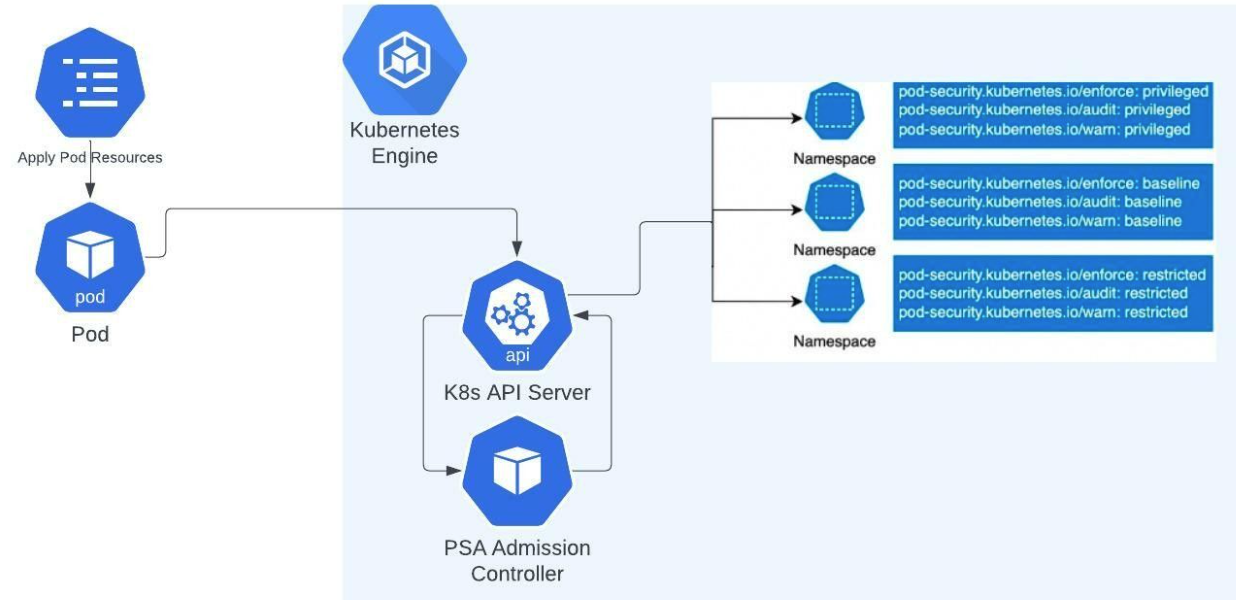
| PSS replaces deprecated Pod Security Policies to enforce restrictions on pod behavior and should be implemented with Kubernetes clusters with version 1.25 and above. |
Pod Security Standards
There are three standards or levels you can configure for pods using the pod security admission controller:
-
Privileged: An allow-by-default policy that provides the widest possible level of permissions. This policy allows known privilege escalations and is typically reserved for privileged, trusted users.
-
Baseline: A minimally restrictive policy that prevents known privilege escalations. This policy allows the minimally-specified default pod configuration and typically is used in relation to non-critical applications.
-
Restricted: A heavily restricted policy that follows current pod hardening best practices. This policy is typically used in relation to security-critical applications and lower-trust users.
For more information, refer to the Kubernetes Pod Security Standards documentation.
These policies are applied to namespaces using labels via different monitoring modes, enforce, warn, and audit. Depending on your needs, you can configure namespace labels with multiple modes, each with their own policies. For example, you can configure namespaces to warn against using restricted policies, but to only enforce baseline policies. This approach allows you to enforce minimal protections, while identifying areas you can improve before enforcing restricted standards.
Apply pod security context in CloudBees CD/RO Helm charts
Security contexts provide parameterization configured for pods at runtime. To use security context in CloudBees CD/RO, you must configure the securityContext in the CloudBees CD/RO server and agent Helm charts.
By default, securityContext.enabled=false is used in CloudBees CD/RO server and agent Helm charts must be configured.
|
To enable this setting:
-
Open your
myvalues.yamlforcloudbees-floworcloudbees-flow-agent. -
Change
securityContext.enabled=falsetosecurityContext.enabled=true. -
Configure additional project-specific settings for
securityContextas needed:For more information, refer to the Kubernetes Pod Security Standards documentation. -
The following configurations are available for CloudBees CD/RO v2023.12.0 and later Helm charts:
Pods security context configurations v2023.12.0 and later
### -------------------------------------------- ### Pods security context ### --------------------------------------------- ## Requires `securityContext.enabled=true` to apply `securityContext` settings for pod spec. ## Ref: https://kubernetes.io/docs/tasks/configure-pod-container/security-context/ securityContext: enabled: false fsGroup: 1000 runAsUser: 1000 ## Configure pod security context, which applied to pod spec. ## Ref: https://kubernetes.io/docs/reference/generated/kubernetes-api/v1.28/#podsecuritycontext-v1-core # fsGroup: 1000 # fsGroupChangePolicy: OnRootMismatch # runAsGroup: 1000 # runAsNonRoot: true # runAsUser: 1000 # seLinuxOptions: {} # seccompProfile: {} # supplementalGroups: # sysctls: ## Requires `securityContext.enabled=true` to apply `containerSecurityContext` settings for containers. containerSecurityContext: {} ## Configure container security context, which is applied to containers. ## Ref: https://kubernetes.io/docs/reference/generated/kubernetes-api/v1.28/#securitycontext-v1-core # allowPrivilegeEscalation: false # capabilities: # drop: [ "ALL" ] # privileged: false # procMount: "Default" # readOnlyRootFilesystem: true # runAsGroup: 1000 # runAsNonRoot: true # runAsUser: 1000 # seLinuxOptions: {} # seccompProfile: {} -
The following child Helm charts also support security context configurations for CloudBees CD/RO v2023.12.0 and later:
ZooKeeper
To configure a security context for ZooKeeper, navigate to the ZooKeeper section of your
myvales.yamland add the following fields:zookeeper: securityContext: enabled: true fsGroup: 1000 containerSecurityContext: {}MariaDB
To configure a security context for MariaDB, navigate to the MariaDB section of your
myvales.yamland add the following fields:mariadb: securityContext: enabled: true fsGroup: 1000 containerSecurityContext: {}Bound agents
To configure a security context for bound agents, navigate to the bound agents section of your
myvales.yamland add the following fields:boundAgent: securityContext: enabled: true fsGroup: 1000 containerSecurityContext: {}CloudBees CD/RO agents
To configure a security context for CloudBees CD/RO agents, in your agent
myvales.yaml, add the following fields:securityContext: enabled: true fsGroup: 1000 runAsUser: 1000 containerSecurityContext: {}
-
Apply policy security admission to namespaces
To add or modify Kubernetes Policy Security Admissions labels use:
kubectl label --overwrite ns <namespace-to-modify> pod-security.kubernetes.io/<mode-of-coverage>=<policy-level>
Where:
-
<namespace-to-modify>: Is the namespace you want to add or modify the label. -
<mode-of-coverage>: Is the mode you want to apply,enforce,warn, oraudit. -
<policy-level>: Is the PSS policy you want to apply,privileged,baselineorresricted.
For example, if you create a new namespace called mynamespace to enforce a baseline level and warn at restricted levels:
kubectl create namespace mynamespace kubectl label --overwrite ns mynamespace pod-security.kubernetes.io/enforce=baseline kubectl label --overwrite ns mynamespace pod-security.kubernetes.io/warn=restricted
Applying different pod security standards versions
By default, when a PSS is applied to a mode using pod-security.kubernetes.io/, the latest version of PSS is used. However, you can also specify a specific Kubernetes version of PSS to use for your mode with:
kubectl label --overwrite ns mynamespace pod-security.kubernetes.io/<mode-of-coverage>-version=<K8s-version>
Where:
-
<mode-of-coverage>: Is the mode you want to apply,enforce,warn, oraudit. -
<K8s-version>: Is the Kubernetes version of PSS to use, such asv1.25.
For example, if you create a new namespace called mynamespace to enforce a baseline level using the PSS enforce mode of Kubernetes version 1.25:
kubectl create namespace mynamespace kubectl label --overwrite ns mynamespace pod-security.kubernetes.io/enforce=baseline kubectl label --overwrite ns mynamespace pod-security.kubernetes.io/enforce-version=v1.25
Configure SMTP proxy servers for CloudBees CD/RO on Kubernetes
For CloudBees CD/RO installations on Kubernetes, you can configure an SMTP proxy server by passing its configuration as server.ecconfigure values in the cloudbees-flow Helm chart. These configurations are added to the CloudBees CD/RO wrapper.conf and applied during installation.
In the wrapper.conf, Kubernetes configurations are located in the 10000 range, and your SMTP proxy configuration must be configured in the 10000 range.
|
This is an example of an SMTP proxy configuration being passed as server.ecconfigure values in the cloudbees-flow Helm chart:
server: ecconfigure: "--wrapperJavaAdditional=10001=-Dmail.smtp.proxy.host=<your-host> \ --wrapperJavaAdditional=10002=-Dmail.smtp.proxy.password=<your-password> \ --wrapperJavaAdditional=10003=-Dmail.smtp.proxy.user=<your-user> \ --wrapperJavaAdditional=10004=-Dmail.smtp.proxy.port=<your-port>"
Mount custom configuration files
CloudBees CD/RO allows you to mount custom configuration files in the /custom-config directory of the server container. By default, Helm uses the --set-file parameter to configure these files and the chart creates a secret to store the configuration.
In enterprise environments that manage secrets externally (for example, HashiCorp Vault, Kubernetes External Secrets Operator, or Sealed Secrets), you can reference an existing secret instead of allowing the chart to create one.
Configure Helm to use an external secret
Follow these steps to create an external secret and configure Helm to use it:
-
Create a Kubernetes secret that contains the custom configuration files, using the following
kubectlcommand. Each file must be defined as a key in the Secret’s data section.kubectl create secret generic custom-passkey-config \ --from-file=passkey=./path/to/passkey \ --from-file=keystore=./path/to/keystore \ --namespace <your-namespace>Example:
apiVersion: v1 kind: Secret metadata: name: custom-passkey-config namespace: <your-namespace> type: Opaque data: passkey: <base64-encoded-passkey-content> keystore: <base64-encoded-keystore-content> -
Install or upgrade the CloudBees CD/RO chart by specifying the external secret using the following command:
helm install cloudbees-flow cloudbees/cloudbees-flow \ --set server.customConfig.existingSecret="custom-passkey-config" \ --namespace <your-namespace>or, using the values file:
server: customConfig: existingSecret: "custom-passkey-config" helm install cloudbees-flow cloudbees/cloudbees-flow -f custom-values.yaml=== Key considerations
Note the following details after configuring Helm to use the secret:
-
Automatic key mounting: All keys in the specified external secret are mounted automatically. The chart mounts each key from the secret to the
/custom-configdirectory without explicitly listing them.Example:
passkey → /custom-config/passkey keystore → /custom-config/keystore -
Secret namespace: Ensure the external secret exists in the same namespace where you deploy CloudBees CD/RO.
-
Chart behavior: When
existingSecretis specified:-
The chart does not create the
flow-server-custom-config-filesSecret. -
The chart uses the Secret name specified in
existingSecret. -
All keys from the external Secret are automatically mounted to the
/custom-configdirectory.
-
Troubleshoot custom configuration file issues
Following are some common issues observed and solutions offered to troubleshoot custom configuration files:
What to do if configuration files are not mounted?
Perform the following steps to resolve issues when configuration files do not appear in the /custom-config directory:
-
Verify if
existingSecretis correctly specified in your Helm configuration, using the following command:server: customConfig: existingSecret: "your-secret-name" -
Check if the secret contains the expected keys, using the following command:
kubectl get secret your-secret-name -n <namespace> -o jsonpath='{.data}' | jq 'keys'==== What if I get an error message,
Secret not found? Perform the following steps to resolve the error: -
Verify if the secret exists, using the following command:
kubectl get secret your-secret-name -n <namespace> -
Ensure the secret is in the same namespace as your CloudBees CD/RO deployment.
-
Check if the secret name matches exactly what you have specified in
existingSecret.