If CloudBees High Availability (HA) is not working as expected, use this page to troubleshoot.
HA developer mode
The HA feature provides a developer mode to troubleshoot HA problems in controllers running in HA mode.
To enable developer mode in a controller:
-
Select in the upper-right corner to navigate to the Manage Jenkins page.
-
Select CloudBees CI High Availability.
-
Select Configure on the left navigation pane.
-
Select Enable developer mode, and then select Save or Apply.
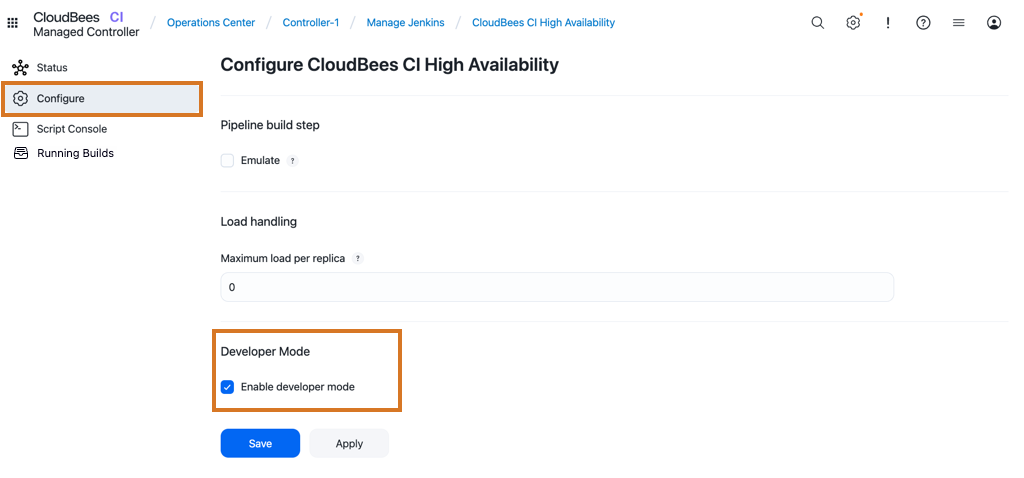 Figure 1. Enable developer mode
Developer mode is a powerful tool to troubleshoot and understand High Availability. When enabled, the controller provides additional information about the High Availability mode:
-
A button with the current replica name appears in the page footer.
-
The background color for the replica button changes from one replica to another.
-
When selected, the replica button on the footer redirects to the CloudBees CI High Availability screen.
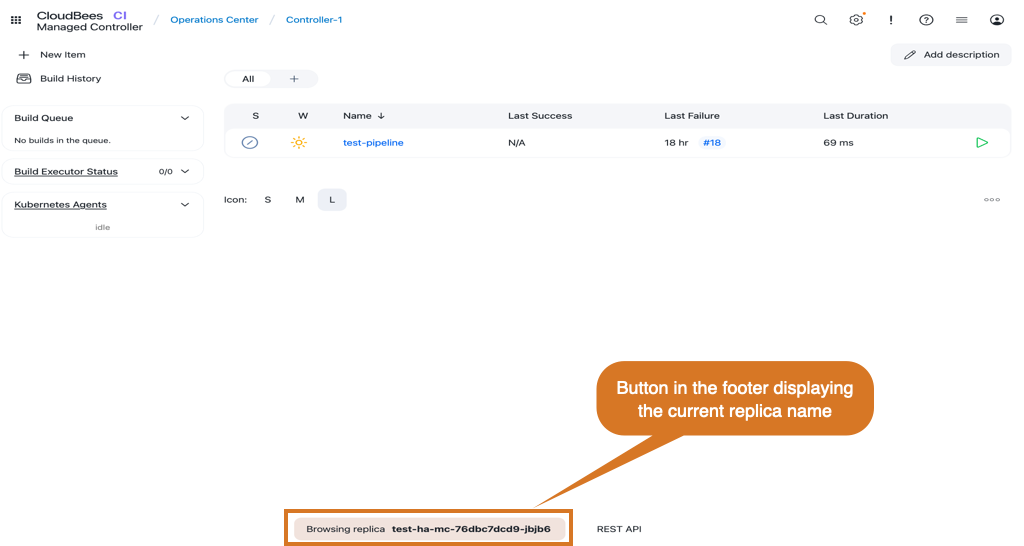 Figure 2. Footer in developer mode
-
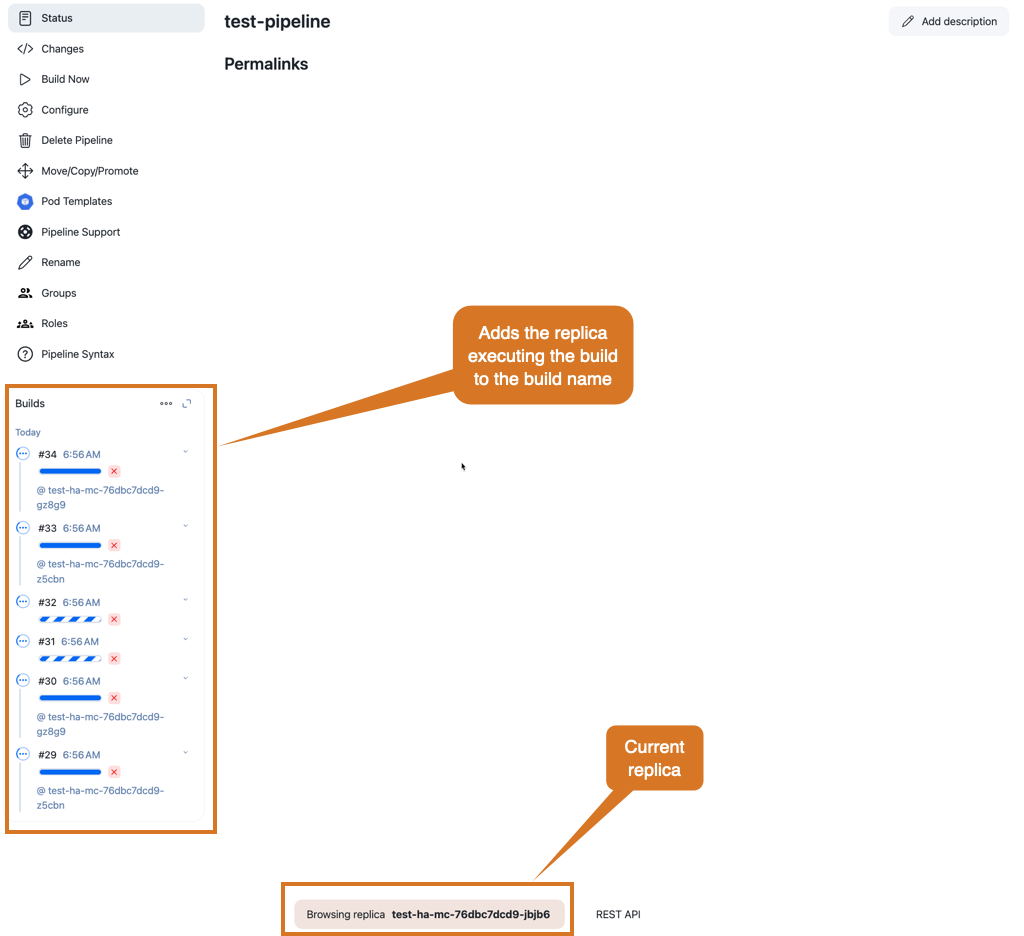
The consolidated queue widget displays the queue items in all the replicas.
-
In developer mode, CloudBees CI adds the replica name to those items queued in other replicas.
-
Names for items queued in the current replica remain the same.
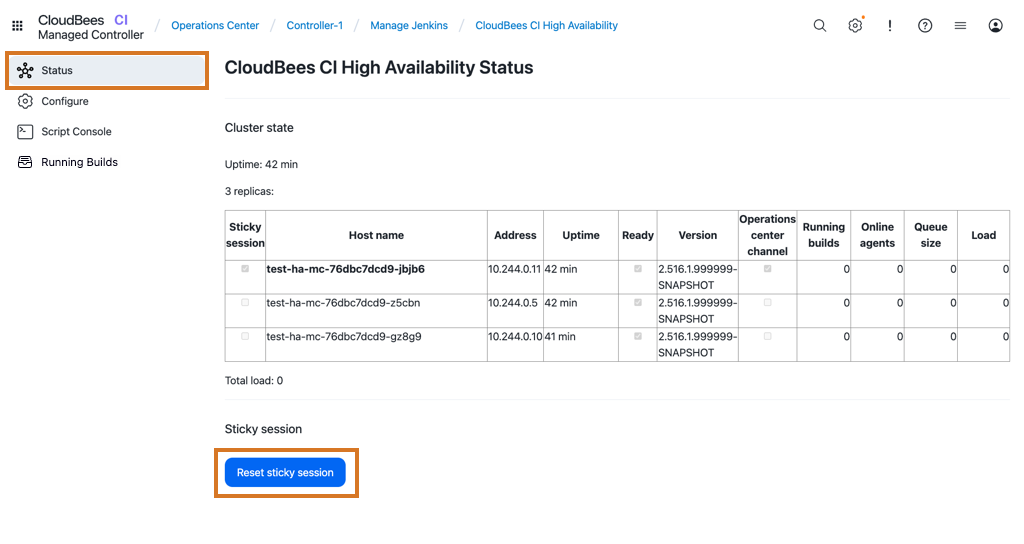
From the CloudBees CI High Availability screen, additional to enabling developer mode, you can also change the replica you are using. To switch the session to a different replica:
-
Navigate to the CloudBees CI High Availability screen.
-
Select Status on the left navigation pane.
-
Select Reset sticky session.
|
When the Reset sticky session is selected, CloudBees CI randomly assigns a new replica. If there is no change, and you are assigned to the same replica, you can reload the page and try again until a new replica is assigned. The Reset sticky session button only displays if your Gateway API controller supports cookie-based session affinity. However, you may be assigned to a different replicas if, while using your browser developer tools, you remove CloudBees CI cookies and sign in again. |
High Availability (HA) Script Console
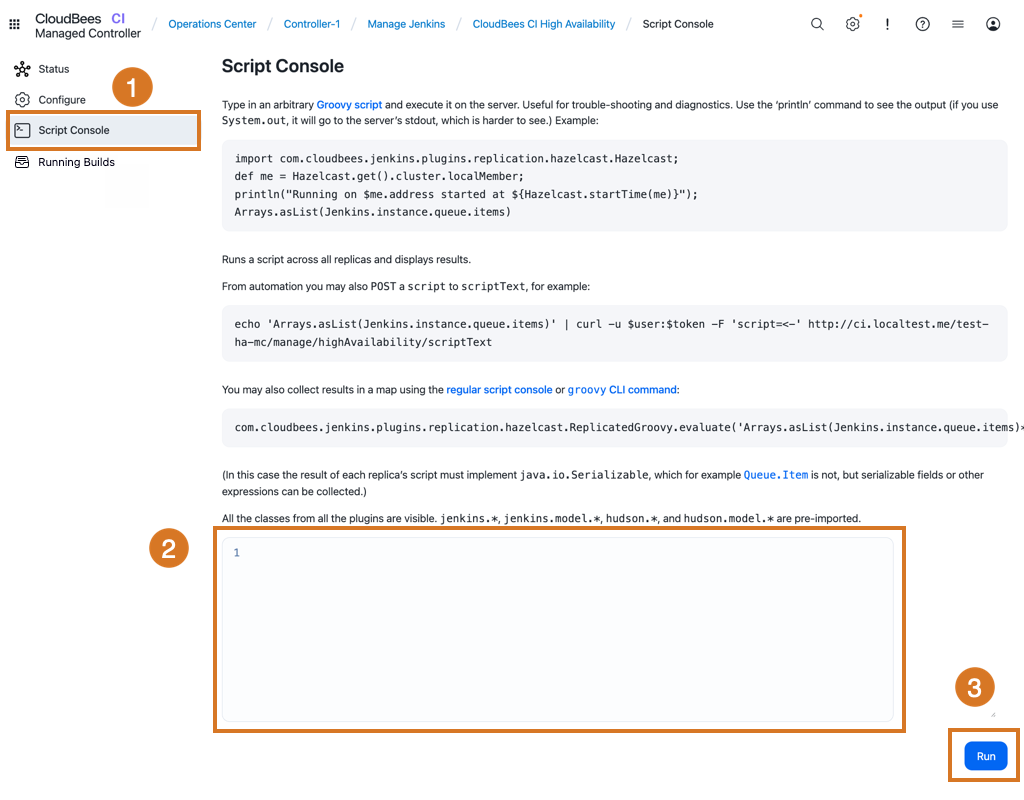
The CloudBees CI High Availability screen provides a High Availability Script Console. This console allows CloudBees CI users to run scripts across all the current controller replicas and displays the results. To access the HA Script Console, select Script Console on the left.
-
Select Script Console to access the HA Script Console.
-
Type your scripts in the scripts area.
-
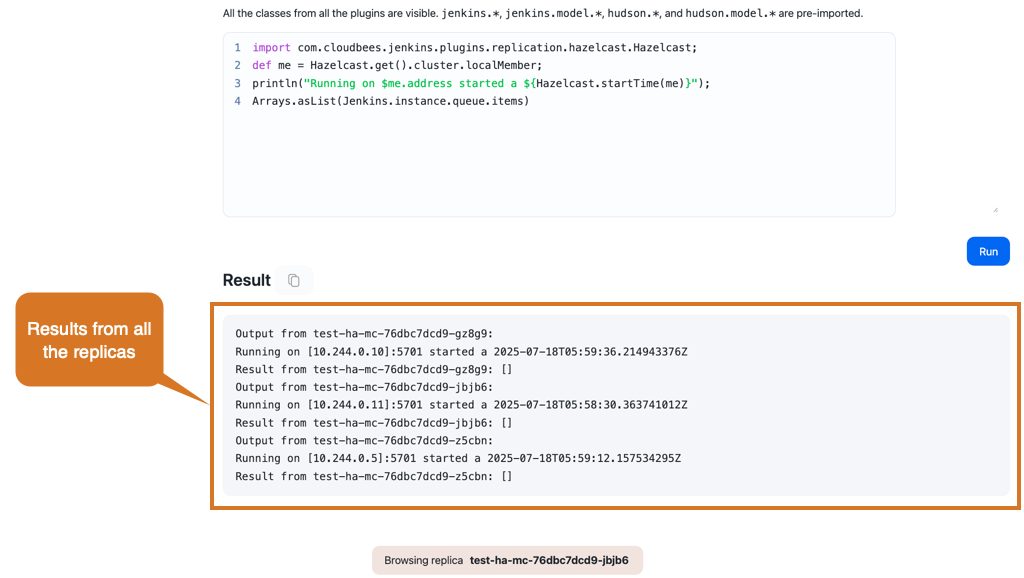
Run your HA scripts. When selected, the script will be executed in all the controller replicas.
View running builds in HA controllers
In HA mode, you can view all running builds across controller replicas to help monitor build activity and diagnose issues more efficiently.
To view all running builds in an HA controller:
-
Select in the upper-right corner to navigate to the Manage Jenkins page.
-
Select CloudBees CI High Availability.
-
Select Running builds in the left navigation pane.
All currently running builds are displayed across all controller replicas, including the build name, build number, duration, and the replica handling each build. You can optionally:
-
Select to abort a build.
-
Select the build name to view the build status.
-
Select to view the Console Output page for the build.
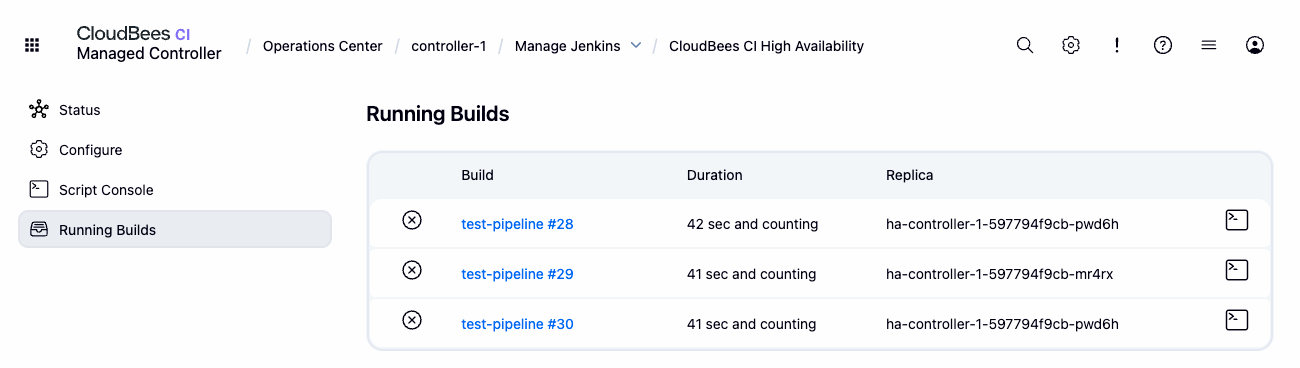 Figure 7. View running builds in HA controllers
-
Include HA information in your support bundle
The CloudBees Support plugin allows you to generate a support bundle that contains commonly requested diagnostic information used by CloudBees to resolve support issues.
This plugin is installed by default with CloudBees CI. For more information about how to generate support bundles and the information collected by CloudBees from support bundles, refer to Generate a support bundle.
To include specific High Availability (HA) information in a controller support bundle:
-
From the root of you controller, select Support on the left navigation pane.
-
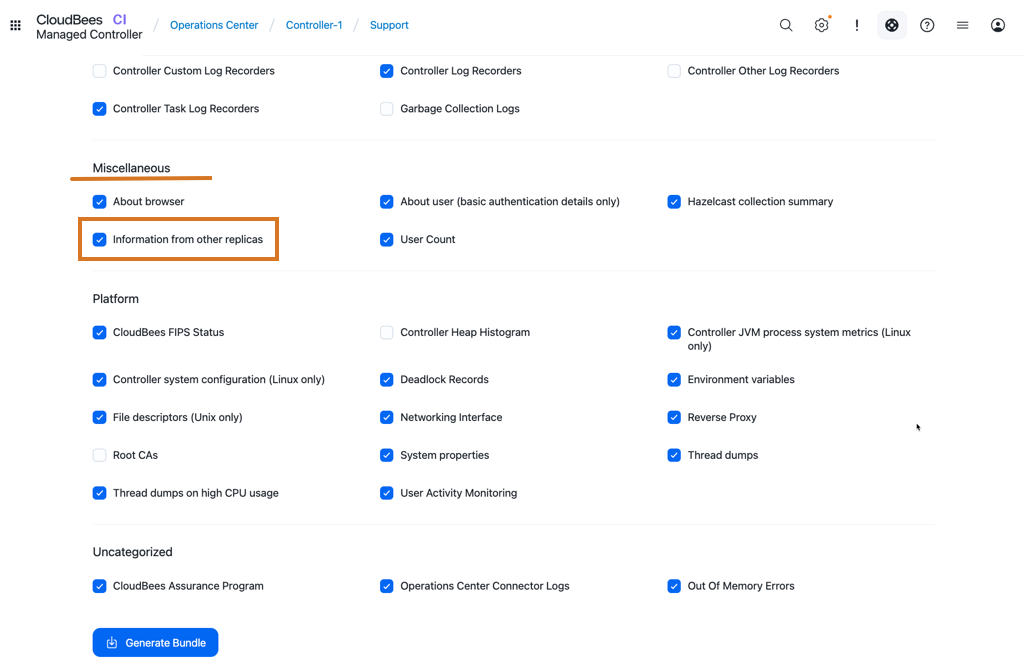
Select the Information from other replicas option in the CloudBees Support screen. When this option is selected, the generated support bundle contains the HA information in the
replicas/directory. Thereplicas/directory will include the following subdirectories:-
The
live/directory contains a subdirectory with data for each current replica. -
The
exited/directory contains a subdirectory with data for each replica previously used and replaced. For example, replicas that were replaced during rolling restarts or rolling upgrades.
-
-
Select Generate Bundle to generate and download the support bundle with the HA information.
| This option is only available for controllers that run in HA mode. |